

How To Turn Off Autoplay Videos On Facebook, YouTube, Netflix, Bluesky, And More
If you hate autoplay videos, you are far, far from alone. Surveys over the years have discovered that as much as 90% of people find them to be annoying, particularly when they're ads. And why wouldn't they? It's a video you didn't want to play that consumes your precious data, and possibly gives you a jump scare when it takes over the volume. Ironically, as soon as YouTube unveiled the autoplay feature in 2015, we immediately showed you how to turn it off. Sadly, that trend hasn't changed. The tech industry that has gotten used to doing the absolute opposite of what consumers want, and one of those things is automatically autoplaying videos everywhere on the internet. We'll show you how to turn the setting off on most major social media websites and streaming services.
Some websites make it difficult or impossible to turn off autoplay. In those situations, your browser — like Firefox and Vivaldi — may be able to automatically block autoplaying media. When websites ignore this setting, you may be to go to even greater extremes and use a browser extension. These are some ways to tame websites that go against your wishes. But in many cases, you can just disable autoplay on desktop and mobile when the website allows it.
YouTube
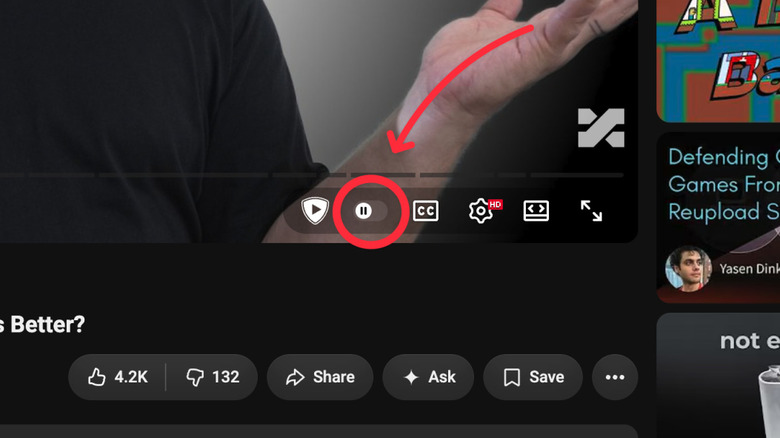
YouTube's autoplay is enabled by default unless you're under the age of 18. However, YouTube does make it very easy to turn off. When watching from a browser on your computer, simply flip the Autoplay switch (it looks like a Play icon with a toggle) to off while watching any video. You can do the same on Android and iOS, or you can go to Settings > Autoplay and disable it from there. It works similarly for the YouTube app on a smart TV, and if you are casting from an Android device to another screen. We wish it was this easy to remove YouTube Shorts from your homepage.
Fortunately (or not, that depends on you) the autoplay setting is distinct on each device. So if you switch it off in your browser, it will remain on for your mobile phone. Also, autoplay disables itself after 30 minutes of inactivity when you're using mobile data, or four hours on Wi-Fi. Based on personal experience, YouTube is one website that seems to respect browser autoplay settings (i.e. blocking autoplay in the per-site permissions next to the URL).
TikTok
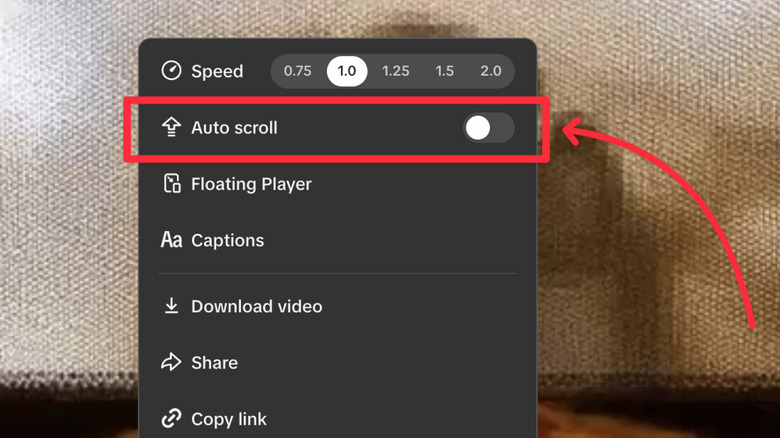
TikTok can feel to some like a sci-fi author's dystopian warning brought to life, a stream of curated content that you can watch for hours and never finish. If that aspect doesn't disturb you, then maybe how much data it uses will. While TikTok does not have an autoplay feature as such, it does have what is known as "auto scroll," i.e. the app scrolls to the next video for you. Regular users are likely well familiar with this one. We don't know how to turn off your own subconscious scrolling, but you can at least turn off auto scroll.
Make sure you're on your For You page. While there and playing a video, tap and hold down. Look for the "Auto scroll" setting, if available; TikTok may not yet have given you the option on your account. This should work whether you're on Android or iOS. You can also do this from a browser if you're watching on the computer, as pictured above, by right-clicking on a video to bring up the context menu.
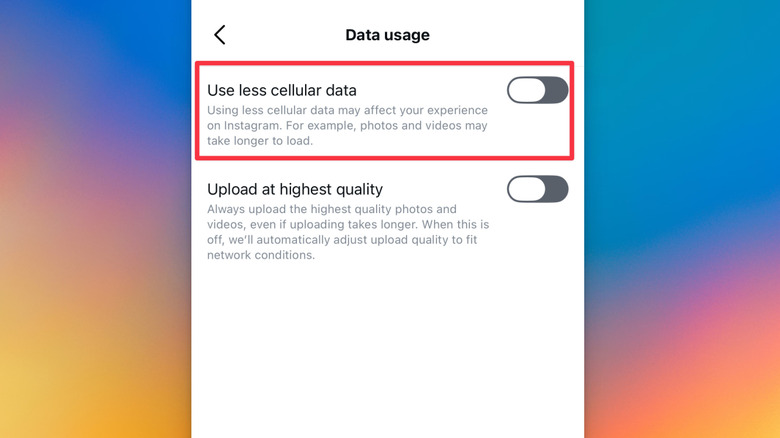
On Instagram, there is no auto-scroll for Reels (yet, we don't want to give Meta ideas), so you control how many videos you watch with your own thumb. There's also no autoplay as we've defined it; Videos on your feed just play with the sound muted until you tap them. However, there is a poor man's way of "disabling" Instagram autoplay if you'd like: data saver. This stops Instagram from preloading videos, which is in effect a way of stopping them from autoplaying in the first place, though it only works strictly on a cellular connection. If you're connected to Wi-Fi, videos will load normally.
The setting is in roughly the same place on both Android and iPhone. From your profile page on Android, open the three-line hamburger menu and head down to "Data usage and media quality." Look for the "Data Saver" toggle. From the same place on iOS, look for the "Media quality" section and then the toggle for "Use less cellular data."
We could not find any autoplay-like settings on a browser from a computer, even though Meta offers this for Facebook. But then again, who's using Instagram in a browser? Better yet, just stop using Instagram entirely and you won't have to worry about autoplaying videos anyway.
Twitch
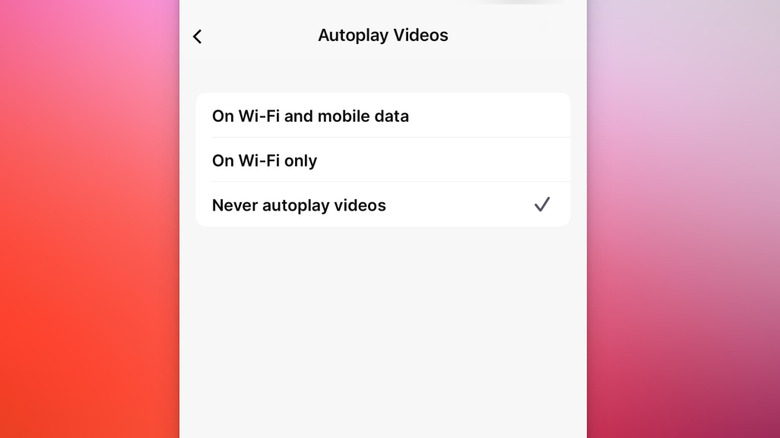
For live streaming, perhaps nothing is better than Twitch. Twitch is so universal it even lets you start a live stream from your Xbox. Since live streams can last for literally hours and hours, that's a ton of data out the window, so disabling autoplay is a must.
On mobile, go to your profile, open the Settings gear, find "Preferences," then under the "Video Autoplaying" section (called "Autoplay Videos" on iOS), change it to "Never/Never autoplay videos." Both platforms also give the option to mute your feed by default in the same section. Further, you can disable audio from playing in the background on Android.
Since many people — perhaps most people — watch Twitch live streams on PC, Autoplay would be an ideal setting to have there too. Unfortunately, we could find no such option when using Twitch via a browser. Having said that, Twitch does appear to respect the autoplay permissions in our browser during testing, at least when freshly loaded in.
X/Twitter
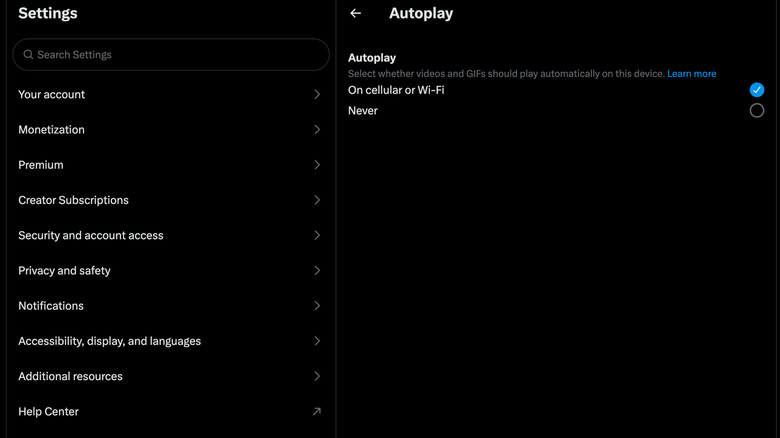
Still using X in the wake of Elon Musk's hand at the helm? On the bright side, it seems like the many, many things that were broken when the website changed ownership now work again, even if the platform itself remains a raging dumpster fire. Luckily, Musk did not do away with autoplay settings. If you're using X in the browser, click More > Settings and privacy > Accessibility, display and languages > Data usage > Video autoplay. Similar to Twitch, you can disable autoplay when on cellular data or turn it off entirely.
On iOS and Android, the option is effectively in the same place. Head to Settings and privacy > Accessibility, display, and languages > Data usage > Video autoplay. The same options are available to you. Now, videos won't play unless you click on them.
While you're there, we'd recommend going through the settings and changing a few other things. For example, making your account private so you can control who sees your tweets. That might sound drastic, but plenty of users went the extra step and got rid of X altogether, often flying to Bluesky, following the 2024 terms of service change that gave third parties expansive access to user data.
Bluesky
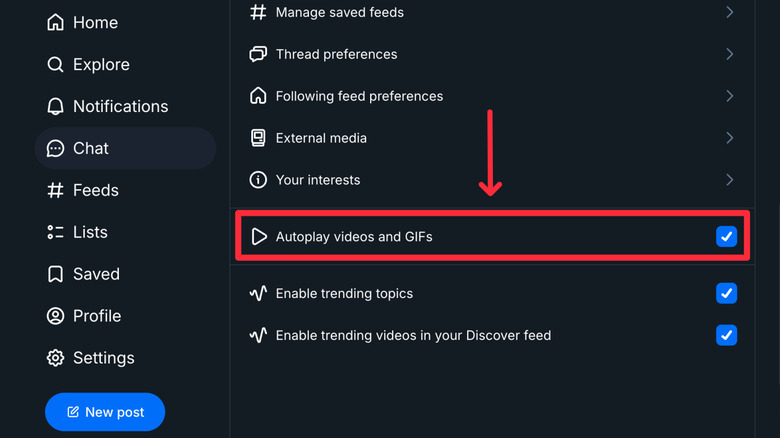
Bluesky is basically X, but better in virtually every way. We recommend switching to it if you really like the X style of microblogging social media. Similar to X, it autoplays videos in your feed, but these can be disabled here too, on all platforms.
If you're in a desktop browser, open Settings > Content and media, and simply uncheck the "Autoplay videos and GIFs" box. For both Android and iOS, open the hamburger menu and enter Settings. Same as on desktop, open Content and media, but this time, toggle off the "Autoplay videos and GIFs" switch. Unfortunately, it appears that Bluesky does not yet have limited data or low data settings modes. But hey, it beats Meta's Threads (another X clone), which in typical Meta spirit doesn't have any such settings.
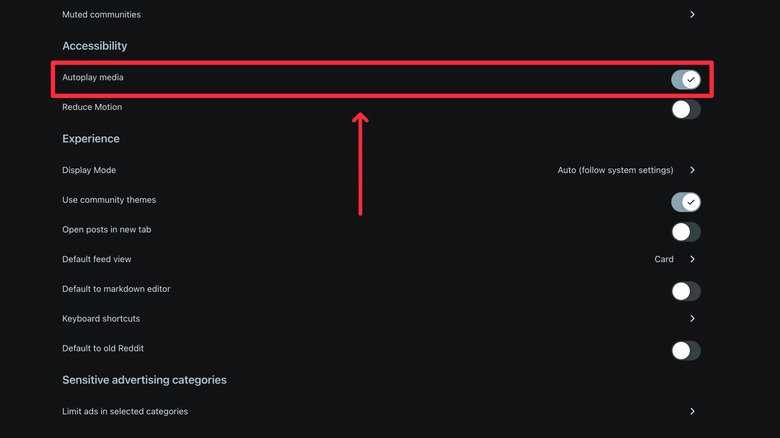
Although Reddit is a text-first social media site, it has gradually transitioned over the years to showing a lot more video in-app rather than linking outside to a YouTube video. So what was once a fairly low-data experience has bloated to be something more akin to X, even if you still use it text-first. Luckily, you can curb this to an extent.
We'll start with desktop since that's the classic Reddit experience. Click on your profile to show the dropdown menu, then go to Settings > Preferences, and scroll down to the Accessibility section. Disable the Autoplay Media switch; Reddit notes here that this works for videos and GIFs.
It's roughly the same order of operations on mobile devices. Open up your profile, then navigate into Settings from the hamburger menu. Find Media and animations, and then in the Accessibility settings, you can turn off Autoplay Video Previews; there's a separate toggle if you only want to stop GIFs from playing, labeled "Autoplay Animated Images."
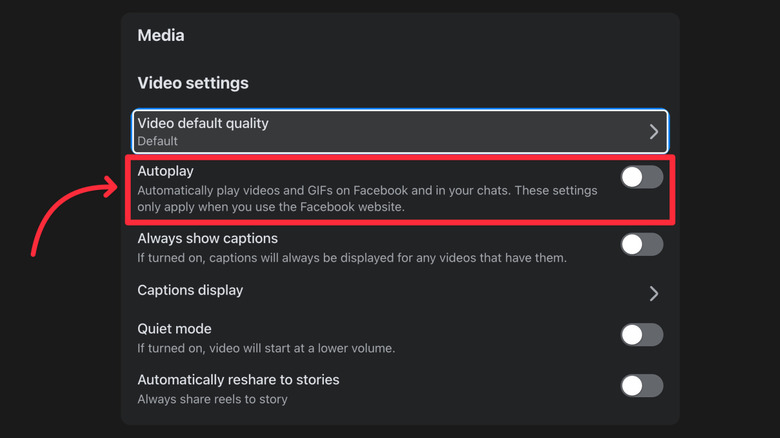
At first glance, it seems odd that Facebook has remained relevant in this day and age of TikTok and Instagram, especially when less than half of its user base is under the age of 34. Believe it or not, though, it has more users than any other social media site, or at least it did in 2025. One could argue it pioneered the endless algorithmic social media feed of posts, links, and videos. Fortunately, Facebook gives you more control than any other Meta platform.
If you're using Facebook on desktop, open the dropdown from your profile pic, then head to Settings & privacy > Settings > Preferences > Media. Turn off the "Autoplay" toggle. On mobile, the process is identical. On Android and iOS, open the hamburger menu, then Settings & privacy > Preferences > Media > Autoplay, and choose either "Never Autoplay Videos" or "On Wi-Fi Only."
While you're there, definitely change some Facebook privacy settings. Anecdotally speaking, I find that Facebook opts you in to a whole bunch of settings you never agreed, to regularly and quietly. It's worth popping in from time to time to make sure nothing new has slipped under your nose.
Netflix
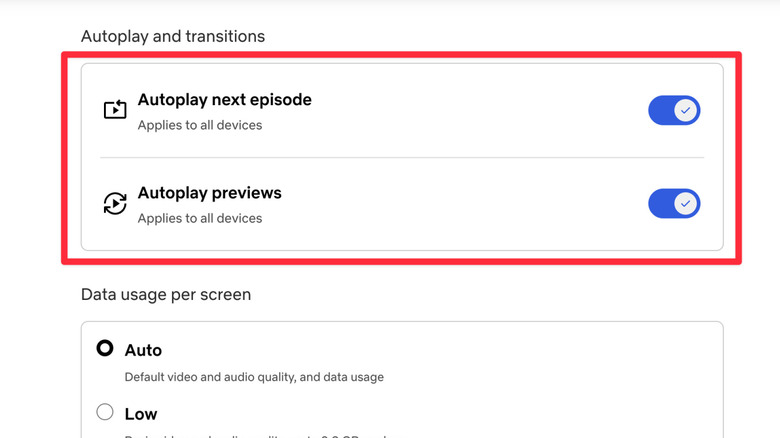
Despite all the price increases and ad-tier shenanigans, we still rank Netflix at the top among streaming services. But one of the most annoying things Netflix likes to do is autoplay a preview for a show you might be casually checking out. We'd wager there are very few people who want this setting on, since you probably only want a preview of a show or movie after you've clicked on the card to get more info. Thankfully, you can disable preview on all platforms.
After logging in, navigate to the "My Netflix" section, tap on your intended profile name and then on "Manage Profiles," and switch off the "Autoplay Previews" option. If you're on iOS, you'll need to confirm with the "Done" button. If you're watching Netflix from your computer, open your Account page > Profiles > Playback settings, and disable the same "Autoplay previews" switch.
Further, you can stop Netflix from automatically playing the next episode. Another feature that's on by default, and can be annoying if you're not there to binge the whole season. You can do this from the option menu described before, both on mobile and desktop.
HBO Max
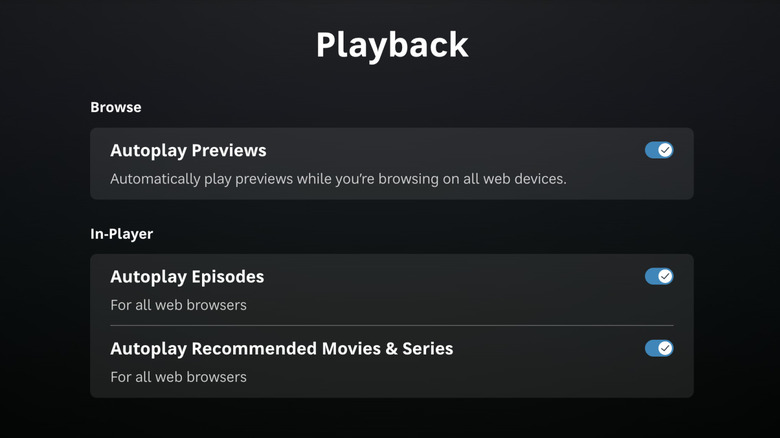
HBO used to be an antithesis to Netflix, a service focused on high-quality, high-budget shows over the "throw spaghetti at the wall and see what sticks" approach. That may be about to change with the recent Netflix acquisition of HBO. Here's hoping that doesn't ruin the content. But anyway, here's how you turn off the autoplay settings on HBO Max.
On mobile devices, tap your profile picture, then App Settings, then disable "Autoplay Previews" and/or the "Autoplay Next Episode" toggle. On a desktop, click on your profile picture, then Settings > Playback, and you can disable the same options. Fortunately, you do have a lengthy 15-second countdown when this setting is on, giving you time to reject it if you're not in a binging mood.
HBO Max also has a very annoying feature where it automatically plays a recommended movie or series, which you might have shown zero interest in, once you've finished your current watch. Frustratingly, this is enabled by default. You can turn this off from the same section under "Autoplay Recommended Movies & Series."
Disney+
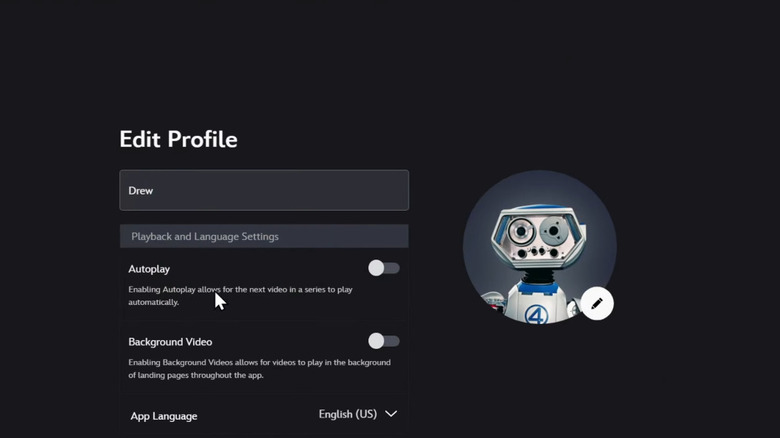
If you want a lot more kid-oriented content, old Disney movies from the golden era, or anything from the Star Wars or Marvel Universe, Disney+ is a must. Disney+ makes it relatively easy to tweak its autoplay settings. If you're on desktop, hover your mouse over the account icon, then Edit Profiles. Click on the profile you want the settings to affect. Underneath the profile name, you'll see the options to disable autoplaying the next episode in a series. Additionally, you can also disable background video playing when looking at a movie or series' landing page.
The process is almost identical on mobile apps. For iOS and Android, open up your profile icon, then Edit Profiles. Choose a profile. Unlike desktop, there's only an autoplay option, though it will apply universally on all platforms. And thank goodness, because autoplaying through the entire Marvel universe would mean your TV would keep playing until the heat death of the universe.
Apple TV+
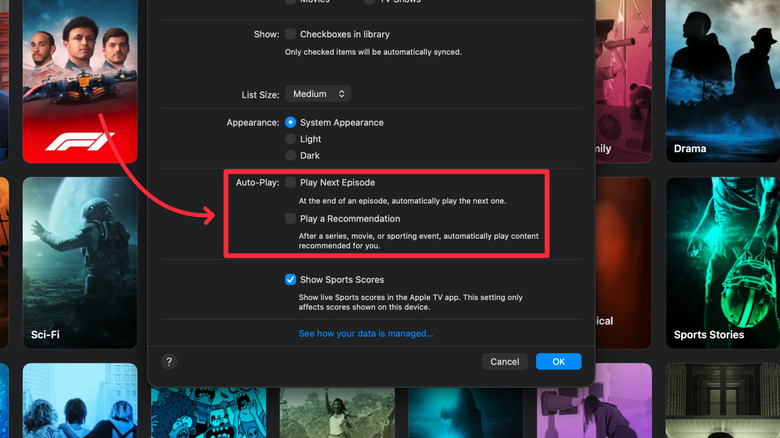
Apple TV+ is hard to recommend, especially with the prices continually creeping up toward its competitors. Having said that, we can't deny that it's a very polished package with great apps if you're in the Apple ecosystem, and it gets even better when you have an Apple TV, one of the best streaming devices on the market despite its age. Surprisingly, despite being a company famous for not letting users customize much, Apple has comprehensive autoplay settings we wish were more common.
If you're watching from your Apple TV streaming box (or another device that supports Apple TV+), go to your sidebar, then Settings. From there you have three options you can adjust:
- Play the next episode automatically
- Play recommended content automatically after watching a series, movie, or sporting event
- Turn the sound on or off for videos that autoplay
Option three especially is useful since it lets you keep the previews on without having to be blasted by the sound.
The first two options are available on macOS and iOS as well. On macOS, open the Settings and under the general tab navigate down to the autoplay section. You can control the first two options mentioned above. On iOS, tap your profile on the top right, then Playback, and you can change the same two settings.
Hulu
Hulu is definitely a bit lesser known and lower on the totem pole of streaming services, but it still has some bangers. One of the best shows in recent memory, "Shogun," is a Hulu exclusive. Unfortunately, Hulu is becoming a part of Disney+ by 2026. That said, it's still a distinct service that has its own separate apps, at least for now. Here's how you can change its autoplay settings.
If you're playing Hulu from the web, go to settings and simply turn off autoplay. On mobile devices, it's only one extra step: tap Account, then Settings, and the autoplay toggle is in the same place. Streaming boxes can also go to Settings, then autoplay. Done and done.
Prime Video
Amazon's Prime Video is one of the strangest streaming services out there since it comes bundled with a Prime membership, but also makes you pay extra for a lot of what it has on offer while including a bunch of ads (which you can block in a number of ways). And it also gives you free AAA video games with cloud gaming, apparently. It's starting to have a lot of hit exclusive content, like "Project Hail Mary," and you can probably cop Prime content for free from a relative if you don't have Prime. Here's how you can disable autoplay in the browser and in apps.
If you're viewing from a desktop browser, click on your profile icon, then Account & Settings. Find the Player tab at the top. You have two options: "Autoplay," which just starts the next episode after finishing the current one, and "Autoplay video and live events," which is like Netflix's Autoplay Previews where you can get a quick glance at an item as you're browsing. If you leave the first option on, Amazon (like HBO) may play another unrelated series (called "Next Up") when you've finished a movie or every episode of a series.
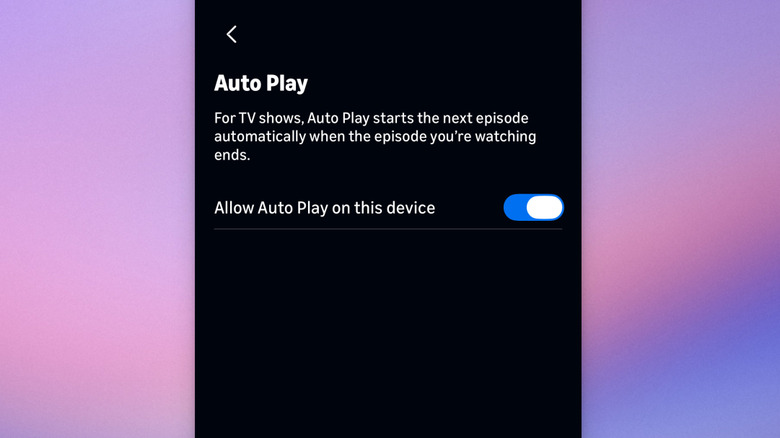
On mobile, tap your profile icon, then the settings gear icon. Under the first section, tap Auto Play and toggle it on or off — for the current device you're using, only. The former steps work for both iOS and Android.