

15 Things Apple's Notes App Can Do That You Might Not Know About

One of the best apps on the iPhone that isn't on Android or Windows is Apple Notes. When Apple locks you in its walled garden, Notes is the consolation prize that makes you forget that you're imprisoned. It's clean, minimal, easy to use, well integrated into iOS, iPadOS, and macOS, and importantly, it's free to use offline and free to sync — assuming you stay under iCloud's 5GB free limit. Notes shares its DNA with a lot of Apple software, where some of its best features are the ones you accidentally stumble upon.
Here's our list of Apple Notes features that may have slipped under your radar. We'll focus on Apple Notes for iPhone, though most of these features work on iPadOS, macOS, and in some cases, WatchOS. Some of these features do, unfortunately, require having an Apple Intelligence-compatible device. Hopefully, at least a couple are news to you and help make your Apple Notes workflow that much better.
Lock notes
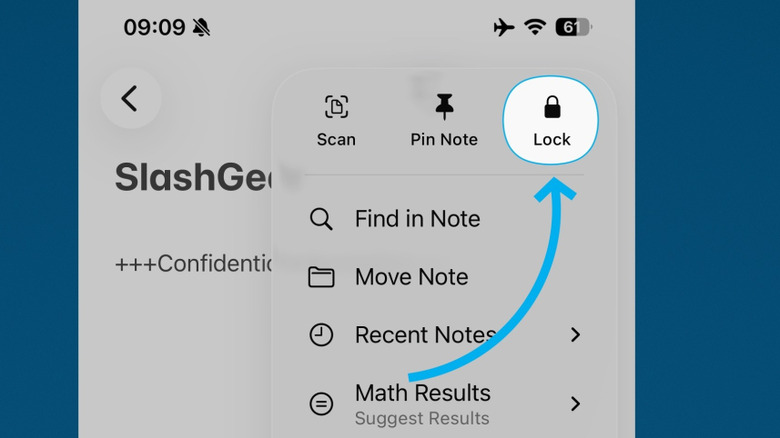
Note locking uses end-to-end encryption so that only Face ID or your passcode can unlock a note. This effectively makes a note inaccessible to anyone — including Apple and hackers — but you. Once you lock a note on one device, it locks on all devices signed in with that same Apple account.
Locking notes on the iPhone is dead simple. Either hold down on the note to bring up the context menu, or open the note and hit the three-dot options button. Choose the Lock option. You can lock a note when finished, or let it self-lock automatically when the device goes to sleep or after a few minutes of inactivity. Note, you don't need to use the password/passcode from the original device to unlock the note on other devices; it works with the local passcode or biometrics.
If you'd rather not use your passcode to lock a note, you can instead set a unique notes-only password. Apple makes it abundantly clear that a note-specific password cannot be reset if you forget it, so remember it well. Consider setting a password hint to help.
Access notes on the web
One of the biggest shortcomings of the Apple Notes app is that it's exclusive to Apple devices — unless you use the web version, which provides a proper means of accessing your notes on Windows and Android. This will require syncing your notes with iCloud and will not include notes from other accounts like Google.
First, you'll need to allow web access to your iCloud data. On iPhone, head to Settings > Apple Account > iCloud, then scroll to the bottom and toggle on the "Access iCloud Data on the Web" option. While you're there, we'd also recommend turning on Advanced Data Protection for iCloud to better secure that information. This was a major security feature Apple revealed back in 2022 that protects most of your iCloud data under stronger end-to-end encryption.
The biggest downside of web notes is the tedium of logging into your Apple account and then granting temporary access to your notes. Having to do this even to make a small edit to one note makes it less than ideal. Regardless, it's a sizable crack in the wall of the walled garden.
Import and export in Markdown
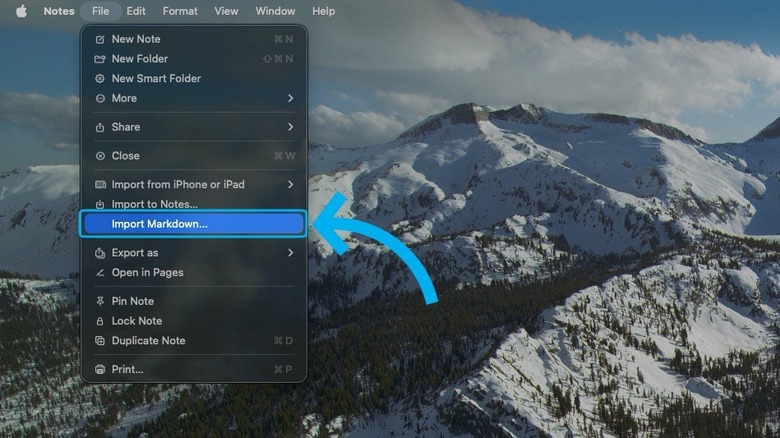
Markdown makes your documents formatting agnostic, so they can be exported virtually anywhere else and look good there, without all that ugly, tacked-on RTF formatting. Don't assume it's just a niche, nerdy thing, even Google Docs supports Markdown. If you want to see an example of what we're talking about, visit jotbird.com/app and try it out. For example, adding a "#" creates an H1 heading, and surrounding a word with "*" puts it in italics. Apple Notes supports importing and exporting Markdown.
To import Markdown on the iPhone, you'll need to grab a Markdown file from somewhere, like your Files app or a Markdown editor like Bear or Ulysses. Use the Share menu to import it to Notes. This is a bit easier on iPad and macOS, since you can just go to "File" in the menu bar and select "Import to Notes." Exporting also uses the Share menu. Look for the "Export as Markdown" option near the bottom.
Unfortunately, Apple Notes does not yet support rendering or previewing Markdown automatically within Notes. You can write in Markdown, but you'll have to live with a code-like look for your text. Here's hoping future iOS updates make that a possibility.
See all attachments in one place
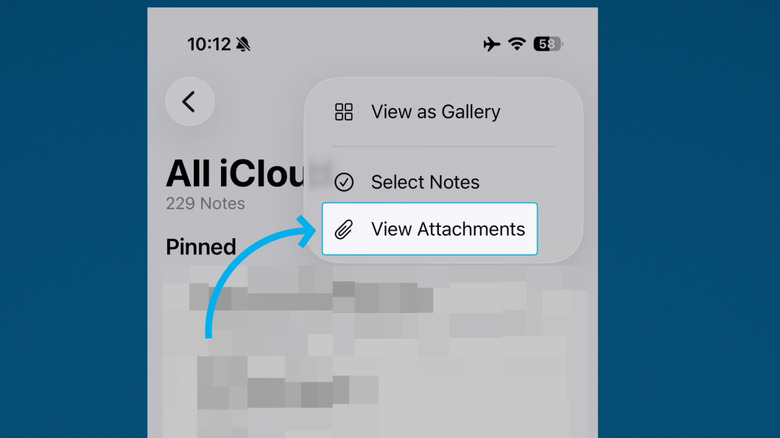
Apple Notes has pretty amazing support for attachments. You can add pictures and videos like most apps, sure, but Apple also supports PDF files, webpage previews, map locations, and a whole bunch more. Great news, until your notes library gets bloated with dozens of attachments scattered across hundreds of notes. You can quickly lose track of important attachments, even when it's all orderly and well kept. Fortunately, Apple Notes can show all your attachments, across all your notes, in one place.
Make sure you're in the main "All iCloud" section on your iPhone, then tap the three-dot options button in the top right. Select "View Attachments." You can sort through attachments of all different kinds, whether photos, PDFs, or other file types. The feature works the same on macOS; just go to the three-dot menu. Unfortunately, it appears that the webpage section only includes web pages that you added as previews, not links that you copied into your notes.
Record and transcribe audio
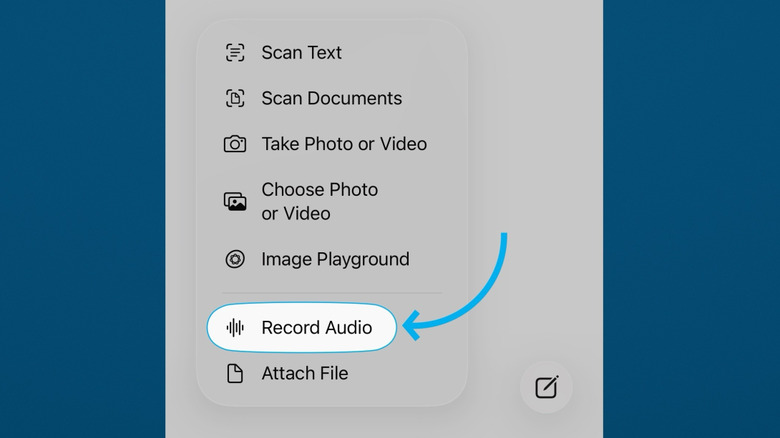
Apple Notes supports recording audio right in the app and automatically transcribes it, so you don't have to re-listen to remember what you said. Luckily, the transcription feature is not limited to Apple Intelligence-supported phones; it works on the iPhone 12 and later.
At the bottom of your screen, tap the Attachment button, then tap "Record Audio." You'll get a very similar interface to the Voice Memos app, with options to pause recordings, scrub the audio, and save it to Files instead. You can have multiple recordings in one note, and each one will include its own transcript beneath it.
I've used this transcription feature for longer voice notes, and it's good enough for simple, short recordings where you're not using complex or esoteric vocabulary, but it's far from the most accurate transcription available. Word accuracy and punctuation can be hit or miss and are affected by how cleanly you dictate. Instead, I'd recommend using something like MacWhisper on macOS, a free app that more effortlessly and accurately transcribes audio. It won a spot on my list of the best macOS apps that improve your Apple experience.
Scan documents
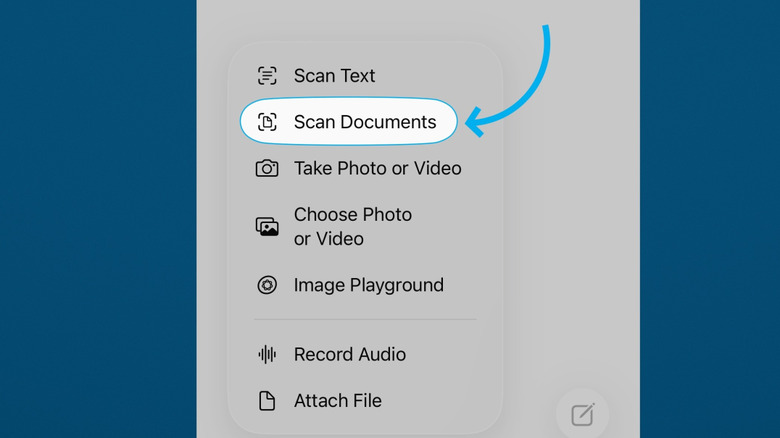
Apple Notes bakes in a brilliant document scanner that intelligently recognizes full document pages, then scans them as single sheets. Find it by tapping Attachment, then Scan Documents. By default, it works in Auto mode — scanning document pages as soon as it recognizes them — making it ideal for digitizing documents rapid-fire as you flip pages. Later, you can use Markup to underline, circle things, and sign important documents with your iPhone.
If you don't want the content and formatting of the original document, you can instead use Live Text. Just above Scan Documents in the Attachment context menu, choose "Scan Text." Now point your camera at any text, anywhere, and wait for the OCR to recognize letters. It works quite well for inserting single sentences and paragraphs and seems accurate enough. Keep in mind, you could also just take a picture of a document and copy the text you want later, directly from the photo. Also note that the Files app on your iPhone has a built-in document scanner.
Do an advanced notes search
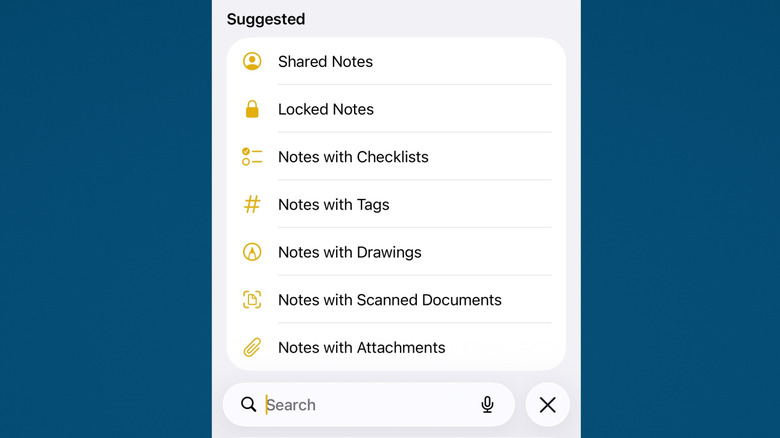
Similar to Photos, the search function in Notes is more powerful than you may realize. Any text, in any note — including text that's been handwritten by an Apple Pencil or is part of a scanned document — is searchable. Basic object recognition is included as well, so you can find pictures by searching terms like "dogs," "flowers," or "buildings." The only thing you can't search is the internal contents of a locked note.
It appears that the same natural language search capabilities found in Apple Photos exist here, too, but don't expect to search for notes based on a general idea or theme. "Notes about that work meeting from last week," for example, may not return any hits. Based on my own testing, you're better off searching for specific terms — or for whether a note contains a specific type of attachment, like a drawing. Searching works within notes as well, which is particularly helpful if you're trying to find something but aren't sure of the exact phrasing.
Organize by smart folders or hashtags
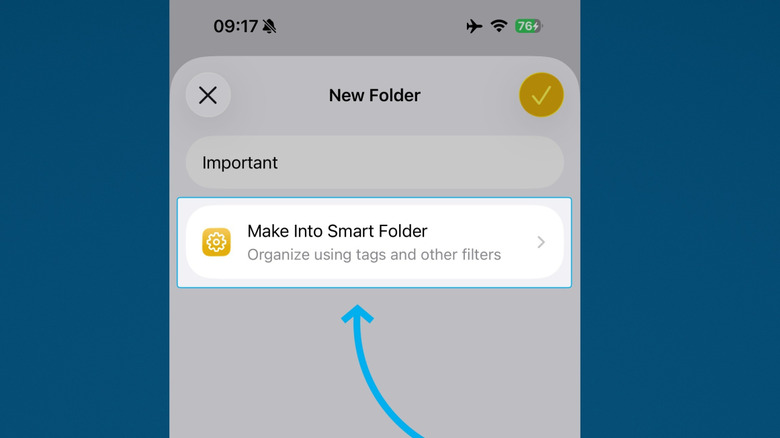
Some notes apps, like Bear, employ a take-notes-first, organize-later methodology. They use hashtags to organize notes (after the fact) by category. Apple Notes can do this too. Drop a tag anywhere and later you can filter your notes by tag. So for example, you could add "#important" on all your important notes and then view them together in an "Important" notes section. Apple Notes supports filtering by multiple tags at once, if needed. If you don't like the name of a specific tag, but you've already used it across dozens of notes, you can rename it later — or remove it, if necessary.
Notes can also be automatically sorted into special folders when they meet certain conditions. In this case, a specific tag. Either create a new folder and enable the Smart Folder option, or convert an existing folder into one. Notably, Smart Folders can also collect notes containing other specific items; for example, any time you share a note or @ mention a person, it can be added to a Smart Folder automatically.
Export a note as a PDF file
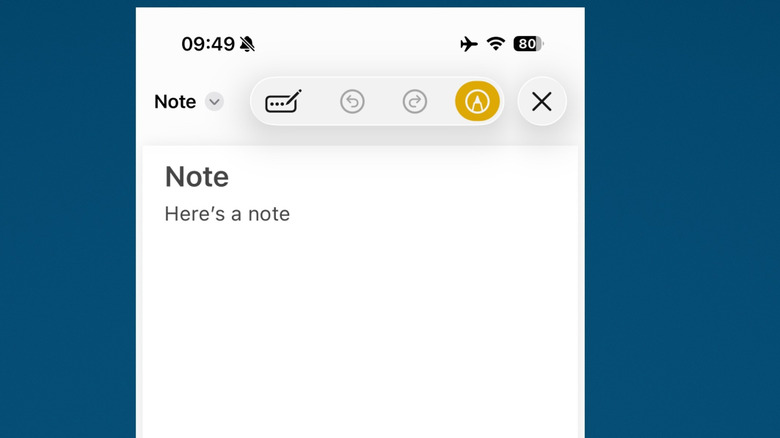
There are countless ways to create and annotate PDFs for free on your phone, but why download another app when Apple Notes can already do it for you? Make use of the iPhone's excellent Share menu. Tap the Share button at the top of the note you want to turn into a PDF, tap more, and then look for the Markup option below. The Markup window is basically a copy of the Preview app, allowing you to add text and stickers, include your signature, magnify areas with a loupe, and more. Switching from Markup to Form Filling mode lets you fill in blanks before exporting the PDF, so it's ready to go right away.
Once everything looks good, hit that Done button and your PDF is ready to be saved to Files. Or press the X button to delete the PDF. Unfortunately, it appears that there's no way on iPhone to directly save notes as other file types, like TXT, so you'd have to export it to an app like Pages first.
Pin all your important notes
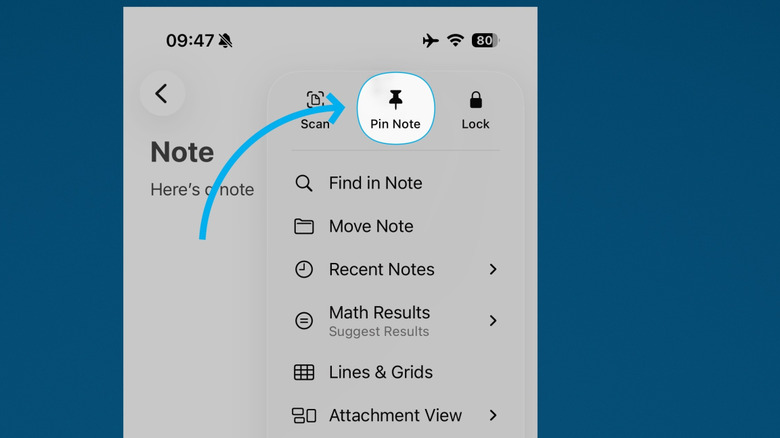
We've discussed various ways you can organize your notes so things stay in the right place, but what about those notes that you find yourself working on most? Apple Notes supports note pinning. A pinned note remains at the top of your notes list — provided you're in the relevant folder or the "All iCloud" folder — at all times. Pinned notes stay at the top on all your devices, too.
There are three ways you can pin a note. If you're looking at the note from the notes list, swipe right until you see the pin option, or hold down on the note to open the context menu. From within the note, the three-dot button shows the pin option. The only downside to pinned notes is that they can quickly clog up your notes list view; I wouldn't recommend leaving more than three to five notes pinned at any given time.
Interlink your notes
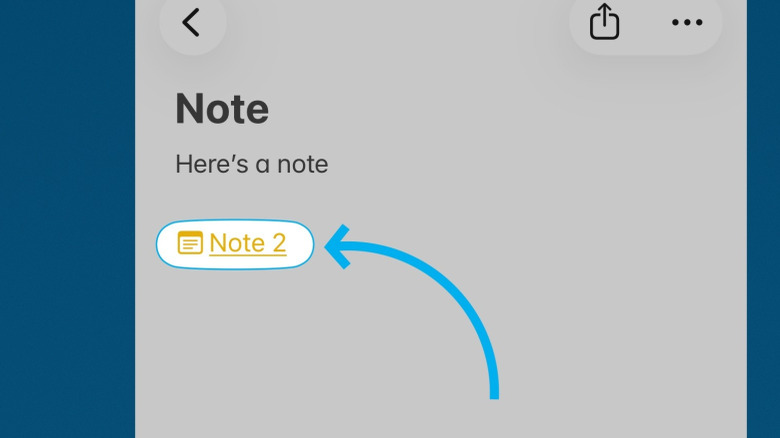
A popular power-user feature in many Notes apps these days, like Obsidian and other Notion alternatives, is the ability to interlink your notes. Suppose you've got a note labeled "Event Planning" and you want to jump from that to a "To Buy" list. A note link takes you there directly, rather than forcing you to back out to the notes list and search for it. It's super helpful if you've got a bunch of notes that are related, or when a change in one might necessitate a change in another. The note link remains updated, even if the title of the linked note changes.
While this feature is really cool, it's not as comprehensive as I've seen in other notes apps. For example, once you tap a note link, there's no option to jump back to the previous note, at least as far as I can tell. You'd have to create a second note link to move back and forth between them. So definitely not second-brain material, but helpful if you need it.
Beautify notes with formatting, checklists, handwriting, and drawings

Apple Notes definitely gives off a very minimal vibe, a note-taking app without fluff. That's not quite true. Beyond the bare minimum stuff like italics and bolding, Notes allows you to create interactive checklists and organize your notes into grids and tables.
There's surprisingly good support for drawing and handwriting, even on iPhone, where the Apple Pencil isn't an option. The same Markup tools you've seen elsewhere in the screenshot utility and the Preview app work here. These drawings and bits of handwriting can be moved around, edited, duplicated, and even copied and pasted elsewhere. Although the iPhone obviously isn't great for handwritten text, it can polish up text you wrote on your iPad. iPad owners will get the most out of this, since they have the full gamut of Notes' beautification features, like the option to automatically fix handwriting so it's more consistent and legible.
Image Wand in Apple Notes is one of the few situations where Apple Intelligence proves to be quite useful. With Image Wand, you can sketch something out and then use Image Wand to transform it into a beautiful, professional-looking illustration. If you have no drawing skills to speak of, you can let Image Wand grab visual descriptors from the note and make an image based on that.
Do simple math calculations
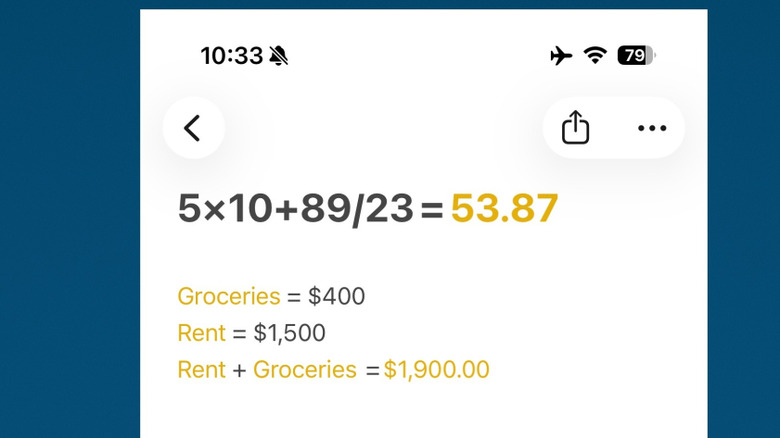
Apple Notes' integrated Math Notes feature allows for some basic, yet super convenient, calculations without leaving the Notes app. The implementation is a bit nicer if you go to the Calculator app and then enter Math Notes mode; any notes that you save there automatically show up in Apple Notes.
So what can you do? First, you can run simple addition, subtraction, multiplication, and division equations by writing them out and then adding an equals sign at the end. Apple Notes answers them automatically and changes the result if you edit the equation. Even better is the ability to create self-updating variables and values that can be plugged into an equation anywhere in the note. Since you can name these variables to taste, you can do some very basic accounting for things in your life, like rent and groceries. You can also create basic graphs.
iPad owners get to experience Math Notes like no one else. Using an Apple Pencil, you can handwrite all of the above and watch the answers pop up like you're using Tom Riddle's diary. Using Math Notes on the iPad might even give you fond recollections of fifth-grade math.
Share and collaborate on a note (or folder)
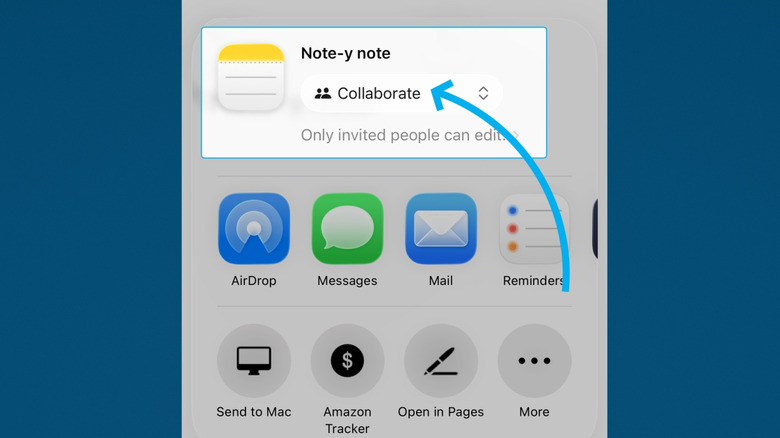
Apple Notes' note-sharing feature is like Google Docs, but on a much smaller scale. You can collaborate on a single note with a group of people, see who's making changes, and get notifications if they make one when you're not present. Or, like Google Docs, you can share a copy that they can't alter. Pretty bog-standard stuff, and it updates fast enough that you could even use Apple Notes for a real-time chat.
Where it really shines is the ability to collaborate on an entire folder of notes. Apple lets you choose who's allowed to contribute and to what extent — you can prevent invitees from adding attachments, for example. If someone has the right permissions, they can invite their own friends to join. Using @ mentions works like anywhere else online; the @-mentioned person gets a notification. All changes made during collaborative mode can be tracked via the Activity card. In my experience, it all works pretty seamlessly. No need to share links, no need to use third-party applications.
Add quick notes easily, outside the app
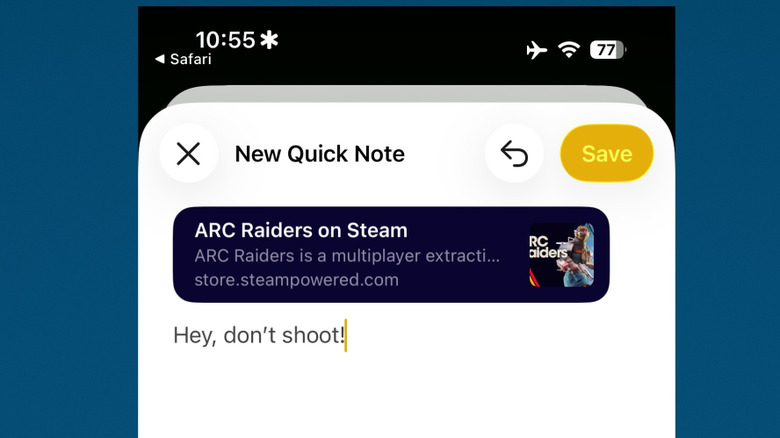
Need to quickly get down your thoughts from outside the Notes app, without opening the Notes app? The Quick Notes feature does just that. On iPhone and iPad, the easiest and quickest method is to add a control for it in Control Center. Otherwise, you can use the Share menu in apps where it's supported. To demonstrate, I went to a game in the Steam app and used the Share button. The link for the game was added automatically to the new Quick Note that popped up.
Quick Note is also helpful for adding a direct quote to a note. When browsing Safari, select some text, then use the context menu to swipe over to the New Quick Note option. iPad owners can also create Quick Notes even faster using a corner gesture. macOS users get a similar option with hot corners (dragging your mouse to a corner to activate it), and there's a keyboard shortcut too.
Apple Notes collects all of these notes into a single Quick Notes folder for easy access. Quick Notes are not "standard" notes yet, so they have some limitations, like being unable to be locked. Make them "standard" by moving them to another folder.