

10 Ways To Make Your Noisy Laptop Quieter

We may receive a commission on purchases made from links.
There was a time when buying a laptop computer instead of a desktop meant dealing with severe compromises when it comes to performance. At the same time, battery life hasn't been great for most of the existence of laptops as a computer form factor.
These days, that's no longer the case. While desktop PCs still offer better performance per dollar, and higher-end desktops exceed what even the most powerful and expensive laptops can, there's a huge area of overlap in the middle. Even entry-level office or student laptops handle day-to-day tasks like web browsing and writing reports in a word processor with ease. Likewise, battery life numbers have kept climbing, and it's now reasonable to expect the typical laptop to give you at least a full workday on battery before needing a recharge.
But no matter how power-efficient our laptops become, offering these levels of performance in a tiny laptop body comes at a price. Generally, that's heat generated by the CPU, GPU, and other components. On a desktop computer, you can have large, quiet fans move enough air to deal with just about any thermal load. In a laptop? Dealing with heat means small, high-RPM fans that have to compensate for limited heatsink volume. That's a recipe for a very loud laptop if you're pushing it, but the good news is that there are several things you can do to reduce that roar to a whisper.
Switch to your laptop's quiet power profile
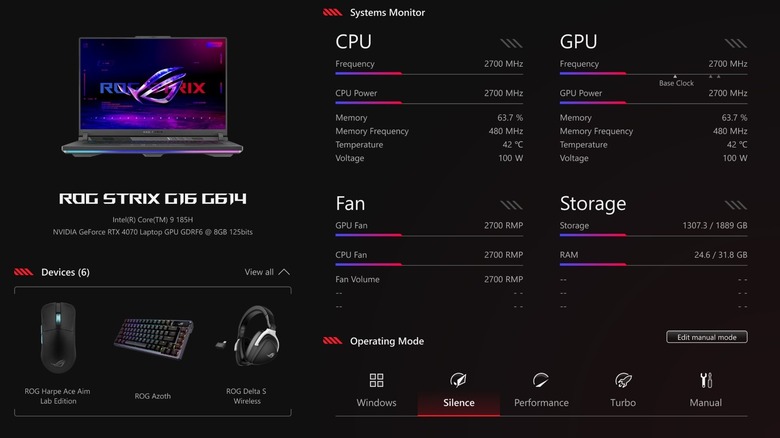
Modern computer components are designed to run at different levels of energy consumption. Obvious examples include your CPU and GPU, which aren't always pegged at their maximum operating frequency but adapt to the current load. So, if your laptop's CPU is using 5% of its capacity at its lowest clock speed, your fans might be inaudible and perhaps even standing still!
The power consumption behavior of your laptop's components is determined by rules and policies. For example, your PC likely has a "performance mode" that instructs your various components to avoid their lowest-power states and push as high as their power and thermal budget allows under load. "Battery Saver" mode, on the other hand, is designed to maximize battery life on your device. Whether your laptop runs macOS, Windows, or Linux, there are standard power profiles you can choose from.
However, if your laptop has an official suite of utilities created by its manufacturer (e.g., ASUS' Armoury Crate software), then it likely includes custom power profiles designed for that specific laptop. For example, there might be a "silent," "performance," "turbo," or "manual" profile, each tuned for a different purpose. Switching to a silent profile will aggressively curb fan speeds, prioritizing low noise over cooling. At the same time, your CPU and GPU will have much more limited performance. However, if you're just browsing the web or doing research in a college library, you don't have any immediate use for that extra performance anyway.
Stop unnecessary apps from keeping the processor busy
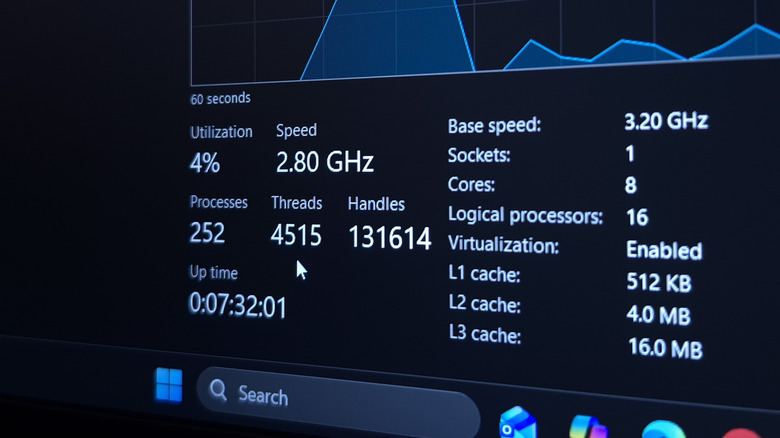
A modern CPU has multiple cores that can each work independently on tasks, allowing for true multitasking. Each core uses power to do its job and therefore adds to the total heat that needs to be removed from your laptop by its cooling system.
While you're working on a specific task in the foreground, such as watching a movie on Netflix or typing up an essay in Google Docs, those extra cores can be working on background processes. Some of these are essential to your computer's functioning, but many are not and can wait until you're not sitting in front of the machine with your fingers in your ears because the CPU fan is too loud.
Identifying background apps that have high CPU usage and closing them is a key way to fix high CPU usage, which in turn lowers fan noise. All you have to do is open your operating system's app for viewing and managing processes. In Windows, this is the Task Manager, in macOS it's the Activity Monitor, and in Linux the exact name depends on the distro and desktop environment you're using. In Windows, you can also prevent apps from running in the background, and you may want to optimize your startup apps while you're at it. Once you've taken care of unwanted background apps, hopefully those fan RPMs (and decibels) will come down noticeably.
Give your laptop's vents room to breathe
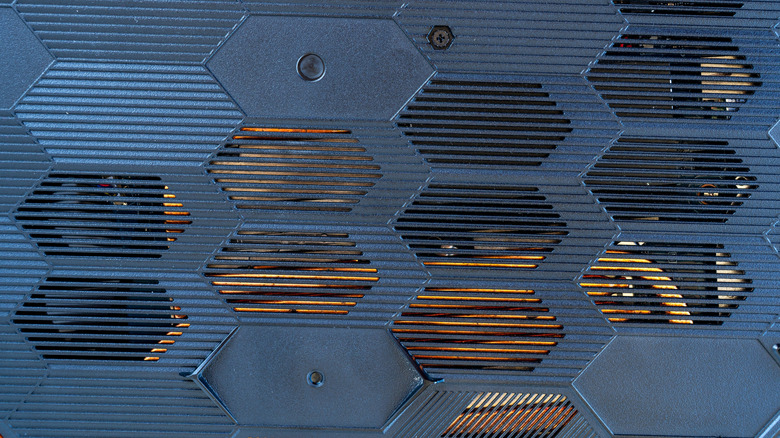
In order to air-cool its components, a laptop needs some way to draw in cool air and expel hot air. Unless you have a fanless model like the (now rather ironically named) MacBook Air, that means air vents. The exact location of these vents varies by laptop model and design, but if you block any of them, it reduces the amount of air your laptop's cooling system can move, and therefore the total cooling capacity of the system.
The most common killers of airflow are soft surfaces like blankets or pillows — if your laptop has bottom vents, that is. This is why you shouldn't use one of these machines on your lap in bed. They require a hard, flat surface so that a sufficient gap exists below the machine for air to be drawn in. If not, the fans will spin up to compensate, but with the decrease in available air, this will be to no avail.
Some thin-and-light laptops (again, like MacBook Pro models) have a solid panel on the bottom with the air intakes on the outer edges of that panel, so they can be used on your lap or in bed, as long as you don't inadvertently cover those vents. If you want to use a laptop with bottom vents on your lap or on a soft surface, you'll need a "lap desk," which is essentially a flat plastic or wood panel attached to soft cushions for your legs.
Clean dust out of the cooling system
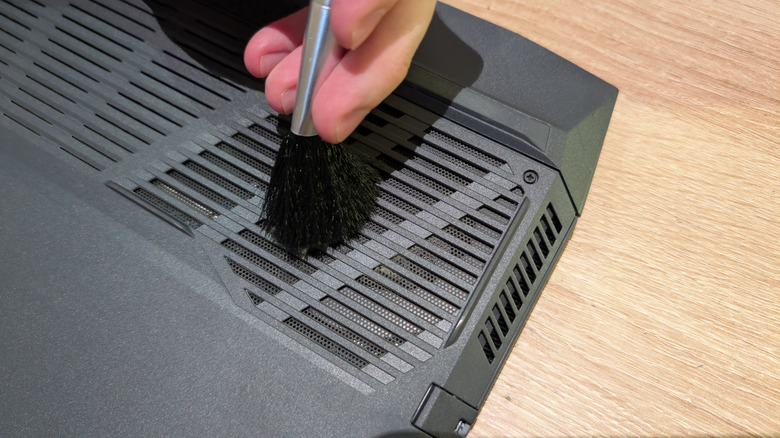
Yes, we're still on the topic of blocked vents, but here the problem is far more insidious. Unless you're in an industrial clean room, the air around you is filled with small particles of matter. As your laptop pulls air into itself, dust slowly accumulates. Let this go on long enough, and your vents can become clogged. This causes the same airflow problems as blocking the vents with a blanket, so you'll need to clean the vents out.
The quick fix is to use a brush or compressed air to clean out the vents from the outside. Often, this will be enough to get the fans down to a more tolerable noise level. However, at some point you will have to crack open your laptop to clean the vents from both sides, as well as clean out dust in the heatsink fins, and especially on the fan blades of your cooling fans.
Laptops typically use blower-style fans rather than the axial fans you see in desktop PC components. These are highly susceptible to dust buildup, and a good clean once or twice a year (or more, depending on how quickly the problem develops) is a good idea. Just be sure to watch a video or read the instructions on how to open your specific laptop model before you even touch a screwdriver. You may also want to invest in a pry tool kit, if for no other reason than sparing your fingernails.
Put a sensible frame-rate limit on your games

The "frame rate" of a video game is how many complete video frames it can render in a given amount of time, usually measured in frames per second. This is a separate (but related) concept to the laptop screen's "refresh rate," which is a measure of how many times the screen can completely refresh its content in a second. Logically, if a laptop has a 144Hz screen, then it can display, at most, 144 frames per second.
However, a game doesn't need to hit that frame rate to work properly. If there isn't a new frame available at the next screen refresh, the screen will simply keep the current frame on-screen. Games can therefore run at lower frame rates just fine. You can use a frame-rate limiter (either in-game or using your GPU's software utility) to limit how many frames the game is allowed to render. By setting a frame cap, you can both lower the noise of the laptop's fan by reducing the render load and make the game feel more stable and consistent.
Which cap should you choose? That's partly a matter of taste and what you can tolerate, as well as the type of game you're playing. Also, the cap should divide evenly into your screen's refresh rate. For a 120Hz screen, 30, 40, and 60fps all work. A 30fps cap is suitable for some games, such as turn-based RPGs, and 60fps is better for action games.
Check for BIOS and thermal-management updates

Your laptop has "firmware" that gets everything started before your operating system (e.g., Windows or Linux) even starts loading. This firmware used to be called the BIOS (Basic Input/Output System), but these days most modern computers use a newer type of firmware known as UEFI, or Unified Extensible Firmware Interface. Either way, this is where many of the fundamental controls of your laptop reside.
This firmware is periodically updated to add new features and fix bugs. That can include changes that improve power efficiency, reduce operating temperature, or tweak fan settings for a better noise-to-cooling ratio. Updating your laptop firmware is as simple as downloading and running the correct utility from the manufacturer's website. However, there is always some risk, so ensure your laptop's battery is fully charged before initiating a firmware update. Once it's complete, you can access the BIOS/UEFI by rebooting the laptop and pressing the correct key. Check the laptop's manual for the exact key used in your model.
Those manufacturer-provided laptop utilities we mentioned earlier often tap into firmware features and settings to do their job, so many of the options you can change in the BIOS are already available in Windows without needing a reboot. However, if you're not running an OS that supports the utility, you may have to adjust those fan-related settings here instead. Also, there may be power and cooling settings in your laptop's BIOS/UEFI that can only be toggled there. Because the utility relies on these firmware features, it's a good idea to update it as well.
Try an active or passive cooling pad
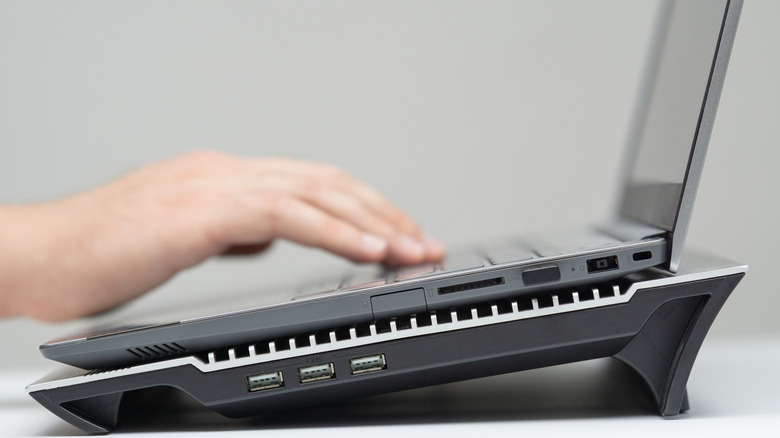
While your laptop will work within its designed specifications if you place it on a hard, flat surface, cooling pads offer the promise of going beyond that. These are devices that sit under your laptop and facilitate airflow. Passive coolers contain no fans and simply elevate your laptop on a permeable mesh surface. This lets as much air in as your laptop's own fans can manage.
Active coolers contain one or more fans that actively push air into the bottom vents of your laptop, helping move more air volume than your laptop's fans could on their own. Do laptop coolers make a difference? Generally, they can make temperatures measurably lower, but not dramatically so. Keep in mind that our goal here is not to make the laptop cooler than it was designed to run!
Our goal is to reduce fan noise from the small high-RPM fans inside the laptop. The cooler's large, low-RPM fans are much less annoying (if not always technically quieter), but hopefully they'll push enough air through the laptop's bottom vents to prevent the built-in fans from having to ramp up. How well this works at least partly depends on the design of the cooler and your laptop's bottom vent configuration. Logically, you want the fans blowing into open vents, not impermeable plastic. For metal laptops, where the body may be used as part of the heat-dissipation design, any air blown over the shell can help.
Customize the fan curve (if your laptop supports it)
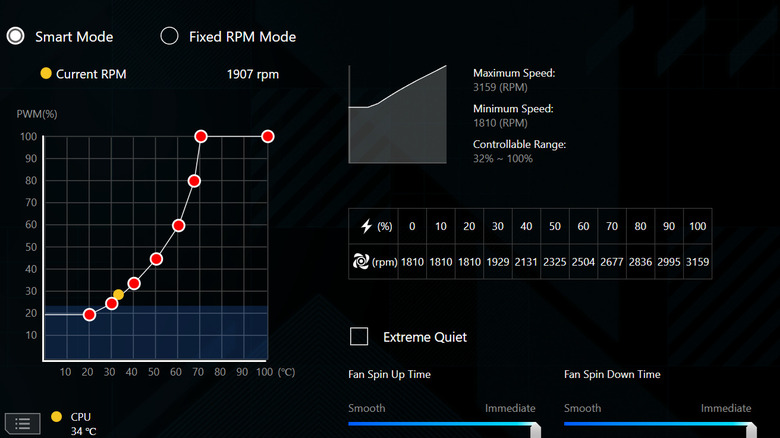
Some laptops, gaming models in particular, allow you to create custom "fan curves." The curve is created using nodes on a graph. Each node denotes a specific fan speed at a specific temperature.
There are usually fan presets for performance and quiet modes, which are part of the overall power profiles we've mentioned earlier. If custom fan curves are supported, you can tweak the default curves to run the fans a little slower, trading higher temperatures for less noise. As long as your components stay within their rated temperature range (which you can look up individually), your performance should remain the same while generating less noise.
This depends on your tolerance for the overall hotness of your laptop, though if you're docking it to a monitor and peripherals and running it like a desktop while at home or at work, this might not be a major factor. If, on the other hand, you're putting your hands on the keyboard deck, your processors might still be comfortable, but your sweaty palms could be another story.
Consider undervolting on supported hardware
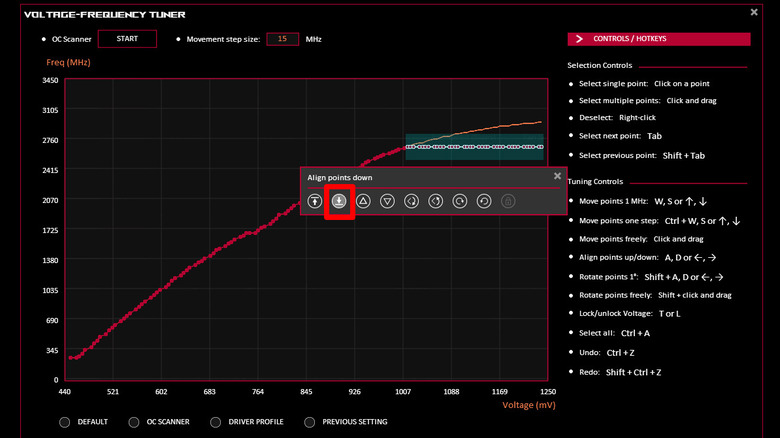
Undervolting might be one of the most counterintuitive tweaks to reduce fan noise, but the basics aren't actually hard to understand. A CPU or GPU needs a minimum voltage to operate correctly. If the voltage is too low, the nanoscale transistors inside the chip can't switch reliably. These chips are rated with a voltage that's guaranteed to run every unit with complete stability.
However, individual chips might work perfectly fine at lower voltages. Since voltage is a key component in total wattage, any reduction in voltage means the component uses less power. If it uses less power, then it generates less heat, and ultimately the fans don't have to work as hard. The best part of undervolting is that it typically doesn't decrease performance and can in fact make some components run faster if lower temperatures let them achieve higher boost clocks.
It's also a low-risk tweak, though it can take quite a bit of trial and error. Set the voltage too low and your computer will crash. In the worst-case scenario, you may have to reset your BIOS/UEFI settings. We recommend you read guides on how to undervolt your CPU and how to undervolt your GPU before attempting it. Since you're decreasing the overall power draw of these components, you might even gain some battery life. It really is one of the most impactful tweaks you can make to a laptop, assuming you've done well in the so-called "silicon lottery."
Replace degraded thermal paste
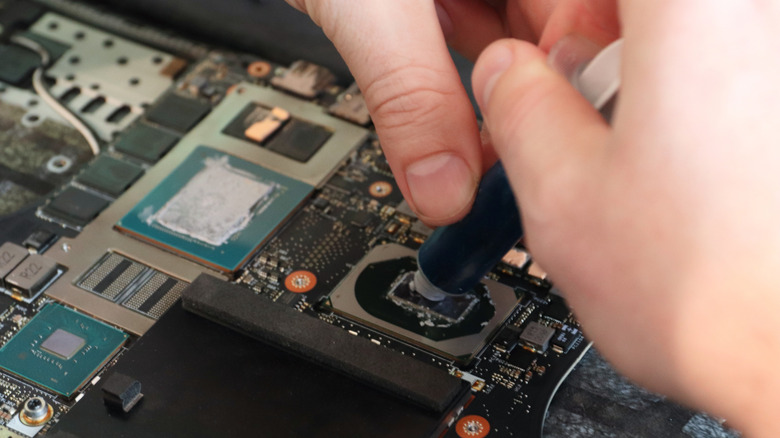
As a quick refresher, microprocessors in computers generally have a metal heatsink that absorbs heat from the chip and is then either air-cooled or liquid-cooled to keep the temperature in check. Between the processor and heatsink, you need some sort of material to act as an intermediate. That's usually thermal paste, though these days thermal pads or thermal sheets are sometimes used as well.
The paste fills in all the microscopic gaps in the heatsink surface and on the heat spreader of the CPU package. However, as you can see in the image above, laptop CPUs and GPUs typically don't use an integrated heat spreader; instead, the paste goes directly on the chip die. This paste has a finite lifespan and can dry up and lose its thermal conductivity. So after a few years, you'll likely have to replace it. How long? That depends on the paste and your usage pattern. Some people may do it at regular intervals, but since it's quite an involved operation, it makes the most sense to do it when you are experiencing high temperatures that are not adequately addressed by any of the other solutions we've already looked at.
While replacing a laptop's thermal paste isn't the hardest thing to do, if you're not comfortable with the idea of taking your (out-of-warranty) laptop apart, it's best to have a computer technician do it for you. If your laptop uses liquid metal instead of paste, we strongly recommend you leave it to a professional.