

All The Hidden Features Of Your Android Phone's Volume Buttons
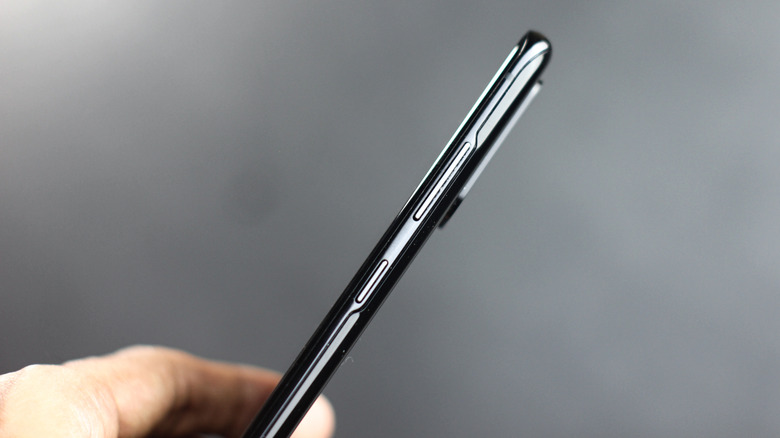
Hidden features are the best kind of features. They're almost like Easter eggs that developers leave for people to happen upon, rather than clearly outlining them in documentation. You feel special when you accidentally discover one yourself and get to show it off to your friends. And hidden features can sometimes be really well hidden; we've previously done polls on certain Android features and found that almost 20% of people didn't even know about split screen. The list of hidden features in Android goes on and on, and even for us — the software nerds — we keep finding new ones every day. So it should come as no surprise that Android's volume buttons have some tricks up their sleeve.
It might be obvious, but it's worth mentioning: Not all of these features will be available for your Android device and/or flavor. Downloading a third-party app can, in some cases, unlock even more usability from the volume buttons. In any case, here are 10 hidden features your volume buttons might have beyond, well, changing the volume.
Take a picture (or start filming)

With the iPhone 16 series, Apple introduced the Camera Control feature to control the camera in a DSLR-like fashion. On Android, dedicated camera buttons aren't common, but one of the best hidden features of your Android phone's camera is that the volume buttons already do half of Camera Control's job anyway. Press a volume button, take a picture. It's that simple. This is typical with major manufacturers, so we'd be shocked if it didn't work with your phone.
Depending on your manufacturer, you could also use the volume button to start recording video. Such is the case on Samsung Galaxy phones, though you do have to open the in-app camera settings to enable it manually. Some third-party camera apps, like Open Camera, can also do this.
Benefits? For one, it's arguably a lot easier to take a photo (or video) that way. Your fingers already rest naturally near the volume buttons when you're holding your phone, so taking pictures doesn't require doing any finger acrobatics with a claw grip just so you can maneuver your thumb into place over the shutter button. In my own personal experience, I've been able to take group selfies with friends and family much more easily using the volume button instead. The only real downside is that, depending on how stiff the volume rocker is on your phone, the exertion required to press it can make the phone shake a little and throw off the shot.
Control camera zoom (and more)
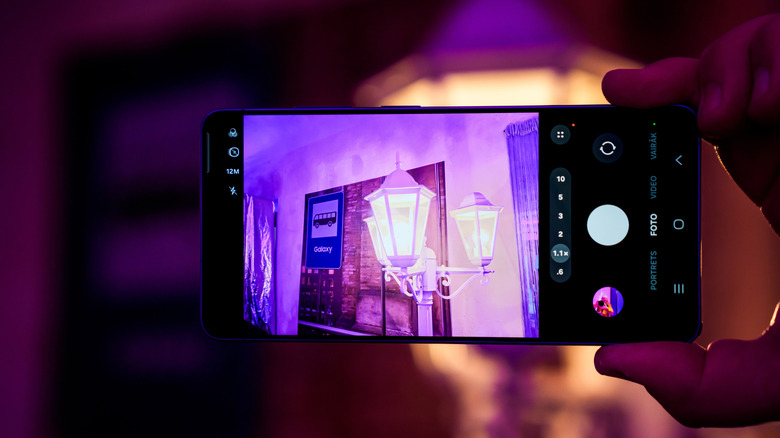
While we're on the subject of cameras, the volume button can do more. Some phones, like the Google Pixel and Samsung Galaxy, allow you to change the volume button function to control zoom. In both cases, you will need to go into camera settings and enable this functionality for the volume buttons. Considering how annoying zoom can be to adjust on a phone's camera (even with two hands), this is a game-changing feature.
Since this is Android we're talking about, you're not just limited to proprietary cameras like Google's Camera app. More customizable open-source options exist, such as the wonderful and feature-rich Open Camera mentioned earlier. Open Camera can leverage the volume buttons to take pictures, control video recording, and control zoom. On top of that, it lets you control your camera's autofocus, exposure compensation, and auto level.
Open the camera
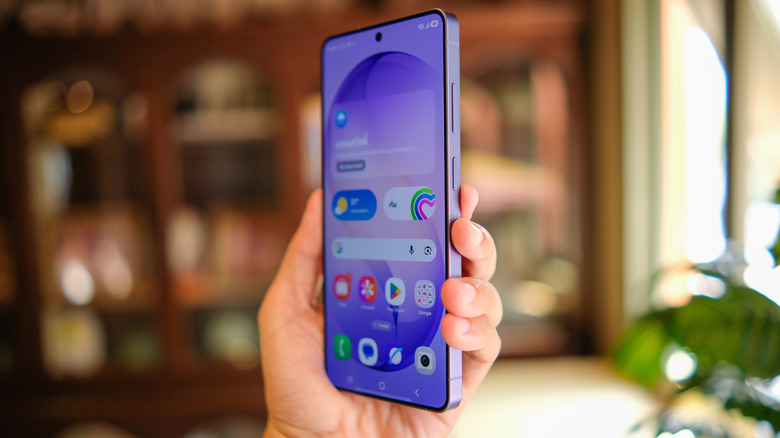
Some Android flavors allow you to open the camera by double-pressing the power button, sort of like a poor-man's version of iPhone Camera Control. There's at least one Android variety that lets you use the volume buttons to do the same thing. If you have a Redmi phone, you might be able to go to Settings > Additional settings > Gesture shortcuts > Launch camera. From there, toggle on the "Double press Volume down when the screen is locked." Depending on your model, this may actually be located in Settings > Lock Screen at the very bottom.
As you can see, this only works from the lock screen, but it's a useful feature nonetheless. You can still use the power button to access the camera when your phone is unlocked. Unfortunately, we weren't able to find such a feature on other Android skins. Stick around though, since there's a way to make the volume button into a super button that will open the camera — and do almost anything you want.
Silence calls (or answer them)
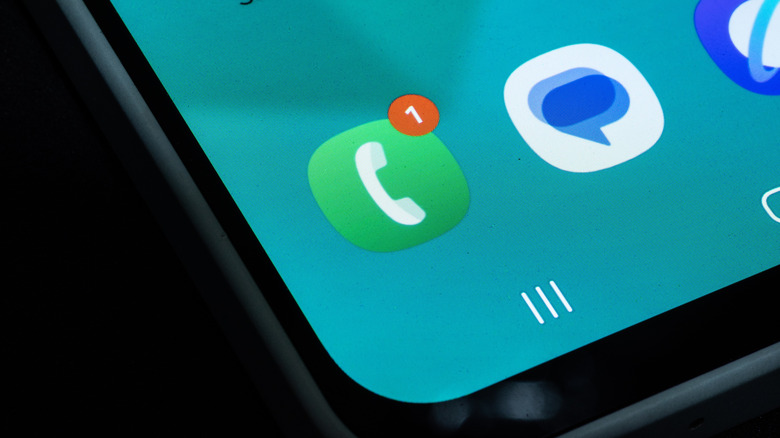
While we're on the subject of cool hidden features, did you know that all you have to do to silence an incoming call on Android is turn your phone face down? Cool as that is, there's another, perhaps simpler and faster, way: hitting a volume button. Unlike some items on this list, this is an Android-wide feature that should work on virtually any updated phone. Press either volume button to shut off the ringing when a call comes in. It's by far the easier way to silence calls if you need to discreetly quiet your phone when, say, you're in a meeting and your phone is in your pocket.
Some Android flavors will also allow you to pick up calls with the volume buttons, provided you enable the setting. Some Samsung Galaxy phones, for example, have the option to "Press volume up to answer calls" via the Call settings directly in the app, under the "Answering and ending calls" section. We couldn't find an option to end calls with volume buttons, though in those same settings you should see "Press Side button to end calls" as an option.
Snooze or kill alarms

You really put your dexterity to the test when trying to turn off a morning alarm while half-awake. The volume buttons could make it a lot easier. Go to the settings for the Clock app and allow your volume buttons to control alarms. Typically, the volume buttons default to controlling alarm volume only. Same as with taking a picture, it's probably easier to rely on muscle memory, knowing where the volume buttons are on your phone when you're bleary and fumbling around in the dark. Note that if you set this up, you can always change the alarm volume later by pressing a volume button, opening the mixer, then adjusting the alarm volume with the slider.
Perhaps the real issue, though, is not the annoyance of having to turn off the alarm. It's your barebones stock alarm app that lacks any serious customization. In that case, try one of the best alarm apps for Android instead.
Start an app
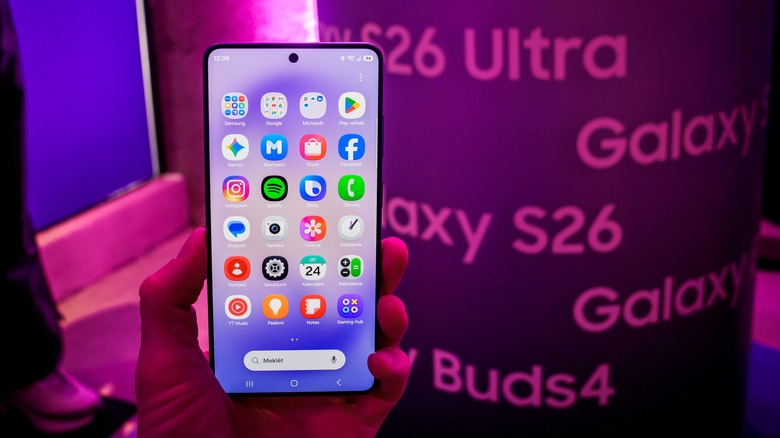
Many people likely assume that their phone's accessibility options are only meant for people with disabilities. Nothing could be further from the truth. Just take a couple of seconds to look through the accessibility settings, and you are bound to find at least one item that could come in handy. To get you started, there's a way to use accessibility to open any app with the volume keys.
First, set up accessibility shortcuts in the Accessibility section of the Settings app. Choose the app you want to open. Now, choose "Hold volume keys" as the shortcut trigger. You can set it up so that pressing and holding both volume keys at the same time starts an app, or one of a select few apps.
There are a number of ways to use this. You might set it up so that it opens your most used app, such as your default messaging app. It could also potentially be used as a shortcut to the camera app, especially if you don't have a phone that supports opening the camera with volume buttons and you want to reserve the side button for something else. It could also be useful for people with multiple pages of apps, or someone who needs quick access to one particular app that they use only sparingly.
Quick-start Accessibility settings
Aside from starting apps, accessibility settings can be invoked directly with the volume keys. Take, for example, magnification, which can otherwise be a bit cumbersome to enable. To activate it quickly, you can set up magnification to activate by holding the volume keys. Go to Settings > Accessibility > Magnification, then activate the magnification shortcut. Other accessibility settings, like TalkBack, can be enabled the exact same way.
Bear in mind that some accessibility settings can be invoked with the volume buttons without any changes to the settings. Live Caption is a great example, and it's an extremely handy feature for situations where an app you're using doesn't have captions and you want to enjoy content with the volume off. There are plenty of situations where you may need to keep the volume low, but there isn't a caption or transcription feature for the app you're using. Simply hit one of the volume buttons, then enable Live Caption under the volume controls.
Force restart
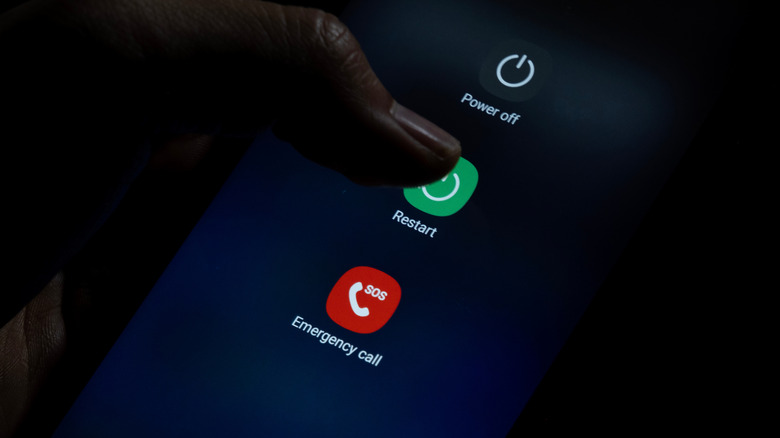
Android phone having issues? Usually a restart should fix them ... unless your Android phone is frozen. It's in situations like these that your only choice is to do a hard shutdown. Holding down the side button forcibly shuts down most Android phones, but some require the volume keys for a forced shutdown.
Samsung devices are an example of this. Press and hold both the side button and volume down key at the same time, and keep holding them for at least seven seconds. Voilà. Your phone should shut down even if the screen has frozen or the device doesn't seem to be responsive.
Don't use a force restart as your first choice. There are many ways to restart your Android phone without using the power button. Exhaust those possible solutions first and keep the force restart as the nuclear option when all else has failed.
Make volume buttons do anything with Button Mapper
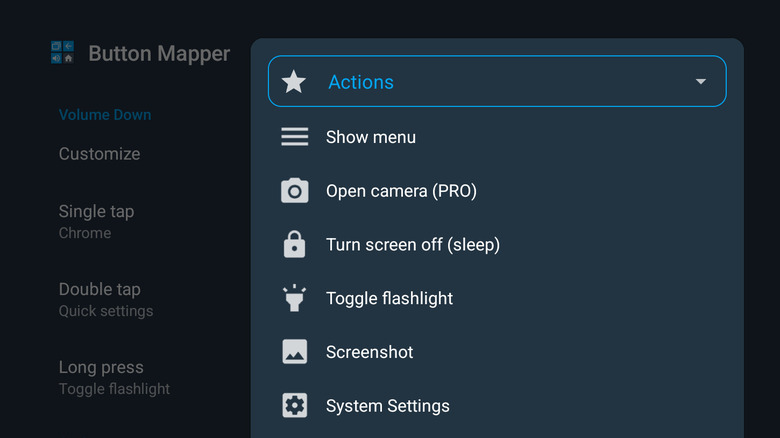
We admit that while the volume buttons on Android can do some nifty things, those things are fairly limited in scope. It's once you start to install third-party apps that the volume buttons really show their worth. Button Mapper does what it says on the tin: It remaps hardware buttons to do just about anything. Volume keys can be programmed to do different things when you press them once, press them twice, or long press them. The app demonstrates, as an example, leaving the single tap unchanged so it only controls volume, while having a double tap open Chrome and a long press turn the flashlight on. It can be disabled once the volume panel is open, so it doesn't get in the way of normal volume adjustments.
The potential for Button Mapper is seemingly limitless. Aside from opening apps and controlling utilities, you can map buttons to activate system settings, open menus, run shortcuts, toggle focus modes, adjust brightness, clear notifications, and so much more. That includes advanced functions like running shell commands. Importantly, most of these actions can be performed without rooting your device. The app is free, with a Pro version for $7.99 that unlocks a few extra features.
Admittedly, the ratings for the app are a bit on the low side at 3.5 stars; a common complaint in reviews is that it works only intermittently, although many reviews give it a glowing five stars. Your mileage may vary. In any case, this is the app you choose if any of the features we've mentioned thus far are not supported on your device.
Skip music tracks
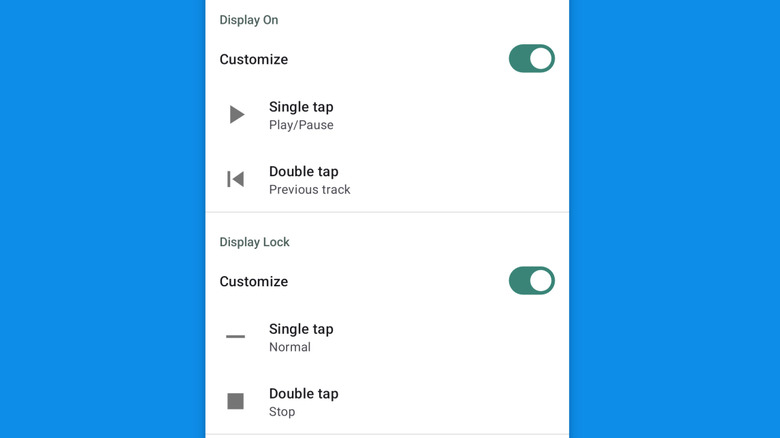
Button Mapper is a Swiss Army Knife meant to work for any and all situations. One app that goes the complete opposite direction is the Skip Track app. As the name implies, this app lets your volume buttons control your music.
We can imagine a ton of situations where this would come in handy. We all listen to music on our phones from time to time, often in situations where pulling the phone out or reaching for earbud controls would be less than ideal. Skip Track allows you to customize precisely what each volume up and volume down button does. You have single-tap and double-tap options for pressing play, going back to the previous track, stopping playback, or skipping to the next track, whether the screen is locked or unlocked. And of course, you can disable any function you don't want or need; program a single volume button to skip songs with the screen off, and nothing else, if you prefer.
The app is free to use. Before you install it, be aware that the app will not work when the volume is maxed out or at zero. Most ratings appear to be high at 4.0 stars, though some users complain that it doesn't work consistently.