

The 15 Best Mac Apps That Will Improve Your Apple Experience In 2026
The Mac might just be having its golden age right now. macOS Tahoe is one of the weakest OS releases in living memory, I concede, but it's a far cry from having ads and AI arbitrarily stuffed in your face on Windows. The M-series chips allow Macs to crush benchmarks, go fan-free, and make all-day battery life a reality rather than a marketing lie. Budget options like the MacBook Neo bring the price down, finally, to obtainable levels. And the pièce de résistance? The unparalleled app ecosystem on macOS, which (as I've shown for two years running now) is overflowing with software that will improve your experience.
Once again, it was really hard to rein myself in and only choose 15 options. Give me a longer leash and I could give you 50. Nonetheless, these are my favorites for 2026. Many are free, and the ones that do cost money usually won't set you back more than the price of a cup of coffee.
Updatest
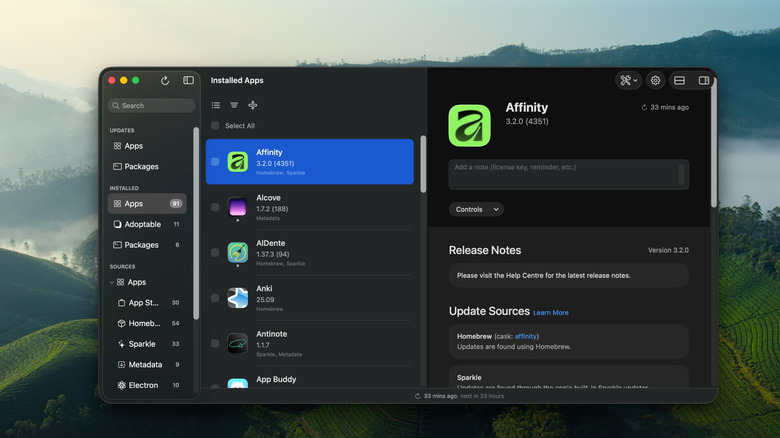
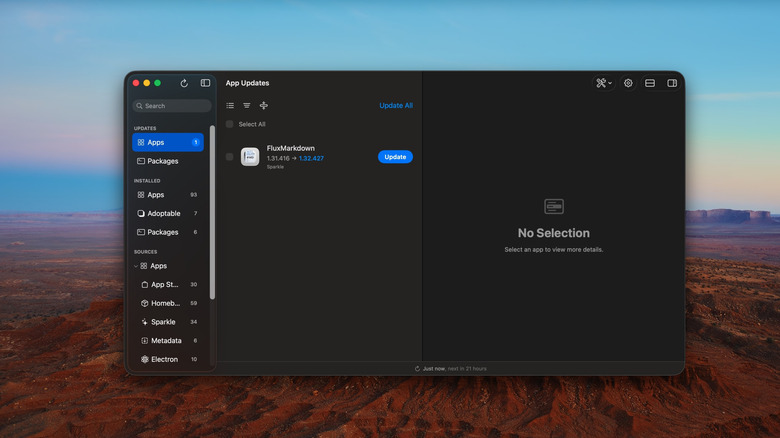
Updating all the apps on your Mac outside the App Store continues to be a problem, and in 2024, I recommended MacUpdater as a solution. Unfortunately, MacUpdater closed up shop and left its users hanging with no real alternative. Updatest is so good you might forget MacUpdater ever existed. It effectively solves the most pertinent problem: it gathers updates from all the major sources, such as the App Store, Sparkle, GitHub, and Homebrew, in a clean and minimal yet information-rich interface. Possible updates include release notes and options to skip, delay, or ignore entire app updates. You can see versions, app architecture, and even grab direct download links.
What I really love about Updatest, though, is the Homebrew integration. For the uninitiated, Homebrew is a terminal-based package manager that Updatest makes more approachable by handling Homebrew actions through a GUI. Adopting apps into Homebrew is painless, and you can handle future updates through Homebrew without using the terminal. Updatest also has its own proprietary crowdsourced update network to catch apps that slip through the cracks.
Overall, my experience using it involved only minor hiccups not worth mentioning. The app isn't free. However, $12.99 for a one-time purchase is cheap for what you get.
Antinote
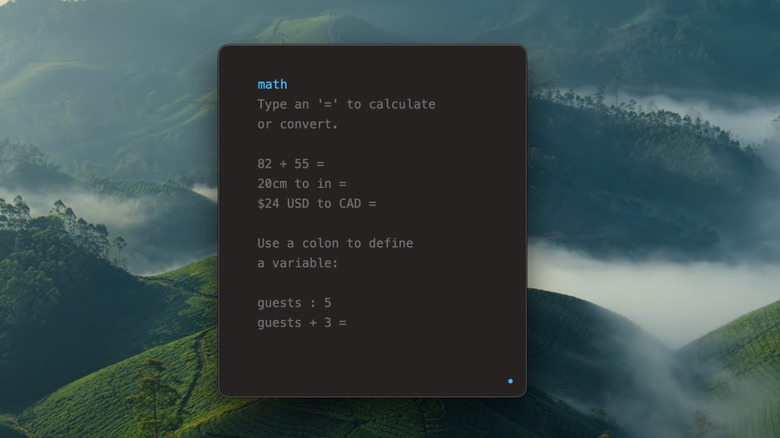
It's difficult to put into words what exactly Antinote is, but the name certainly makes it clear that this is not just another "notes" app. I like the "productivity scratchpad" moniker. To start, you summon Antinote with a keyboard shortcut and get a small window that belies the many, many things it can do.
Want to do some quick calculations? Type "math," and Antinote will handle variables, unit conversions, currency conversions, and more. Need to grab text from a screenshot? Drag that screenshot directly into Antinote and it outputs the result instantly. Want to quickly set a timer without opening Apple's Clock app? Type "timer" followed by a time limit. Want the shortest possible version of a link? Paste it in, and it's automatically shortened. The list goes on, and it seems Antinote is adding new capabilities every month.
My only complaint about Antinote is that it can be challenging at first to figure out how to incorporate it into your workflow. Once you do, though, it's hard to live without. The app costs $5 and has a free trial if you're not yet sold.
BetterDisplay Pro
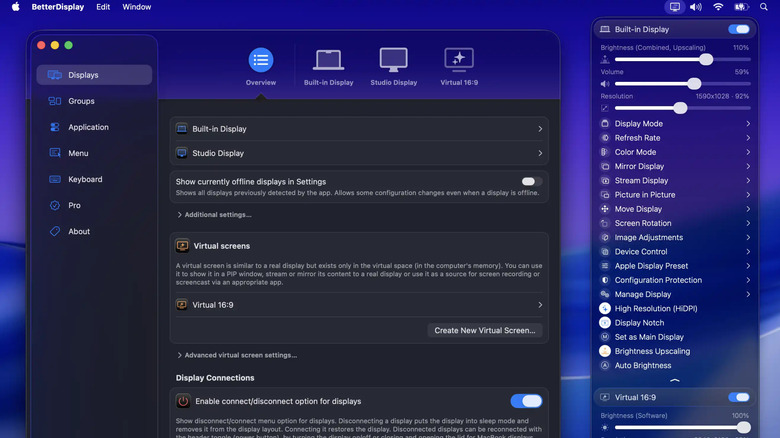
Macs are famous for not playing nicely with non-Apple products. Case in point, any external display that isn't one of Apple's ludicrously expensive ones. Rather than admit defeat and cave in to those prices, we recommend getting BetterDisplay Pro to fix the issues Apple neglects. Need a specific resolution? BetterDisplay can set it up properly. Want to see text more clearly on a high DPI monitor? BetterDisplay can fix it with a single click. Want to control display brightness or volume with your keyboard? Again, BetterDisplay.
For anyone who has a non-Apple external monitor, it's almost essential. The free version covers most bases, while the $21.99 pro version (a one-time payment per app version) adds more niche settings, like custom virtual screens, Picture-in-Picture mode, color adjustments, and more. For most people, the free version will get the job done, and our hats go off to the developers for giving away those core features.
DockDoor
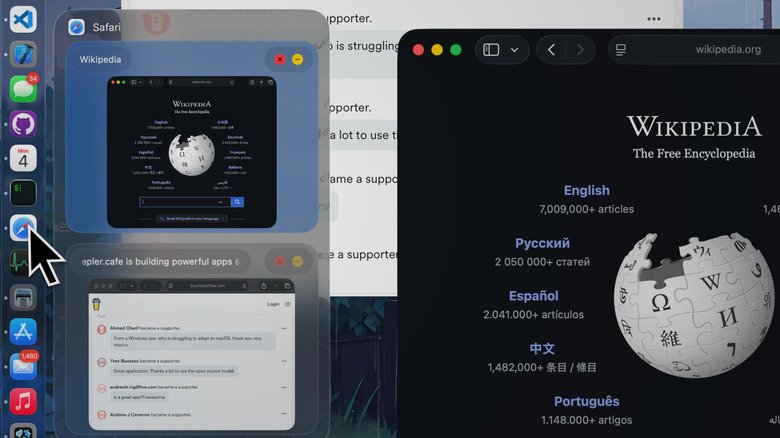
There are two window-management features that we macOS users have been desperate for that Windows users already have: window previews on the dock, and when Cmd+Tabbing through apps. DockDoor adds both. Finally, you can hover over, say, your browser and see small previews of all the open windows rather than having to press Ctrl+Up Arrow for Mission Control. It's even better than that since Mission Control only shows open windows, not minimized or hidden ones.
Further, DockDoor incorporates a Cmd+Tab switcher with the same live previews, a cut above macOS's disappointing Cmd+Tab app switcher. And the app looks beautiful while doing so. There's a ton of customization under the hood for tweaking those preview windows if they're too big, have too many buttons, or pop up too fast. DockDoor also adds some other things that have been missing from macOS, like media controls in the dock, the option to hover over the Calendar to see events, trackpad gestures, quick quit options, and much more.
My only complaint while using DockDoor is that it's hard to find the right timing for how quickly the window previews appear. If you leave it at the default setting, they pop up annoyingly quickly. Perhaps this is why Apple hasn't included window previews yet, since it's still perhaps testing how to make the feature non-disruptive. But hey, DockDoor is 100% free, open source, and does what it advertises very well.
Thaw
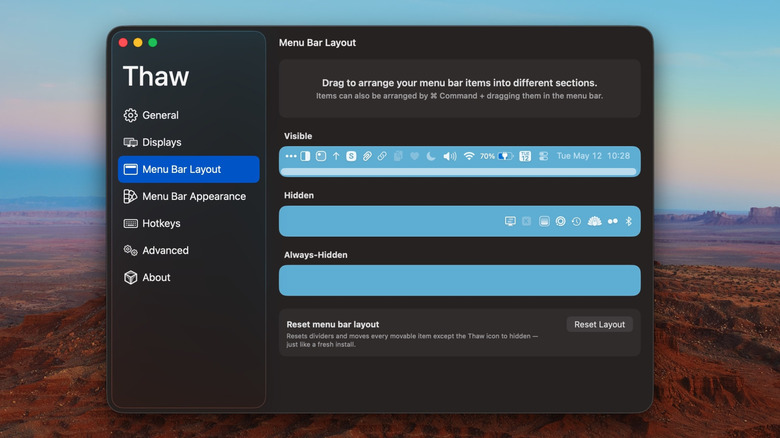
In previous years, I recommended Bartender and Ice to manage your menu bar. You no longer need these apps since macOS allows you to remove menu bar items directly from Settings, but they still provide utility, like adding an overflow menu so menu bar items don't get occluded by the notch. Ice was the best option for people who didn't want to pay for Bartender, but then development stopped in 2024. Fortunately, Ice was open source, so some very kind folks forked it to make the spiritual successor, Thaw — implying, perhaps tongue in cheek, that development would "thaw" from its frozen state.
Thaw is basically identical to Ice in appearance and function, allowing you to hide unwanted menu bar items in a separate bar, tweak aesthetics like spacing, and summon it with a hotkey. And that's all we need from it. Updates still appear to be happening, so here's hoping users of Thaw won't have to worry about it going cold again.
Cardinal
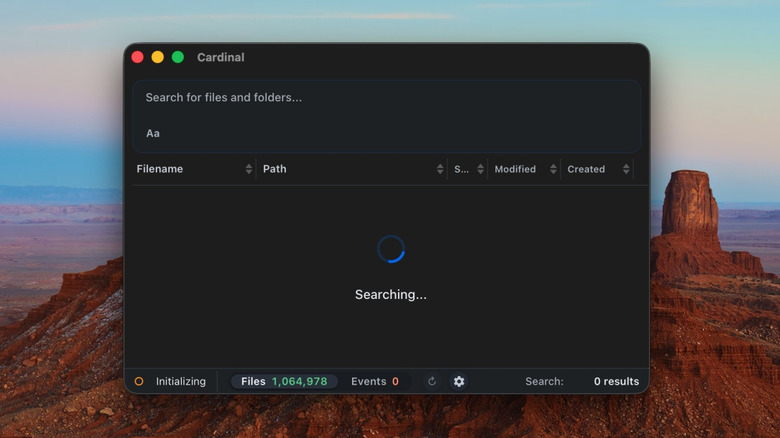
If you're frustrated by how unhelpful Finder search results are, you are not alone. Spotlight got an update with macOS 26 that did seem to improve the scope of those search results, but the problem (anecdotally speaking) wasn't necessarily solved because you can still get flustered while searching for that one elusive file. Cardinal can help. It advertises itself as the "fastest and most accurate file search app for macOS," and I agree.
Once you allow Cardinal to index your computer, it's off to the races. File searches are almost instant. The only waiting involved happens when Cardinal does its own brief startup indexing, which for me is a lot better than waiting three times as long for Finder to search for one file in the narrowed scope of a single, small directory. Cardinal also supports a whole bunch of parameters to look for specific file types, files with specific sizes, tagged files, and more — though if you prefer refining filters over a GUI, you're out of luck here.
Macshot
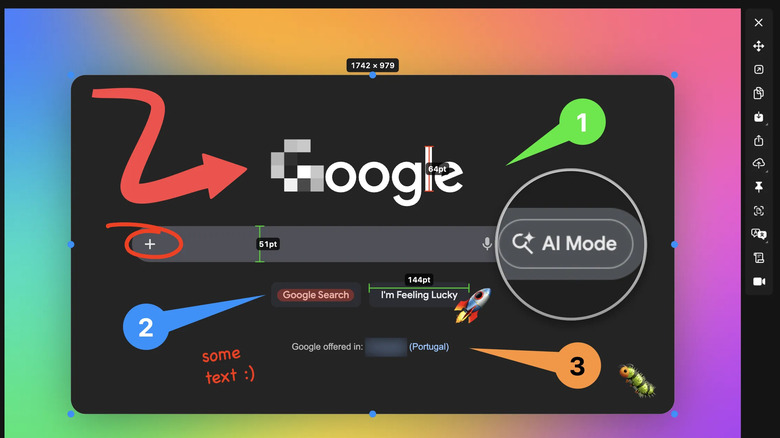
One of the best macOS screenshot utilities is CleanShot X, an incredibly powerful, well-made bit of software with a catch: a paid license that only guarantees a year of updates. Unless you take a metric ton of screenshots, $29 up front and then $19 a year thereafter to get future updates might be a tough sell. Macshot is, in my view, the closest free alternative to CleanShot X.
All the things you expect are there, like being able to capture full-screen or window-only screenshots, and then quickly annotate them, magnify them, add quick backgrounds, etc. But then there's the cool stuff, like how you can add a fake macOS window frame to your screenshot selection to make it look like it's an app window. The Smart Censor feature will also be highly useful if you find yourself screenshotting a lot of sensitive documents or images. The OCR feature grabs and translates text from areas that Apple won't let you access, and the one-click upload will save you a ton of time when sharing those captures.
CleanShot X has more features, of course, like its unmatched screen record mode that captures your face, clicks, and keystrokes for virtual demonstrations. When Macshot has a CleanShot X feature, the latter usually does it better, I think. However, MacShot really captures the spirit and feel of CleanShot X, achieves about 90% of what it does, and is free.
Tuna

Powerful Spotlight alternatives such as Alfred and Raycast have been around for a while now, but in my view, they're like handing someone a Swiss Army Knife with dozens of tools when all they need is just a better knife. Tuna could be your "better knife." Unlike typical Spotlight replacements that just mimic Spotlight's functionality plus a bunch of keystrokes, Tuna uses an entirely different philosophy.
In Tuna, you construct commands like natural language with a "subject," "action," and optional "target," in the dev's words. So, for example, you might type Safari (the app), choose "open" (the action), then select a file (the target) to open directly in Safari. Doing that manually would otherwise take half a dozen tedious clicks. Now imagine the power you'd have at your fingertips once you master Tuna's approach.
What I like about Tuna is that it can be your better Spotlight alternative by default, then provide this powerful extra functionality as required. As far as downsides go, I think the muscle memory here could be steep — though it's worth it. Bear in mind that Tuna is in beta at the time of writing and is free to use, with a pro version for $49.
TinyStart
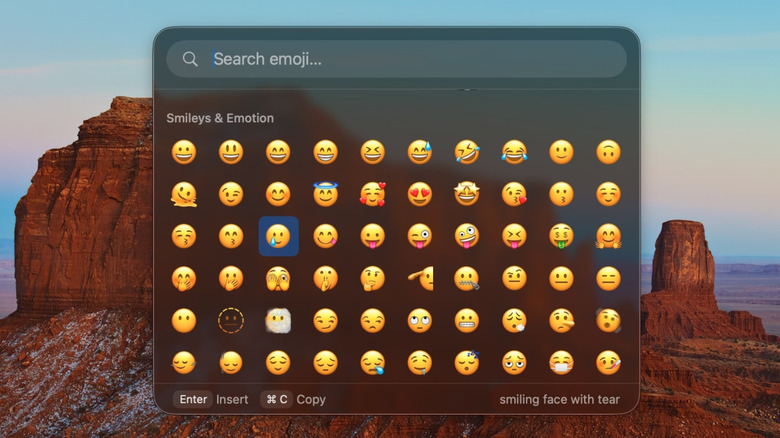
Perhaps Tuna is just more like Alfred and Raycast to you, a Spotlight replacement when Spotlight is already too much by itself. TinyStart takes a simpler approach. The focus here is a slim, tiny launcher (hence the name) designed around speed and a purposefully limited toolset. It is objectively less capable than Spotlight. But consider that Spotlight very often bombards you with a whole bunch of results that you don't want or need, and TinyStart's reduced scope and focus become compelling.
Its core features include opening apps, folders, and links, running shortcuts, doing search-engine-specific queries, and replacing your emoji picker. That last one in particular is my favorite. The app has the best emoji picker on macOS, period, and in general works fast and bug-free while sipping system resources.
TinyStart costs $6, with no free version or trial, though you can get a refund after 14 days. It's also worth pointing out that its simplicity could be mimicked with Spotlight by limiting search results. Despite that, I find myself using it over Spotlight whenever I can.
Tangrid
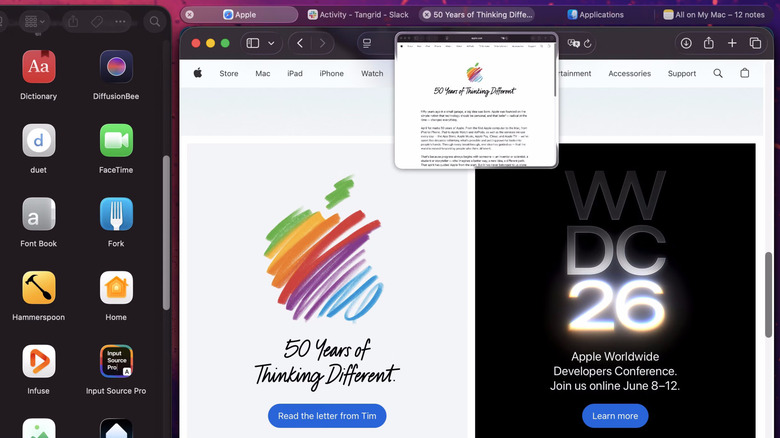
After eons of suffering, Apple finally decided to allow users to tile their windows with macOS Sequoia. Of course, Apple's implementation is on the watered-down side, so it hasn't entirely killed the need for tiling apps like Magnet and Rectangle. An app that really deserves the spotlight for its novel approach to this is Tangrid.
At its core, Tangrid focuses on effortless magnetic snapping. That's not the novel approach. What is, however, is Tangrid's tabbed layout (featured above), one of the most ingenious methods I've seen for making the most of a single screen. The tabbed layout combines multiple windows into a single one, almost like a browser, where you can switch between them with ease manually or via keyboard shortcuts.
Tangrid also bundles in a Cmd+Tab window switcher and dock previews, so you don't have to download a separate app — like DockDoor — for it. It costs $19.99, with a free 7-day trial. Considering this is better window management than I've ever seen on Windows, I think it might be worth it.
Little Snitch
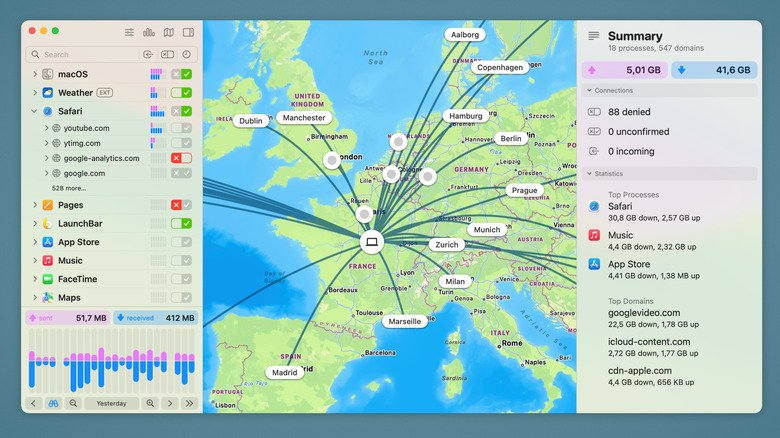
There are too many apps out there that have no respect for your privacy. Unfortunately, it's usually hard to tell when they're abusing it because they're doing so silently in the background. If that irks you, Little Snitch may be the solution. Little Snitch is a powerful network monitor that can see all incoming and outgoing connections from every app on your system and stop the undesirable ones.
People who use Little Snitch admit that, at first, it is daunting and depressing in equal measure. A biblical flood of fishy network requests will overwhelm you, often from simple, single-purpose apps that have no good reason to be talking to analytics servers that much. You may spend days or weeks playing cat-and-mouse with sketchy connections until, eventually, you stem the tide and the effort bears fruit. Users say that eventually they feel an immense amount of satisfaction knowing nothing network-related is happening on their computer in the background that they didn't approve of. Long-term users only have to vet a handful of connections a week.
Of course, this app is for the privacy conscious, not the average user. It also isn't cheap. A one-time license will cost $69. But the free alternatives like Lulu don't even come close to that level of control.
Oatpad
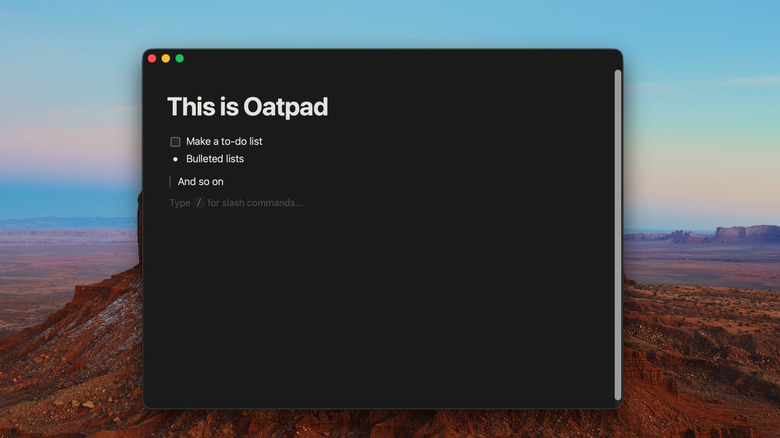
Do you like Apple Notes but wish it was on the same level of aesthetically pleasing formatting as something like Notion, without being Notion? Try Oatpad. The sales pitch is, in Oatpad's words, "rich formatting inspired by Notion, Apple Notes simplicity." So, without taking your fingers off the keyboard, you can format beautiful and simple notes via Notion-like slash commands, minus the distracting, persistent clutter of formatting bars and side panels.
To be clear, this is meant to be a full notes app replacement, not a simple scratchpad. Notes can be organized however you like in a hierarchy and synced to iCloud if you so choose — though the focus is on local files. Oh, and if you're a fan of Markdown, this is for you because it can export material cleanly that way. The app has a 14-day free trial and costs $9.99. Unfortunately, it appears there's no iPhone or iPad version, so it may not be the best choice for a multi-platform notes app.
Droppy
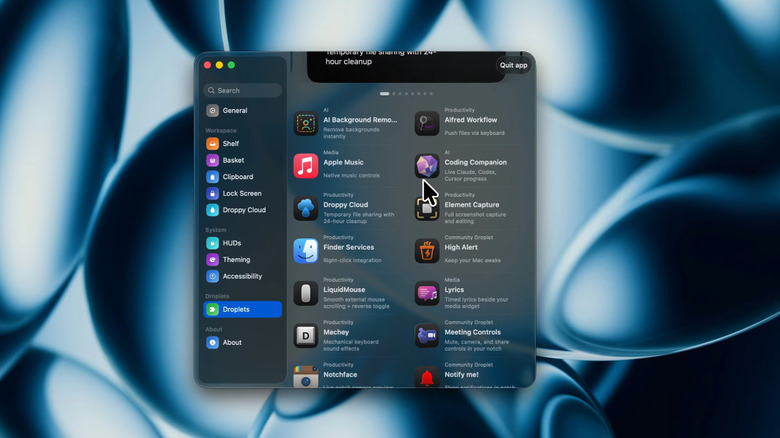
Droppy is an app that combines a whole bunch of features that would otherwise require separate apps, a "productivity layer," in Droppy's words. The core of the app is a Dynamic Island-like notch where most of the action happens. You can control your media, temporarily store a file you're working on, or check calendar events. Features include a screenshot manager, clipboard manager, and a file-holder "basket" that you bring up by wiggling the mouse, similar to another of my favorite apps, Dropover. If Droppy can't do something out of the box, then you can likely download that capability via its mini-app "droplets."
There is a staggering amount of potential baked into Droppy, which makes the asking price a steal at $9.99. Based on my personal experience, it is very impressive, but I prefer some single-purpose apps (like Dropover) over Droppy's implementation. Nonetheless, there's a wealth of possibilities here in one app instead of twenty.
SitTall
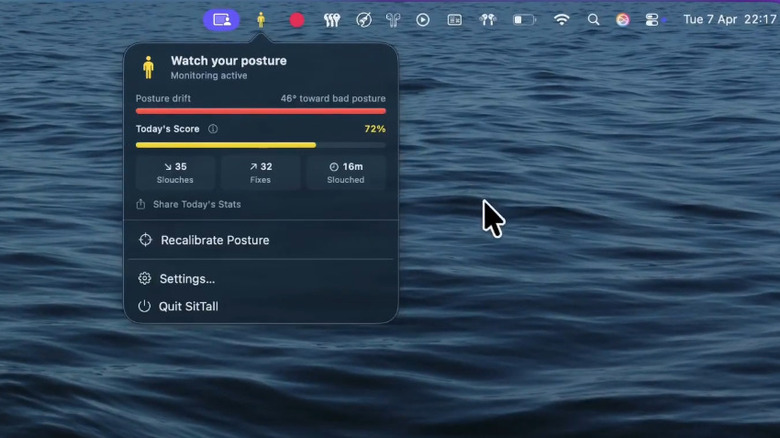
Sitting too long at a desk isn't good for you, but the side effects can be mitigated with desk tech that keeps you active, good posture, and proper ergonomics. And if you have AirPods, SitTall may help. This has to be one of the smartest uses for AirPods sensors that I've ever seen. Basically, SitTall learns when you're sitting up straight and when you're slouching after a single baseline calibration. From then on, the app will gently remind you whenever you slouch.
The app focuses on being unobtrusive and private, notifying you only when you want it to. Several models of AirPods support it, including the AirPods 3 and 4, AirPods Pro versions, AirPods Max, and the Beats Fit Pro. The dev has a roadmap for other features like posture profiles and has a potential iOS app in the offing. You can download it directly from the Mac App Store for $5.99. The only downside I can think of is that this requires wearing AirPods, so it's probably not the be-all-end-all posture corrector for you.
Klack
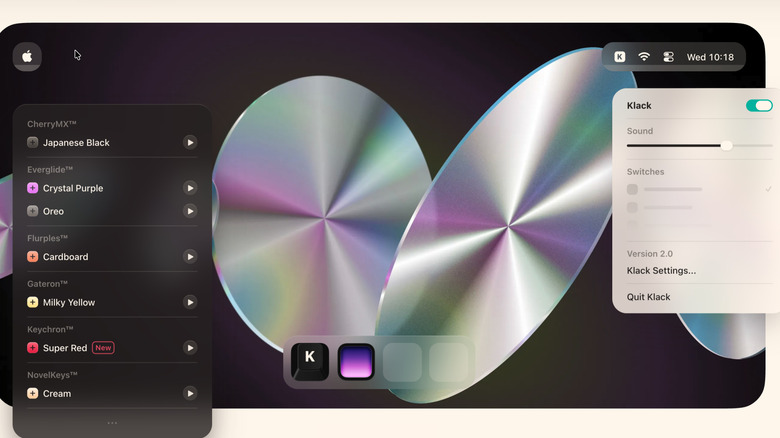
Ask someone why they love their mechanical keyboard, and there's a good chance they'll tell you that half the joy comes from the click-clack sound. Sadly, that's not something you can enjoy on the MacBook's built-in keyboard or any external keyboard lacking mechanical switches. Until you get Klack.
Klack plays hi-fi mechanical switch recordings over speakers or headphones to simulate actually using one. It's doing more than that, of course, employing randomly pitched sounds so the keys don't sound identical and incorporating things like AirPods Spatial Audio so the illusion works when you turn your head. Once I'm absorbed in my work, I find myself forgetting that I'm not using my mechanical keyboard if Klack is enabled and I'm away from my desk.
Fair warning, the illusion is dependent on where your speakers are positioned and isn't particularly convincing when using non-AirPods headphones. But good luck finding a more effective way to trick your brain, and good luck beating the price. It only costs $4.99 on the Mac App Store.