

14 Free Apps That Actually Add Helpful Features To Your Mac
AI has completely reshaped how many developers make apps. Now, someone can make an app in a weekend with AI agents that would have otherwise taken weeks or months. For macOS users, this has been mostly good. Slop-coded apps are out there in large quantities, make no mistake, but we're now living in what feels like a miniature software golden age because devs can make apps they've just thought of before their lunch break is over. We'd like to take a tour of just a few Mac apps you haven't heard of that expand your device's capabilities and add new functionality.
All of the following apps give your Mac new abilities or improve on what it can do natively. All are free, occasionally with a paid pro version. Try these 14 Mac apps if you haven't heard of them already.
Vorssaint: The everything app
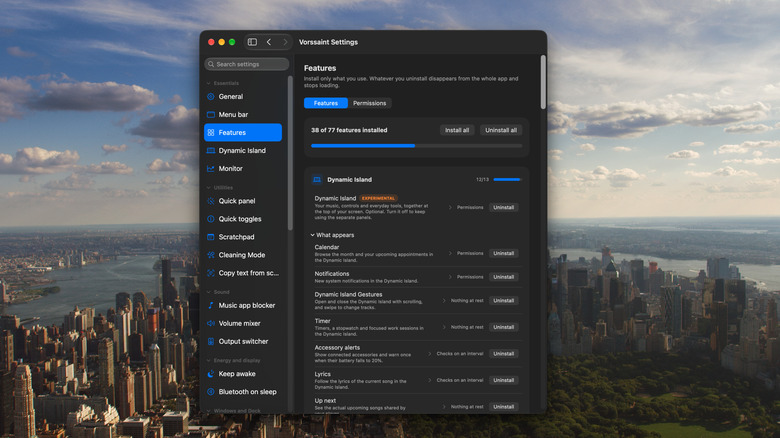
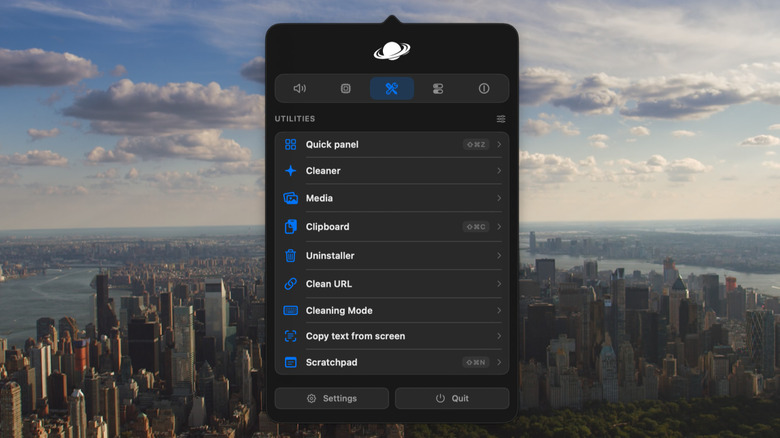
A very common issue on macOS is that you end up with a handful of small utilities that only do one thing. It can make your Mac feel cluttered and may collectively use too many resources. Enter Vorssaint. Vorssaint is a grab bag of features. These include a volume mixer, Dock previews, mouse scroll direction correction, clipboard history, a file shelf, quick media converters, and more, and more, and more.
Vorssaint is clever about how it implements them, too. You "install" (it's more accurate to say "enable") the features you want, and "uninstall" the rest, to avoid unwanted features being on for no good reason. That also means you can limit how many system permissions you give, rather than giving permissions for features you'll never use.
The million-dollar question is this, though: Are Vorssaint's implementations of other apps good enough to replace them? While we would say the alternatives tend to be a bit more polished, Vorssaint's are good enough, and 100% free. I got rid of my window manager, my clipboard manager, my app uninstaller, and several other tiny apps thanks to Vorssaint.
EnviousWispr: The best dictation app, period
While the Mac has dictation that's good enough, you'll quickly discover its limits any time you start to use bigger words or talk too fast. We've previously looked at some great free dictation apps, like MacWhisper. Then we stumbled upon EnviousWispr.
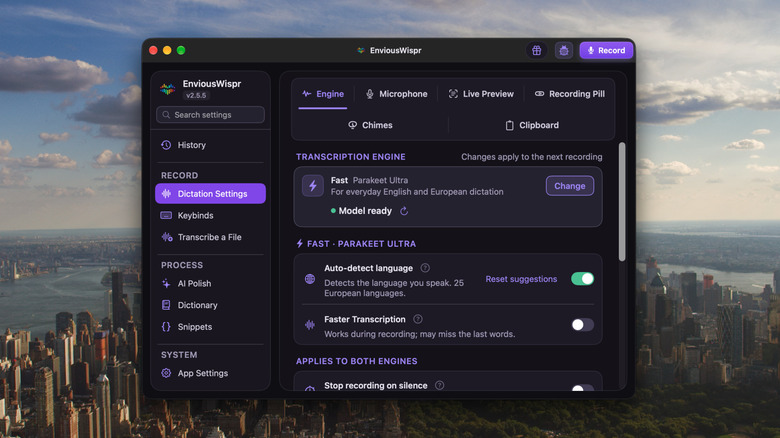
What makes EnviousWispr the best free dictation app out there is that, first, it has its own in-house dictation polishing model (where a local AI fixes small text errors) that is way faster and more accurate than any other local model I've tried in a dictation app, and so good you won't need to pay for an AI provider to handle clean-up. It's on-device, too, making it faster and more private. Second, it has a well-implemented personal dictionary that learns from your corrections of uncommon words.
Beyond that, the app is highly customizable, allowing you to tweak virtually anything you could want, and it supports fast and accurate AI dictation models, such as Parakeet Ultra. Once you start using EnviousWispr, you may never type out things on your keyboard again. And did we mention it's 100% free?
MacPacker: A clever file archiver
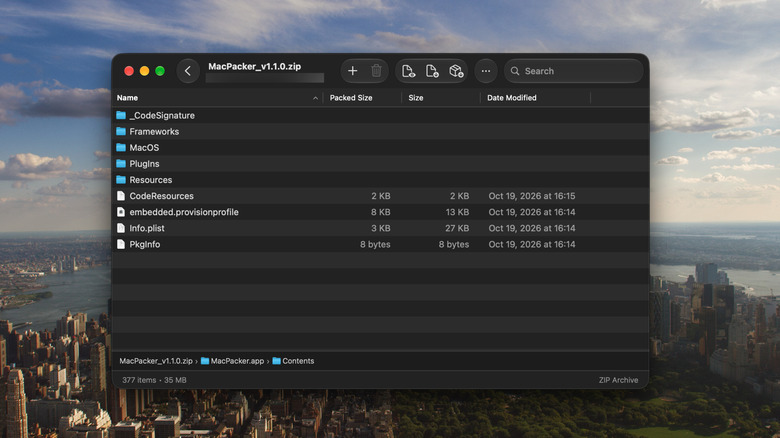
There are some great file archivers out there, such as the popular Keka, but a newcomer on the block that takes it to the next level is MacPacker. It lets you root around in a file archive as if it were a normal folder directory, so you can see what's inside before you unpack it. Better yet, you can take only that one single file you want and leave the rest of the archive untouched. And even better than that, you can edit the contents of an archive, in place.
This can save you a lot of time if you regularly deal with large archives, or if you simply hate the tedium of having to double-click an archive, wait for it to decompress, grab what you need, then delete the remainder and the archive. It supports basically every compression format you can imagine, too, and it's 100% free to use. Double thumbs up from us.
Tinycast: A lightweight Spotlight replacement
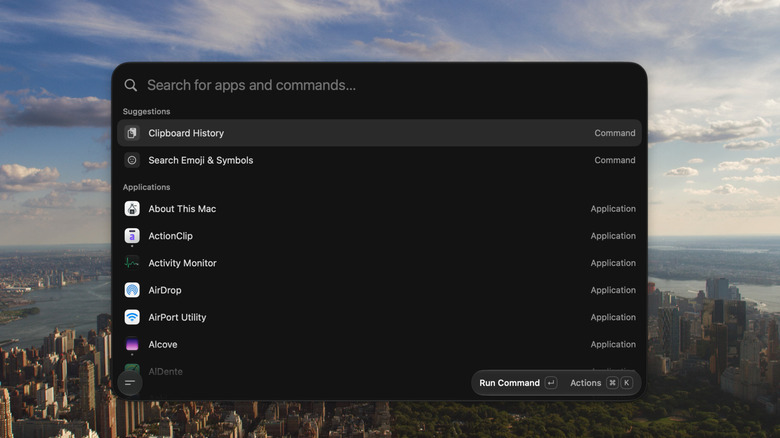
Spotlight replacements are nothing new. Alfred, for example, has been around for over 16 years now. But for many people, they're appealing because Spotlight continues to be less useful than it could be. Another Spotlight alternative you may like is Tinycast.
First, it's small and lightweight, using the native Swift programming language. It goes beyond all the stuff you would expect it to do, like file search, basic calculations, and conversions, to include window management keystrokes, an app uninstaller, emoji search, and Raycast extensions. Raycast is a popular Spotlight alternative that some users may be coming from.
Similar to Vorssaint, Tinycast also has a policy of leaving most things off by default unless you choose to turn them on. So if you really only want a bare-bones Spotlight replacement that isn't going to slow down your device, Tinycast may be a good choice. It's 100% free to use.
EasyDMG: Install DMGs even more easily
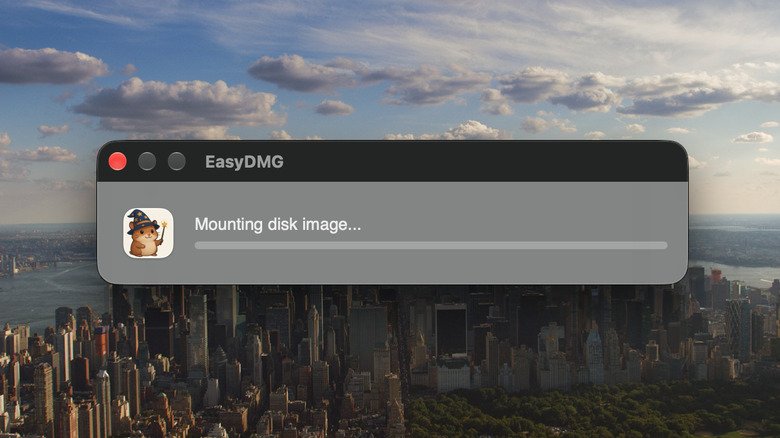
One of the many benefits of switching to macOS from Windows is how easy it is to install and uninstall programs outside the App Store. Simply double-click a DMG file and drag the application into the folder. Done. Having said that, this already-easy process could be just a tiny bit easier. After installing a DMG, you should make sure to unmount it in Finder and delete the DMG. EasyDMG takes care of all of this for you.
Once you download, install, and give permissions to EasyDMG, the app makes it so installing DMGs effectively takes a double-click. It will mount the DMG, run through the security checks, install the app, unmount the DMG, and get rid of the install file.
It doesn't work in every situation. Some apps have an installer wizard like Windows, forcing you to do it manually. However, this is an install-and-forget sort of app that will make all future installations so breezy that the lack of it will be painful. EasyDMG is 100% free to use.
Burrow: A macOS cleaner that actually works
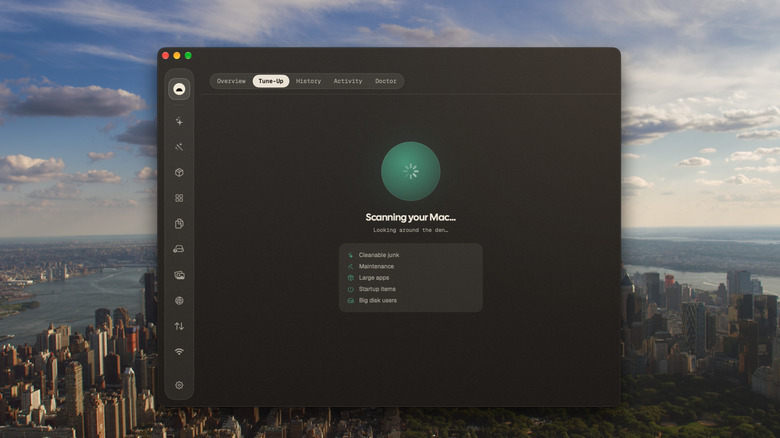
Cleaner apps, in my opinion, tend to take advantage of people's ignorance of how computers work to sell them something their computer can already do by itself. We won't name any names. The problem is that for someone who's not tech-savvy, OSes don't always make it clear how you can do that cleaning. Burrow is our choice for macOS.
Burrow cleans things that actually can be cleaned, and optimizes and fixes things that can actually be optimized and fixed, to free up storage and maintain a computer's overall health. It handles tasks like sweeping out old caches and logs, erasing installers, flushing DNS, finding file duplicates, removing leftovers, and the list goes on and on. Think of it like a one-stop troubleshooting shop.
That's only the tip of the iceberg. Burrow is capable of a whole lot more, such as resource monitoring and helping you fix a nonfunctional internet connection. It's also completely free to use.
Clop: A handy media optimizer
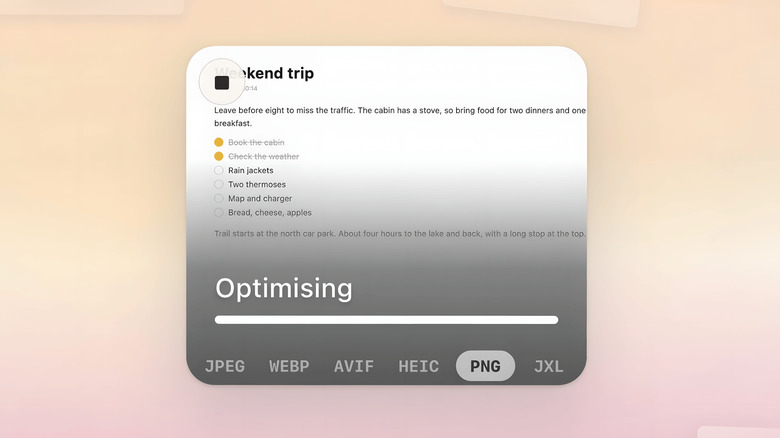
A lot of people are likely unaware that you can compress media (like images and videos) to a fraction of their file size without a perceivable reduction in quality. So a photo library weighing hundreds of gigabytes could potentially be reduced down to just a couple dozen, for example. Apps have been around for years that do this, but none as easily as Clop. What makes Clop different is that it automatically optimizes media that appears in your clipboard or a specific folder, or that you select with a keystroke or by dragging the file. It handles basically every type of media imaginable, from photos to PDFs, screen recordings, and songs.
It can also re-encode files to different formats, do batch optimizations, perform a series of operations on a file (called a "pipeline" in Clop), normalize audio loudness, upload files to your cloud storage provider, and a whole lot more. If there's a file that's bigger than your messaging app's limit, Clop can downscale it to a smaller size. We recommend Clop whether you're a person who is working with big media files all day or someone who optimizes a file once in a blue moon. It's simply a must.
Clop is free to use. There's a pro version that allows you to do more optimizations per session, but surprisingly, only a small handful of features are completely locked behind the paywall. The Pro version only costs a modest 15 euros for a lifetime license.
Itsycal: An on-demand menu bar calendar

The macOS calendar is one of the best free calendar apps out there and readily accessible if you add it as a widget. However, there's no way to add it to the menu bar so you can see it in full with just a click. Itsycal is a svelte app that adds that functionality. It integrates seamlessly with Apple's calendar, letting you set new calendar events and showing you upcoming ones. It also opens with keyboard shortcuts.
Although it is quite minimalist (in a good way), there's more customization than meets the eye. For example, it has a huge number of shortcuts. With simple shortcuts, you can jump to the next month, the next year, see your first upcoming agenda, and more.
Finally, it's lightweight in terms of system resources; in our testing, at rest, it consumes only about 65MB of RAM. Compare that to Dato, another menu bar app that consumes almost 100MB of RAM — though to be fair, that one does have a lot of features.
Free Download Manager: Download better
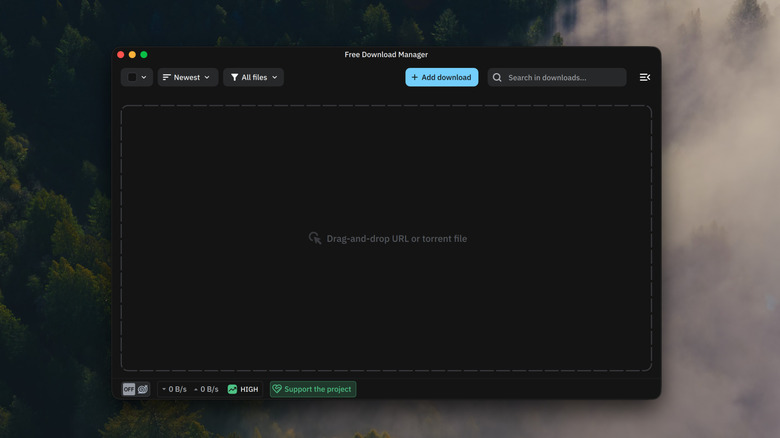
A download manager might sound like a nerdy, power-user sort of app, but I'd argue it's something a lot of people are sleeping on. See, your browser's built-in download manager gets the job done, sure, but things could be better. We recommend Free Download Manager.
The number one reason to use FDM is that it may make downloads faster by breaking them up into little pieces that are downloaded simultaneously. The second is facilitating big downloads, which can get interrupted. In my experience, a lot of browsers struggle any time you download something larger than a couple dozen megabytes. They often can't resume the download and require you to get a new download link. Not with FDM.
The app is free, as the name implies, and open-source. Users can vote for new features. Since the app doesn't use ads or tracking to monetize itself, consider throwing the devs a donation if you like it.
System Data Unpacked: Declutter the System Data category
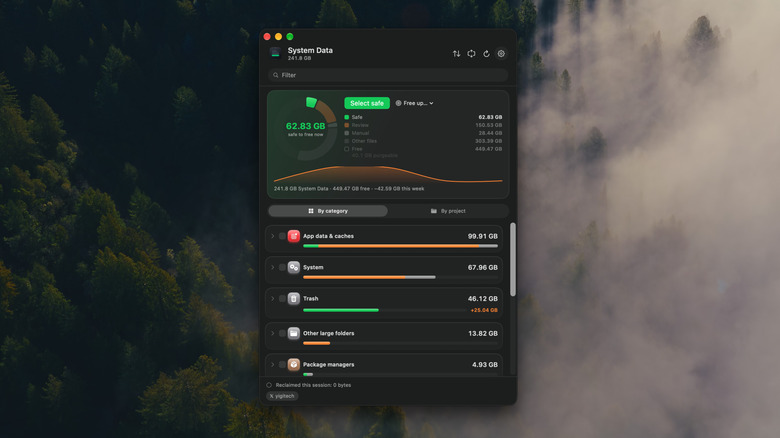
Any long-term Mac user knows about the nebulous System Data, a category of data you can see in System Settings > General > Storage that can take up dozens of gigabytes without any indication of what exactly that data is, even though it often consists of data created by your own apps. An app that tells you roughly what Apple is counting as "system data" is System Data Unpacked.
System Data Unpacked calculates the size of individual data categories and makes clear what data is "safe" to remove, such as trash files and app caches. You might be shocked by what you find. For example, I discovered that the Apple Wallpapers were taking up 60GB on their own. SDU can remove the data with a single button click, although there are a few categories that require manual deletion.
Further, the app can automatically remove safe items and warn you when you're low on free space. You can access it from the menu bar or just open it every once in a while as needed. All features are 100% free to use.
wBlock: A comprehensive Safari ad blocker
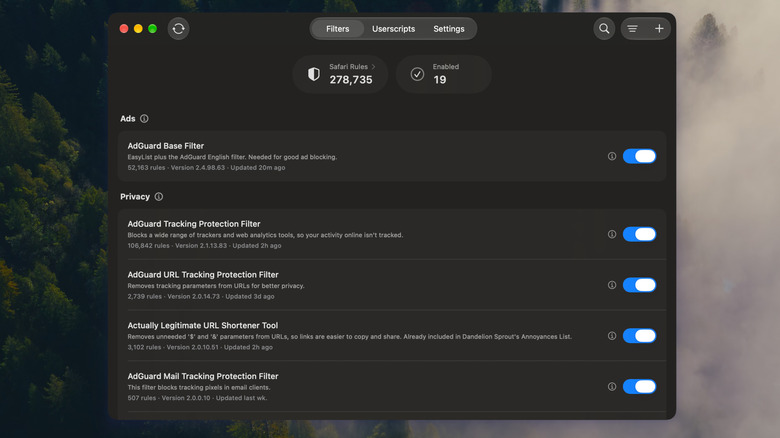
Adblocking has become a tricky game now that Google Chrome restricted it, but users of other browsers are in luck, including users of Safari. uBlock Origin Lite is an easy recommendation. Another that has been growing in popularity is wBlock. Unlike uBlock Origin Lite, which is somewhat limited on Safari, wBlock lets you customize everything. You can pick and choose lists for ad-blocking annoyances (like those pesky cookie banners) and set localized lists for non-English content. It includes some of uBlock Origin's brilliant features, like the Element Zapper, which lets you click to remove specific elements.
We can recommend wBlock without hesitation to anyone. Whether you're someone who wants an experience that works out of the box with no configuration or someone who wants advanced user controls and integrations with apps like Dark Reader and DeArrow, this is your end-game ad blocker. Something that's also really nice about it is that it works on iOS and iPadOS, too, with iCloud Sync so you can have the same rules regardless of which device you're using.
wBlock is 100% free to use. It has features that even paid alternatives like Wipr 2 and AdGuard do not. There's a helpful comparison guide here that tells you reasons you might want wBlock and reasons you might prefer its competitors.
MacTap: Physically tap your MacBook to activate features
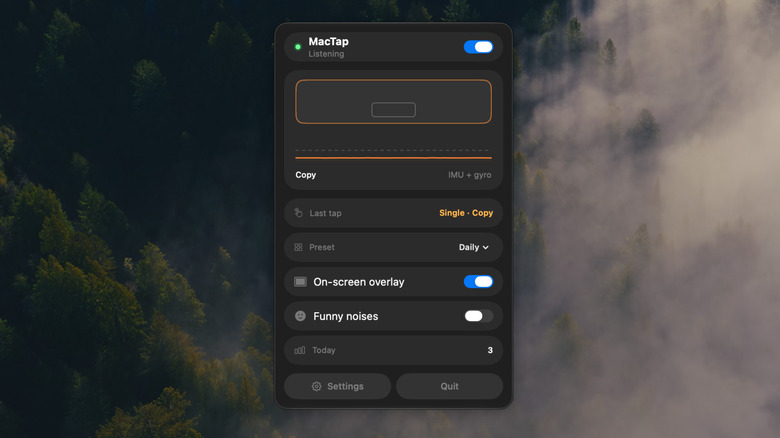
Fun fact: M2 and later MacBooks have a chassis motion sensor, which one developer has leveraged in a really, really clever way with an app called MacTap. You can physically tap your MacBook to, for example, copy and paste, press play or pause, undo an action, and more. You can even tap one side of your MacBook to do one thing and tap the other to do another. Absolutely brilliant, if you ask me, because tapping your MacBook can be faster than using certain keystrokes.
MacTap is highly customizable. Aside from changing action settings, you can adjust the sensitivity for a lighter or harder tap and tweak the window and cooldown so successive taps don't interfere with each other. There's also a nifty magnitude monitor that tells you how hard your taps are so you can get a feel for how hard you need to tap to get the desired effect. Based on my own personal experience using it, you don't have to tap that hard with the default settings, and it doesn't seem to misfire easily.
Forel: Organize folders automatically
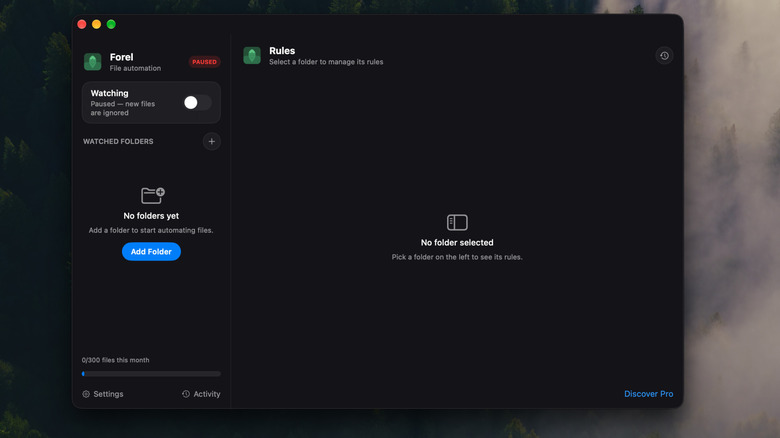
Forel can save you a lot of time by making folders self-organize automatically. So, for example, if you take a screenshot, Forel can move it to your screenshots folder; if you make a .pdf or .docx file that says bank statement, then Forel can move it to your finances folder. And so on. All you have to do is set rules. Each rule has conditions based on the name, extension type, tag, or other metadata. You can have it be strict, ensuring only files that meet your conditions exactly are accepted, or loose, making fuzzy what is or is not accepted.
Forel is free to use for two folders and up to 300 files a month, and that includes unlimited rules and actions and most of the app's functionality. The Pro version costs 15 euros as a one-time payment, letting you watch as many folders and process as many files as you like, plus the ability for it to use OCR to scan your media for specific keywords (super cool) and import files into libraries like Photos. We'd say the free version will be plenty for most people who just need specific files to go to the right place, and the pro version is reasonably priced for someone who needs more extensive organization.
Rectangle: Organize windows with keystrokes
One area where macOS was lacking for years was window tiling. Apple introduced basic drag-and-drop window tiling in macOS Sequoia in 2024, but it pales in comparison to Windows. With one app, though, you can organize windows faster and arguably more easily. That app is Rectangle.
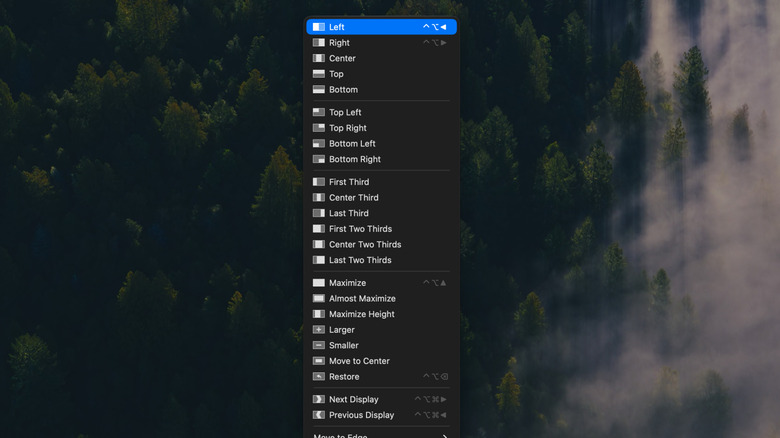
Rectangle allows you to place windows in the most common positions, such as window halves and quarters, with a simple keyboard shortcut; you can put the window on the left half of your screen by pressing Control + Option + Left Arrow, for example. It also supports maximizing windows, centering them, increasing/decreasing their size, and restoring them — and one of my personal favorites, there's a keyboard shortcut to move windows between displays.
Once you get used to it, it speeds up your workflow like crazy. Windows are instantly relocated once you press the shortcut. Rectangle has further functionality, such as customizable drag-and-drop window snapping. It's totally free to use, but there's a Rectangle Pro version that adds more features for only $10.
How we chose these apps

To narrow down this list to a reasonable amount (we had so many options to choose from), we focused on a few basic criteria. First, the app had to do something you can't already do natively on macOS, or at least do well. Nothing gimmicky, either. We wanted features that could really, actually be useful to someone. We prioritized apps that had lots of stars on GitHub, and barring that, we relied on our own personal experience using the app to make sure it's doing what it claims to do, and well.
We also wanted apps that are easy to use. Some of these apps, like Burrow, are repackaged, user-friendly GUI versions of more advanced, power-user-oriented apps, like Mole. And most importantly, all of these apps are free. We avoided apps that only give free trials or heavily limited free versions. The apps that have a paid pro version on this list also have a free version that doesn't feel cut down to the point where it's not useful.