

17 Features You Probably Didn't Know Came With Your Google Pixel Phone
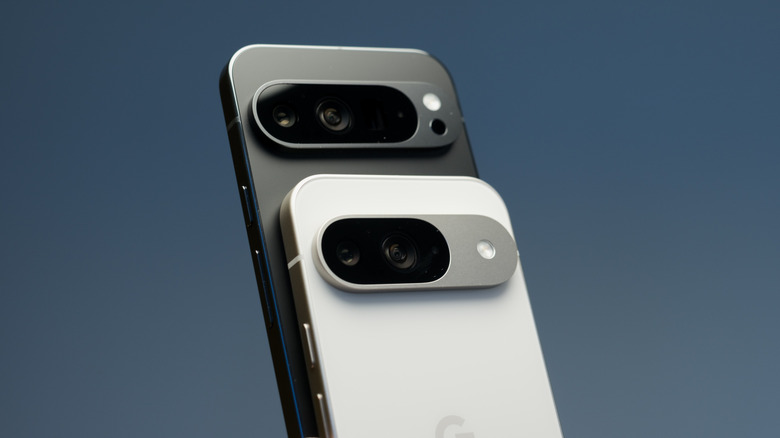
Google's Pixel phones have been around since 2016 and are still going very strong; We're now patiently awaiting the Google Pixel 11. Pixels have carved a niche out for themselves as phones that try to be "smarter" than the competition rather than offering the fastest performance. So when you buy a Pixel phone for the first time, you might be inundated by the long catalogue of smart features Google has added over the years — certainly a lot more than other Android manufacturers on the market.
From seamless live translation and subtitles to unique camera modes, these are some of the best features you probably didn't expect to find in your Pixel phone. Bear in mind that not all of these features are available on all Pixels, and that this list is by no means comprehensive. Some of these features may also be available on other Android phones.
Detect songs with Now Playing
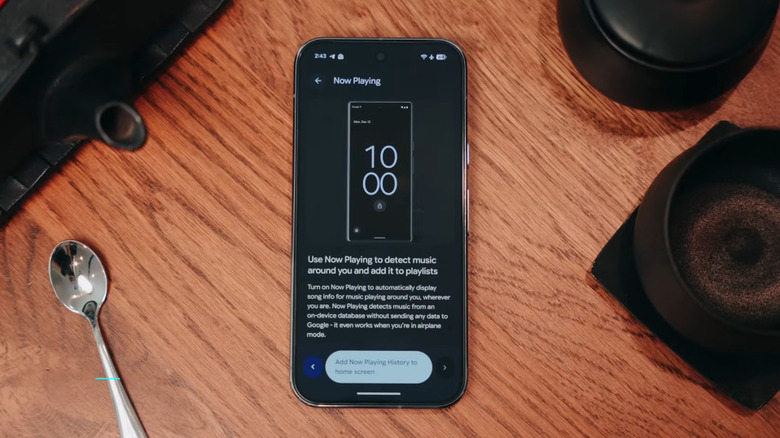
Now Playing was for years a Pixel-exclusive, and even now it makes you feel like you're living in the future. Now Playing simply listens in the background 24/7 and identifies any songs it hears automatically. The feature keeps a running history with the exact date and time you heard them. It works offline, too.
What we love about it is how effortless it is. Unlike Shazam and other song-identification apps, you don't have to manually press a button on demand. Pixel's Now Playing identifies all music quietly and unobtrusively. So if you're busy with something, you have the confidence you can find out what that earworm was later on. Identified songs can be added directly to your streaming music app, too. For those concerned about a microphone that's effectively always listening, Google claims the feature only creates a "digital audio fingerprint" rather than raw audio, and doesn't store it or share it with third parties.
Screen calls and detect scams
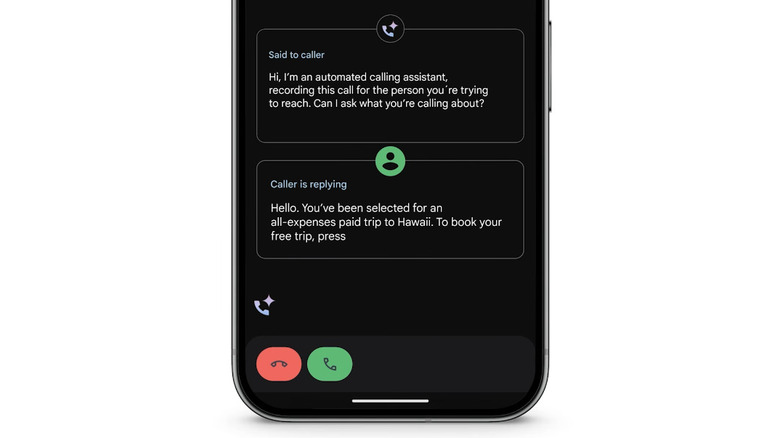
Just when we thought robocalls couldn't get any worse, AI helped them become even more difficult to sift from legitimate ones. The slam dunk Google Pixel feature that has been out for years now (and yet competitors like Apple are only just catching up with) is a digital secretary that screens your calls. You can enable it in the Phone app by going to More > Settings > Spam and Call Screen, and choose a protection level. Then sit back and relax. Any calls your Pixel receives are quieted, and a transcript of the live conversation pops up on screen as your Pixel asks the person why they're calling. You can choose to answer — or not — based on the response.
Google has a growing catalogue of anti-spam features too, including Scam Detection. In a nutshell, the feature analyzes calls for discrepancies that might suggest a fraudulent caller, and then it quietly urges you to end the call. The feature also works in your Messages app.
Use Hold For Me, Wait Times, and Direct My Call
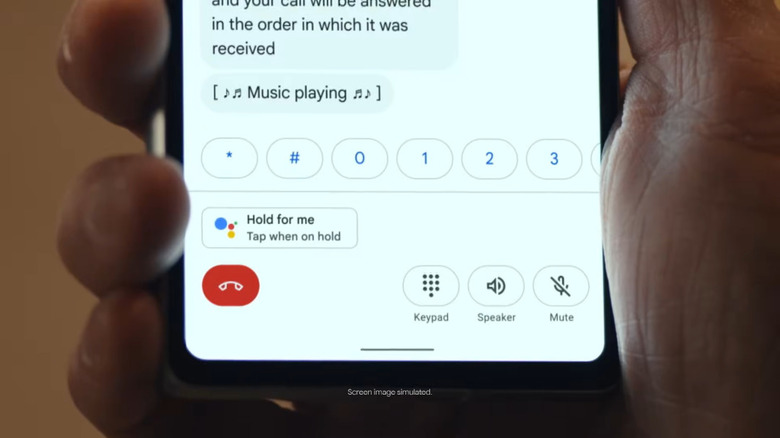
A Google Pixel can save you from scammers and save you a lot of wasted time when calling customer service. Calls that put you on hold no longer force you to stay glued to your phone thanks to Hold for Me. Provided you have a Pixel 3 or newer and use the Phone app, your phone should detect holding music and offer to alert you when a representative is available. Make sure this option is enabled in the Phone app's Settings, under "Hold for Me."
Before that, you can see how long the average call time is for a particular business. This feature is called Wait Times. It's a crowdsourced feature that estimates hold times based on other Pixel users' wait times.
Finally, there's Direct My Call. All it does is visualize an automated dialing menu, i.e., "press one for this department, press two for that department." Each option gets its own button that you can press. With this trifecta of features, customer service calls become a lot less annoying.
Make your Pixel a computer with Desktop mode
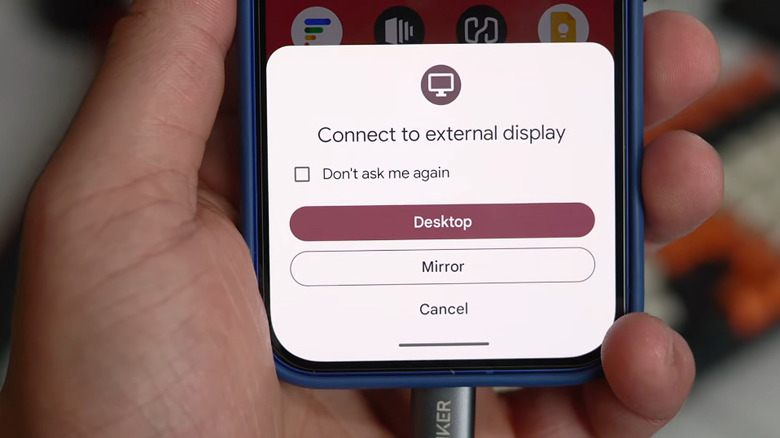
We soon may enter an age when the average person doesn't own a PC, since a smartphone can work just as well. That's the promise of Google Pixel Desktop Mode, which you will need at least a Pixel 8 to use, plus peripherals and a USB-C to HDMI connector (like a standard USB-C dongle) for a monitor. What's great about it is it works without setup. Upon connecting over USB-C to a monitor, you'll get a prompt to launch it, with the option to have it launch automatically going forward.
What follows is a desktop setup that will be familiar to anyone who's used Windows: A task bar, a search and app menu, a file explorer, the works. Many common keyboard shortcuts, (like Ctrl + C for copy) work without further configuration. It's not a complete laptop replacement yet; the feature is relatively new and lacks many of the little nuances and QoL features that you'd expect from a proper PC. For basic productivity tasks and web browsing, though, it is plenty capable.
Select text and images in the app switcher
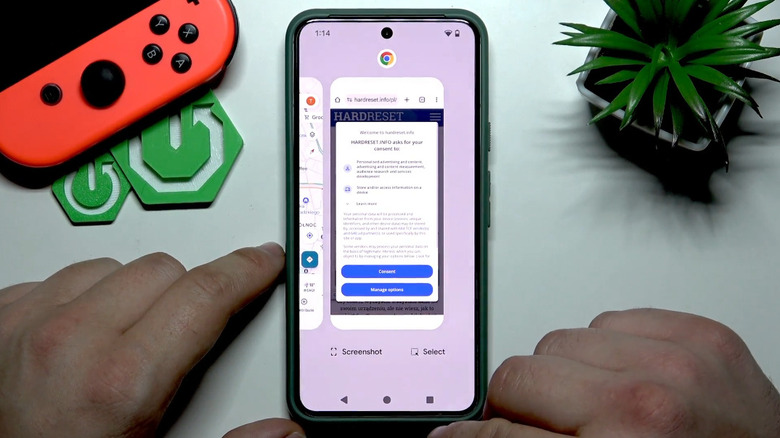
Selecting text from an app can be annoying, perhaps even impossible if the app doesn't allow it. Not with a Google Pixel. Simply open the Recents menu. If you're using swipe gestures, swipe up and hold; if you use the three-button navigation, click on the right-hand Overview button. From here, you can select any text. This can be really helpful not only to grab text from places where it's not easily selectable, but to grab it from one app and immediately pop over to the next, where you plan to paste. It also can grab images. As long as you're running Android 11 or later, this feature should work.
With the share menu that pops up, you can send images straight to one of your contacts, or save it to the cloud. Unfortunately, this feature did get slightly less useful after a recent update prevented instantly saving an image or using Google Lens on it, but it still beats the iPhone's barebones switcher.
Stop alarms and answer calls with your voice
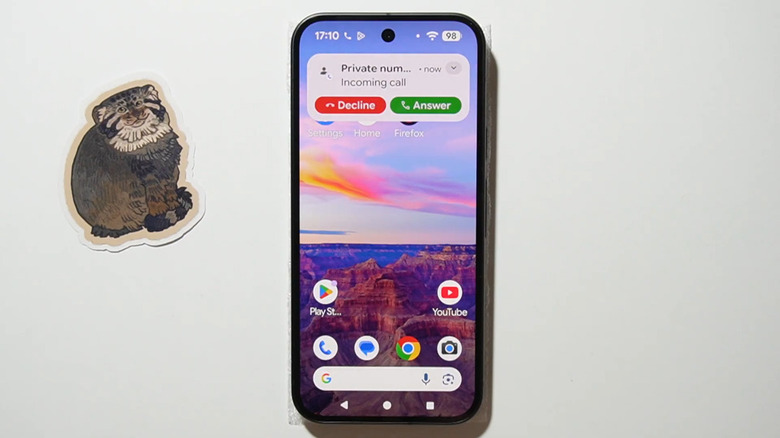
What really sets Google Pixels apart from their competition is that Google's engineers think up solutions to problems that seem so obvious, we wonder why someone didn't come up with them earlier. The perfect example of this is how the Pixel lets you control alarms and calls with a simple voice command.
If your alarm is going off, you don't have to fumble for it blindly in the dark when half-asleep. Simply say "snooze;" if your hands are dirty or occupied, ringing phone calls can be answered or rejected by saying "answer" or "decline." These voice control settings can be adjusted to taste in the Google Assistant settings under "Quick phrases," and are supported on Pixel 6 phone and above. Perhaps it's dangerous to let someone snooze an alarm so easily, but man if it isn't easy and convenient.
Get subtitles anywhere with Live Captions
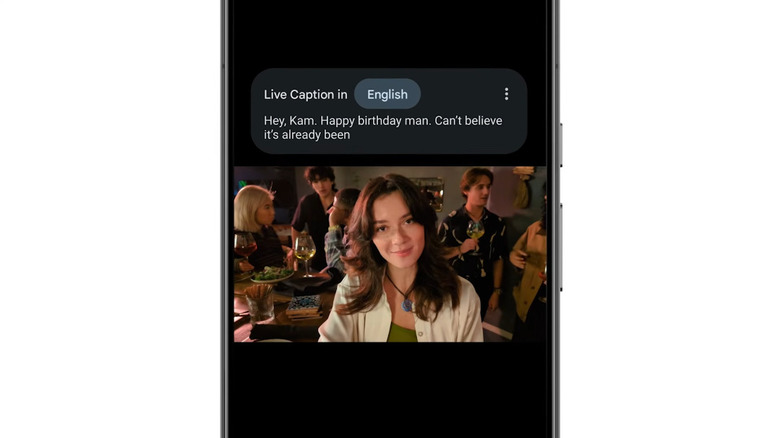
Subtitles are common enough on streaming apps. Even social media has them now. But what about those situations where subtitles aren't supported? Google Pixel's Live Caption fills that gap. According to the Google support page, it works everywhere, be it video, calls, or audio messages. It's also easy to turn on. Hit one of the volume buttons, look for the three-dot "More" icon, and enable "Live Caption." All you need is a Pixel 2 or newer. Languages other than English require at least a Pixel 4.
Better still, these won't just be dry, auto-generated subtitles like any other. Google's "Expressive captions" feature (Android 15 or later) highlights more emotional lines and labels things like laughter and throat-clearing accordingly. This feature is off by default: to enable it, go to Settings > Accessibility > Live Caption and turn on Expressive Captions. There are additional settings that add styles to captions, like capitalization, to further emphasize emotive speech.
Add an extra shortcut with Quick Tap
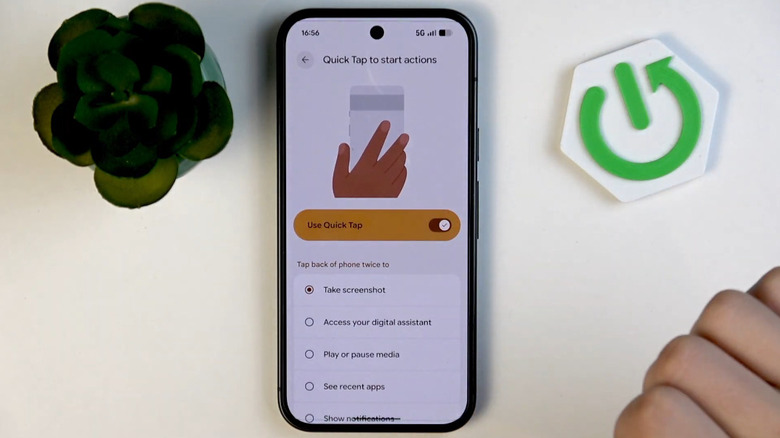
Some tasks on a Google Pixel are slightly cumbersome or annoying when using the phone one-handed. Take opening the notification tray, an action many people do two-handed. The Quick Tap feature, which uses a double-tap on the phone's backside to trigger certain actions, could become indispensable for those situations.
First, you'll have to turn it on. Head over to the Settings app, go to System > Gestures, and turn on Quick Tap. Personally, I use it to open the notification drawer since that's a lot easier than stretching my thumb to reach it, but you can also set it to activate Google Assistant, control playing media, take screenshots, and more.
There are other non-button gestures to control different parts of your Pixel, too. For example, shaking your phone horizontally changes to the opposite camera (when in Camera mode), and if there's an incoming call, flipping your phone upside-down silences it with Do Not Disturb. Even squeezing it by the sides has a function; by default, it activates Google Assistant.
Live translate calls with Voice Translate
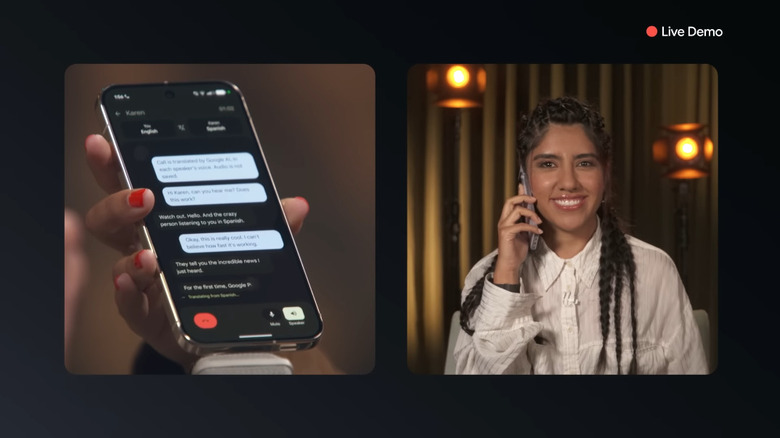
If you're on a budget, you don't need to hire an interpreter to facilitate an inter-lingual call these days. You just need a Pixel 10 or newer. The Voice Translate feature translates your words and replicates your voice in a different language, all on-the-fly. To enable it, go to the Phone app and select More > Settings > Voice Translate, then turn on Use Voice Translate. There, you'll need to specify your native language and download optional languages. It all works offline, so you won't need to ensure a strong data connection when making the call. If there's a person you speak to regularly in their language, Voice Translate can be activated automatically for all calls with them going forward.
A few things to know before you rush out to use it. One, you'll need at least a Pixel 10 to use it; Two, it supports only a limited set of languages, with some (like Japanese and Russian) not available on the Pixel 10a; Three, Google claims no conversation data is collected or stored. If you need to translate in-person conversations, you can use your Pixel Buds or the Google Translate app instead.
Take better pictures with Add Me and Auto Best Take
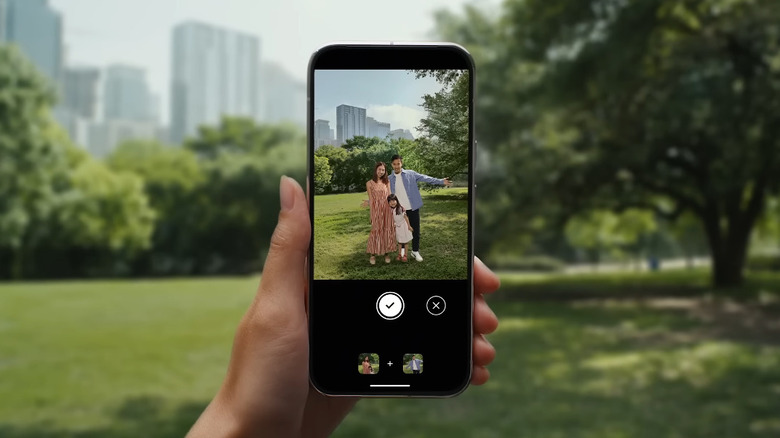
Perhaps the second reason many Google customers buy a Pixel, after all the smart features, is the class-leading camera. Pixels take amazing photos. They also incorporate all kinds of smart picture-taking tools. Two of the best ones are Add Me and Auto Best Take. Add Me allows you and yours to simulate a group photo by stitching together two separate takes. Just swipe to the Add Me function while in the Camera app, and the phone will guide you through the process.
If the idea of taking a semi-AI-generated photo of a group photo that never actually happened irks you, then Auto Best Take might be more your speed. The biggest challenge with group photos is making sure everyone's looking at the camera, smiling, and not blinking. When Auto Best Take is active, it snaps those fleeting moments when everyone looked perfect, or blends a few takes together for a perfect result.
Use your Pixel as a webcam
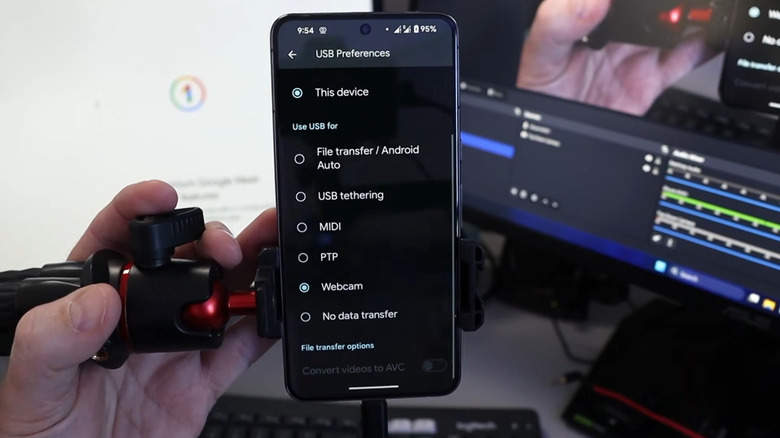
One of the coolest features Apple had ever introduced was being able to use your iPhone as a webcam. It seemed like one of those Apple ecosystem benefits that wouldn't work on Windows without a third-party app. Fortunately, that's not the case. With a Pixel, all you need is a USB-C data cable to get the same result.
Plug in your Pixel to your computer, then pull down the notification drawer to find the "Charging this device through USB-C" indicator. Change it to "Webcam." Once you do that, you can go back to the notification drawer, choose the Webcam Service notification, and see a live preview. Further, you can switch from the front camera to the back camera and choose the zoom level. From there, it's simply a matter of choosing your webcam under the available options for the app where you plan to do a call.
Transcribe a meeting and add Speaker Labels
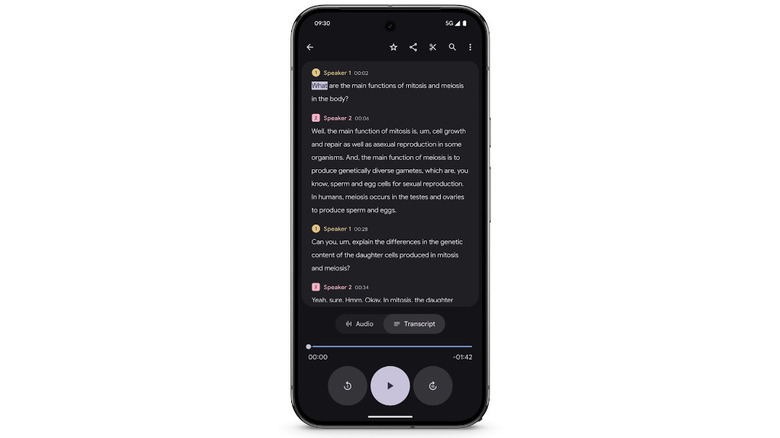
The best way to transcribe meetings to text is with an AI voice recorder, but the next best thing is a Pixel. Based on personal experience, Pixel has unmatched transcription accuracy, including transcription summaries, comprehensive in-transcription search, and detailed timestamps. Even cooler than that is the handy speaker label feature.
With the Recorder app open, click first on your user icon and then on Recorder Settings. From here, you can enable Speaker Labels. Now your Pixel will determine when one person has stopped speaking and when another has started, and separate the transcript accordingly. The only editing you'll need to do is setting speaker label names for your own convenience. What's great about this feature is that, once it's enabled, it just works. You can start recording a meeting and forget about it, confident that afterward you'll have a complete and accurate transcription.
Make use of Advanced Dictation
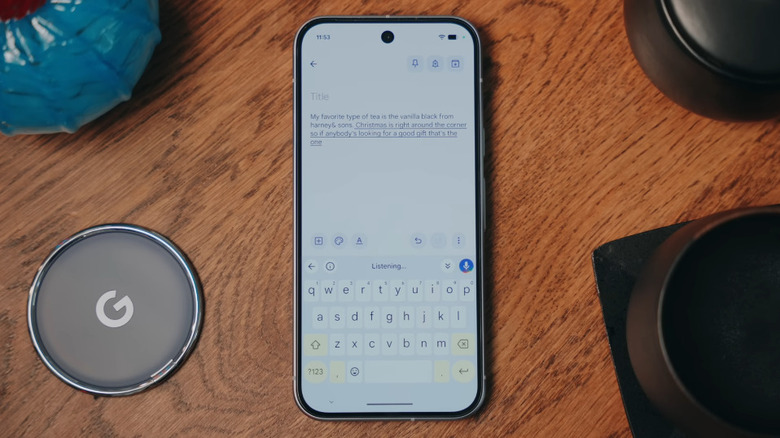
Pixel's voice transcription is so good that it can differentiate various speakers. Pixel dictation is likewise in a realm of its own. Dictating messages, notes, or emails is so accurate and reliable that you may never type things out again. More than that, though, Pixels incorporate intelligent, voice-driven proofreading mid-dictation.
How does it work? A few examples. You can describe the emoji you want and it will be added; saying "delete last word" will do just that, while "send" will send the message. These voice commands aren't unique to the Pixel, but Google's phone can understand even more complex commands. You can spell out words, apply capitalization, insert words in specific places, and so on. You can also just say "fix it," and Pixel dictation will suggest some proofreading. All the while, you can still type with the keyboard without prematurely ending dictation. These features need to be turned on by going to the keyboard settings and opening Voice Typing > Advanced voice typing features.
Use your face to enable intelligent Auto-Rotate
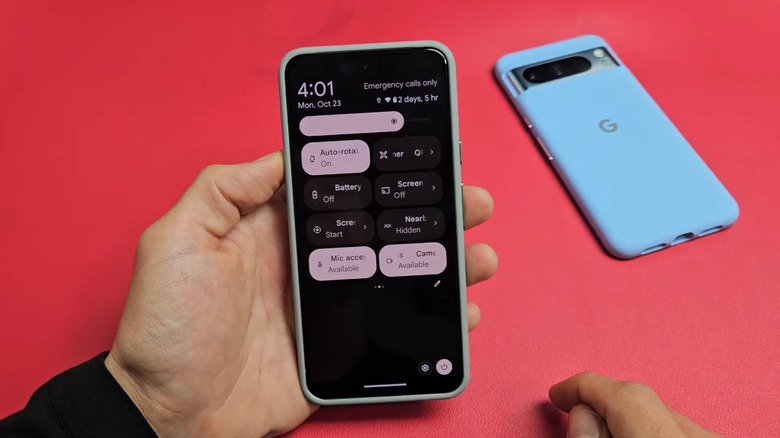
It is super annoying when you turn your phone to watch a video, but the screen orientation doesn't change. So you turn screen rotation on. Then later, you turn your phone in an app you don't want to rotate, and it does. So you turn screen rotation off. Allow face-detected Auto Rotate to change your life. Make sure "Face Detection" is on in Settings > Display & Touch under Auto-Rotate Screen.
Google Pixel's implementation, in contrast to the typical accelerometer-driven rotation, uses your face as a guide. If you're lying down in bed, but your face is still following the same orientation of the screen, nothing will happen; But if you're standing up and turn your phone to the side to watch a video, it will switch to horizontal view. In theory, it all happens on-device and only when the accelerometer triggers it, so you don't have to worry that your Pixel is going to be watching you 24/7.
Use Adaptive Vibration
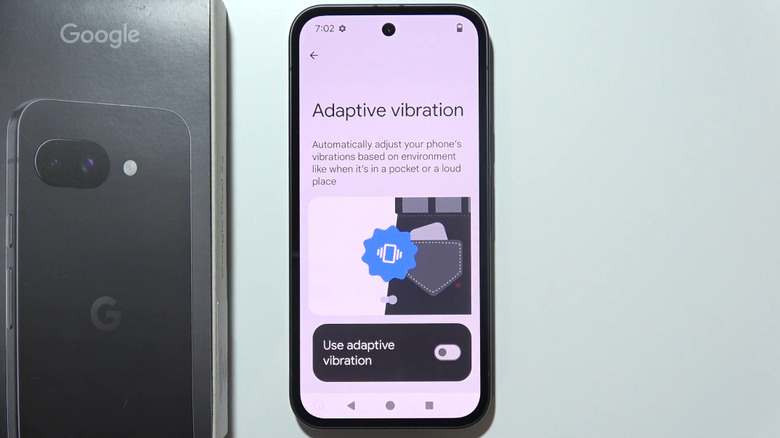
Your phone's vibration settings are one of those areas where you'd think there's nothing that can be innovated. The vibration setting is either on or off, right? Not on a Pixel. As long as you have a Pixel 7 or newer, you can enable adaptive vibration. In a nutshell, your Pixel decides how much to vibrate based on context. Head to Settings > Sound & Vibration > Vibration & Haptics > Adaptive Vibration to turn it on.
So how does this benefit you in practice? In loud places, the vibration will kick in harder, while in quiet places it will do the opposite. It knows when it's enclosed in a pocket, for example, in which case it will vibrate more aggressively so you don't miss notifications. This feature is for people who are tired of their phone rattling like a machine gun anytime it's on a hard wooden table during a meeting. Enable it if you're the sort of person who either misses notifications when their phone is in silent mode, or hates the loud vibrations — or both.
Minimize apps into Multitasking App Bubbles
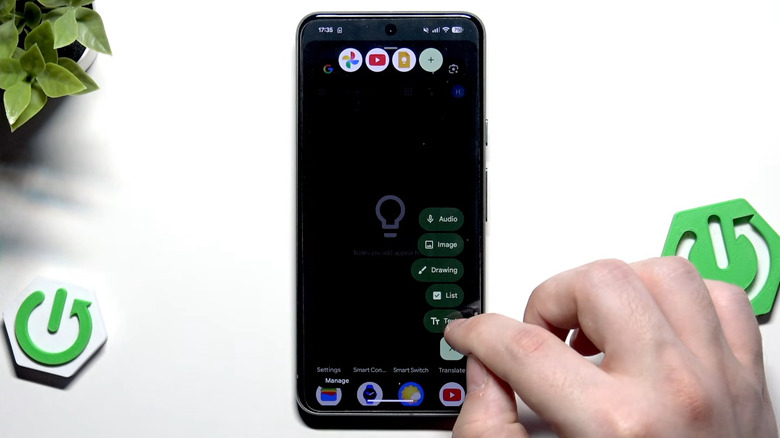
If you find yourself switching between a small handful of apps often enough that the normal app switching gestures seems too slow and tedious, or if split-screen isn't cutting it, you might be interested in Pixel's multitasking app bubbles. An app can be "bubbled" by holding down on an icon on the home screen or app drawer, and choosing "Bubble." Additional bubbles go alongside it in a row. Then it's simply a matter of tapping the corresponding bubble to go to that app, and voilà. You can change apps blisteringly fast and easily.
Note that you can press and drag bubbles to change their location if they're getting in the way. To get rid of a bubble, press down on it and drag it to the close icon near the bottom. Google notes in its support page that you can have up to 5 multitasking bubbles, total.
Keep the screen on with Screen Attention
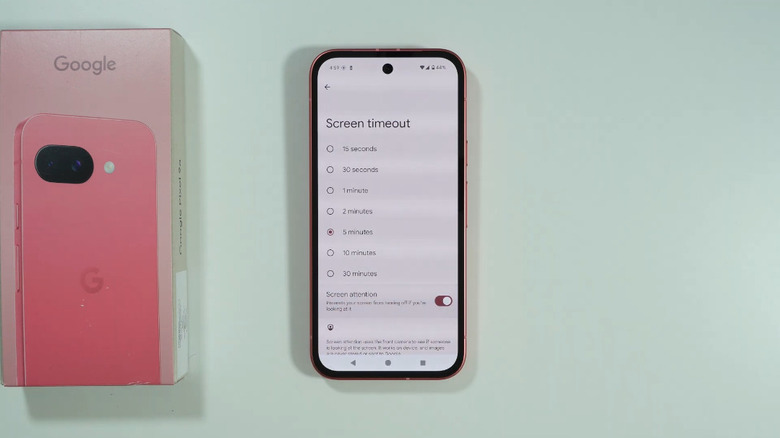
Does your Pixel screen ever dim or turn off earlier than you'd like, but you don't want to leave the screen timeout set too long? That's where the Pixel's screen attention comes in. Go to Settings > Display & Touch > Screen Timeout, then at the bottom switch on the "Screen attention" option. Similar to the Auto Rotate setting, this one also uses on-device face detection to determine whether to keep the screen on.
It's worth noting that these intelligent, camera-based facial detection features do incur extra battery drain, and that some users have complained that the feature isn't always as useful as advertised. You might consider leaving this feature off, along with the face detection auto-rotate. While you're in the Display Settings section, consider enabling the Comfort View and Night Light screen filters if you use your phone a lot and are worried it might impact your sleep — just know that Comfort View is limited to Pixel 10 and newer phones.