

5 Weird Gadgets You Can Plug Into Your Smart TV
We may receive a commission on purchases made from links.
When it comes to TVs, most people really only pay attention to the HDMI ports. That's because everything plugs into it, from streaming sticks like the Roku Streaming Stick to game consoles like the PlayStation 5. It makes sense. Those devices actually show up on your TV screen and do things, and the whole point of a TV is watch content or play video games. However, all smart TVs also come with USB ports and, believe it or not, those little things are entirely functional. The trick is finding out which things are functional and what you can do with them.
I've used my TV USB ports for a few things over the years, including as a charging port for my Xbox controller and once as a music player during a get-together before I bought myself a good Bluetooth speaker. That made me curious as to what else you could plug into one of these things that would actually do something. After all, smart TVs have operating systems, and that means they are capable of more than just displaying a picture from whatever is plugged into an HDMI port. How much capability seems to depend wildly from TV to TV, but the list is actually pretty long.
Since most TVs can do basic stuff like read video, audio, and image files off a USB stick, it's not really pushing the limits of a TV's USB port. The following list will test those limits and is definitely not something you do every day.
A webcam
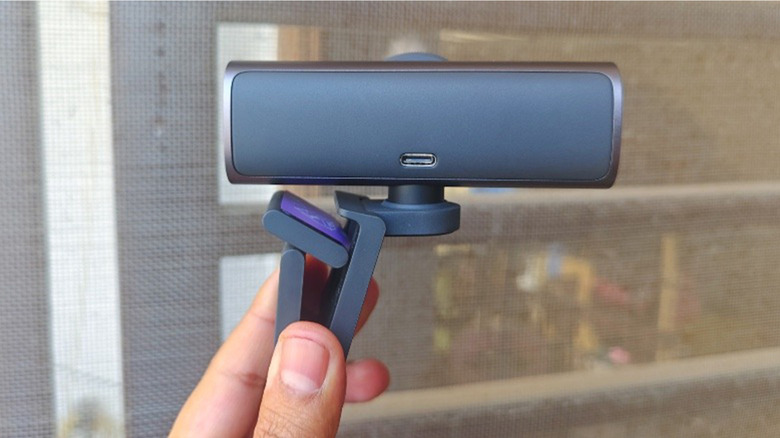
Some TVs actually have support for the use of a webcam and the ability to run video conferencing software. The list is rather short and includes some Sony TVs, most Amazon Fire TVs, some Sky brand TVs, and Apple TV devices. The theme here is readily apparent, and includes basically any Android TV with the Google Play Store, Amazon Fire TV with Zoom support, and then, of course, the Apple TV. If you have one, you can pop in a webcam, run Zoom, and have a video conference from the comfort of your couch, with the webcam providing microphone and video support.
As for webcams, support isn't very well documented, but it appears that most webcams will work for this, including the best 4K-capable webcams on the market today. You would just plug them in, use your TV's remote to launch the app, and off you go. I'm not sure I'd be cool with my coworkers watching my lounge on a chair or couch for a conference call, but I used to do video calls with my mom on Christmas, and having a webcam on the TV would've been cool for that use case.
In any case, if you go ahead and try this, we also recommend a USB mouse and keyboard in case you need to type anything in chat, since typing with a TV remote is arguably the worst experience imaginable when it comes to communication. This trick also works for PC monitor USB ports as well, in case you want something a little more normal.
A controller
When it comes to gaming on a TV, I would wager that the majority of people think about game consoles like the Xbox Series X or the Nintendo Switch 2. It's natural to do so, as the gaming console industry has been around for half a century, but the TVs themselves are starting to get in on the action as well, with many TV manufacturers letting you play games with a game console in absentia. For example, LG, Samsung, and Amazon Fire TVs come with native support for Xbox's cloud gaming and Amazon Luna cloud gaming. Some LG TVs also support Nvidia GeForce Now if you want to go that route.
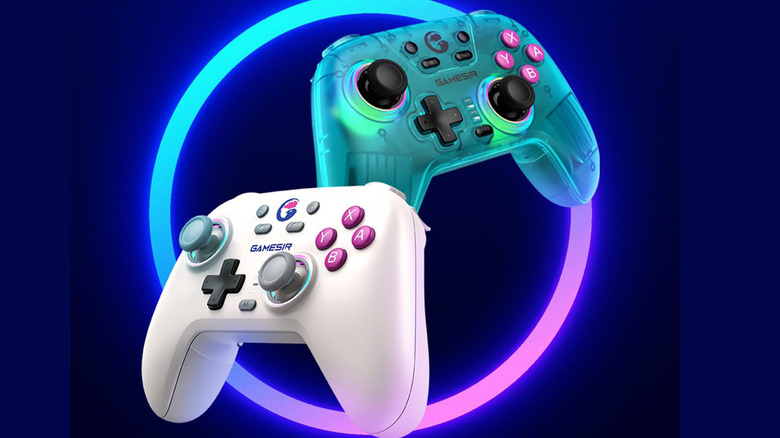
The method here is pretty simple. You pick up a gaming controller, connect it to your TV, start your cloud gaming, and you're off to the races without a console in sight. Most folks recommend something like this GameSir Nova wireless controller, which includes a 2.4 Ghz USB dongle that you plug into the TV's port. This provides more range and a faster connection than Bluetooth, resulting in less latency. This is also true for gaming headsets, which can also be plugged into TV USB ports.
Between the two, you can have a full-bore gaming setup without a dedicated console. There are pros and cons to cloud gaming as a whole, but if your TV supports it and you're into casual gaming, this is a nice solution to get some gaming in.
TV cooling fans
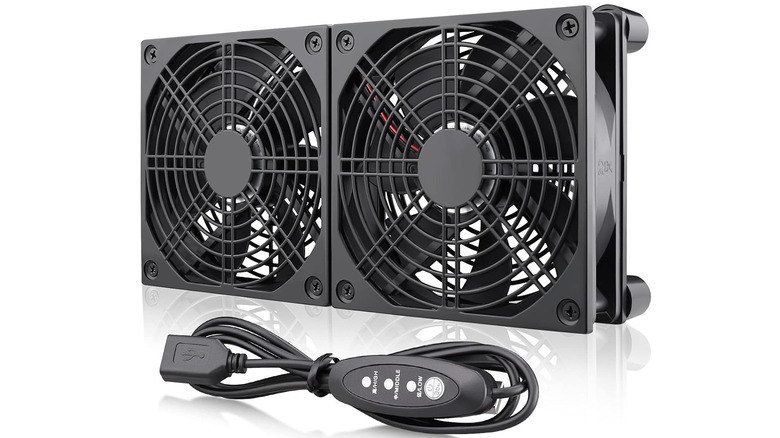
While there is a lot of discussion on the topic online, it's pretty well known that laptop coolers do actually work. The additional airflow gives components a better chance to cool down, increasing performance and longevity. You can also do this with your TV, and the method is mostly the same. You can find a variety of USB-powered cooling fans on sites like Amazon, and all you have to do is plug them into a USB port to get them spinning. Attach a couple of these to your TV, and you have an active cooling system to keep your TV cooler.
There are some pros and cons to this approach. TVs are usually passively cooled, like routers, modems, and most smart home tech. This usually isn't a big deal, and most TVs do a pretty good job of staying cool. However, it's a well-known fact that heat kills electronics over time, and so a little extra cooling may help increase your TV's longevity. Since people tend to keep their TV upwards of a decade, a little extra cooling to help get the TV there is not a bad idea at all.
It's not necessary, and that's why this is a weird pick, but it may be worth looking into if your TV gets very warm or if it's placed in direct sunlight in your living room. Any USB-powered cooling fan will work, just make sure to line them up with the vents on your TV, or else it won't matter at all.
As a home-made DVR
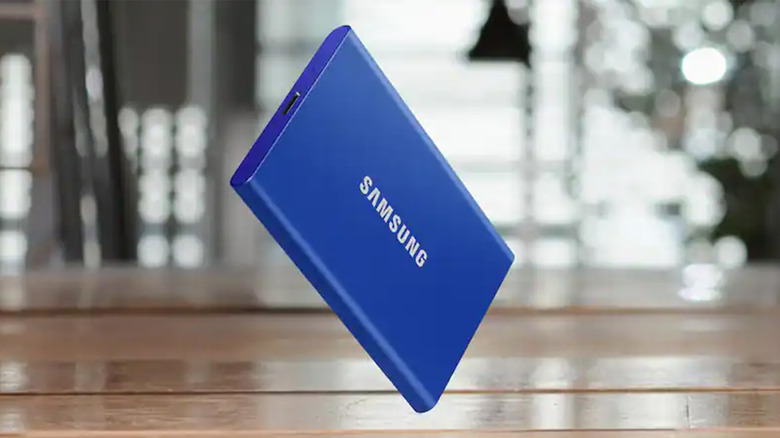
Some modern smart TVs are equipped with a personal video recorder function, known as PVR for short. PVR is an electronic device that records whatever you're watching onto a storage medium, and it's the core technology that makes DVRs function. The two terms are often interlinked, but there is a subtle difference between them. In any case, a TV with PVR support will let you record live shows directly to an external storage device, like an external SSD, plugged directly into the TV's USB port. You can technically use a flash drive, but performance tends to degrade as the temperature goes up, so an external SSD like this one would work better.
The problem with PVR is that not all TVs support it, and documentation for the feature is universally awful. For example, the Hisense U7N has this functionality, but it wasn't enabled on U.S. TVs until several months after it launched. Some TCL TVs appear to support the feature, but specific models aren't listed. In any case, if your TV does support it, you can set it up to record live TV, and then watch the show back directly from your external storage device, much like a DVR that is controlled entirely by your TV without an external device. DVRs work better, and some folks even recommend going with cloud DVRs from cable TV services, but this is another way if your TV happens to support it and you have a storage device laying aroud.
Almost any app you want on your Android TV
Arguably, my favorite thing to plug into a TV is one full of apps that the TV doesn't let me have natively. This only works with Android TVs, since they come with a sideload feature. For the uninitiated, sideloading is when you install apps to your device from local storage instead of from an app store like Google Play. It's risky to do, but there are sites like APKMirror, which are reliably safe. Once you find the app you want, you toss it onto a flash drive, plug it into your TV's USB port, and then install the app.
The process is a little out of the way, but not terribly complicated. On modern Android TVs, you enable the developer options by going to the System Settings, then About, and then highlighting the Android TV OS Build and tapping the select button on your controller a bunch of times. Once unlocked, the ability to sideload apps rests in the developer settings. After that, you need a file browser on your Android TV, and several are available on Google Play. Use the file browser to go to your USB storage, pick out the app, and install it.
This gives you access to a variety of apps not in the Play Store, thus increasing the functionality of your TV. Be careful, though, as most apps are optimized for touchscreens and not TVs. Thus, the experience may be a little janky.