

5 Gadgets And Accessories I Use To Turn My MacBook Air Into A Portable Workstation
We may receive a commission on purchases made from links.
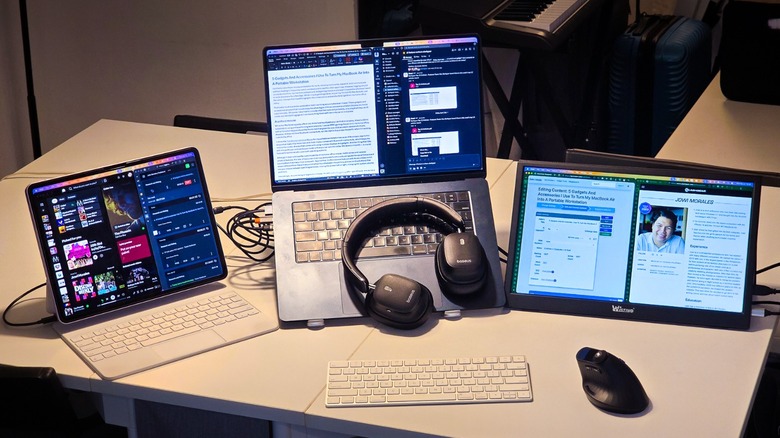
I primarily use a triple-display workstation for work, allowing me to write, research, and communicate without frequently switching windows to see the other apps I use. However, lugging around ultrawide monitors, my mechanical keyboard, and gaming mouse is just plain impossible whenever I want to work elsewhere for a few days. While I could get things done on just my 15-inch M2 MacBook Air just the same, I find myself longing for the convenience and productivity I get from my home office setup.
That's why I built a portable workstation I can bring with me whenever I travel. These gadgets and accessories ensured that I could enjoy the benefits of three (somewhat smaller) displays while working ergonomically. Of course, I also had to consider their size and portability, ensuring they can fit in one standard piece of luggage so I can easily bring them with me in my car or on a plane.
A vertical mouse
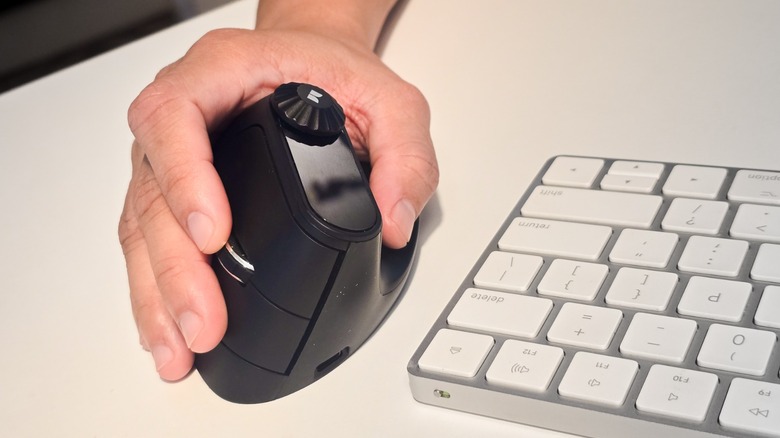
While the MacBook arguably offers one of the best touchpads you can find on a laptop, there is still no substitute for using a mouse for long work sessions. I use an MMO gaming mouse in my home office, with a 12-button keypad above the thumb rest that gives me one-click access to several shortcuts. However, it does not have Bluetooth connectivity, so I decided to buy a new mouse for when I'm working outside my office.
I chose the Transformers Vertical Mouse for my portable workstation because of its unique, ergonomic shape that made it natural to hold. It also comes with Bluetooth connectivity, which helps reduce the clutter of wires that comes with multiple displays and gadgets. Another thing that I like about this particular vertical mouse model is that you can set it for either Windows or macOS — a crucial feature for someone who uses both operating systems.
Although it lacks the customizability of my home office mouse, it still includes several shortcut features. For one, it has a one-click copy-and-paste function, alongside the usual forward and back buttons that many mice come with. Beyond that, it offers several features on its secondary scroll wheel (different from the primary scroll wheel between the primary and secondary buttons) that let you switch windows, move the cursor left or right, change the system volume, and more.
Interestingly, despite being ergonomic, vertical mice can still be useful for gaming after work. It took me a few minutes to get used to working with a vertical mouse, but after less than an hour, I felt confident enough to use it for pretty much every use case I have.
The Apple Magic Keyboard

I have an old Magic Keyboard from 2019 that I bring with me when I want to work outside, allowing me to position my laptop at a good angle when paired with my aluminum stand. This helps me maintain good posture while spending hours behind a screen, which is important, as chairs in hotel rooms and cafés aren't typically ergonomic and are rather uncomfortable compared to my mesh office chair at home.
While there are many low-profile alternatives to this Apple accessory, such as the Lofree Flow Lite100 keyboard I reviewed, I prefer the premium feel of the Magic Keyboard's aluminum body when I'm working. It's light and small enough that I can easily fit it in my luggage, while it's still reasonably stable, so I can work on practically any surface without feeling it move as I type.
Since it's an Apple product, the keyboard layout is designed for macOS, and it works well with my iPad Air. The only downside I see is that, because of its age, it still comes with a Lightning port for charging. This is not a big issue for me, though, since I still carry my old iPhone 14 Pro Max, which is one of the last iPhone models to still sport this old charging port. Furthermore, the Magic Keyboard rarely needs charging, even though it's already seven years old. Even if the Magic Keyboard is not for you, a lightweight, durable keyboard is an important part of a portable workstation.
A 15-inch portable monitor for extra screen real estate
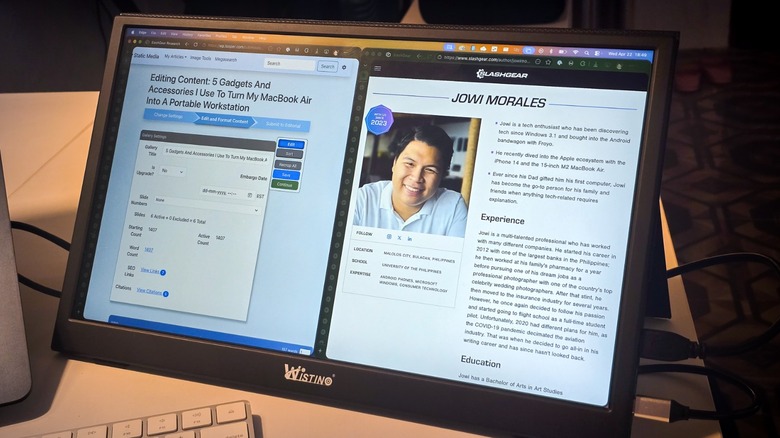
I use a secondary monitor for keeping my browser windows open, allowing me to glance at my research and sources while keeping my word processor in focus on my primary screen. Because of this, I added a portable monitor to help me with my productivity. Since I don't use it for creative work or gaming, I settled for a generic 15-inch model instead of a premium 4K model like the Acer PG1. While it's not as bright or as color-accurate as the built-in screen on the MacBook Air, it's good enough for loading websites and opening reading materials.
While this generic device has a couple of USB-C ports for charging and connecting to my laptop, I found that it works best when connected via a mini-HDMI port via a USB hub. It also comes equipped with built-in speakers and an earphone out, but my MacBook is louder and even sounds better. I won't use this portable monitor as my main screen, as my laptop's display is infinitely better, but it's still a pretty useful add-on when I need the extra desktop space.
My iPad Air completes my triple-monitor workstation
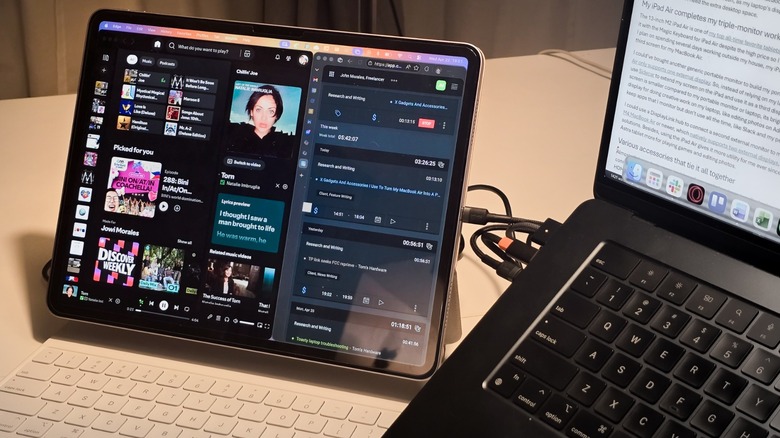
The 13-inch M2 iPad Air is one of my top all-time favorite tablets because of its large display; I even paired it with the Magic Keyboard for iPad Air despite the high price, so I can use it as a backup to my laptop. But if I plan on spending several days working outside my house, my iPad turns from a backup device into a third screen for my MacBook Air.
I could've bought another generic portable monitor to build my portable workstation, but the M2 MacBook Air only supports one external display. So, instead of relying on my laptop's Thunderbolt / USB 4 ports, I use Sidecar to extend my screen on the iPad and use it as a third display. Even though the iPad Air's screen is smaller compared to my portable monitor or laptop, its brightness and crispness make it a good display for doing creative work on my laptop, like editing photos on Adobe Lightroom. It's also where I keep apps that I monitor but don't use all the time, like Slack and my personal time tracker.
I could use a DisplayLink hub to connect a second external monitor to my laptop or even upgrade to the M4 MacBook Air or newer, which natively supports two external displays, but these are expensive solutions. Besides, using the iPad Air has given it more utility for me since I started using the Redmagic Astra tablet more for playing games and editing photos.
Various accessories that tie it all together
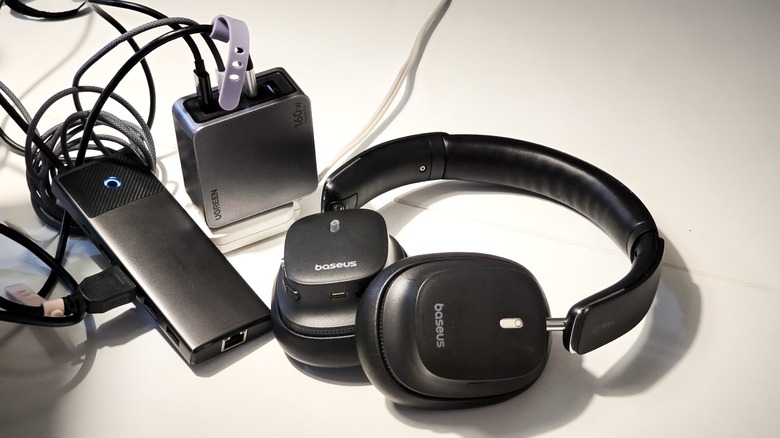
Almost all of these devices work wirelessly with my laptop, so I really don't need extra hubs or cables to connect them to each other. (except for my portable monitor, which still needs a hub and a mini-HDMI cable). Nevertheless, I use a USB-C cable to connect my iPad to my MacBook Air because, even though Sidecar works with Wi-Fi, I still prefer the reliability of a wired connection.
To ensure I do not run out of power while working, especially as I prefer my displays cranked at maximum brightness, I use a 160-watt charging brick to keep my laptop and tablet topped up. Since hotel rooms sometimes do not have a convenient outlet near the desk, I also bring an extension cord every time I travel (although I keep it in checked luggage if I'm traveling by plane). Finally, since I prefer listening to music while at work, I always have the Baseus Bowie 30 Max to avoid disturbing my wife throughout the night.
I keep all my equipment in one piece of luggage I bought specifically for traveling. It has three slots in the primary compartment, where I keep my laptop, portable monitor, and tablet, along with the low-profile keyboard. The rest of the accessories fit in the front pocket, where I keep my hub, charging bricks, and cables. It might be a bit of a hassle to set up this system whenever I travel, but I've found it pretty useful for my workflow when I spend several days working away from home.