

5 Underrated Tools To Improve Windows 11 Gaming Performance
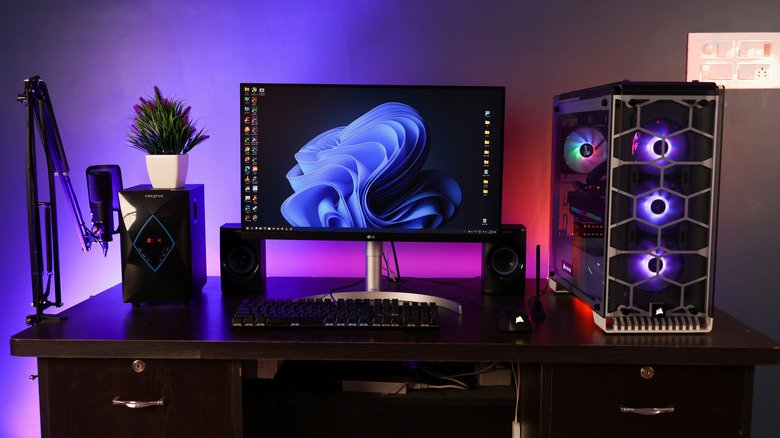
Windows 11 has been out for a few years now, and while it offers genuine improvements over previous Windows versions, it also comes with a fair amount of baggage. For PC gamers, that "baggage" means background processes, telemetry, and system interruptions that can turn a smooth 144 FPS experience into a stuttering mess. We often spend hundreds of dollars on better graphics cards or faster RAM, ignoring the fact that the operating system itself is probably the bottleneck that's causing games to crash.
But you don't always need to upgrade your hardware to get better gaming performance. Sometimes, you just need the right software to tell Windows to run optimally. While everyone knows about updating drivers or enabling "Game Mode," there are a few advanced yet simple-to-use tools that dig deeper into the OS to optimize how your computer handles resources.
We have compiled a list of five such tools that, while perhaps known to hardcore gamers, remain criminally underutilized by the rank-and-file. These apps can help you force spatial upscaling into games that don't support it, manage your CPU cores to prevent micro-stutters, and scrub the memory errors that Windows 11 is notorious for ignoring. Overall, carefully configuring these apps can help make Windows 11 run faster and enable smoother, more enjoyable gaming.
1. Magpie
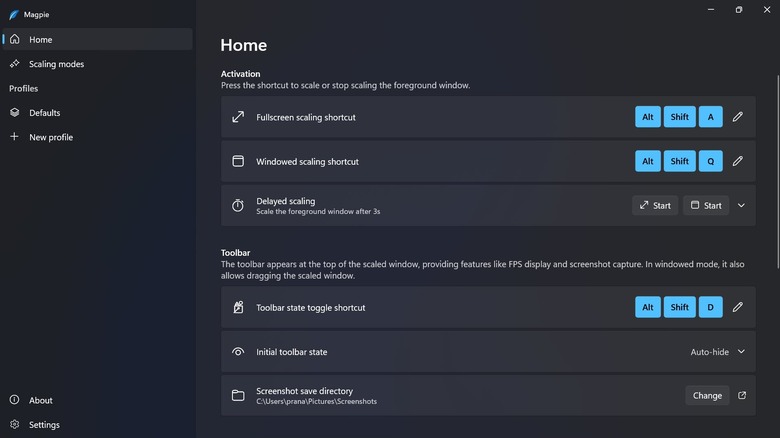
We live in the age of upscaling technologies like NVIDIA's DLSS and AMD's FSR, which can magically boost framerates by rendering a game at a lower resolution and blowing it up to look sharp. But what happens when you want to play an older title, an indie game, or an emulator that doesn't natively support these fancy features? That is where Magpie comes in.
This open-source tool injects scaling algorithms into almost any windowed application. Magpie effectively forces high-end features like AMD's FSR (FidelityFX Super Resolution) or integer scaling into games that have no business supporting them. The process is incredibly simple: you run the game in "Windowed" mode (not exclusive fullscreen), press a customizable hotkey, and Magpie grabs the window, scales it up to fill your screen using your chosen algorithm, and applies the sharpening filters.
This is a godsend for playing pixel-art games on 4K monitors without blurring, or for squeezing extra performance out of a struggling GPU by rendering a modern game at 720p and letting Magpie upscale it to 1080p or 1440p. While it introduces a tiny bit of input lag compared to native implementations that might interfere with competitive gameplay, the trade-off for a sharper image and higher framerate is often well worth it.
2. Process Lasso
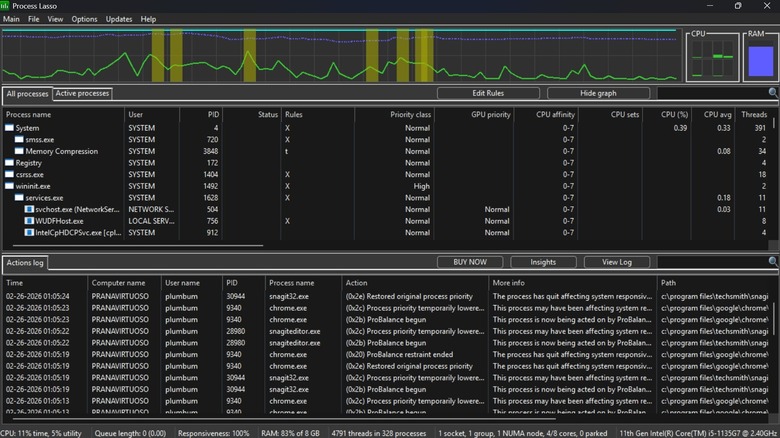
Windows 11 generally does a decent enough job of scheduling tasks, but it isn't perfect. Ideally, when you launch a resource-intensive game, the OS should dedicate every ounce of CPU power to it. In reality, it often lets background apps like your browser, Spotify, or random system updaters steal critical CPU cycles, causing those annoying micro-stutters that ruin immersion. Process Lasso is the solution to this scheduling incompetence.
While it looks intimidatingly technical when you launch it, its "ProBalance" (Process Balance) technology works automatically out of the box. It intelligently detects when a background process is acting aggressively and momentarily lowers its priority, ensuring your game remains responsive. For the true power user, however, the real magic lies in "CPU Affinity."
Process Lasso allows you to permanently assign specific CPU cores to specific games. For example, if you have a 12-core processor with "Efficiency Cores" (E-cores) and "Performance Cores" (P-cores), older games might accidentally try to run on the slower E-cores. With Process Lasso, you can force that game to only ever see and use the high-speed P-cores, effectively brute-forcing better performance and stability. It is the kind of granular control that Task Manager dreams of offering.
3. ISLC (Intelligent Standby List Cleaner)
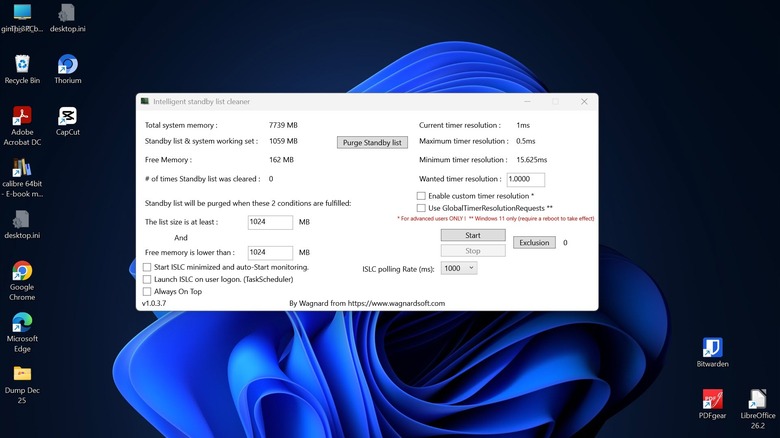
One of the most persistent and frustrating issues in Windows 10 and 11 is the management of "Standby Memory." As you use your PC, Windows caches files in RAM to speed up their loading later. In theory, this is obviously good. In practice, however, Windows often fails to release this cached memory quickly enough when a game demands it. The result? You are playing a game, your RAM fills up with "standby" data, and suddenly you get a massive stutter or frame drop as the OS panics and tries to free up space.
Intelligent Standby List Cleaner (ISLC) is a tiny utility developed by the creator of the famous DDU (Display Driver Uninstaller). It sits quietly in your system tray and monitors your memory usage. When your free memory drops below a certain threshold, ISLC instantly commands Windows to purge the standby list.
This creates a consistent buffer of free, fast RAM for your game to use, virtually eliminating the stuttering caused by memory bloat. It also includes a timer resolution tweaker that can lower system latency from the default 15ms to 0.5ms. It is a "set it and forget it" tool that fixes a problem most gamers don't even realize they have until it's gone.
4. Winaero Tweaker
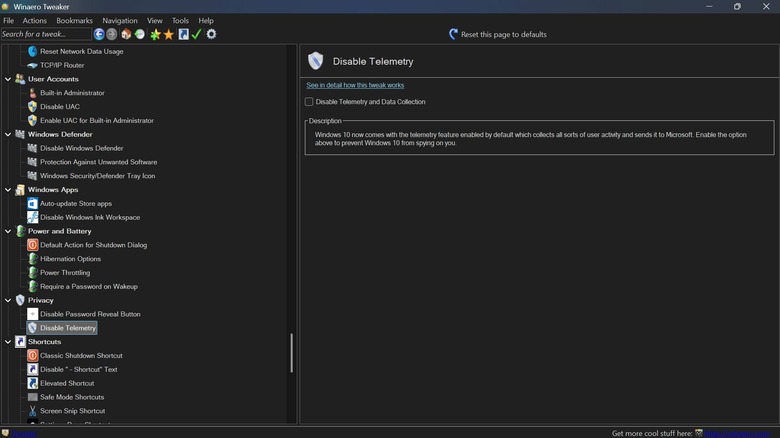
"Debloating" Windows is a popular pastime for PC gamers, but running random scripts you found on Reddit can be dangerous. Winaero Tweaker offers a safer method, using a graphical interface to disable the large number of performance-sapping "features" that Microsoft insists on using as default. While it's not strictly a "gaming" tool, the performance gains it delivers make it essential for any gaming rig.
With a few checkboxes, you can disable Windows telemetry (the background data collection that eats up bandwidth and CPU cycles), turn off aggressive Windows Update restarts, and disable the "Search Indexer" that grinds your hard disk drive (HDD) while you are trying to load a level. It also lets you revert the resource-heavy Windows 11 context menus back to the snappier Windows 10 style. Once you launch it, you will find numerous settings that are usually hidden in the default Windows Settings app.
For gamers specifically, Winaero lets you disable "background apps" system-wide, ensuring that even small apps like the calculator or maps don't hog memory when you need it for textures. Additionally, by stripping away the visual flair and background noise of the OS through Winaero, you leave more resources for your graphics card to do what it does best: push pixels.
Just a note — as mentioned, Winaero lets you configure many advanced settings that are generally kept hidden. There's a reason these settings are hidden by default, as blindly changing these settings can break the OS. So be very cautious when using this utility app.
5. MSI Afterburner
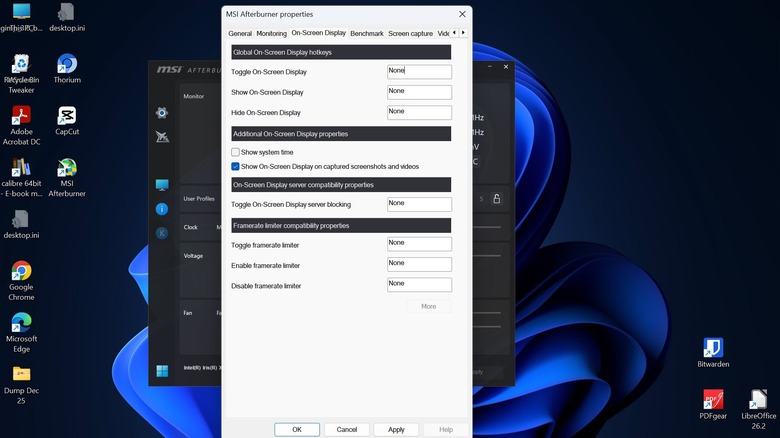
Okay, we admit that calling MSI Afterburner "underrated" is a stretch – it is one of the most popular graphics card utilities. However, it is woefully underutilized. Most gamers install it, overclock their gaming PC, and call it a day. But they are ignoring the two most powerful features in the suite: the On-Screen Display (OSD) and the OC Scanner.
The OSD, powered by the bundled RivaTuner Statistics Server, is the ultimate diagnostic tool. If your game is lagging, is it because your GPU is at 100% usage? Or is one specific CPU core maxed out? Or is your VRAM full? Afterburner lets you display these metrics on your screen in real time, helping you identify exactly which setting to lower.
Furthermore, the "OC Scanner" is a hidden gem for those afraid of manual overclocking. It runs an automated stress test on your specific card, finding the absolute maximum stable clock speed for every voltage point, and applies a custom "curve" that is often far more efficient and stable than a manual slider adjustment. Basically, if you are only using Afterburner to change your fan speed, you are driving a Ferrari in first gear.