

5 New Features iOS 26.2 Added To Your iPhone
Normally, with mid-version incremental updates to iOS, we'd only expect bug fixes, security patches, or under-the-hood optimizations to improve battery life on iPhone. However, in addition these changes, iOS 26.2 has surprised us by dropping some genuinely useful consumer-facing features, some of which address long-standing demands. Given the list of issues users are facing with iOS 26, it's certainly welcome.
Released in December 2025, this update focuses heavily on refinements rather than massive UI overhauls or major changes the way you use your iPhone. It introduces smart tweaks to some of your daily-used apps. From making the Music app more useful for travellers, to making AirDrop transfers more secure, and enhancing the usability of the Reminders app, iOS 26.2 is definitely making the iPhone feel more "pro" than before.
I have been using this new version for a few weeks, and while it has brought many useful additions, here are the five most impactful features that you should enable or start using the moment you update your iPhone.
Alarms for Reminders app
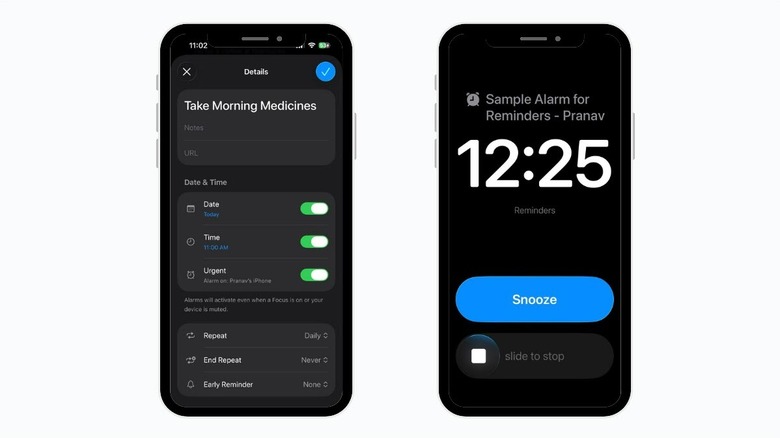
For years, there has been a frustrating disconnection between the Clock and Reminders apps. If you set an alarm in the Clock app, it screams at you indefinitely until you physically interact with the phone — a perfect feature for waking up. On the other hand, the Reminders app has traditionally relied on a single, polite "ping" notification. If you happened to be in the bathroom or had your headphones on when that notification fired, you missed it. For medication reminders or critical deadlines, that single ping simply wasn't enough, and that's why iPhone users have been asking for an alarm feature for awhile on Apple forums.
With iOS 26.2, Apple has finally bridged the gap, and you can now enable the alarm by simply toggling the "Urgent" option while setting up a specific reminder. When you toggle this button, you'll get the option to set an alarm for a particular date and time. Instead of pinging just once, this option will trigger a full-screen audio alarm that behaves exactly like the Clock app. It will continuously ring until you hit the "Snooze" button or "slide to stop."
This is a game-changer for anyone who uses the Reminders app for time-sensitive tasks, such as taking pizza out of the oven, taking medicine at specific times of day, or even cancelling a subscription to an app or service. Now you no longer have to clutter the Clock app with numerous alarms.
Offline lyrics in Apple Music
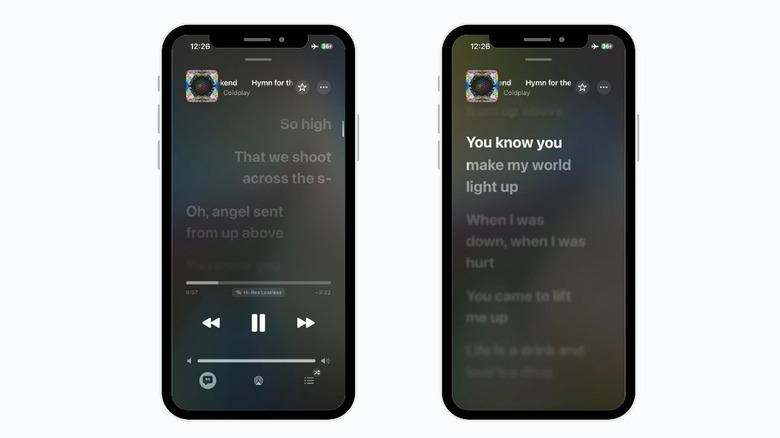
Apple Music can do many things, and displaying real-time lyrics is one of the app's best features. However, it always had a weakness: The feature required an active internet connection to work, making it practically ineffective while travelling to remote areas or on flights. This used to be even more frustrating when there was an option to download music for offline listening, but it was without lyrics. Thankfully, not anymore.
With iOS 26.2, Apple has finally addressed this frustrating issue. Now, when you download a song or a playlist for offline listening, the time-synced lyrics data is included. I tested it by toggling the Airplane mode on my iPhone and then playing a downloaded song. Tapping the lyrics button was previously disabled during times with no internet connection. Now, the experience is seamless, with no interruptions or sync issues. For music fanatics like me, the addition of this feature makes the app feel complete even during offline listening.
AirDrop PIN verification (for non-contacts)
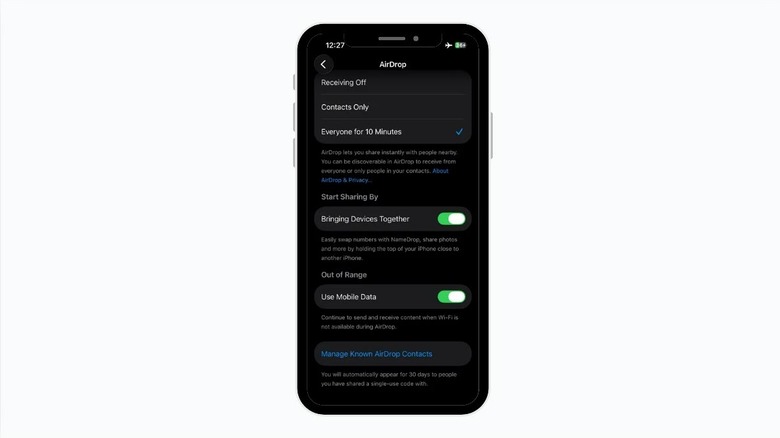
AirDrop is one of those iOS features that Android users really get jealous about, but it's not without flaws. If you accidentally enabled receiving AirDrops from "Everyone," there's a chance you might receive unsolicited photos or videos from strangers and accidentally save them to your device. It raises security and privacy concerns as well.
To address this, Apple used to limit the "Everyone" setting to 10 minutes, but in iOS 26.2, there's an even stronger shield against it: PIN verification. Now, when anyone who isn't in your contact list tries to send you something via AirDrop, you'll first get a randomly generated six-digit PIN on your iPhone. You'll then need to show that PIN to the sender, who will enter it on their device for successful verification, and only then will they be able to send you the media. Once the code is shared, the person can AirDrop you for 30 days without any restrictions.
This new feature effectively kills "cyber-flashing" by creating a mandatory handshake between devices. Remember, this works only for non-contacts. If you are paranoid about accidentally receiving media from an unknown person, this feature will end your fear.
Liquid Glass lock screen customization slider
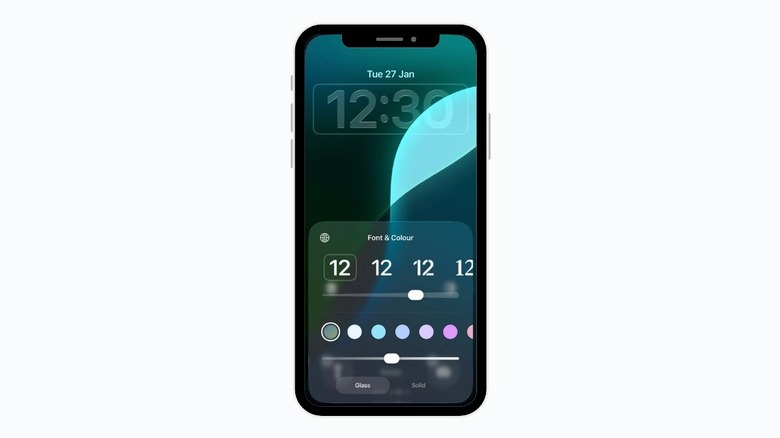
Among the significant changes that iOS 26 brought, the new "Liquid Glass" effect received mixed reviews from users, with many criticizing how little customization there was for it. However, Apple has improved this visual feature with subsequent updates, and with iOS 26.2, you'll get even more control.
When you use the Liquid Glass clock style on your lock screen, the refraction effect could sometimes make the time hard to read, depending on your wallpaper. Previously, you were stuck with a default look that you couldn't tweak, but with iOS 26.2, you get a new slider specifically to adjust the effect's intensity. While editing your lock screen, tap on the time widget, and you'll see the new slider. Sliding it to the left makes the glass look more realistic and transparent, while sliding it to the right increases the "frost" effect, making it more opaque.
This level of control lets you prioritize aesthetics or readability, based on your specific background image. If you have a colorful photo, you can crank up the frost to ensure the numbers pop. If you have a minimal background, you can dial it back for a subtle, high-end look. This new design language also extends to the "Clear All" notifications button and the flashlight level indicator, giving the whole UI a more cohesive feel. If you are particular about your iPhone's UI, you'll love this little addition.
Filter games by size
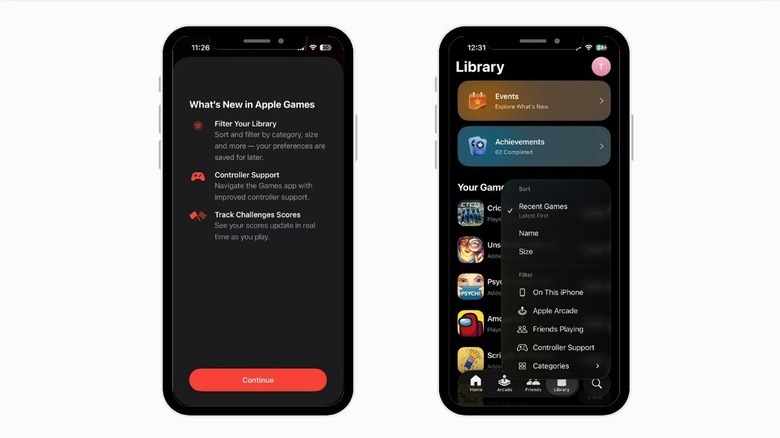
Thanks to the A19 Pro chips, iPhones have genuinely become gaming consoles capable of running high-end AAA titles, but this also creates a new problem: huge file sizes. A single high-end game can easily take up a huge chunk of your storage, and unlike PCs, most users don't have much of a internal storage on their iPhones. For a user with only 128 GB of storage, it's a nightmare to guess which app is hogging the most space.
iOS 26.2 addresses this issue by including a useful "Filter by Size" feature in Apple's Games app, which debuted with iOS 26. Now, when you are browsing your library, you can arrange titles by their install size, instantly showing you which games are the "heavyweights" on your device.
This is incredibly useful for quick storage management. Instead of digging through the general iPhone Storage settings menu, you can quickly identify that one 4 GB soccer game you haven't played in months and delete it right from the game launcher. It streamlines the process of freeing up space for a new update or downloads, putting the information you need exactly where you would expect to find it.