

How To Play PC Games On Your Android Device In 2026

We may receive a commission on purchases made from links.
I never expected to have "play PC games on Android" on my 2026 bingo card. Prior to 2026, PC gaming outside of the pall of Windows was relegated to Linux, like on the Steam Deck. Before the Steam Deck, playing PC games on Linux was laughable. Now, PC games perform better on Linux than they do on their native Windows. Fast forward a couple years, and Android has stepped up to the plate seemingly out of nowhere. To be clear, I'm not talking about playing games on a game streaming service like NVIDIA GeForce Now, Amazon Luna, or Xbox, or streaming from your own rig. Nor am I talking about emulation. I'm talking about actually, literally, genuinely playing PC games directly on your Android device, using its processing power to run the whole show.
You can thank Valve for this one, just as you can thank them for making PC gaming on Linux a thing. Their work on FeX — a translation layer to run x86 instruction sets on ARM64 processors, like those typical in Android devices — has laid the groundwork for a future where your Samsung Galaxy Ultra may become a potent handheld gaming PC. We're in the early days of PC gaming on Android, so don't expect an ideal experience here, but what we have already is quite promising. This guide shows you how, and it should work with most Android devices, including tablets, and maybe someday Chromebooks when they run Android.
Is this legal?

We want to be crystal clear here that playing PC games on an Android device with the methods we have chosen is, as best we can tell, entirely legal. We'll be focusing on games purchased through Valve's Steam platform, though this may also work with games purchased on other platforms and with legally owned non-DRM copies. There are no questionable workarounds or tricks to get it working. Everything runs via Steam's official servers and even includes the ability to sync your cloud saves, and more. If this was not okay, we'd expect Valve to swiftly shut down the apps that we're going to use — but they haven't.
We're saying all of this because some may be mistaking PC game translation with game emulation for older systems and retro consoles. This is different. Video game emulators aren't illegal, but thanks to an incredibly litigious Nintendo, they've always been on the precipice of legality. Game emulation communities have become very, very careful about posting download links to avoid drawing the ire of everyone's favorite childhood video game company. As a result, we won't be discussing any form of emulation in this piece.
GameHub and GameNative are your best two options
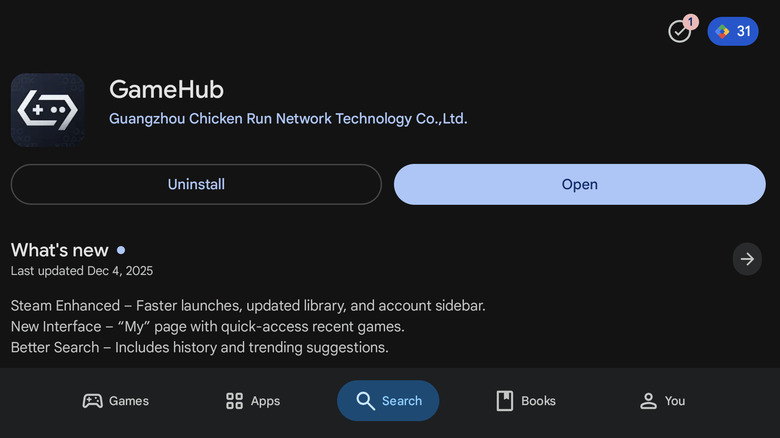
We recommend two methods for playing your games on an Android device: GameHub, and/or GameNative. Both of these apps do most of the legwork to make your games run on an Android device. Others exist — like Winlator — but these are a lot more laborious to use. The goal is to make the process as painless as possible, even for those who are less tech-savvy. We will focus most of our attention on the former — GameHub — since it's the best all-rounder. GameNative is still in early development.
GameHub raised eyebrows with how much telemetry it gathered on users. The community created GameHub Lite in response, a fully functional GameHub alternative that strips away a most of the app's built-in tracking, account requirements, and permissions. Privacy-conscious individuals may wish to use that one instead, but consider that the development could trail that of GameHub. Make sure you download GameHub Lite from the releases tab under the link above, as there is an older archived repository from the original developer before they transferred development to EmuDeck.
GameHub is offered directly from the Google Play Store or from its official website. The one from their website allows you to access your external storage (i.e. microSD card) to import existing game installs — which we won't cover in this guide. GameNative and GameHub Lite exist on the Play Store as a downloadable APK for manual install. While Google tried to restrict sideloading on Android, the outrage made them backtrack.
How to install and play games
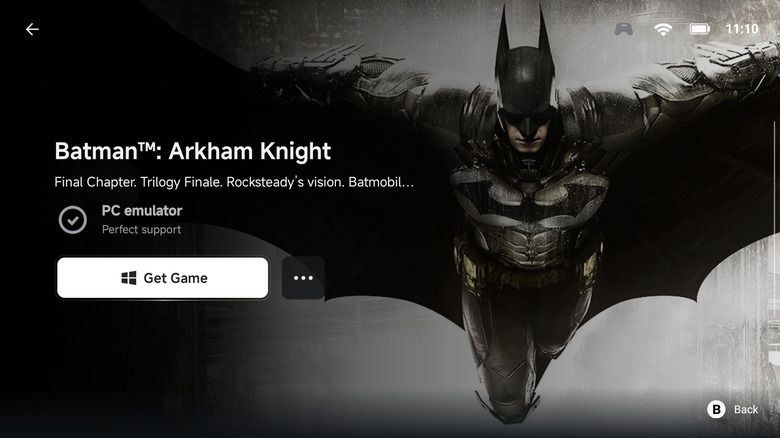
After you download GameHub from the Google Play Store, agree to terms and conditions and create an account; GameHub Lite lets you skip this step. Give it permissions, then under the "My" section, choose Steam. You'll get a typical Steam login page, with the option to quickly sign in via a QR code. Now you can scroll through your game library, find a game you would like to play, and install it in a couple of presses.
One big caveat: GameHub only uses internal storage at the time of writing, so you won't be able to install from external media like a microSD card for now. GameNative doesn't have this limitation. Leave your screen on while downloading, then press "Play Now." GameHub will run through its processes, and compatible games should work.
GameNative has a similarly easy process. After you install the app from the official website, sign into your Steam account; GameNative does not require you to create an account with it. Give it necessary permissions, then install a game of your choice and launch it. If you have external storage and wish to use it, then go to Settings and enable "Write to external storage" under the Downloads section and choose a storage device below it.
Of course, this process is more nuanced than it seems. Many games won't play (or play well) until you tweak the settings, and many simply won't open or run at all.
Tweaking settings for the best performance

In my experience, many games will run out of the box. However, a fair share require popping the hood. We highly recommend that you primarily install apps that have pre-configured settings. You'll see this in both GameHub and GameNative. In GameHub, you'll see a checkmark and a support rating when you go into that game's page. On GameNative, you'll see a "Compatible" marker, and inside the game's page, a note on how well it works.
If you do tweak settings, keep it simple. To access per-game settings in GameHub, tap the three-dot button next to "Play Now" and choose "PC Game Settings." For GameNative, choose the three-dot and go to "Edit container." Go to the "Compatibility" section and then "Translation Params." Generally, we'd recommend leaving things at the pre-configured "Game Presets" setting. Only use "Extreme" or "Performance" for a game that is already working but for which you'd like to squeeze out more performance. If those settings cause it to break, then "Compatible" or "Stable" may be a nice middle ground.
There's more: Changing to different versions of compatibility layers, GPU drivers, DXVK, VKD3D, and the CPU translator may yield better results; GameNative definitely requires more tweaking without an existing compatibility preset. Barring an online guide that provides the best settings for your device, this will be trial and error until you figure out what works. In GameHub, for example, the in-game menu allows you to control the FPS, enable upscaling, and more.
Some things to keep in mind
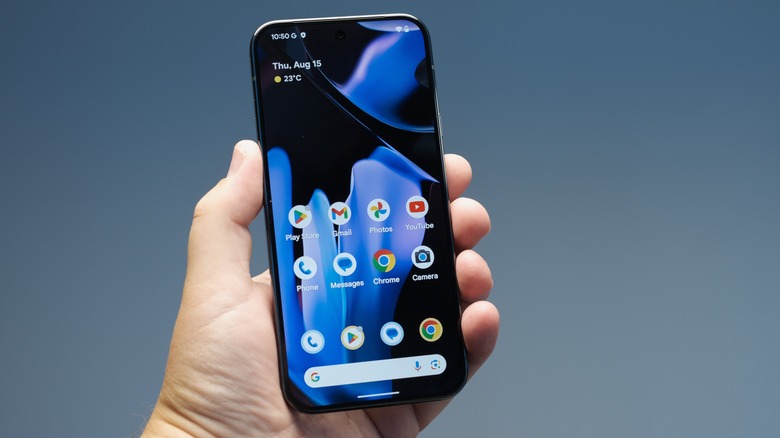
Gaming on Android can have its drawbacks, starting with game compatibility. In my experience, a lot of games simply don't work or aren't playable — too many to make the experience generally recommendable. Driver support on newer chips can lag. Older chips often have great support for third-party Turnip drivers, which generally provide better performance and stability. Newer chipsets like the Snapdragon 8 Elite found in the Samsung S25 Ultra do not yet have third-party drivers and as a result are less efficient.
Allotable RAM is another factor. A phone with only 8GB of RAM might struggle to run more demanding games. If you have a phone with 12GB of RAM or 16GB of RAM, you'll have a huge advantage — especially if you have a bunch of apps running in the background that are taking up system resources. Similarly, phone storage is going to be another big obstacle. Many Android phones start with only 128 GB of storage, which likely won't be enough if you're already using that for apps, photos, and music.
Games that use anti-cheat for online multiplayer will also likely not work, since anti-cheat typically doesn't play well with non-Windows devices. Most Android devices do not have fans, so prepare to experience thermal throttling in more demanding games. You might consider a cooling fan, like this Black Shark Magnetic Phone Cooler. You'll also definitely want an attachable controller for gaming on Android, unless you can live with those horrendous touchscreen controls.
Which games should you play?
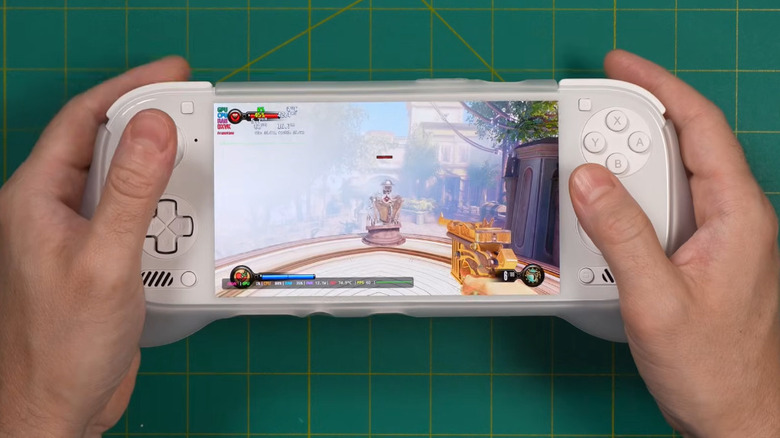
Indie game fans, you're in luck, because this is where Android gaming shines. Almost every indie game I've tried to run on this device worked without any tweaks. Indie games obviously tend to have low system requirements that support low-end hardware, but regardless, they were previously unplayable on Android, barring an Android port. Some AA titles may run, too.
Unfortunately, you are going to have a rough time getting any recent AAA games running on Android, even with high-end, premium devices. Android ARM64 chips are often not yet up to the task, and even when they are, game translation bars the way. To give one example, the AYN Odin 3 — a cream-of-the-crop Android gaming handheld — only manages around 14 FPS in "Cyberpunk 2077," a game that is now five years old. Granted, performance on this particular title will likely improve once the Snapdragon 8 Elite chip in the Odin 3 gets turn-up driver support, but even so, playing something truly current-gen, like say 2025's "DOOM: The Dark Ages", could be a tall order.
Older AAA titles, on the other hand, will generally run quite well. "Bioshock Infinite" released in 2013 easily gets 60 FPS on the Odin 3."GTA 5" released in 2015 hovers around 60 FPS. "The Witcher 3" gets around 45 FPS. Remember, this is a device lacking Turnip driver support. So with a higher-end Android chip and some tempered expectations, you can play quite a lot — just prepare for the heavy stuff to zap your battery.
Should you buy an Android handheld instead of a Steam Deck?
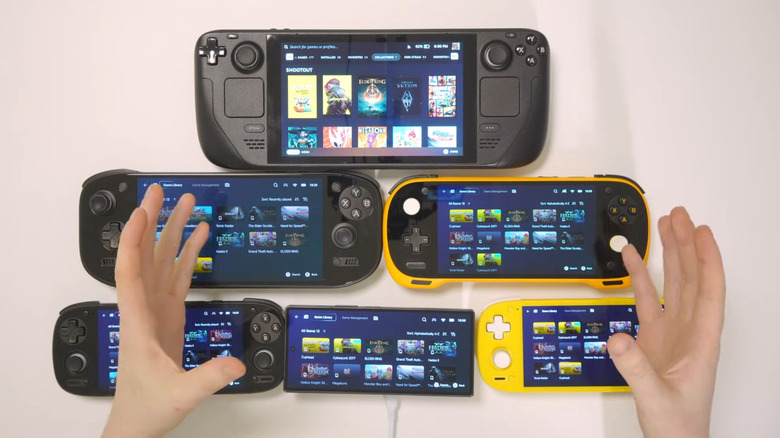
Android handhelds are effectively Android phones with built-in controllers and (typically) active cooling. The AYN Odin 3 is one of many examples, devices that look like miniature Steam Deck OLEDs. There's a whole market of these things for every price point, making them quite competitive with x86 gaming handhelds. The Steam Deck was an easy recommendation for an affordable gaming PC for years, so has that changed with the emergence of these Android handhelds? In my view, no. Not yet.
Android handhelds do have some advantages over x86 gaming handhelds like the Steam Deck. You're more likely to get a beautiful, high refresh rate OLED screen, and the battery life is usually significantly better, in my testing. I've also anecdotally noticed Android standby time to be significantly better than any x86 handheld, even compared to Steam OS's Fast Suspend — albeit not during gameplay.
Android handhelds still have a ways to go before they're a proper replacement. Game compatibility is the primary issue; you can't yet install Steam games directly from the Steam app on an Android handheld and get most of them to run without faffing about with the settings like you can with Valve's Deck Verified program. Android handhelds excel when it comes to game emulation, but they need more time in the oven before they can eat the Steam Deck's lunch. Until then, the Steam Deck is a convenient and no-nonsense way to play PC games.
Should you buy an Android handheld, or just use your phone?
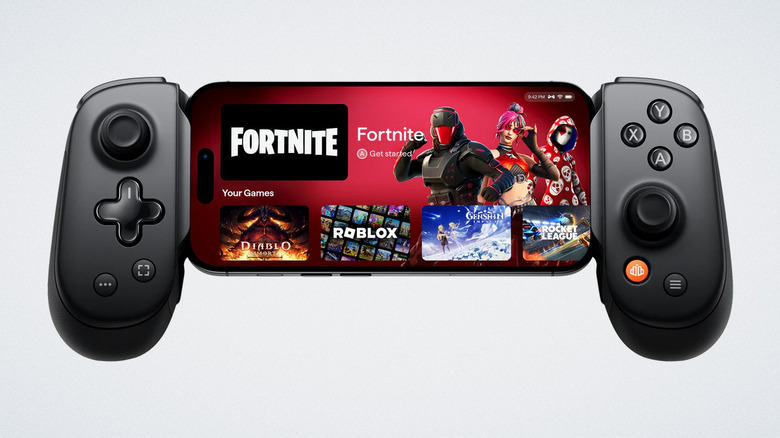
There's a pretty fierce debate online about whether or not a person should buy an Android handheld or just use the Android phone they already have. After all, you can turn any old Android phone into a portable gaming device by adding an attachable controller and maybe a cooling fan instead of spending hundreds of dollars on a separate device.
Android handhelds do have several advantages that are worth mentioning. Considering the AYN Odin 3 as an example, Android handheld controllers are better integrated (hardware and software-wise) with superior ergonomics. The addition of active cooling fans is a game changer, allowing Android handhelds to push performance beyond thermal throttle. Android handhelds also tend to have more RAM, more storage, and bigger batteries; the Odin 3 tops out at 24GB of RAM, 1TB of storage, and has a 8000 mAh honker, compared to the 5000 mAh of the already-huge Samsung S25 Ultra. Lastly, you're more likely to find a microSD slot in an Android handheld, as well as a 3.5-millimeter audio jack.
The other situation where we'd recommend one is if you're an iPhone user. Currently, iPhones can play a teeny-tiny handful of AAA iOS ports like "Resident Evil Village" and "Assassin's Creed Mirage." They do not yet support any game translation apps like GameHub.
My experience gaming on Android so far
Gaming on an Android device with my expectations kept in check — particularly using my Android handheld — has been a surprising, refreshing, and sometimes amazing experience. Nothing beats the portability of an Android device, so it's an unparalleled way to game on the go when true portability is essential. Since I'm mostly limited to indie games, it's been a great way to clean out my backlog and it doubles as a way to watch content, check emails, and use Android apps.
However, playing on a small six-inch screen with small controls can be an eye and hand-sore. There are big Android handhelds like the Odin 2 Portal, but in my view that wastes the ultra-portable potential of Android; I still need to use the touchscreen way more than I'd like; game storage runs out quite fast, even with my 512GB of internal storage, which in any other context would be overkill. Coupled with weaker hardware, I'm further incentivized not to play many AAA games and miss a lot of standard features on x86 handhelds.
Until the issues above get ironed out, it's hard to recommend an Android handheld if you're looking at (or already own) an x86 handheld. For those who already own an Android phone, I'd say just use the hardware you have to play what you can. It's only reasonable to recommend an Android handheld to enthusiasts with disposable income — and/or dedicated retro gamers — at least for now.
The future for PC gaming on Android is bright
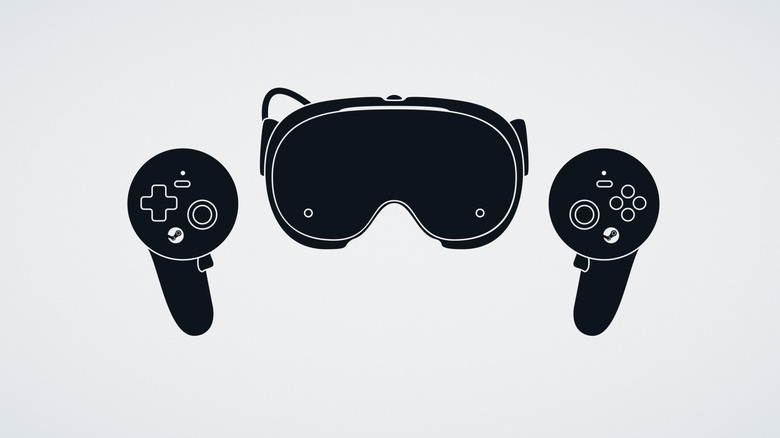
Remember, these are early, early days. Android PC gaming is currently pretty niche. Valve has been putting its weight behind the development of PC game translation on ARM64 devices using FeX and Lepton. One of the most anticipated gadgets expected to release in 2026 is the Steam Frame, a VR headset running on ARM64 hardware, which will likely lay the groundwork for exceptional ARM PC game translation. Valve successfully made PC gaming on Linux happen, and happen well, so it's not illogical to expect the same for Android. Anecdotally, I've seen interest explode in Android-based handhelds and PC gaming on Android.
Perhaps someday you won't need GameHub, GameNative, or any other app to play your PC games on Android. You'll download games directly from the Steam app, and they'll just run. Smartphones already ushered in a gaming revolution of sorts with mobile games, so perhaps we could see a second revolution in PC gaming as well. Imagine a world where casual gamers don't need to buy a gaming PC or a gaming subscription. I can't imagine PC gaming being more affordable and accessible than that.
To be abundantly clear, this is not me saying that Android PC gaming will replace existing Windows and Linux handhelds. Rather, gamers will have an extra avenue to play games. Millions of people own Android devices, so Valve — or any gaming company — would be practically throwing away money not to tap this market.