

5 Of The Best New One UI 9.0 Features Added To Your Samsung Phone
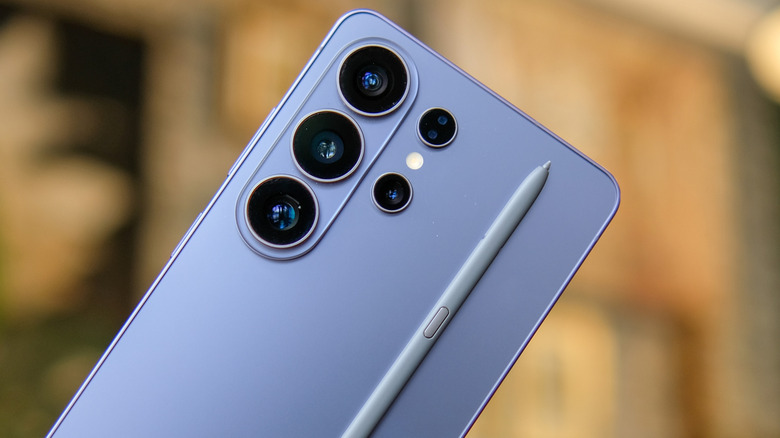
If you're shopping for a high-end Android smartphone in the U.S., a Samsung Galaxy device is always an easy recommendation. They come with some of the most powerful internals available on a smartphone, bright displays, and a handful of niche additions like the S Pen on the Galaxy S26 Ultra or foldable displays on the Galaxy Z Fold and Z Flip models. Samsung users also enjoy up to seven years of OS updates, which means new Samsung Galaxy features are always on the horizon, even if you don't upgrade your phone every couple of years.
One UI 9 is currently Samsung's latest software offering, and it brings new features, a couple of visual changes, and the usual set of bug fixes and performance improvements that we've come to expect from new software updates. Compatible models include the Galaxy S23 series and newer, the Galaxy Z Fold 5 and newer, the Galaxy Z Flip 5 and newer, and select Galaxy A-series phones. The Galaxy Tab S9 series and newer are also supported. If you haven't updated to One UI 9 already, you can do so by navigating to Settings > Software update > Download and install.
Samsung makes a wide variety of smartphones, so it's worth noting that some of the features in One UI 9 might not be compatible with every phone that receives the update. Regardless, there is a little bit of everything sprinkled in this Android 17 update, from visual and customization tweaks to smaller but useful quality-of-life improvements.
A more customizable Quick Settings panel
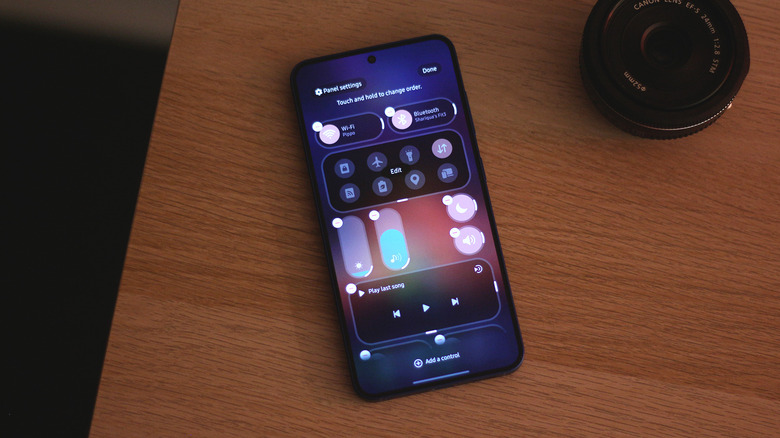
The Quick Settings panel is where you go to access frequently used toggles like Wi-Fi, Bluetooth, cellular data, and more. It's been a staple of the Android experience since its early days and has only improved over the years, with manufacturers offering additional controls and options to make it more useful. You could already customize the Quick Settings panel on your Samsung phone before, but One UI 9 adds even more flexibility. Pull down to access the Quick Settings panel and tap on the edit icon. You can move toggles around or add new ones, just like before.
Certain toggles like Dark Mode and Mute that were previously fixed in position can now be moved and placed anywhere in the Quick Settings panel. You can also switch the orientation of the brightness and volume sliders from their default horizontal layout to a vertical one — like how it is on the iPhone. With One UI 9, you can make the sliders even smaller so they don't take up too much space in the Quick Settings panel.
Your Android phone's status bar already shows a ton of useful information, like the time, battery percentage, network status, and even notifications from third-party apps. One UI 9 now lets you add a real-time network speed indicator on your status bar through Samsung's Good Lock app and its QuickStar module. This feature has been available on certain OnePlus and Xiaomi phones for ages, so it's great to see it arrive on Samsung devices as well.
Set up Now Brief with custom cards
While Samsung's phones aren't AI-free Android devices, the company's Galaxy AI suite is one of the less gimmicky AI offerings around. For example, Now Brief, which was unveiled with the Galaxy S25 series, continues to be a handy way to stay on top of important information throughout the day. It works by providing personalized summaries for things like weather forecasts, health data, reminders, and upcoming calendar events. You can access Now Brief on the lock screen as well as the home screen.
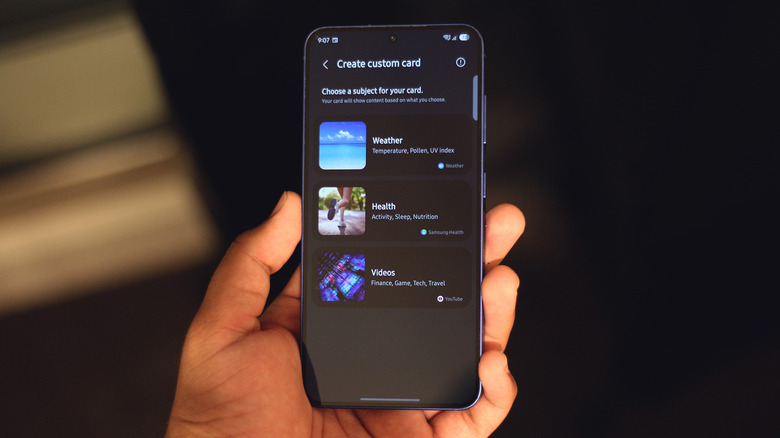
As nifty as the feature has been, Now Brief largely decided what information it deemed useful based on the categories you selected, but One UI 9 gives you more control by letting you create custom Now Brief cards with the information you want to see. For instance, you can generate a card that only shows you the UV index, temperature, and chance of rain, or a health card that displays your total step count for the day and sleep data.
On your Samsung phone, navigate to Settings > Galaxy AI > Now Brief > Custom cards. When prompted, uncheck the "Process data only on device" toggle. This allows custom cards to generate more relevant information using powerful cloud models. Head back, tap on the "+" icon, and select one of the three categories. Choose what information you want to see on your custom card, then select a schedule.
Improve subject framing using My FanCam
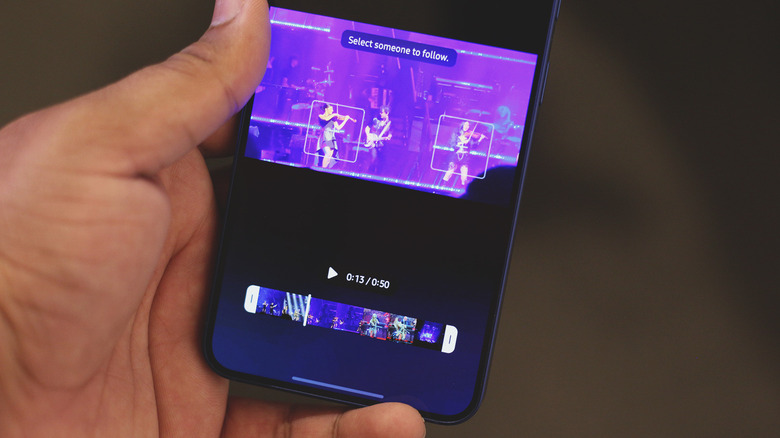
Samsung's flagship phones rock some of the best camera systems in the industry, allowing you to capture photos and videos in all sorts of lighting conditions. The built-in camera app has also received several useful tools over the years that make capturing videos easier and give you more control over how the final footage looks. Samsung's Auto Framing feature, for instance, lets you keep your subjects in frame when you're recording a video. With One UI 9, you can achieve a similar effect after the fact with the new My FanCam feature.
Open the Gallery app, expand a video, and tap on the Galaxy AI icon at the bottom. Select the My FanCam option, which is depicted by an icon of a person inside a square frame. If there are multiple subjects in your video, your Samsung device will display a "+" icon on each one of them. Tap on the subject you want to track, select your desired aspect ratio, then tap on the "Follow" button. The preview should now show a slightly cropped version of the video that automatically follows your chosen subject as they move around the frame.
The feature works by adjusting the crop and zoom of the video automatically, with smooth transitions all along. My FanCam is a good example of how an AI-powered feature can come in handy without necessarily making drastic changes to the original footage itself.
Combat motion sickness
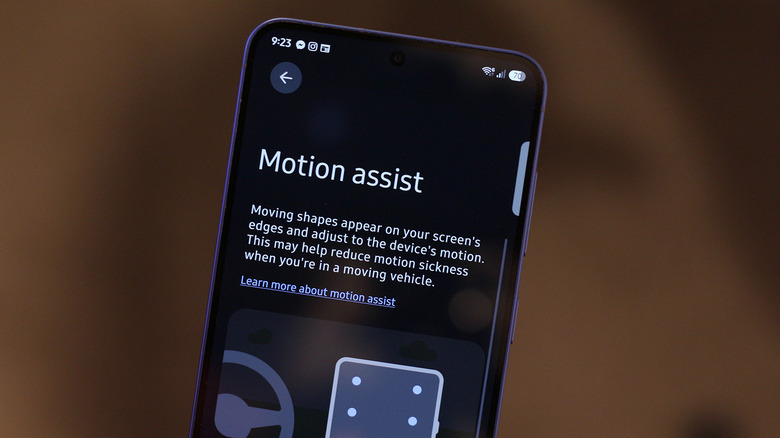
If you're prone to motion sickness, you know how dreadful it can be to use your phone to read an important email or send an urgent message while traveling in a moving vehicle. There's actually a perfectly reasonable explanation for this — motion sickness occurs when your eyes and inner ear send conflicting signals to your brain. When you're looking at your phone's screen, which appears stationary relative to your surroundings inside the car, a mismatch can leave you feeling nauseous.
Apple was actually one of the first mainstream brands to address this problem with Vehicle Motion Cues in iOS 18. It's an accessibility feature that displays moving dots along the edges of your phone's screen that help reduce the sensory mismatch. Samsung phones running One UI 9 come with a similar feature named Motion Assist, which you can access by navigating to Settings > Google services > All services > Motion Assist. Toggle on "Start in a moving vehicle," and your phone will automatically display moving dots on the screen when it detects that you're traveling in a vehicle.
You can also add a shortcut in the Quick Settings panel to make the feature easier to access. Motion Assist is actually not a Samsung-exclusive feature — it's part of the broader Android 17 release. It can still be a mighty helpful feature to have on your Samsung phone, especially if you find yourself feeling uneasy while using it during car or bus rides.
Other One UI 9 features worth checking out
There are a bunch of other features worth using or knowing about in One UI 9, like the new privacy and security alerts that show up in Now Brief. Your phone scans for malware or apps accessing information they typically shouldn't need and flags them before they become bigger problems. For instance, AI privacy alerts can warn you if an app accesses your text messages.
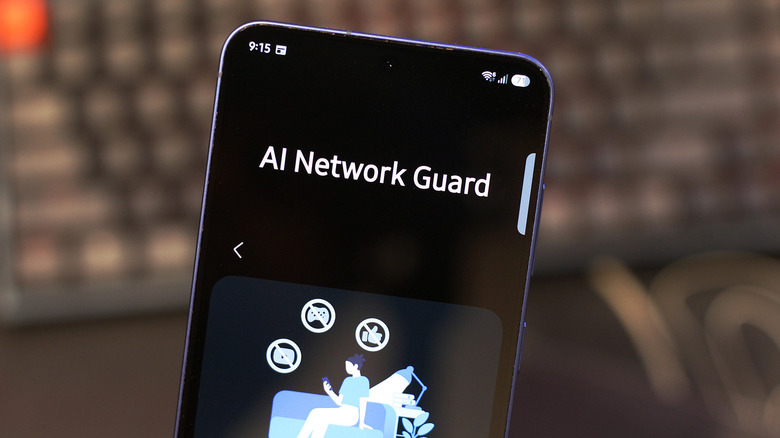
Though marketed as a parental controls feature, the AI Network Guard can double as a privacy feature since it works by disabling network access for specific apps. To access the feature, you'll need to unlock the "Connectivity Labs" settings. Navigate to Settings > Connections > Wi-Fi, tap on the three-dot menu icon, select the "Intelligent Wi-Fi" option, and tap on it seven times. Then open Connectivity Labs and select AI Network Guard. Besides privacy-oriented features, One UI 9 comes with a redesigned "Warranty and care" section in the Settings app, which lists warranty details about your phone.
We've had AirDrop support on certain Android phones for a while now, but One UI 9 should expand its compatibility to more Samsung phones. You can check if support for AirDrop is available on your Samsung phone by heading to Settings > Connected devices > Quick Share and seeing if the "Share with Apple devices" toggle is available. You can then share files with your iPhone, iPad, or Mac as long as you have AirDrop and Quick Share discoverability set to "Everyone" on your Apple and Samsung devices, respectively.