

6 Google Pixel Features You'll Need To Enable Yourself
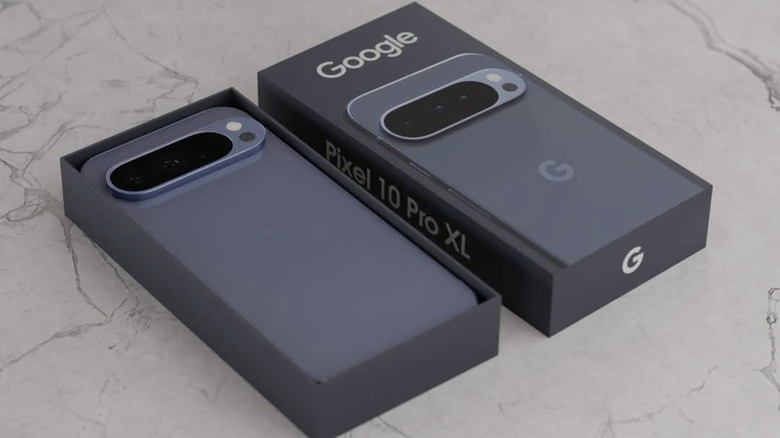
Google has been making smartphones in some capacity since the early days of Android, but it wasn't until the company's Pixel series in 2016 that it began seriously positioning itself as a smartphone manufacturer among giants like Apple and Samsung. We now know what Google thinks an Android phone should look like — a clean user interface with plenty of feedback through haptics and sounds. That said, Pixel smartphones have never been known for featuring the most customization options.
Unlike Samsung's One UI or OnePlus' OxygenOS, the stock Pixel experience on Google's phones isn't packed to the brim with tweaks and toggles. That said, there are a handful of unique Pixel features you should be using. Apart from receiving Android updates on day one, Google frequently blesses its smartphone lineup with what it calls "Pixel Drops" — essentially periodic updates that add new features.
Popular Pixel-exclusive features include a voice typing experience that feels more natural and camera perks that help you boost the quality of the videos you've captured. Some of these additions, however, aren't enabled by default. If you don't know where to look or which toggle to enable, you might be doing yourself a disservice by leaving some of your phone's coolest tidbits untouched. Here's a look at five features you might want to enable on your Pixel device.
Smooth display for 120Hz
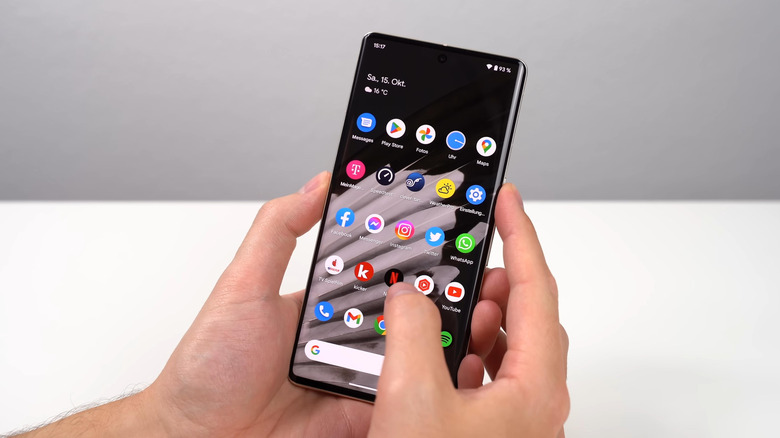
Plenty of Android smartphones have been offering higher-refresh-rate displays for years now. Even Apple's base model iPhone caught up with the competition. A 90Hz or 120Hz display can make everything from gaming to scrolling through social media feel a lot smoother. Text is easier to read when everything on the screen is moving, and certain competitive games like "Call of Duty: Mobile" can display more frames per second, potentially giving you an advantage. Pixel smartphones, too, have been featuring higher-refresh-rate panels for a while.
In fact, all smartphones in Google's Pixel 10 lineup feature a 120Hz OLED display, including the budget-oriented Pixel 10a that we reviewed. Google is continuing that trend with the Pixel 11 series, which also features 120Hz displays. If you own the Pixel 10 Pro or Pixel 10 Pro XL, you get to enjoy an LTPO panel, which dynamically adjusts the screen's refresh rate from 1Hz to 120Hz to preserve battery. On these more expensive smartphones, a higher refresh rate is the default experience. The same is not true for the regular Pixel 10 and the cheaper Pixel 10a, though.
Both of these models, despite featuring a 120Hz display, ship with the higher refresh rate disabled by default. This is likely done to preserve battery life, since these phones cannot go as low as 1Hz. This might not be a compromise you'd be willing to make, though. Fortunately, this is an easy fix. Navigate to Settings > Display & touch, and under the "Other display controls" section, tap to enable the "Smooth display" toggle.
Now Playing
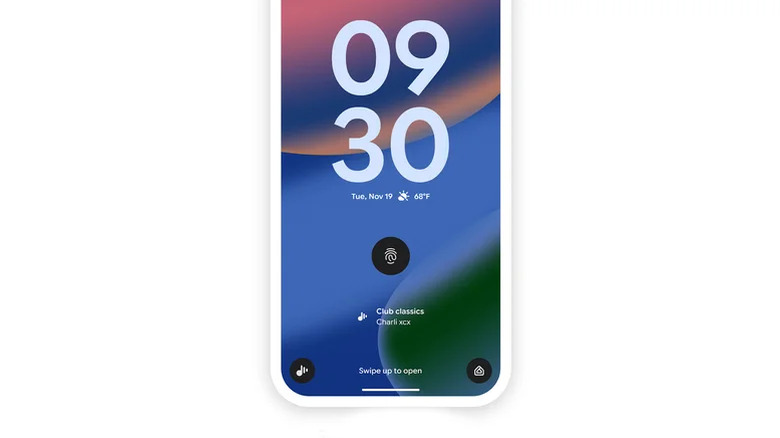
One of the most useful features you probably didn't know came with your Pixel device is Now Playing. It's been a staple of the Pixel experience since 2017, when Google launched the Pixel 2 series. The feature automatically detects music playing around you and shows the song's details on your lock screen. This happens discreetly so you don't get alerted by a random notification. Now Playing essentially replaces the need to use dedicated music recognition apps like Shazam when you're at a cafe and hear a melody you like.
The feature isn't enabled by default, though. Head to Settings > Sound and vibration > Now Playing, and check the "Identify songs playing nearby" toggle. Now, whenever your Pixel identifies a song that's playing in the background, it will add the track and artist information to your lock screen or the always-on display if you have it enabled. Now Playing works by matching the audio your Pixel captures against a database of song fingerprints stored locally on your device. This helps the feature work even if your phone isn't connected to the internet.
Google recently rolled out a fully fledged, standalone Now Playing app that Pixel users can download from the Play Store. It offers a better way to view the history of recognized songs and allows you to manually see what's playing. You can then listen to the full track on your music streaming platform of choice.
Automatic Call Screening
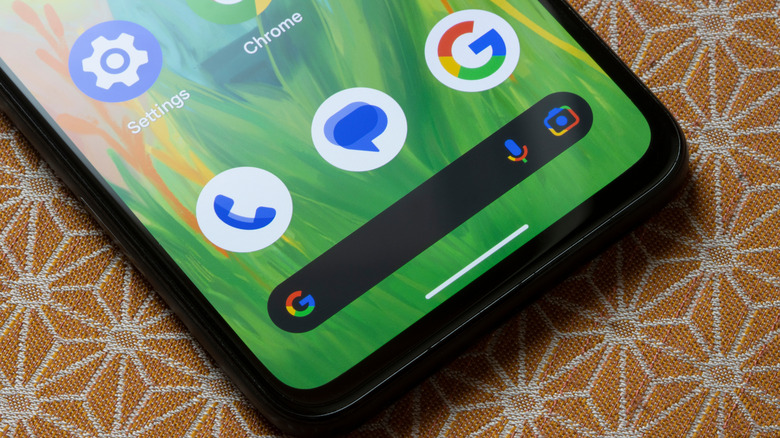
Nobody appreciates scam calls, so when Google unveiled Call Screen as an experimental feature with the Pixel 3 in 2018, everyone was excited. When an unknown number rings your phone, instead of sitting through a potentially awkward conversation with a telemarketer or a scammer, you could let Google Assistant handle the call for you. The feature has only gotten better since, with Automatic Call Screening delivering an even more hands-off experience. Automatic Call Screening is currently available in the US, UK, Ireland, Canada, and Australia. Select other countries can also enjoy the feature's benefits, though you'll have to manually screen calls.
The feature isn't enabled by default, likely because it's such a different way of handling incoming calls. If you wish to enable it, launch the Phone app, tap the three-dot menu, and navigate to Settings > Spam and Call Screen > Call Screen. Here, you can choose a protection level and turn on the "Automatically screen calls" option. Whenever you receive a call from an unknown number that meets your screening settings, your Pixel may screen the call before it rings and display a transcript of the conversation. If it determines it's a scam call, your phone hangs up. Otherwise, it rings normally, allowing you to speak to the caller.
If you can't find the Automatic Call Screening option, make sure the Phone app is updated by heading to the Play Store. Call Screen also stores transcripts of screened calls that you can access at any time.
Private space

Perhaps one of the coolest security features most people aren't using is private space. It's not exclusive to Pixels — many Android 15 and newer phones offer the functionality and let you hide certain apps behind an extra layer of authentication to keep them away from prying eyes. To enable the feature, navigate to Settings > Security & privacy > Private space. Tap on "Set up" and give it some time. You can now configure how the private space feature behaves. It can either be unlocked using your device's existing screen lock, or you can set up a different PIN, password, pattern, or fingerprint specifically for your private space.
By default, apps installed in the private space can be accessed by scrolling all the way to the bottom of your app drawer. You can hide this section altogether and access it by typing "private space" in the search box. Google recommends you set up a different Google account for your private space for maximum security.
There are a few things to keep in mind if you do decide to use this functionality on your Android device. For starters, all apps in your private space will be stopped when you lock it. This way, you won't get notifications from apps you're trying to keep out of sight. It also means that those apps cannot perform background activities or access device sensors when the space is locked. Storing fitness tracking or navigation apps here is therefore not recommended.
Adaptive vibration and smarter auto-rotate
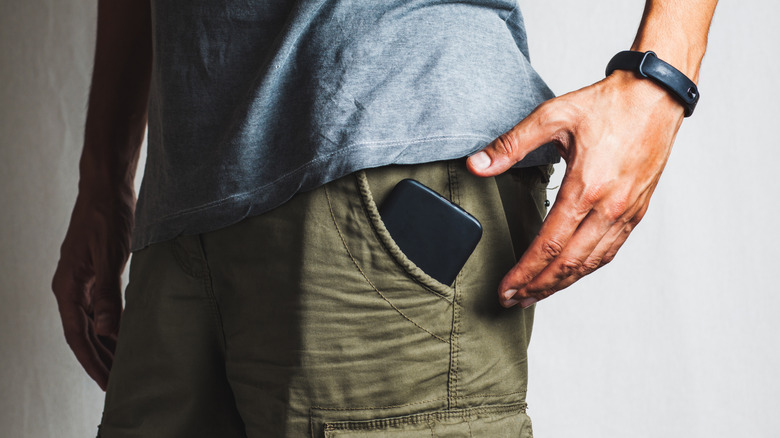
It's quite blissfully quiet when you have your phone set on silent most of the time — no annoying notification pings every few minutes. Those who like to live a little less dangerously, though, prefer setting their phone to vibrate mode so they can still tell when a call or message comes through. Pixel devices have an "adaptive vibration" feature that takes things a step further. You can find this option by heading to Settings > Sound & vibration > Vibration & haptics > Adaptive vibration.
When enabled, the feature uses your Pixel's microphone to determine the ambient sound levels around you. If your phone is in your pocket, adaptive vibration lessens the intensity of the haptics, but if you're in a crowded environment with your phone on a table, it cranks up the vibration strength so you're less likely to miss an incoming notification or phone call.
Another toggle you'd probably want to enable is "Face Detection" under Settings > Display & touch > Auto-rotate screen. With the feature enabled, your Pixel will use its front-facing camera to check the orientation of your face. If you use your phone a lot in bed, you know how annoying auto-rotate can get sometimes. Any information captured by the camera is processed on-device. This is in addition to the godsend of a manual rotate button that appears in the corner of the screen on most Android phones when you have the auto-rotate feature disabled.