

5 Samsung One UI Features You Should Turn Off On Your Galaxy Phone Right Now
The current Samsung Galaxy smartphone lineup is less about the hardware and more about the software. Gone are the days when Samsung was really experimenting with design, like with the Galaxy A80. Now the focus is the subtle tweaks in design and incremental under-the-hood upgrades, with more emphasis on the One UI software skin that runs on top of Android. Every Galaxy phone has more toggles, tweaks, and background services than most people will ever explore.
Additionally, there are a good chunk of features turned on by default, whether you asked for them or not, that quietly work against you, draining your battery, lagging the interface, or even handing over your data to Samsung without much explanation. There are many settings that you can turn off on an Android phone, but they are buried deep inside the Settings menu. The same logic applies to One UI, which stacks its own defaults on top of all that.
There are several settings on your Samsung device that you should probably turn off to keep your Android phone running smoothly for years. This isn't about switching off everything Samsung offers, it's about features that just tend to cause headaches.
RAM Plus
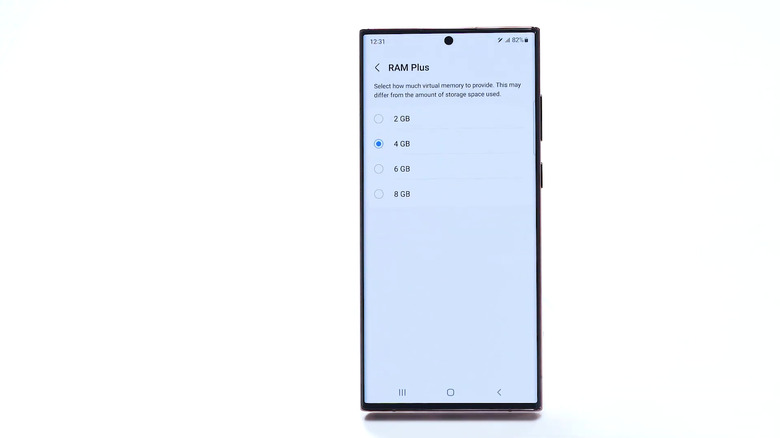
Android phones come with a lot of unwanted features that sound good on paper but are straight-up useless in practice. Samsung's RAM Plus feature lets you convert a part of your internal storage into virtual RAM. Turn it on with a flip of a toggle, and according to Samsung, you'll be able to keep more apps open in the background at once. This feature has been around since 2021, but while it may sound great, it doesn't really make sense, especially in the current smartphone world.
For starters, RAM Plus doesn't actually work the way Samsung's own settings menu implies. Instead of carving out storage, it leans on something called zRAM which compressing data so more of it fits into memory. That compression and decompression costs CPU cycles every time it happens, which is something flagship phones don't need. On a phone already packing 12GB or more physical RAM, the feature rarely benefits the user.
If your phone is juggling apps without any issues, RAM Plus isn't solving any problem. Of course, if you have a budget phone or one with less than 8GB of RAM, you can keep this turned on and pair it with some tricks to keep your phone running faster. Otherwise, you can head over to Settings > Battery and device care > Memory > RAM Plus, and turn it off.
Customization Service
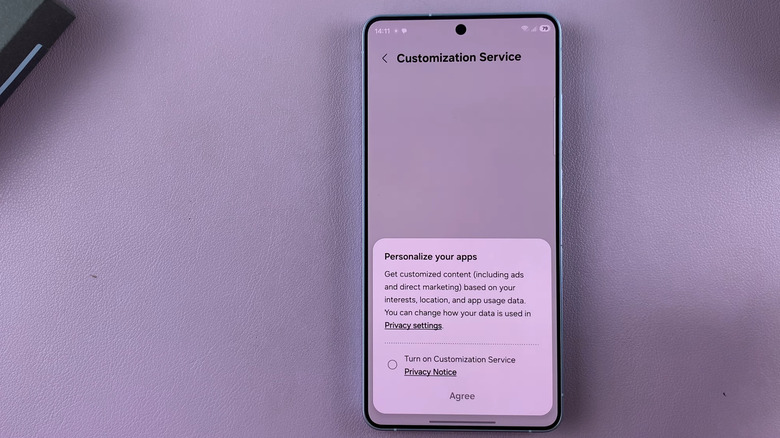
When you set up your new Samsung phone, you probably hit that Next button like your life depends on it. That's not wrong on your part since you want to get to the home screen and experience your new phone as soon as possible. However, during that setup process, you are probably asked if you would like to enable Customization Service, and if you tapped Allow without reading the fine print, then you are in a trap. While the toggle promises smarter suggestions and a more personalized experience, which anyone would want from their phone, in reality your data is being used and sent to Samsung.
According to Samsung, the Customization Service collects and analyzes information such as device information (language, lock settings, connection to other devices, third-party apps, music played, the websites you visit), information about your music and photos, contacts and communications data, calendar information, internet browsing history, location, and your Samsung account. Collectively, that is a lot of personal information and something that you should never trade for any amount of personalized service.
Along with some other settings, you should also turn off Customization Service on your Samsung phone. You can do that by heading over to Settings > Samsung account > Security and privacy > and turning off Customization Service. You can manually personalize your phone the way you want, but you shouldn't hand over such crucial data to anyone.
Scene Optimizer (Camera app)
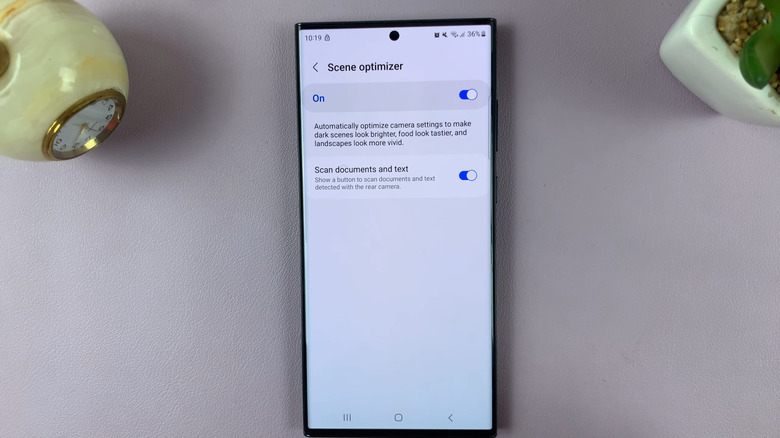
Samsung produces decent photos from its cameras. Trust me when I say spectacular because I have been in the business for 10 years and have been using smartphones for a couple of decades. The photos turn out sharp and punchy, but they are pixelated when zoomed in, and quite noisy when you take them in low-light conditions. Things get worse if you have one option called Scene Optimizer turned on. It is the sole reason why photos from your Samsung phone don't look as natural as you saw in the viewfinder.
With Scene Optimizer turned on, as soon as you take a photo, it appears punchy at a glance, but it gives the image an unnatural orange tone and can also crush highlight detail out of skies. The worst part is that there is no way to undo or make any changes to this image, since it is saved as the original file. That last part matters for those who edit their photos afterward, since heavily processed shots leave far less room to correct color or recover detail in something like Lightroom.
Turning it off also comes with a small trade-off. Since Scene Optimizer also powers document scanning from the viewfinder, you may have issues capturing documents and images, especially in low light. If you prefer images to look real, then you can pair it with some of the best camera settings to get the best out of your Samsung Galaxy phone.
Lift to Wake
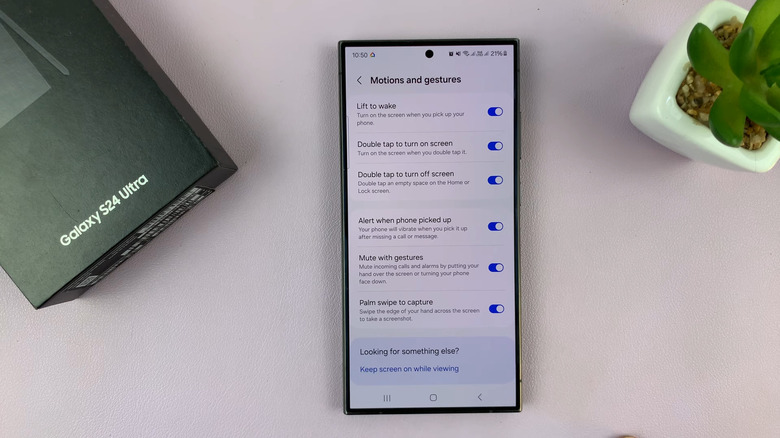
On older smartphones, the Lift to Wake feature seemed so futuristic. You pick your phone off the table or pull it out from your pocket, and the screen lights up automatically without a single button press, ready for a glance — I used to keep it turned on just to show off. It sounds all good on paper, but in reality it may fire at the wrong moments. Samsung's own support documentation acknowledges that, along with Lift to Wake, Double tap to wake can cause a Galaxy phone to wake itself up while sitting in a pocket or a bag.
This feature could trigger accidental taps or a stray emergency call to whoever is at the top of your list. Anyone who has pulled their phone out of their pocket is also probably unlocking their phone anyway, so Lift to Wake is a little redundant. Additionally, the feature is inconsistent and sometimes doesn't work even when you want it to work. Since face unlock and the power button already do the same job, and even biometrics have become super fast, Lift to Wake only seems like a novelty feature rather than something useful.
This is a feature similar to a few other small gestures that are hidden on a Samsung Galaxy smartphone. To turn it off, you need to head over to Settings > Advanced features > Motions and gestures and turn off both Lift to Wake and Double Tap to Wake for better results.
Edge Panels
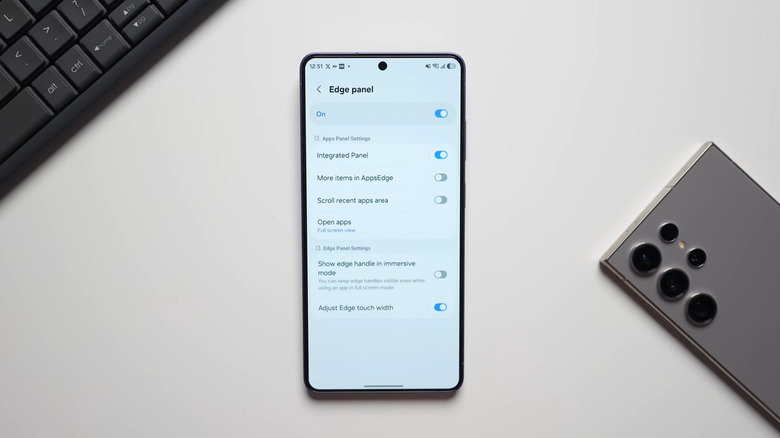
Gone are the days when the Edge Panels felt genuinely useful. It was a feature that I would always keep turned on, when Samsung still produce phones with curved displays. The Edge Panels felt like a natural part of the screen, since you would slide your finger on the curved display to access the shortcuts. You could swipe from the sides to access apps, contacts, or tools from anywhere. Now that Samsung phone screens have gone flat, the feature doesn't fit in the current phones.
Edge Panels get in the way during games, and they pop up by accident while scrolling and cover up the content you're trying to read. Samsung even seems to be scaling back its investments here. The company doesn't even allow users to download Edge Panels from the Galaxy Store on devices running One UI 7 or above.
If you are also one of those people who never touch it, or did not know it was there until this very sentence, it's quite easy to disable it. Head over to Settings > Display > Edge Panels and flip the toggle to off. You will now not see a silver tab on the side of your display.