

5 Ways You Can Speed Up A Google Pixel Phone
We may receive a commission on purchases made from links.
If you want the cleanest Android experience on any phone, then the Google Pixel is your answer. Motorola also gives you a clean Android interface, but the company's phones comes with some Motorola-specific features and software. However, despite running the purest version of Android, Google Pixel phones aren't immune to lag. Additionally, the in-house Tensor chipset, which isn't as capable as a Snapdragon chipset, starts to feel winded when you use your phone heavily. The good news is that what's dragging your Google Pixel down is probably not a hardware problem at all, but clutter that you can clear in a few simple steps.
Google Pixel is also an Android phone, and a lot of usual advice for making your Android phone faster also applies here. But Google's own software has some layers that most smartphone guides won't mention. For instance, AICore and Pixel's aggressive background AI processing are unique to this ecosystem. If you are also seeing your Pixel's storage close to full, it is worth knowing what actually happens if your phone runs out of storage. Spoiler alert! You won't just get simple "storage full" pop-ups; The performance of your phone will also go south.
None of the solutions below require you to root your phone or void a warranty. They mostly involve settings you might have walked past a hundred times without realizing what they were doing.
Free up storage
The first thing that probably hits your mind when your phone acts sluggish is to clear all unwanted files from your phone and give your device a breather. Google has said for years that Android runs poorly when storage is close to full, and Pixel phones are no exception. Once you breach under 10% of free space, the system struggles to clear temporary files, cache app data, or even install updates smoothly. And this shows up everywhere, from the camera to the keyboard. You will experience issues like your tap taking a few seconds to register and stuttering while opening apps.
The fix starts in Settings, where the Pixel's built-in storage manager will actually show you exactly what is eating your storage instead of leaving you to guess. Google's own support page about freeing up space on a Pixel phone suggests turning on "Smart Storage," which automatically clears backed-up photos once your device storage gets full. There is also a "Free up space" tool that surfaces apps and files that you haven't touched for months.
If you want to do it manually, then you should try clearing app caches, offloading old photos and videos to the cloud or a disk, and deleting offline Google Maps data. Our list of the best ways to free up storage on an Android is a nice place to start from.
Disable AICore
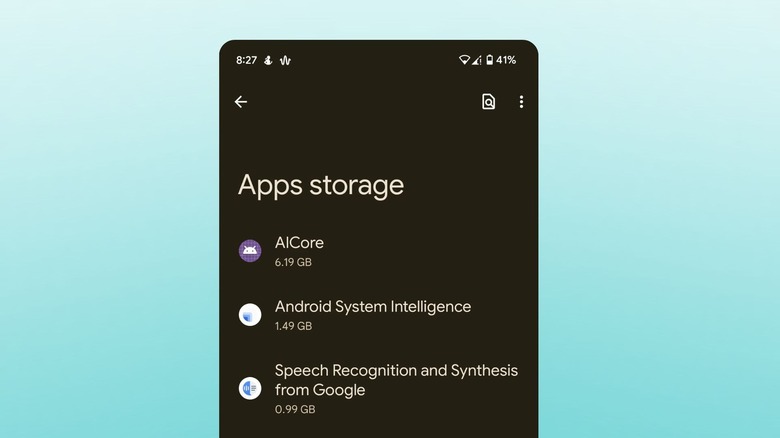
Not many know this, but every Google Pixel phone (from Pixel 8 onwards) ships with Google's system-level background service called AICore, which manages on-device learning models like Gemini Nano. Its main job is to help run Gemini Nano locally, so features such as Magic Compose, Notification Summaries, and Automatic Speech Recognition (ASR) work offline. This sounds great until you notice it quietly reserves several gigabytes of RAM and, on some devices, eats up storage during model updates.
Fortunately, there is a fix where you don't have to nuke AICore. Before you go ahead and follow this guide, we would suggest you have a look at Google's explainer on Android AICore. This will help you understand what exactly you will be trading away after disabling AICore. In simple words, you need to navigate to Settings > Apps, locate AICore, and hit the Force Stop button. After that, simply press the Disable button. This will hand you back a meaningful chunk of RAM and memory instantly.
Do note that AICore isn't the same thing as the cloud-based Gemini, and disabling AICore won't affect the Gemini app on your Pixel phone. You can continue using the services of the Gemini assistant without any issues, and its app will not be affected. Our breakdown of Gemini Nano is a good way to understand the AI model before you start flipping switches.
Uninstall unused apps

The best part about owning a Google Pixel phone is that it ships without any bloatware. You don't get social media and streaming apps like Facebook and Netflix preinstalled. However, over time you will find yourself with apps that are no longer as useful as when you downloaded them. While apps installed through the Google Play Store can be uninstalled by simply long-pressing the app icon and pressing the Uninstall button, some apps cannot be removed because Google itself has flagged them as system apps.
That is where a pair of free tools come in. Shizuku and Canta are the two apps that can help you get rid of unnecessary apps that can't be uninstalled as normal without needing to root the phone. Shizuku grants temporary elevated permissions using ADB, while Canta lets you browse and uninstall system-level apps with a single tap using Shizuku's access. There are other ways to uninstall bloatware without downloading a third-party app, but they are not exactly fool-proof.
Cap background processes
Google Pixel, like any other Android phone, keeps a bunch of apps sitting idle in memory so they can be reopened instantly when you switch back. This is the reason why, whenever you switch back and forth between apps from your Recent Apps list, you get them right from you left them. However, on a phone juggling dozens of installed apps the pile of cached data can eat gigabytes of RAM. This can cause your phone to start lagging or become unresponsive.
Over the years, Android has opened up its gates and has given a lot of control to its users on how they want their phones to operate. Tucked inside the Developer Options (which need to be activated first) is a setting called Background Process Limit. Changing this setting from the default to Standard Limit forces Android to keep fewer apps cached at once.
But this is not a setting that you should max out blindly. Going all the way to zero can mean losing your place in an app you just switched away from. You should first try to locate the specific apps that are the real offenders before you tweak the Background Process Limit setting.
Remove live wallpapers and dynamic widgets
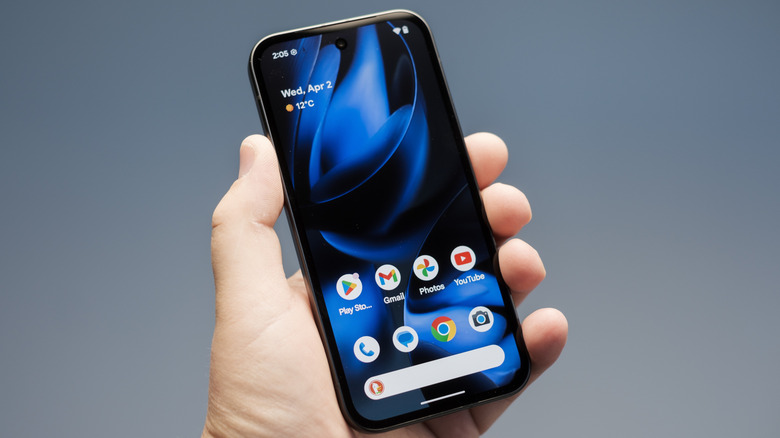
We all love decorating our phone's homescreen, styling it so that it looks like an extension of ourselves. The first thing most do when customizing their Pixel homescreen is to change the wallpaper and add widgets. While static wallpapers are okay, the live wallpapers and dynamic widgets use your phone's resources every time you glance at them.
A live wallpaper rendering water ripples or shifting light requires a service that runs continuously, drawing frames and in some cases tapping location or sensor data the whole time your screen is on. The same happens with a dynamic widget.
Stack a handful of dynamic widgets like weather, calendar or a news feed on top of that, your home screen becomes a steady source of battery drain, and one of the biggest reasons why Android phones slow down. You should switch over to static wallpapers and avoid using multiple dynamic widgets. This way, your phone won't feel sluggish and you will have some extra juice left at the end of the day.