

5 Settings You Should Immediately Change On Your Fire TV Stick 4K Max
We may receive a commission on purchases made from links.
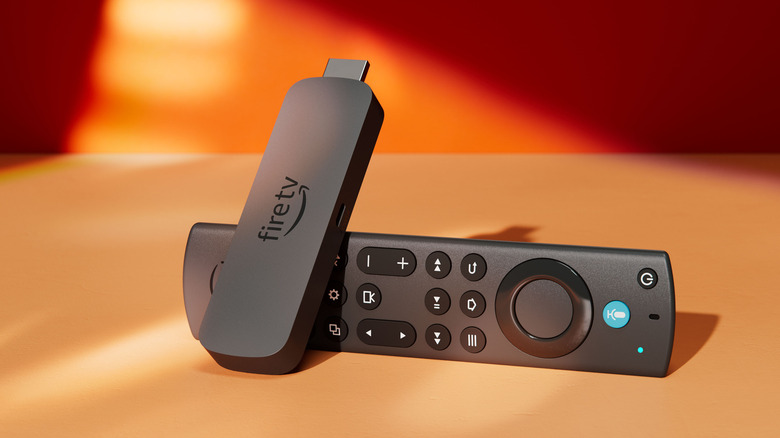
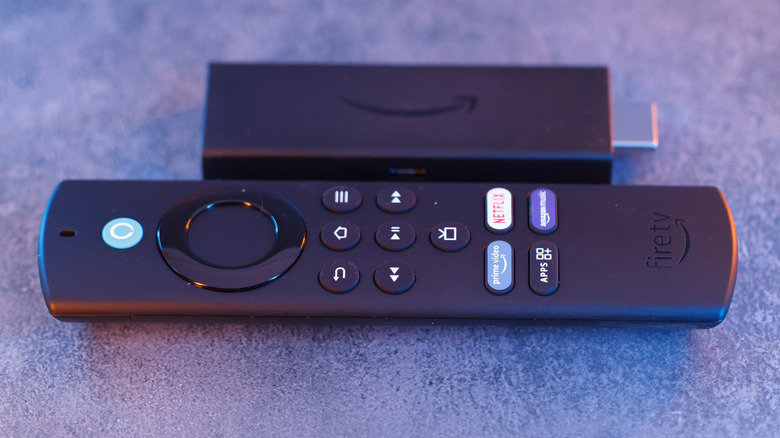
Amazon continues its foray into consumer living rooms with an ever-expanding Fire TV ecosystem. If you have an Amazon-centric entertainment setup at home, you're almost certainly familiar with its current lineup of branded media streamers, including the one at the top of the product stack: the 2nd Gen Fire TV Stick 4K Max. Since 2014, Amazon has been trying to cram most of the benefits of a Fire TV into a dongle, and that hasn't changed.
The 2nd Gen version of Amazon's Fire TV Stick 4K Max does include a couple of standout improvements over its predecessor, mainly in the form of ever-so-slightly faster MediaTek silicon, Wi-Fi 6E support, and a higher base flash storage capacity of 16GB. These days, you're spoiled for choice when it comes to streaming devices. The main reason to stick with Amazon Fire TV products is because of how tightly Amazon integrates its devices within its ecosystem.
That said, before you plug the dongle into your TV, it's worth it to adjust a few settings — like privacy, color depth, awkward AI, frame rate, and Bluetooth settings. So, whether you've ditched your obsolete smart TV in favor of a modern streaming device or you're just upgrading from a last-gen Fire TV Stick, let's get into the five settings you should change on the Fire TV Stick 4K Max.
Opt out of data collection
Amazon's reputation with consumer privacy is notoriously bad, including everything from disabling local processing on Alexa-enabled devices to lobbying against state privacy bills. So, it's important for users to take control over what privacy options they do have when using Amazon devices. If you own an Amazon Echo, we'd also implore you to double-check these five Amazon Echo privacy settings.
For Fire TV products, there are a number of ways the operating system collects and uses customer data, ranging from seemingly benign telemetry data to potentially intrusive targeted ads. To limit data collection from your device, you can navigate to Settings > Preferences > Privacy Settings. Once there, you can disable the following: Device Usage Data, Collect App Usage Data, and Internet-based Ads. This will limit the amount of your data Amazon processes, though the company notes it will still collect data for the functionality of certain features, like the "Recents" row.
Add a Bluetooth device
Perhaps one of the hidden gems on Fire TV Sticks is native Bluetooth support. The ubiquity of Bluetooth is easy to take for granted until you realize a lot of older streaming devices don't have it. Bluetooth support is especially useful if you plan to use your Amazon Fire TV Stick 4K Max anywhere beyond your main TV – like with a desktop monitor or another HDMI-equipped display. Or if you just want a more private or less disruptive listening experience.
It's worth mentioning that all of Amazon's latest Fire TV Sticks support some version of Bluetooth, so this feature isn't limited to the 4K Max model. To pair a Bluetooth device, navigate to the Settings menu from the OS homepage and select Remotes & Bluetooth Devices. From there, select Add Bluetooth Devices, then Settings > Remote & Bluetooth Devices > Add Bluetooth Devices. Once you've completed those steps, you can pair the device of your choice, including one of the best Bluetooth headphones for audiophiles.
Adjust the color depth to match your TV
Depending on what TV you have, Amazon TV Fire Sticks can utilize additional features to deliver a more color-accurate image. If your TV supports HDR10 and Dolby Vision, then you should immediately check the color depth settings on the Fire TV Stick. Color depth is measured in bits and represents how many bits are used to define a color in a pixel. Most modern TVs support 8-bit color depth, and Amazon Fire TV Sticks have this as a default.
HDR10 uses 10-bit color, while Dolby Vision can support up to 12-bit color. If your display supports these features, then head to the Settings menu and find Display & Audio. From there, navigate to Display, and choose Color Depth. Once there, you'll see options for 8-bit, 10-bit, and up to 12-bit; select the appropriate color depth for your display. Dolby Vision is also supported by a number of streaming services like Disney+, Netflix, and Amazon Prime Video.
Turn on frame rate matching
Since Fire OS 6.x, Fire TV devices have been able to make use of a frame rate matching feature that allows the device to adjust your TV's refresh rate to match the source content. This is helpful, as a lot of movies and content are filmed at 24 or 30 frames per second. If your streaming device is trying to display 24Hz content at 60Hz, you may end up with choppy frames. While not the same, it is similar to a visual video artifact known as screen tearing, and is why Variable Refresh Rate (VRR) exists.
Amazon calls this Match Original Frame Rate, and it can be found in the Display submenu of the Display & Sounds section. So, head to Settings > Display & Sounds > Display > Match Original Frame Rate. While you're there, double-check the resolution settings. Fire TV devices can automatically detect if your display supports 4K resolution, but it needs to be set to Auto for Match Original Frame Rate to work.
Turn off Amazon's Titan AI art generator
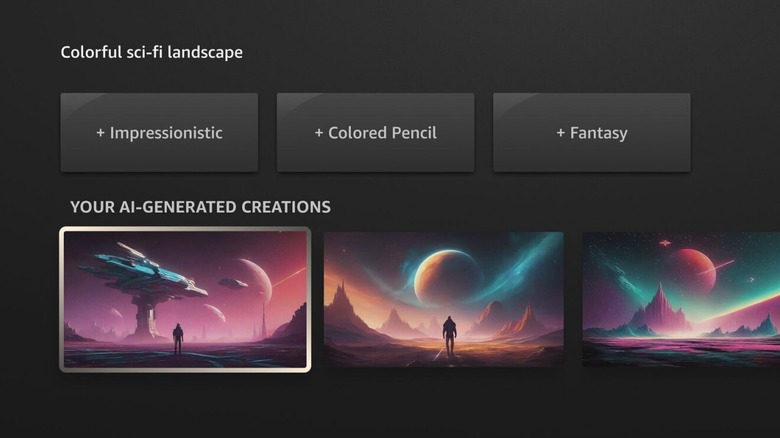
AI is coming for everything, and it seems even streaming sticks aren't safe. Ever since Amazon joined the AI-art party with its Titan image generator, it has been integrating it into newer Fire TV products. Titan is a text-to-image or voice-to-image foundation model (FM) that can be used to generate a variety of images. Amazon packages this into its "Ambient Experience" feature that's present on certain Fire TV products, and is aimed at turning your display into an interactive media hub when not actively streaming video by playing audio, podcasts, or displaying AI-generated art and screensavers.
According to Amazon documentation, you can check your device to see if it features Ambient Experience by navigating to Settings > Display & Sounds, and if you see an option for Ambient Experience, then your device supports it — if you don't see it, it's not supported. While you should be able to turn off Ambient Experience from the Display & Sound sub-menu, XDA reports that's no longer the case. The workaround seems to be selecting the AI Art option from the Ambient Experience screen. Once AI Art is highlighted, press the three-line button on the remote and select Remove Widget.