

11 MacOS Apps That Give You Features Apple Doesn't Include Out Of The Box
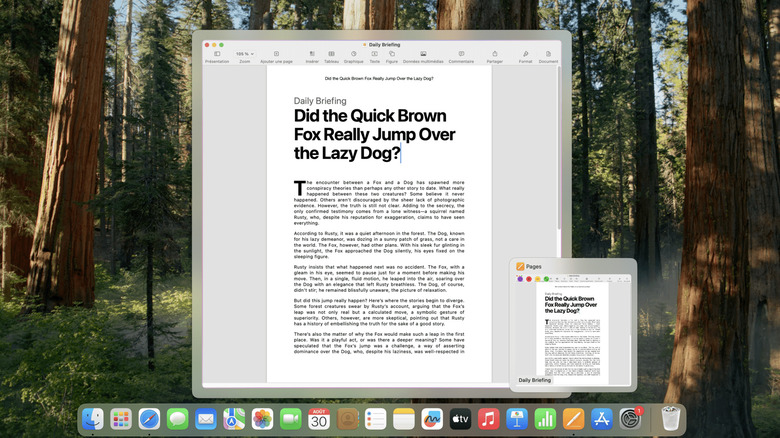
If you have been a Mac user for any amount of time, then you know full well that you have to be incredibly patient if you want Apple to add a particular missing feature, and internalize the very real possibility that the feature may never actually come. The clearest example of that is how window tiling — perhaps the most glaring omission in a modern computer — wasn't possible natively until macOS Sequoia. On the bright side, there is a thriving macOS app ecosystem that picks up the slack whenever Apple neglects to put tension on the rope. Many devs have given up waiting for Apple and just made the features that should already be there — or improved Apple's attempts at them.
We know it doesn't speak highly of a company that its customers have to turn to third parties to do the things they need, but that's just the reality of the situation. Virtually every missing feature on macOS can be added via a third-party app, often so well that you forget it was never there. And if Apple's feature implementation is weak sauce, there are apps that can do it way better. We recommend these 11 apps to upgrade your Mac, rather than twiddling your thumbs for a decade in hopes that Apple will implement them.
Alcove

Love or hate the iPhone's Dynamic Island, there's no denying that it's an ingenious way to "hide" an eyesore camera cutout and make it serve a purpose. MacBooks have had big, ugly notches too, ever since the MacBook Air M2 in 2022 — a golden opportunity for Apple to introduce something akin to the iPhone's Dynamic Island. And ... they didn't. Rumors now circulate that Apple is getting rid of the notch anyway. So if your MacBook has a notch and you like the Dynamic Island, we cannot recommend Alcove enough.
The developer of Alcove painstakingly designed it to mimic its iPhone inspiration as closely as possible in feel and behavior. Since it's a third-party app, it can do a lot more than just show currently playing music, like quickly checking your calendar, getting alerts for upcoming events, and replacing those ugly macOS Tahoe HUD notifications, with future updates promising file trays and more. The only potential downside is that Alcove is a bit on the pricey side at $13.99, which for many people might be expensive for what it offers.
Alcove is not the only app that has tried to make a macOS Dynamic Island a thing. DynamicLake and DynamicHorizon are paid alternatives that are very close in look, feel, and features to Alcove. Boring Notch and Atoll are powerful free alternatives. Some, like MediaMate, focus on iPhone-like media controls, while NotchDrop focuses on utilities. Others, like Forehead, "remove" the notch entirely. Personally, I find Alcove to be the most polished and native-looking — it's been alleged that even some of Apple's higher-ups use it — but the free options like Boring Notch and Atoll work great.
DockDoor
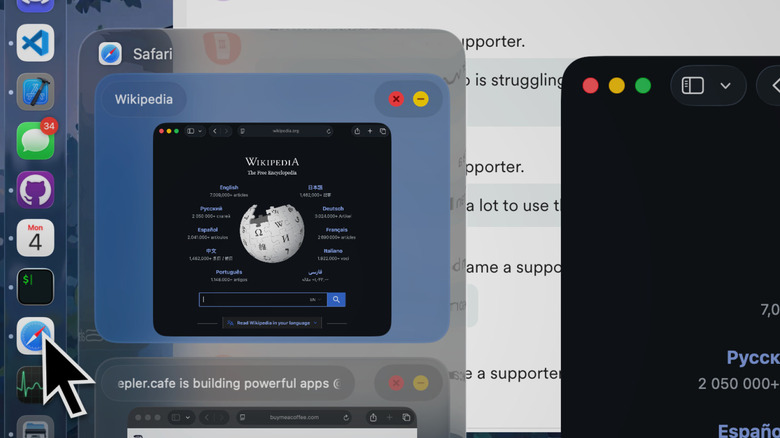
It is frustrating using macOS and being unable to quickly preview open apps from the dock to see how many windows are open, and choose only the one you want. Windows has been doing that for, like, ever. We're left scratching our heads, wondering what exactly is stopping Apple from including such obviously integral functionality. DockDoor is a thoughtful, feature-rich implementation of dock previews for those tired of waiting.
The headline functionality of DockDoor is interactive live previews of all open windows, including little traffic light icons to minimize them, close them, and more. On top of that, you can activate Cmd+Tab switching (or just Opt+Tab, if you want to preserve macOS' native Cmd+Tab app switching) to see those same open windows rather than just app icons. Bear in mind that all of this can be customized to taste. The size of the previews, how long you have to hover over an app before they pop up — you don't have to settle for unsatisfactory defaults. In fact, DockDoor can be something of a super app for managing a lot more than just windows. Dive into the settings and you'll find a plethora of built-in features.
What's surprising is that DockDoor is free as in free beer, and it is the best app I've seen to date for what it does. Other apps focus on only portions of DockDoor's feature set. Take AltTab, a free, reliable AltTab switcher with live previews, if that's all you're after. Otherwise, we'd say DockDoor is the gold standard.
FluxMarkdown
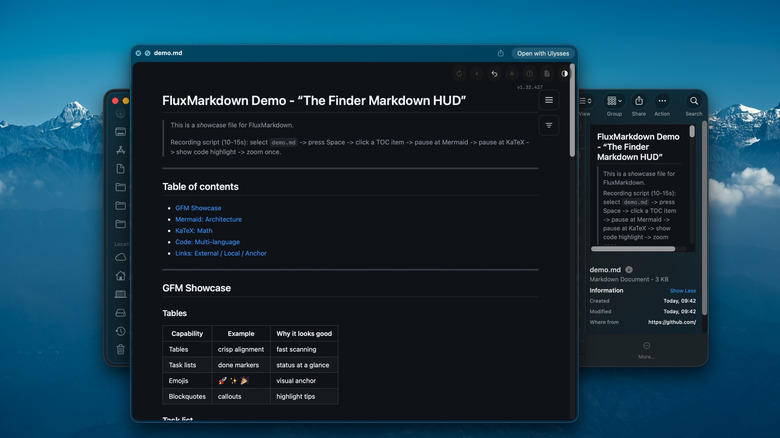
Markdown, a formatting-agnostic markup language, seems to be growing in popularity. Even Apple's Notes app supports it. Apple's Quick Look (pressing the spacebar to quickly preview a selected file without opening it), on the other hand, does not, so if you try to preview a .md file, it's going to look as ugly as Markdown naturally is without rendering aid. FluxMarkdown is a simple, free app that quietly upgrades Quick Look to display any Markdown file exactly as it was intended to look.
What's great about this app is that it is so easy to install and get working. Once installed, it just... works. The developer has included support for the full gamut of markdown features, such as mathematical expressions and code highlighting. It works for basically every markdown format out there, not just the typical .md file. So if you use a macOS Markdown writing app like Bear or Ulysses, this extends your reach a little bit to view the files in Finder without having to open the full writing client.
Swish
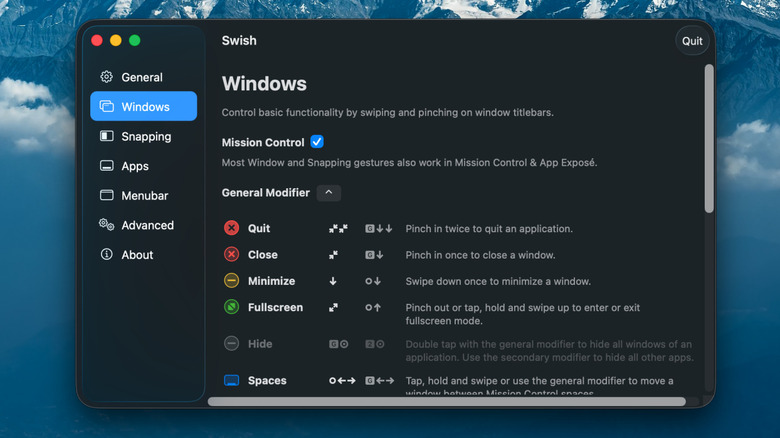
One of the biggest selling points of macOS is its trackpad, and out of the box it crushes the competition. Seriously, once you try a Mac trackpad, it's like you go from playing in the mud with Windows to soaring through the stratosphere with Apple. Swish upgrades an already-great trackpad with a new superpowered moveset: gesture-based window management.
Hover over an app on the dock, swipe up with two fingers, and it opens a minimized window. Drag down with two fingers on the title bar of an open app, and it minimizes it. Pinch with two fingers to close or quit it. Those gestures alone are worth the price of admission once you get used to them, but that's just the beginning.
Swish allows for more gestures to create spaces, snap windows, switch apps, control tabs, and toss windows between external screens ... the list is long, but suffice it to say, with just a few multi-finger swipe gestures, you may never need to use keyboard shortcuts again to manage windows and tabs. I can speak from personal experience when I say that Swish has encoded itself so deeply in my muscle memory that using my Mac would be worse without it, and I hope Apple takes notes here and incorporates something similar in the future.
Tangrid
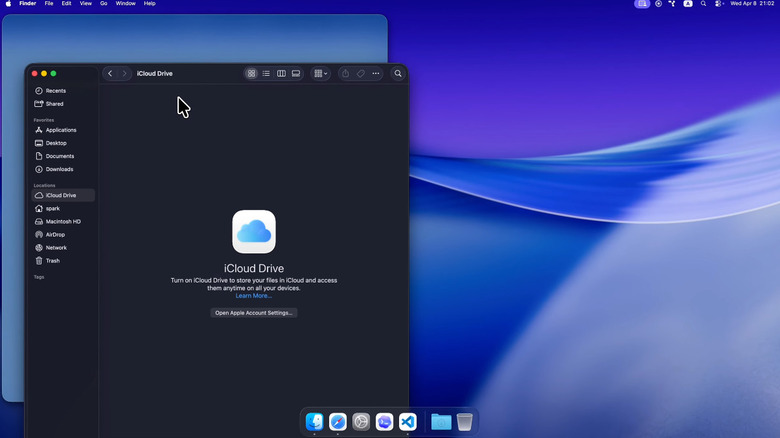
As mentioned, Windows-esque window tiling is a recent addition to macOS, and for most people it's good enough — certainly better than the nothing that came before it. But let's be real, it's a half-hearted addition to macOS, barely covering what has been a basic feature of Apple's number one competitor for years and years. There's no real Apple "flair" to it, nothing groundbreaking to move the needle forward on a long-established paradigm. Apps like Tangrid try to raise the bar for our expectations of what window management can be.
To start off, Tangrid makes macOS's basic drag-and-drop window management better, so there's no need to hold Opt while dragging windows to preview halves, quarters, and thirds before committing a window to that area. It flows well, especially when adjusting the margins to resize magnetized windows, and I love it — but that's not Tangrid's best feature. Tabbed layout is. Basically, imagine all open windows (from all open apps) coexist in a single area of your screen, with tabs to switch between them rather than Alt-Tabbing or something else. That's the genius of Tangrid. We dare you to find any other window manager that makes multitasking on your MacBook's single screen that effective.
We admit the pricing on Tangrid is a bit steep at $19.99, though you have seven days to try it to see if the magic works for you. It's the only app we've seen with that tabbed layout feature, though. Tangrid's competitors — like Moom and Rectangle — don't have anything quite like it.
Thaw
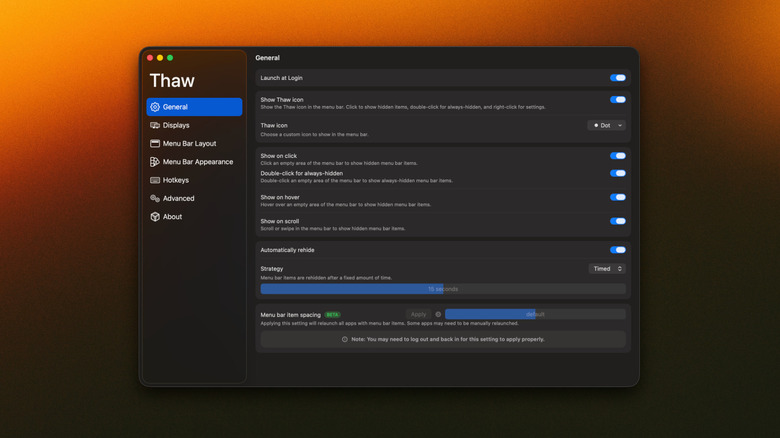
Once you install more than a handful of apps on a MacBook, you'll notice that menu bar items start to disappear behind the notch. Even when they don't, they add visual clutter once you get past a half-dozen icons. macOS does allow you to manage third-party app icons in the menu bar, but it only offers a binary on-or-off solution. If there is a menu bar icon you use only sparingly, you'd have to either leave it there, taking up space, or go through the tedium of opening Settings and re-enabling it whenever required. Some apps effectively live in the menu bar, too, so removing the menu bar icon is a non-starter. If anything we've said above speaks to your experience, then you need Thaw.
Thaw is a free, open-source menu bar manager that can go toe to toe with paid options like Bartender. If you've never used an app like this before, basically your menu bar is divvied up into always-visible icons, a hidden section for the stuff you still use (but infrequently), and an always-hidden section for items which you never need (such as, say, the Time Machine backup icon). Thaw is highly customizable, with control over every aspect of how the menu bar overflow looks and appears, including options to summon it with a click, a hover, or a shortcut. There's even a way to use it like Spotlight, hitting a keystroke to search through menu bar items so your fingers never leave the keyboard.
Maccy
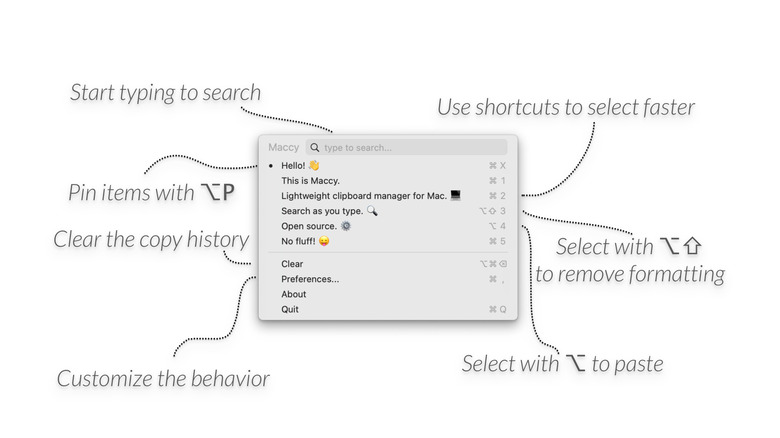
One feature many people were all too glad to enable after updating to macOS Tahoe 26 was the long-awaited clipboard history. For most people, it'll get the job done, but for anyone who does a lot of copy-and-pasting, it's not enough. It takes too many keystrokes or clicks to grab a copied item. You have to summon Spotlight, then press Cmd-4, and then select the link — or search for it manually. Apple also limits clipboard history to a max of seven days. Dedicated clipboard managers can do you one better, and Maccy is one of the best out there.
We recommend Maccy for a laundry list of reasons. For starters, it's lightweight, fast, and keyboard-first. Once you bring up Maccy's window, you can start typing to find a copied item, or arrow down to it and press Enter to copy it. Or even faster, press Cmd plus one of the number keys to copy a recent item — or even better still, paste it immediately by holding down Opt. Items that you copy and paste a lot can be pinned to the top, and formatting can be stripped by holding Opt-Shift. There's no fancy, glitzy UI, no meddlesome features, just clipboard history with the least amount of friction between you and the items you want to copy and paste.
Go to Settings, and you can tweak which items get copied, how long they stay there, how many items the window shows on your screen, and more. You can purchase the app from the App Store for $9.99. The developer has been incredibly generous for those who can't afford it, offering a free download directly from GitHub or with a Homebrew command.
BetterAudio
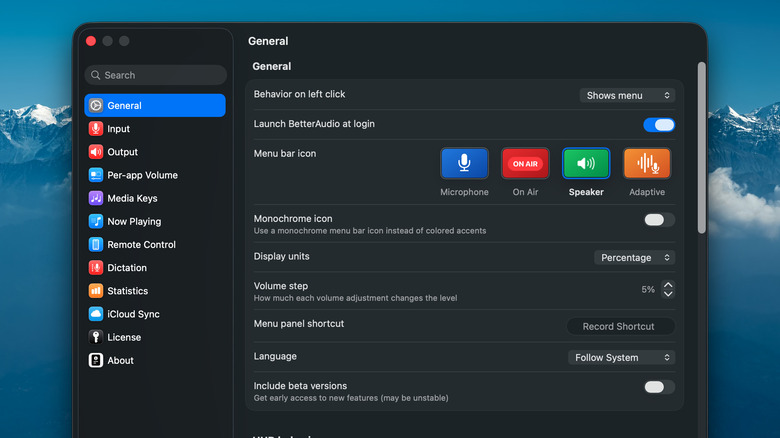
macOS's audio control settings frankly suck, there's no way around it. The best you can do to control volume and Bluetooth devices is with menu bar icons, and those only offer the bare minimum — no audio mixing, no way to set default devices for different scenarios, and no way to customize input/output names. To make matters worse, one of the most well-known third-party audio mixers for macOS — SoundSource — is pretty expensive at $49. BetterAudio offers a powerful and customizable alternative for free.
Right out of the gate, BetterAudio has a far superior menu bar manager that lets you see input/output devices, control their volume individually, and change the volume when it's playing through specific apps. Dig into the settings, and you'll quickly find that you've only scratched the surface. It seems like virtually every part of audio control can be tweaked down to the atom so the app does everything you want and nothing you don't.
The app is free to use, but some of the premium "support" features will require you to pay $9.99. A similar, free, and open-source alternative is FineTune, which is less customizable but handles those key things macOS is missing, like per-device volume, per-app volume, device priority, and so on.
HandMirror

If you frequently join spontaneous online meetings, such as through Zoom, then you'll know that you may only have a few seconds to fix your appearance and ensure the room behind you doesn't look like a train wreck before people start joining and seeing you. macOS has a ton of really cool camera video effects and mic control settings, but it doesn't have a one-click or one-keystroke way to peek at your camera before people can see you. For that, try HandMirror.
HandMirror lives in your menu bar, and once you click it, it pops up a window to show you what your camera can see. That's basically it, and since it's free, you might as well download it for a rainy day. You can buy HandMirror Plus to get a few extra bonus features like a mic check, a way to test macOS's hand-activated reactions, a notch-activated mode, a fun Polaroid photo-taking mode, and more.
Amphetamine
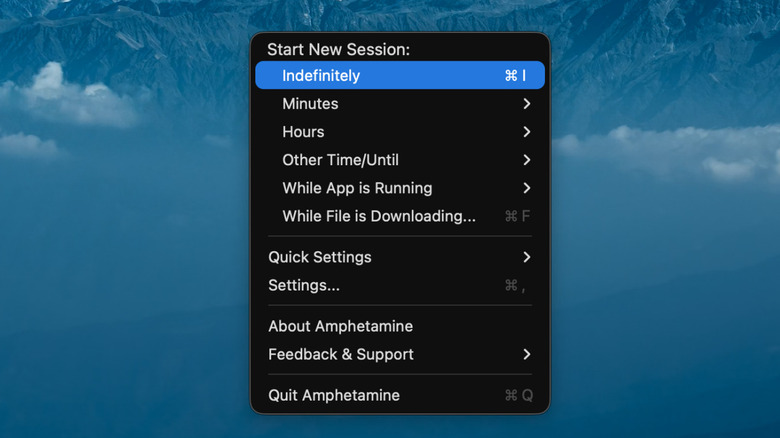
Don't let the name scare you away, this has nothing to do with the drug you're thinking of — well, except maybe in a metaphorical, digital sense. Amphetamine keeps your Mac awake. Sounds trivial, but this can be really helpful if you're running a task that you can't afford to have interrupted, such as downloading a torrent overnight. The app allows you to either turn it on as needed or to trigger it intelligently when it detects that you're running a certain app, downloading a file, when headphones are connected, or in a range of other scenarios to ensure your Mac doesn't accidentally go to sleep, but also doesn't accidentally get left on for hours.
Amphetamine is 100% free to use with no extra purchases and no pro option for paywalled features. We'll just add one caveat: the app hasn't gotten an update since 2023, although people who use it (myself included) report that it continues to function on macOS Tahoe. If that concerns you or if you're running into issues, KeepYouAwake and Caffeine are alternatives that seem to be getting more frequent, recent updates.
Mos
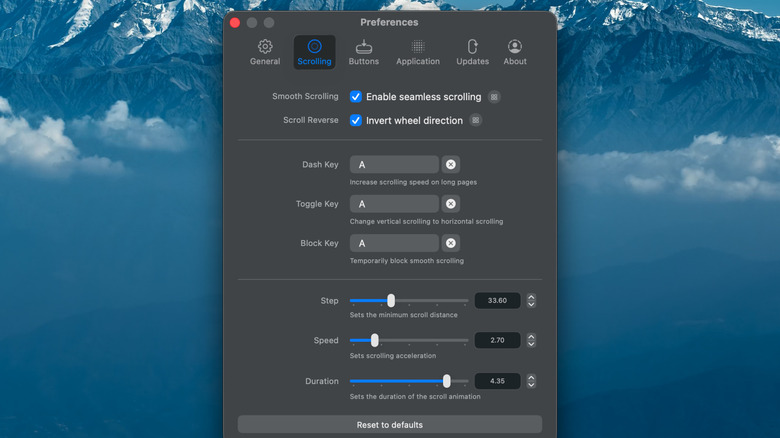
One of the smallest omissions in macOS with an infuriatingly disproportionate impact is the inability to separate your trackpad's scroll direction from your external mouse. If you reverse the scroll direction for one, it affects the setting for the other. This makes no sense, since on the trackpad you expect natural movement, e.g. an upward swipe moves down the page since you're virtually grabbing and moving it, but on a mouse, scrolling up should take you up. At least, that's how most people tend to use trackpads and mice intuitively, therefore macOS having this all be one setting is a massive oversight. Luckily, all it takes is a free app called Mos to fix it.
Mos can make it so external mice have a reversed scroll direction while the trackpad sticks to natural scrolling. In addition to this, the app adds smooth trackpad-like scrolling to the many non-Apple apps that normally wouldn't enjoy that benefit, with options to tweak said smoothness. So the same fluid, bouncy scrolling you get in, say, Safari, works in other browsers like Vivaldi. If an app is acting up as a result of Mos' scrolling settings, you can add an exception for it. You can also reprogram your mouse's extra buttons with it.
Mos is far from the only option in this app category. You can try others like Mac Mouse Fix and LinearMouse, though the former costs $2.99. Anecdotally speaking, I've tried them all, but Mos is the only one that really gets that smooth scrolling just right.