

5 Apple CarPlay Voice Commands You Need To Be Using
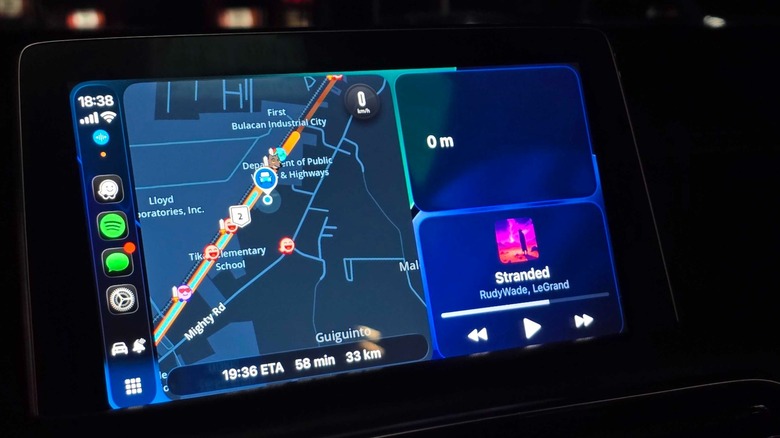
Apple CarPlay is quite useful for techie drivers who want to use their iPhones for navigation, entertainment, and other tasks while driving. But even though this car interface is designed to reduce distractions and let you focus more on your driving, the fact that you have to take one hand off the steering wheel and your eyes off the road to manipulate it can be dangerous at times.
That's why you should turn on Apple CarPlay voice commands. To do so, you need to go to CarPlay's settings (when you're parked), choose Accessibility, scroll down to Physical and Motor, and then turn on Voice Control. You'll also find the ability to change CarPlay's text size in this menu, which is one of the useful CarPlay features most users miss out on. After you've turned on Voice Control, you should see its icon appear under the signal bar on the left side of your display.
There are quite a few commands available, but we're listing the most useful ones we found and now use daily. So, if you want additional convenience without compromising on safety, here are some of the Apple CarPlay voice commands you need to start using.
Stop or start listening
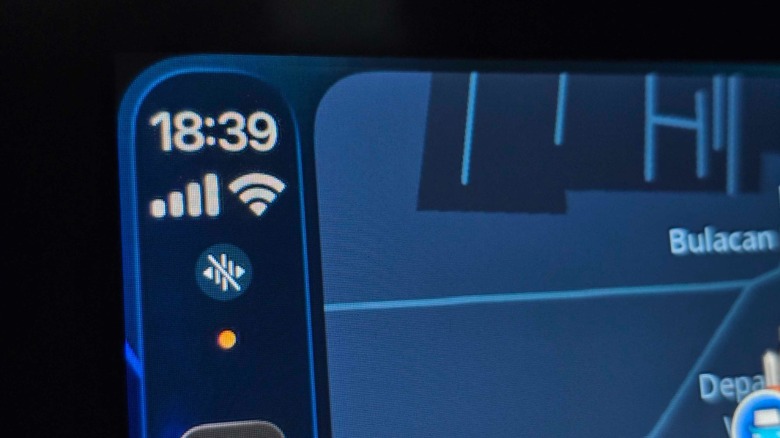
While voice control is convenient if you're driving alone, it might become an issue if you have a passenger and want to enjoy a conversation. So, if you want Apple CarPlay to stop listening to you and mistake your words for commands, you can simply make it stop by saying, "Stop Listening." When it registers this command, the Voice Control icon will gray out and will have a slash running through it.
Once you've dropped off your passenger or if you want to make some changes on your car's infotainment screen, you can just say, "Start Listening." This will cause the Voice Control icon to revert back to its original color, and CarPlay will be ready to receive your commands again.
Note that these commands only work on the Apple CarPlay system, so it does not automatically mute the microphone in your car. So, telling Apple CarPlay to "Stop Listening" will not stop the other party from hearing you if you're on a call. Aside from that, CarPlay will still respond to voice commands, even if you mute the speakers.
Open app
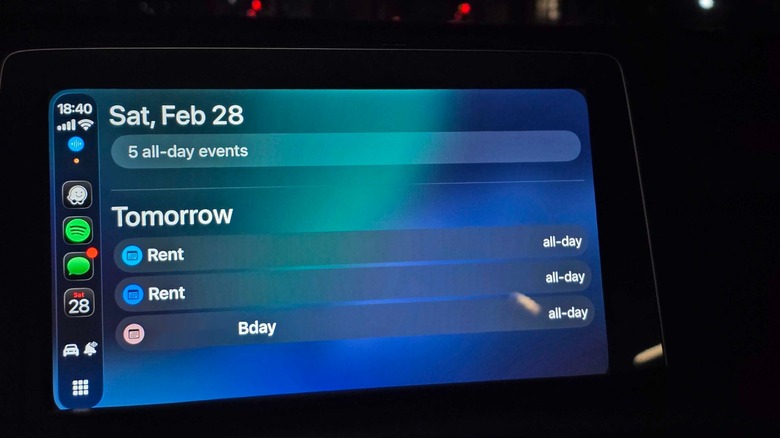
This is one of the most useful voice commands on Apple CarPlay, as it lets you quickly open the app that you want without having to swipe through the home screen. This is especially great if you've installed some of the best CarPlay apps but don't want to take your eyes off the road just to look for them on your car's infotainment display.
This command is pretty simple to use — all you need to do is say Open "name of app." For example, if you're tired of listening to Apple Podcasts and want to play your favorite Spotify playlist instead, you can just say "Open Spotify," and it will then pull up your playlists. You can also say "Open Calendar" while you're driving home to ensure that you're not forgetting anything on your schedule. Personally, I use Voice Control to launch my smart home app from my car by saying "Open SmartLife" as I approach my neighborhood. That way, I can just tap on the scenes I've set up to turn on my air conditioning units and arrive to a cool home.
The only downside to this is that it sometimes has trouble recognizing complicated app names. For example, it readily understands when I say "Open Maps" or "Open Brave." But when I asked it to "Open SpotHero" or "Open OnTheWay," it refused to respond.
Pan directions
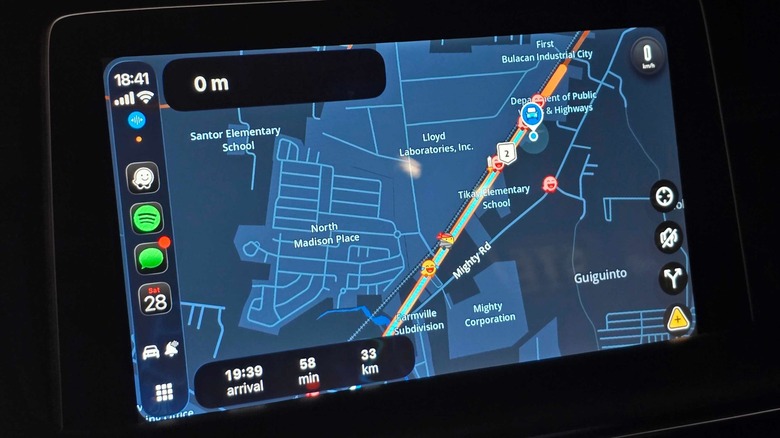
You still need to use Siri if you want to set a destination on your preferred navigation app and avoid traffic jams and accidents. But once you're on your way and want to see what the traffic is like several miles ahead without dragging your finger along the map, you can instead say "Pan Left," "Pan Right," "Pan Down," or "Pan Up." This is particularly useful if you find yourself in a traffic jam and you're deciding between taking that longer alternative route that your navigation app has ignored so far or sticking with its recommended path instead.
Apple has also introduced other commands for using your navigation app with your voice, like "Zoom In," "Zoom Out," or "Route Overview." Unfortunately, I tried all these other commands on Apple Maps, Google Maps, and Waze, and none of them worked — they only recognized the "Pan" voice commands that I issued. This is a bummer, especially as all these other commands are quite useful, but I guess we'll have to wait for further updates to iOS before they work properly (or maybe I need a new iPhone).
Siri
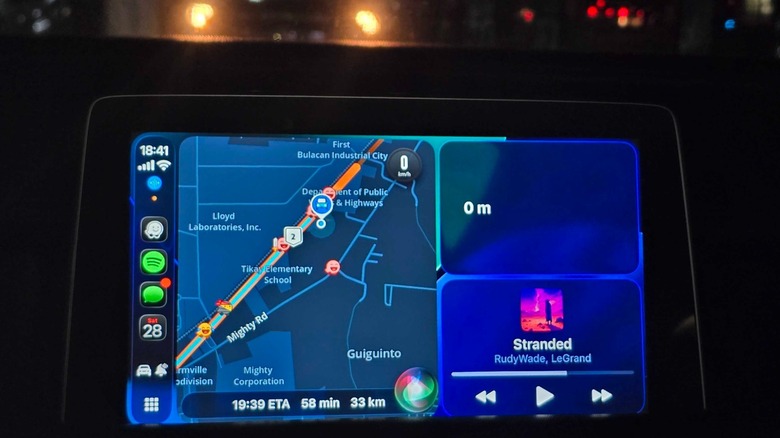
Many modern vehicles have a button on the steering wheel that will activate your phone's voice assistant, whether you're using Android or iOS. However, if you retrofitted your older vehicle with an Apple CarPlay or Android Auto screen, which is one of the cool car gadgets you can get from Amazon, you will not have this option — you'll have to extend your hand to press and hold the home or apps icon on the touchscreen, making it a bit more inconvenient to call up Siri.
But with Voice Control turned on, you can just say "Siri" and the trusty Apple voice assistant will instantly pop up on your display. You can then use it to ask for directions, play a track that just popped into your memory, call saved contacts, or even open your garage door if you've set up home automation. This makes it one of the CarPlay features you should definitely check out after updating to iOS 26.
Swipe left or right
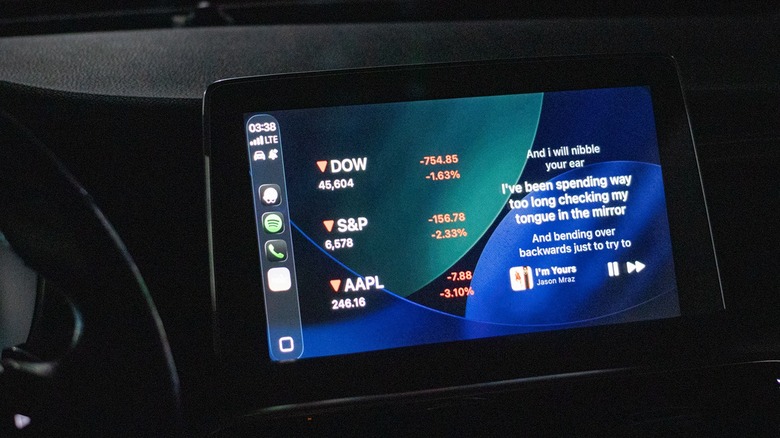
No, the "swipe left" and "swipe right" voice commands do not let you pick or reject potential dates on Tinder. Instead, they allow you to move between screens when you're on the CarPlay home screen. This command is particularly useful if you use CarPlay widgets, which Apple introduced in iOS 26.
There are some CarPlay widgets that are surprisingly useful, like Dynamic Lyrics for Carpool Karaoke. But if you find yourself lost and need to check directions, you can just say "Swipe Left" to go back to the main view and see your map, destination, and now playing song, instead of swiping your finger across the display. And when you want to return to the widgets view, you can just say "Swipe Right," and CarPlay will take you back to the song lyrics (or whatever widget you were last viewing).
It is often much easier to just swipe your finger across the screen, but this command is still a convenient backup for those who don't want to take their hands off the steering wheel. More importantly, some car brands, like Mazda, deactivate the touchscreen function while you're driving, meaning this will be the only option you have if you want to change screens without touching the command control dial.