

Never Plug These Devices Into Your Monitor's USB Ports
We may receive a commission on purchases made from links.
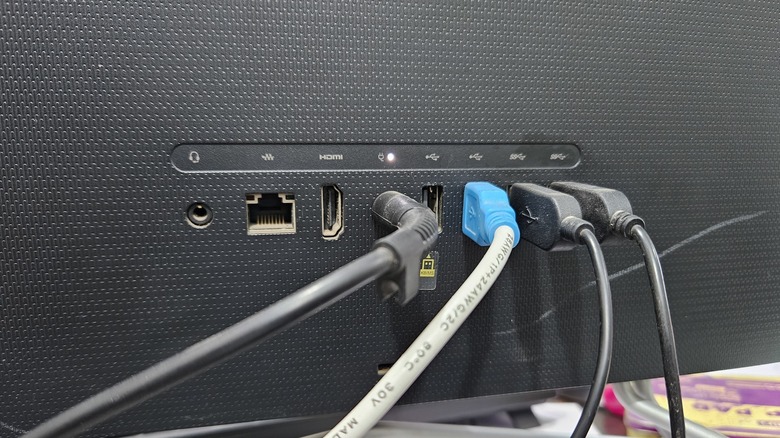
Monitor USB ports can easily be overlooked by many people. They offer an easy way to expand your computer's connectivity, often allowing you to plug in more devices at once. However, it can be difficult to gauge what you should or shouldn't plug into monitors, especially when a large number of them don't even have USB capability in the first place. Having those plugs might seem like a universal boon, but there are some devices that should never be plugged into a monitor's USB ports.
If you're already aware of the things you should never plug into your Chromebook's USB ports, you probably know not to plug them into your monitor, either. Additionally, many users have found that there's no need to worry about damaging their monitor or devices by plugging in something that draws a lot of power. While some discussions point out the possibility of damage, well-designed connectors often come with overcurrent protection to prevent this. As such, this article will focus more on devices whose functionality is hindered by being plugged into the monitor rather than the computer itself.
High-speed data devices

It's not exactly a terrible idea to plug some of the largest external USB drives you can buy into your monitor. But depending on what interface that monitor supports, you could be limited in how fast those drives can go. A SanDisk Extreme PRO portable SSD, for example, is able to support USB4 — allowing users to transfer multiple gigabytes of data in just one second. Unfortunately, most monitors only support USB 3.2 or lower; you'll struggle to find anything better even at a budget of over $1,000.
This isn't an exceptionally massive issue, as USB 3.2 speeds are still quite fast. However, if you've been able to keep a particularly old monitor running for some time, you could be limited to just USB 2.0 speeds, which will make most modern data transfers move at a snail's pace. Unfortunately, there's no real way to resolve this beyond upgrading your monitor or simply dealing with the slower speeds. You could also just save your money and use a cheaper device with a slower interface — though you shouldn't expect to move around large files on it very quickly, of course.
USB hubs
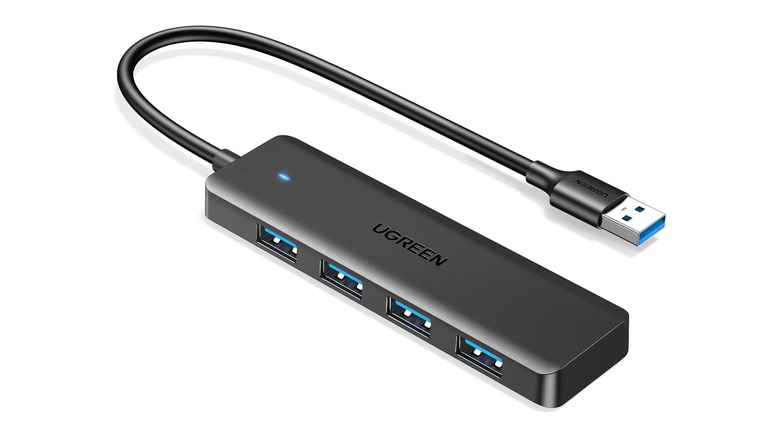
A monitor's USB ports can act as a sort of hub, splitting one connection into multiple. This comes with the obvious drawback of the original USB port losing out on its maximum capability — which is why, in the past, Dell has recommended against plugging additional hubs into monitors. This isn't helped by certain examples, such as UGREEN's four-port splitter, being powered entirely through the single USB connection. Having both power and data going through the same cable will only invite further instability, especially since a monitor usually doesn't have great power delivery on its own.
This isn't quite as much of an issue if your monitor has a USB-C port, rather than the standard rectangular shape you're probably familiar with. USB Type-C can do many things that normal USB-A devices can't, and that allows a wider array of devices to be plugged in. This still carries the problem of data speeds being split between more devices than a monitor is normally capable of, though. As a result, you're still likely to run into more issues than you would from just plugging such a hub into your computer directly.
USB-to-HDMI/DisplayPort adapter
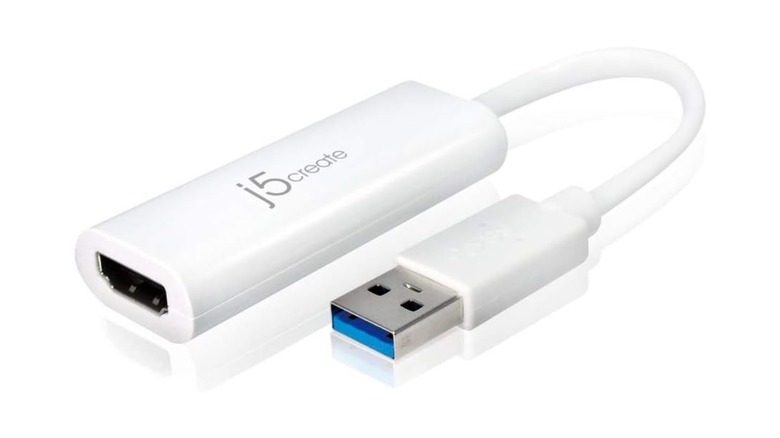
Laptop users might already be familiar with USB-to-HDMI adapters made by brands like j5create. Unfortunately, you aren't going to get much luck out of using them for a monitor daisy-chain. The USB-A ports on a monitor often cannot send video signals, preventing any sort of benefit an adapter like this can offer. You'll have to directly connect it to your PC if you want to use it.
Once again, though, this isn't a problem if you have a USB-C port. Connecting another monitor to one of those is a great way to use your monitor's USB ports, though you probably won't need any adapter for this method in the first place. Type-C is simply much more capable in the long run, allowing for many functions with just a single plug. That being said, USB ports in general are fairly uncommon on monitors, and Type-C ports are even rarer — so it might be easy for some to feel tempted to get an adapter that won't actually work.
Other USB devices (with certain ports)
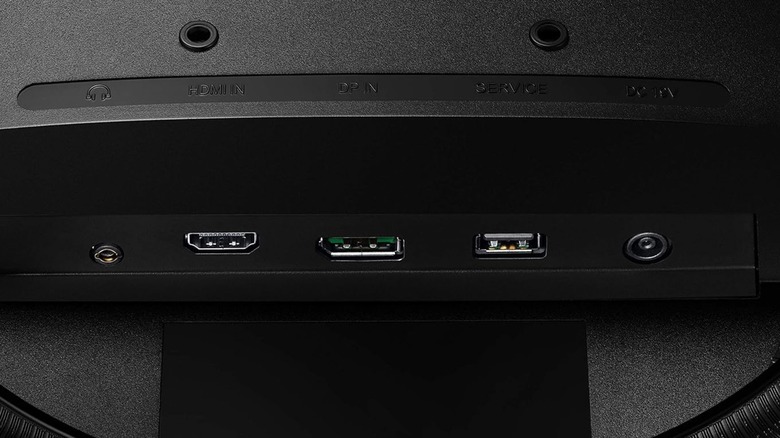
If you aren't already familiar with monitoring USB connections, you might wonder what upstream and downstream ports mean. Simply put, an upstream port connects to the computer so downstream ports can send and receive data. No data will actually reach your computer if you plug your devices into an upstream port; that one should always be reserved for a direct monitor-to-PC connection. There's also no point in plugging any USB device into a monitor if the upstream port isn't in use, as — again — no data from it will actually be received.
Additionally, monitors like the Samsung Odyssey G5 only have a single USB port with a "service" label. As the name implies, this is only used for the monitor's maintenance, which means the only thing that should be plugged in there should be a flash drive loaded with monitor-specific software updates. Unless it also has one of the other USB port symbols and icons alongside it, no other devices should go there. If you have a single USB port on your monitor and you've been itching to complain about it being broken or faulty, it was likely never meant to work with whatever you've been trying to use it for.