

These Are My Top 5 Ride-Or-Die Apps For Windows
If you've been a Windows user for a while, things can be ... frustrating, to put it mildly. First, Microsoft released Windows 11, which felt like a half-baked beta product choked by unwanted AI features and a bad UI. If that wasn't enough, it sent Windows 10 to an early graveyard on Oct. 14, 2025 — leaving literally hundreds of millions of PCs vulnerable and transforming them all into e-waste in one fell, arbitrary swoop of hardware requirements. Provided you haven't thrown up your hands and moved to Linux instead of Windows 11, there's one thing that can always make the situation better: good, free software.
I've covered a lot of Windows apps for all different needs at SlashGear. Here are five free apps you should install as soon as you upgrade to Windows 11, and five that make it easier to leave Windows 10. The vast software ecosystem on Windows is one of the reasons people stick around despite Microsoft's shenanigans. This time, however, we're looking at the heavy hitters essential to every Windows device. These apps, when absent, make the Windows experience objectively worse. The following are my "ride-or-die" apps, as it were, and, maybe, they'll become yours as well.
Joplin
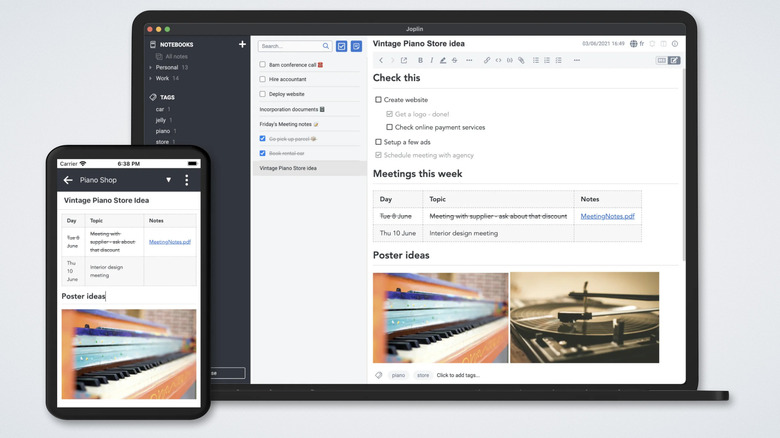
Frustrated with the best note-taking apps out there these days? You're not alone. Notion is beautiful, but its notes don't save automatically offline. Apple Notes is minimalistic and straightforward, but Apple-only. Obsidian is an awesome second brain, but the built-in syncing costs $4 a month. You get the idea. Joplin is, in my view, the best cross-platform note-taking app — and the best notes app on Windows — because it does virtually everything right.
Joplin is 100% free to use, open-source, and powerful, supporting any number of formatting options, attachments, and some notes collaboration. It's got a built-in web clipper, plug-ins, custom themes (for the app and the editors), and support for Markdown as well. It uses end-to-end encryption to keep your notes safe (surprisingly uncommon for notes apps) and it works on all major platforms. Perhaps best of all is that Joplin is built to sync itself with your cloud service of choice. So if you're already paying for Dropbox or OneDrive, Joplin will put the notes folder there so you can open files seamlessly on other devices — and enjoy the security of your chosen cloud provider.
Joplin does have a paid syncing plan, but it's not obligatory and allows you to self-host instead if you prefer. The only real downside I can think of with Joplin is that note syncing is not instant; syncing happens at automatic 5-minute intervals, so you'll have to get into the habit of clicking the synchronization button more frequently if you find yourself jumping between Windows and other instances of the app. Thankfully, Joplin has a pretty good system for catching and fixing conflicting copies.
Ente Auth
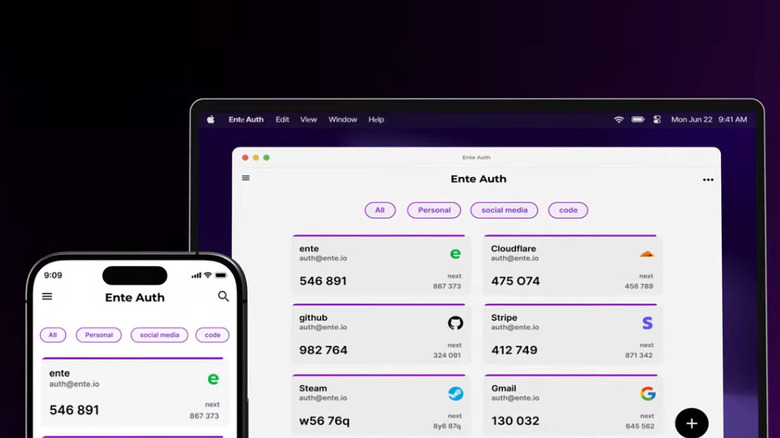
You should always enable two-factor authentication for your accounts, period. Problem is, 2FA TOTP code support (one-time 2FA login codes that change every 30 seconds) is not as widely available. Windows password managers often make TOTP codes a paid feature, like Bitwarden. Ente Auth is a wonderful, open-source, and free solution. Think of it like a more privacy-conscious Google Authenticator, if Google Authenticator was available on desktop, or Authy if it wasn't busy getting hacked.
Ente Auth is a straightforward app that provides login codes and does it securely. It's got a beautiful, clean, visually-intuitive interface that makes grabbing a code fast and instinctual. Codes can be sorted by tags and quickly searched if there's a long list. To keep your codes safe, Auth encrypts them with E2EE, backs them up locally, and syncs them across devices. Unlike most TOTP generators out there, it adds little features that you didn't know you needed, like showing you the next code before the current one expires and allowing for an encrypted sharing option to give a code to someone else — rather than an insecure method like messaging. It also works offline and account free.
If you've got your TOTP codes in another app, Auth provides convenient ways to either import them or bring them over with manual 2FA secret codes. While at first it may seem inconvenient to have your TOTP codes separate from your password manager, this is better security practice. They'll be locked down with a different password and would therefore limit what a hacker could do if they compromised your password manager. Ente also makes an awesome Photos cloud-syncing app.
Everything

Is your Windows File Explorer not responding? It happens — especially if you're searching for a file buried deep in your system. Unless you know the specific folder where that file is located, you have to do a wider search that could take ages and may not produce results. It could freeze File Explorer, besides. Everything is the file-search app that Windows would incorporate in an alternate universe.
Everything prides itself on being a tiny, no-nonsense app that indexes your files — quickly — so you can find them ewithout bogging your system down to do it. And it really is fast. Type in your search term (partial or complete), and the results will show up in literal seconds. Perhaps part of the reason is that Everything does not search through file contents, only file names, so it may not be for you if you need that modern functionality. Also bear in mind that it does not automatically index external storage devices or network devices, such as a FAT32 USB drive or local NAS. You'll need to add these volumes manually. If you know Boolean operators and wildcards, you can use them to refine the results. Dig into the settings for further customization, like removing the match case and match whole-word options if you're not getting the results you want.
Caveats aside, Everything is a fire-and-forget solution that works out of the box. It opens quickly and re-indexes in seconds. You don't need to leave it running in the background. Oh, and it's 100% free.
FreeFileSync
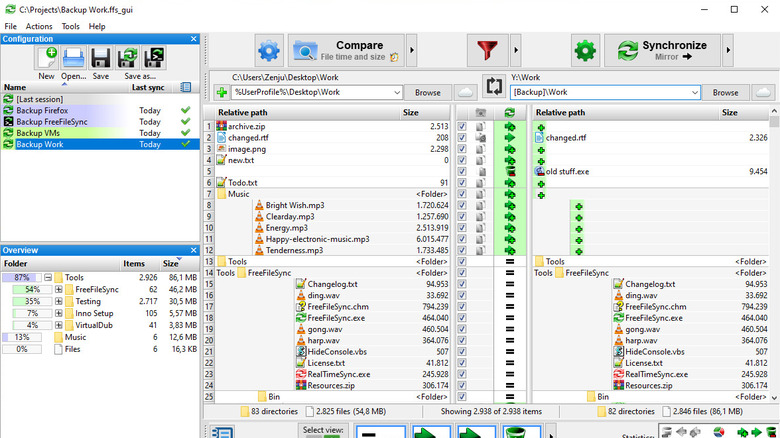
The wisdom goes that you should keep local backups, cloud backups, and external storage backups to ensure data safety. Most people only do the first two, and the lack of external storage backups could be due to the fact that it's a hassle to update the files on a backup drive. Not so when you have FreeFileSync.
FreeFileSync serves a very simple purpose well. It makes sure the files in one place are exactly the same as in another place. Suppose you've got an important file folder on your Windows PC and you'd like to keep an identical copy on an external hard drive you carry. FreeFileSync will make sure the one on your hard drive is a mirror image down to the last byte. Admittedly, there is a bit of a learning curve since it's got a packed interface that can be confusing at first. Once you get the hang of it, it's intuitive and includes safeguards to prevent you from accidentally syncing files the wrong way.
Now to be fair, if you've got a PC backup system for your data this might not be for you. Free File Sync is more for people who keep regularly-used files in multiple places and want to make sure it all stays the same — without using cloud storage. If you find yourself working with files on a high-capacity USB thumb drive that you take between multiple devices — perhaps you're a student who uses a USB drive on school computers and your personal laptop — then this is exactly what you need. FreeFileSync is free to use, but we recommend donating to support development and get a self-updating app version.
7-Zip

The file extraction utility for Windows gets the job done, but we recommend something better, like the 7-Zip file archiver. It supports packing and unpacking files in a wide variety of formats, such as ZIP files. 7-Zip boasts a better compression ratio (i.e., it's faster) than its competitors like WinZip. You can get an even better ratio if you use the proprietary 7Z format, although for smaller ZIP files there won't be a noticeable difference. 7-Zip also supports encrypting and decrypting files locked-down with AES-256.
What I like most about 7-Zip is that you can integrate it into the Windows context menu. That done, right-clicking a zip file shows you 7-Zip as one of the options. Further, it is incredibly minimalistic and fast; files unpack so quickly that, unless you're dealing with a file that's several gigabytes in size, there's no reason to minimize it and go back to what you were doing while you wait for it to finish. I've been using 7-Zip for the better part of two decades now, and it's been nothing but reliable, snappy, and bug-free. It's gotten regular updates the whole time, too, and even users running a Windows ARM64 PC will be happy to know that there's a 7-Zip version available for them.
Also, if it wasn't clear, 7-Zip is 100% free and open-source. The developer maintains older versions for download if, for whatever reason, you need to run 7-Zip on an older system. Linux users can also use 7-Zip, including on ARM devices.