

GTA 6 Players Should Do This Immediately Upon Starting The Game
The cultural atom bomb that is "Grand Theft Auto 6" is upon us, as of November 19, 2026. After multiple delays, major leaks, and a 13-year wait since Rockstar's last crime caper, "Grand Theft Auto 5," it's still hard to believe it's arrived. Pre-orders for the game went live on June 25, 2026, and thanks to unprecedented hype, 32.5 million copies were sold before its release, according to Rockstar. "GTA 6" went on to generate an estimated $3.79 billion in worldwide retail sales on its first day alone, making it the biggest entertainment launch in history.
Further proof that "GTA 6" exists in its own universe is Rockstar's "Grand Theft Auto 6: An Extended Look" on Netflix, a first-of-its-kind event for both gaming and subscription video streaming services. That showcase gave us our first deep dive into its gameplay, with raw footage captured on a PlayStation 5. At the time, we noticed a few distinct changes over the game's predecessor. However, now that the game is officially out and we've had time to hit the streets of Vice City ourselves, we have a few things players should do immediately upon starting up the game.
SlashGear has already detailed how the game has an enormous amount of buildings to enter and explore, the new heat system, and how the controls are different this time around (though you can change them). Here, we're going to go over settings you should change to make your romp through the greater state of Leonida smoother. These are beginner-friendly tips that focus on better movement, visual feedback, and hopefully fewer interruptions while playing.
Movement speed for exploration and combat
As with any "Grand Theft Auto" game, there are a number of ways to get around. "GTA 6" expands the modes of travel across new public transit systems, ride-sharing, and vehicle delivery, alongside a huge slate of vehicles. You'll also spend a fair amount of time on foot – whether you're out shopping or hoofing it from Vice City's finest. Rockstar really doesn't hold your hand, and you're immediately dropped into the huge "GTA 6" map without any mention of movement speed.
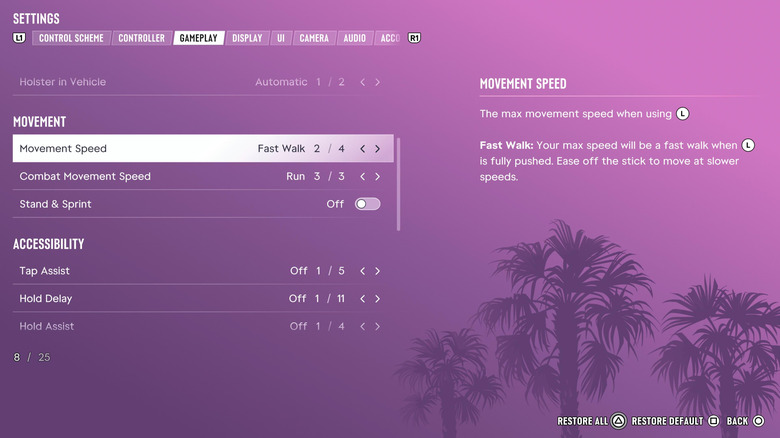
Movement speed is determined by the left analog stick, and you can adjust the speed based on how far you press the stick. By default, this is set to "Walk," limiting you to a leisurely walking pace no matter how far you press the stick. I highly recommend changing this to "Fast Walk." This is a great middle ground between walking and running, and it gives you more granular control of your walking speed. Combat movement speed is configured separately, and I recommend changing it to "Run" for quick repositioning in gunfights.
Also, there's a setting called Stand & Sprint – this is off by default, and I'd leave it set to off. When this is on, the game will automatically stand you up from a crouched position if you sprint. I found that enabling it makes it easy to accidentally disrupt your sneaking when crouched. You can freely play around with combat and exploration movement speeds, as one won't affect the other.
Control scheme: Default or classic
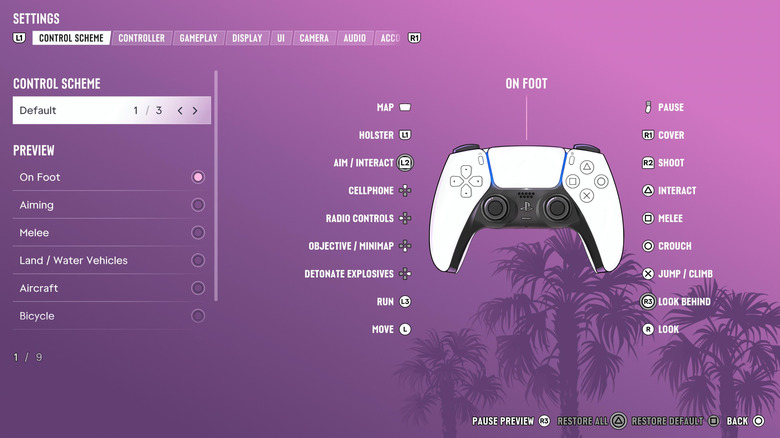
With "GTA 6," Rockstar made a significant change to how you control your character, and it's gotten mixed reactions. For years, we've been trained to mash a button repeatedly to sprint — X (or Cross) for PlayStation and A for Xbox. This time around, that's now handled by L3 on PlayStation and LS on Xbox. These controls take a bit of getting used to, but once you do, I'd argue that they're just as good. That said, it can be changed. The game gives you the choice of Default, Classic, and Left-Handed control schemes, with Classic being exactly what it sounds like.
Classic will return the control scheme to the more familiar face button layout, with sprint being moved back to X (Cross) on PlayStation and A on Xbox. And instead of clicking the left stick to sprint, that will now toggle crouching. One scheme isn't necessarily superior to the other, as it's more of a comfort choice. Personally, I found sprinting through a click of the left stick made it easier on my right hand and also freed up that hand for camera control, making it easier to jump over obstacles while sprinting.
Focus trail colorblind mode and vehicle prompts
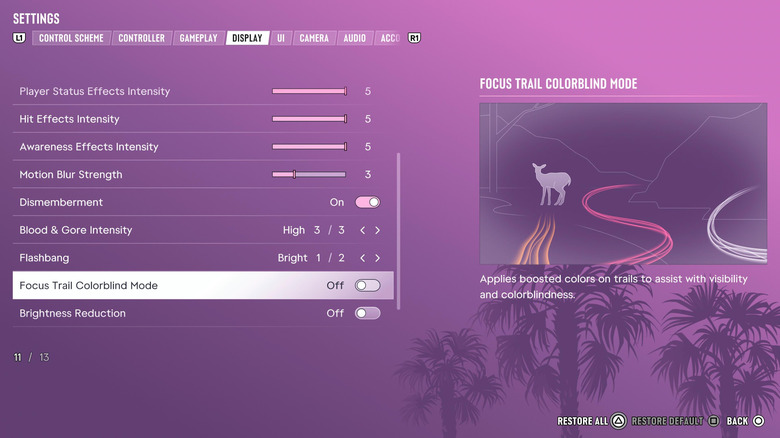
One lesser-known accessibility setting is Focus Trail Colorblind Mode. You can find this under display settings, and it greatly boosts the trail colors when in Focus mode. These trails are visual lines that indicate the general direction of your target, which can be a car or target you're chasing, or an animal you're tracking. Having increased visual separation between the focus trails and the environment makes tracking them easier at night and in densely wooded areas, where they can tend to bleed into the area. This is purely a visual enhancement and doesn't affect controls.
In the UI settings, you'll find several options for icons, text, the minimap, HUD, and more. One of the most helpful is Vehicle Prompts, which enables a contextual window to appear when approaching a vehicle, showing the options available for that vehicle. This setting is set to off by default, but it can be changed to Always on or Dynamic; I suggest Dynamic. This allows the windows to show up on a delay, rather than constantly popping up every time you walk by a car. These windows will show you the actions available for the vehicle, depending on your progress in the game. These prompts also give visual cues for interacting with vehicles, including opening the trunk or hood.
Progress notifications, auto equip helmet, reduced vehicle damage, and projectile arc
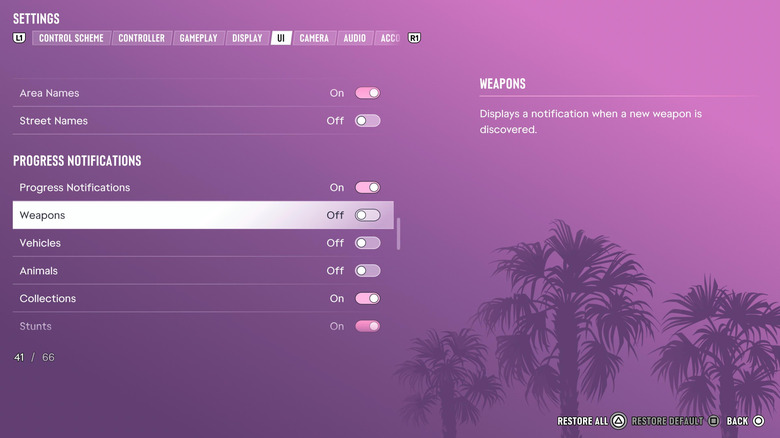
Lastly, these are a handful of smaller changes that I have found make a big difference in quality of life as you progress through the game. Perhaps the biggest one here is progress notifications. Under the UI settings menu, there's a master toggle for progress notifications, which is set to on by default. Underneath this toggle are several categories that you can enable or disable independently. "GTA 6" is massive, even by "GTA" standards, and is full of things to discover and check off in your compendium. I recommend enabling notifications for vehicles, animals, and weapons. These are the biggest categories and are all set to off initially.
While in the UI settings, you should also turn projectile arc to always on, which gives you a clear visual trajectory path for throwables, like grenades. By default, you have to manually show the arc with R3/RS while aiming. Leaving projectile arc always on saves you a button press and immediately makes aiming with throwables easier. Lastly, under Gameplay settings, turn on reduced vehicle damage and auto-equip helmet to make both your cars and character less fragile. This is especially helpful for newer players who may find themselves frustrated with constant impact damage. Reduced vehicle damage slows down the destruction of your cars, while the helmet reduces the damage you take from crashing on motorcycles or bikes. You can always come back and turn these settings back off later as you get more familiar with the game.