

10 Paid Mac Apps That Are Worth Every Penny
There is a goldmine of macOS software out there waiting for you — all you have to do is look for it. The best apps out there are often 100% free to use, but paid options still have their place. In many cases, paid apps are more refined, easier to use, more feature-rich, and — because you pay for them — enjoy more frequent updates and longer-term support. If the free apps haven't been meeting your needs, odds are there's a meaningful premium upgrade out there that won't cost too much.
Every app on this list costs you money, but within reason; we've only considered apps that cost you (at most) the price of a meal for lifetime use, and do not charge a subscription by default. Stick around even if you're only interested in free apps; you might be surprised what you find, and if you spread that price out across the years of service the app will give you, it may turn out to be an amazing deal.
ActionClip — a nifty copy-and-paste menu
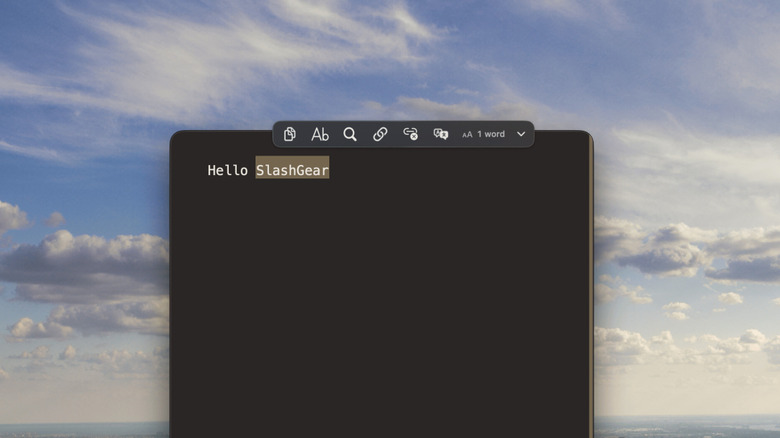
In previous app list articles, I've recommended PopClip — and I still do — but an alternative I've fallen in love with recently is ActionClip. Like PopClip, ActionClip pops up any time you select text and gives you a list of customizable actions to work with. Many of these are the same actions you'd find with PopClip — simple stuff like copy and paste, and more complex stuff like language translation or URL cleaning. If it's an operation you can perform on selected text, there's a good chance ActionClip can do it.
However, ActionClip's smart contextual suggestions really give it the edge (in my opinion) compared to PopClip. For example, when selecting a body of text that contains a convertible unit (i.e., euros or meters), ActionClip will automatically convert that unit to my preferred one. PopClip does not. These smart suggestions work for all sorts of situations, including things like spellcheck or running a command in terminal.
Further, ActionClip feels a lot more customizable. It's easier to create your own actions. If you're not good with programming, you can have an LLM do it for you. ActionClip costs $12 for an individual lifetime license, but you can use it for free and get 30 actions per day as a sort of free trial. Compare that to PopClip, which costs $19.04 for a lifetime license.
CleanShot X — hands down the best macOS screenshot tool
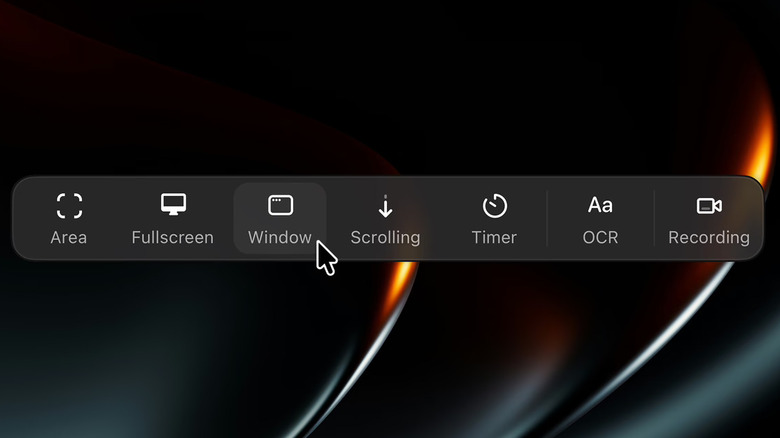
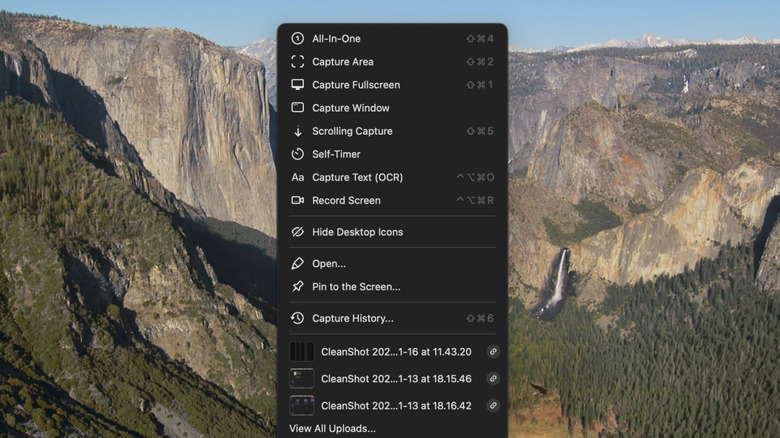
Go on the internet and ask a bunch of macOS geeks for their favorite screenshot tool, and many will say CleanShot X. This has been my main screenshot tool for a while now, and I can concur, without any reservations. CleanShot does it all, and does it exceptionally well. It can take screenshots or screen record and then annotate the result, adding text, arrows, steps, redact sensitive info, and more. Then, without leaving the app, you can drag the finished items directly to other apps, copy them to your clipboard, or upload them to the cloud for a sharing link.
This impressively fully featured app can do anything you'd want with a screenshot or screen recording, and it looks slick while doing it. Each screenshot you take piles up on the side of your screen waiting for you. It feels like something Apple shipped, too, since it follows Apple's design language. I have found CleanShot to be irreplaceable, whether I just want to share something quickly with a coworker or record beautiful, high-quality screen capture footage suitable for a demo video.
CleanShot's pricing model is uncommon in the industry. Rather than require a subscription, you can purchase the app for $35 and keep it for life, with 1GB of cloud storage and one year of updates. To get future features and bug fixes, you'll need to renew that license for $19 a year. Some people are going to hate this sort of pricing model, fair enough, but I'd argue this allows devs to sell the lifelong software licenses that people want and still run a sustainable business model.
Alcove — a macOS dynamic island
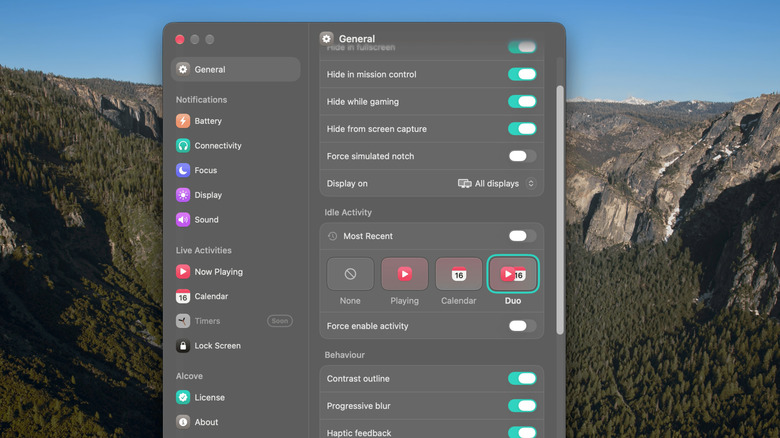
If you've been following the news, you may know that the latest touchscreen MacBook Pro has adopted an iPhone-esque Dynamic Island. That's cool, but not much use to those of us with an M-series MacBook we don't plan on replacing any time soon. Luckily, one Mac app can give your MacBook a beautiful notch-based Dynamic Island already: Alcove. I've tried a lot of free Dynamic Island notch apps like it, but it remains my favorite.
The number one reason is that the developer has nailed the aesthetic by imitating the iPhone version to the pixel. Alcove looks like an honest-to-god Apple app, rather than having its own distinctive third-party feel, and it feels buttery smooth to use. Like an iPhone, it's a convenient way to control your music, see system toasts (like changing focus, brightness, or volume), and get some types of notifications, like an AirPods connected alert or upcoming calendar events.
I also like how customizable it is. You can choose when, how, and for how long it shows, fine-tune its look and behavior, and disable any features you're not interested in. The macOS version is naturally going to have some advantages, like tighter integration with calls and support for features like AirDrop. However, I can confidently say Alcove does such a good job of convincing you that you have a Dynamic Island that you probably won't even be sad you're missing out on the real one.
Clop — optimizes all of your files
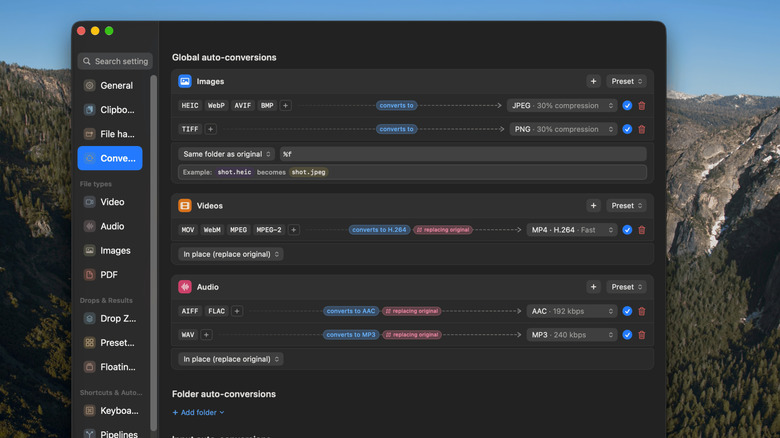
If your Mac is low on storage, optimizing your image and video files is one of the surest ways to save space. Believe it or not, some of them can be cut down by as much as 90% without looking any worse. The most convenient app I've ever seen for doing this is Clop. It supports file types like photos, videos, audio files, and PDFs, and it's very easy to use.
By default, Clop will automatically squeeze any files that appear in your downloads to more reasonable sizes. Otherwise, you can drag files to the little floating window and optimize them as you need. In either case, the optimization happens lightning fast. It can get a file down below the maximum file size limit you'll see in, say, Gmail, or change it to a different file type if the one you have isn't supported for an upload. Trust me, once you see how small your files can get — and how the quality doesn't degrade one bit — it'll become unthinkable to use the full-sized media files.
While Clop does have a free version, I highly recommend the paid version. There are some worthwhile features the free option doesn't allow for, like dropping more than five files at a time or supporting an unlimited amount of optimizations per file type. And it only costs $16.86 before tax for a five-device lifetime license. Share this program to macOS-user family members and friends, and it will more than earn its keep.
Downie — a reliable media downloader
Everyone needs to download YouTube videos (and other online media) from time to time. However, the tools for doing so are often on websites that seem like they might download a virus to your Mac, or force you to figure out how to get yt-dlp working. Downie is a superior alternative to either of those options.
The app boasts support for over 1,000 sites and downloads videos at their native, highest-quality resolution. After the fact, you can do post-processing, such as splicing the audio from the file. In some niche situations, Downie won't be able to access certain videos, so it provides a so-called "user-guided extraction" tool so you can point Downie directly at the file you want and get it anyway. Once I installed the browser extension, it became a literal one-click way to download videos.
For me, though, the best part about Downie is its reliability. I have never had a download fail to date. Once it has a link, it gets straight to work automatically in the background and can often download a short video in just a few seconds. I find the pricing reasonable as well; $19.99 for a lifetime license.
Antinote — a deceptively powerful scratchpad
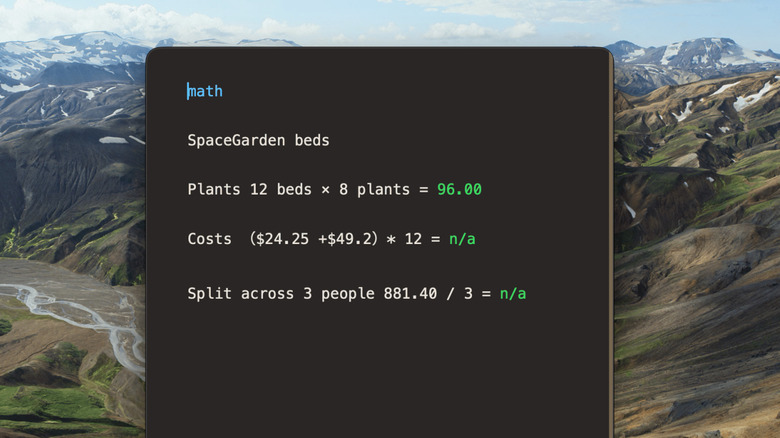
There are lots of times when I need to just jot something down without committing it to an actual note. For those situations, Antinote gives you a throwaway scratch pad with a staggering amount of features, rivalling some notes apps. Let me give you a few examples of my favorites, in no particular order.
You can do math (complete with variables and other functions) just by typing "math" somewhere in the notes, and from then on all you need is an equal sign to get the results to basic equations. You can drag a screenshot directly into the app and see only the text. You can start a timer by writing "timer."
I could keep going, but you get the point. It's a scratchpad that balls in a whole bunch of other neat features that would be their own dedicated apps elsewhere. I use it whenever I need to do a quick operation on text, like shrinking a link. The customization and settings on this thing go to an absolutely insane degree.
Oh, and the best part? Antinote is cheap — $5 for life. If the app cost $15 or $20, I still would have happily bought it.
AppTamer — keep resource-greedy apps in check
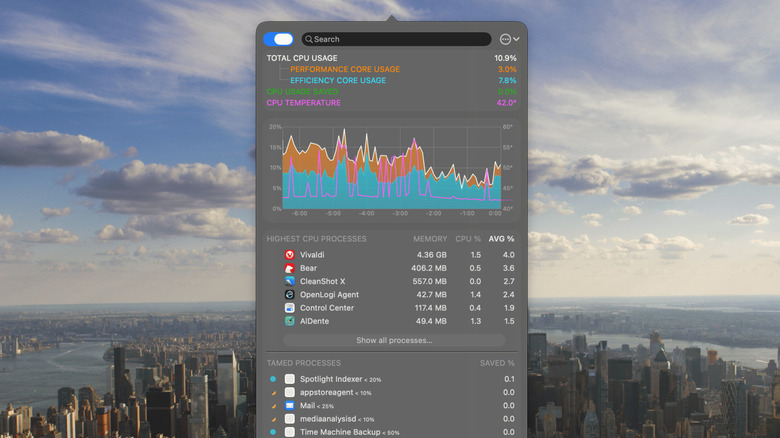
MacBooks have better battery life than most other laptops, but that doesn't mean anything if the apps you're using treat your CPU time like a blank check. Simply switching to Safari from Chrome can add five hours to your MacBook's battery life. Imagine what might be happening when even a small handful of apps use more resources than they should. You could open up your Activity Monitor and manually close misbehaving apps, but that's tedious and it would prevent using those apps. Let AppTamer deal with it for you.
AppTamer detects when an app is using more CPU than is reasonable, and gives you two options: stop the app completely, or slow it down by allocating a limited share of CPU resources to it. Out of the box, it's perfectly suited to handle Google Chrome using too much RAM, for instance. There's even more for power users, such as the ability to force an app to run on slower efficiency cores, or only slow an app if it's out of focus, among other things.
This app has been huge for me. A couple of apps that were going ham on my RAM are now slowed by AppTamer automatically — without affecting their performance in any meaningful way — and I have seen a noticeable increase in battery life. For users who use a Mac mostly plugged in, it could still help by keeping your computer fast and snappy. You can purchase AppTamer for $22.34, but there is a free trial and a free beta.
Crossover — play Windows games on macOS
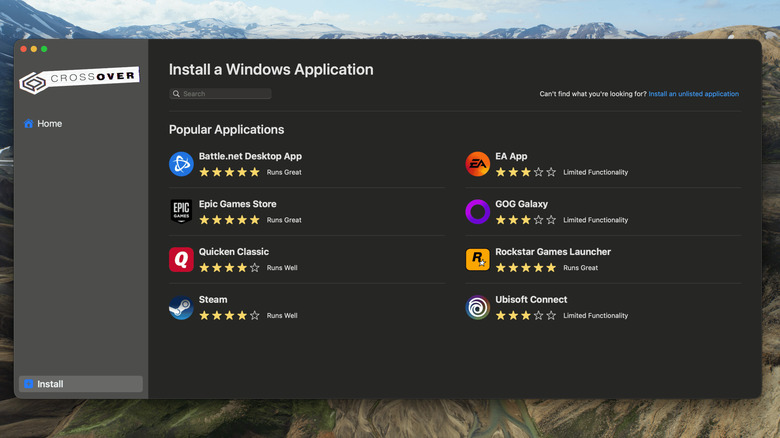
Hopefully everyone knows by now that you shouldn't buy a MacBook for gaming, at least until this whole decomp/recomp situation manifests in official macOS ports for games. If you already own a MacBook Pro and like the prospect of gaming on it, you may want to get Crossover. The app translates Windows apps — and in particular, games — to work seamlessly on macOS natively. In a sense, it makes your macOS work like a Steam Deck.
I won't lie to you, a lot of your games won't work, but Crossover makes a compatibility tool to see whether people have gotten a game you want to play running with it. Personally, it's been a flip of the coin. Some games work great, some need performance tweaks, and some don't work at all. That said, if you can play even a fraction of your games without needing to upgrade to a brand-new Windows gaming PC during a RAM crisis, that might be well worth it.
Checking out resources like YouTuber Andrew Tsai, who frequently gives tutorials on how to run games using Crossover, and tests games on various MacBook models to show how well they perform, can be a big help, too. Anecdotally, I've seen more and more of my games start working as years go by using Crossover.
The only difficult part about recommending Crossover is the price. At the time of writing, the current version and one year of updates costs $54. You'll have to renew each year for further updates. In my case, Crossover costs $29 to renew. Then again, buying a new Windows PC will cost you many times that.
Dropover — a floating shelf for your files
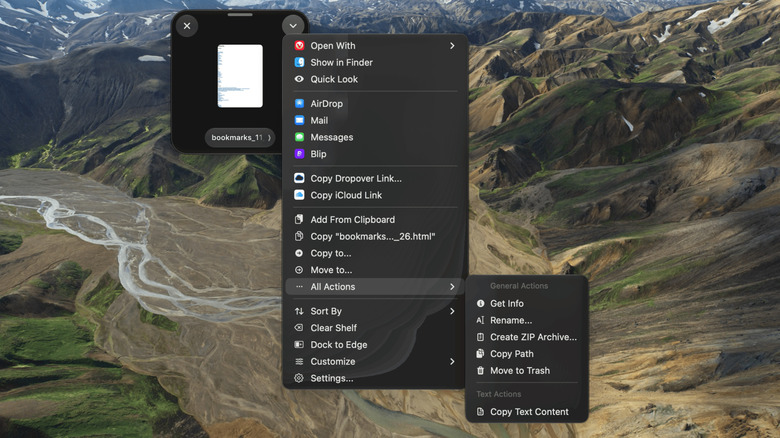
A common issue I run into on macOS is that when I'm moving a file from one place to another, I can't always easily, directly move it there; for example, dragging a file into a subfolder, or dragging it into a minimized app. Dropover triggers when you either wiggle your mouse or press a keyboard shortcut, producing a floating shelf where you can keep the file (or files) temporarily.
While you're deciding what to do with that file, the shelf remains on top and can be moved around. Within the shelf, you can act on your files in a number of ways: zip them into an archive, create a shareable link (from Dropover Cloud or iCloud), perform basic file operations, and a lot more. Dropover is both friendly to people who just want a floating shelf, and heavily customizable for geeks who want to script it to do more.
It costs $7.99 to get Dropover Pro, a lifetime license that I've been using for years now and still get updates for. You can also download it free from the App Store and use it unrestricted for a two-week free trial. For the price of a nice cup of coffee and the years I've gotten out of it, it is absolutely worth it.
Monocle — blur everything but your focused app
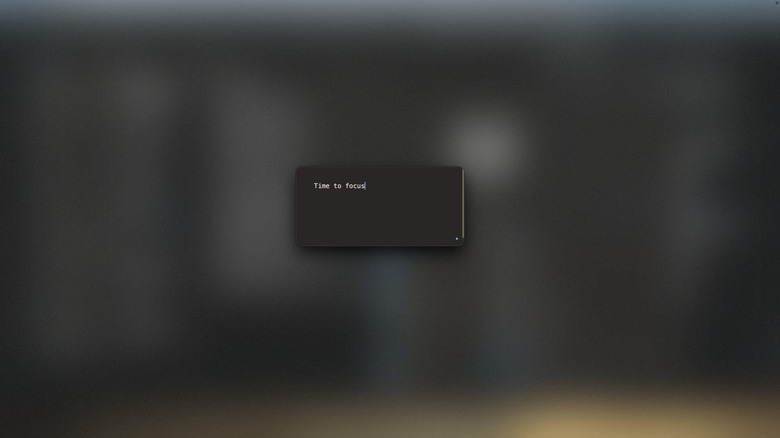
Opinions vary on what the most effective way to focus is. Some go nuclear with an app like Cold Turkey that forcefully eliminates temptations by locking down your device. For others, out of sight is out of mind. Monocle takes the second approach. Reminiscent of its namesake, Monocle focuses only on the app window you're currently looking at and blurs everything else. It's a simple, yet beautifully efficient way to keep you on track.
The approach works better for me than I first expected. Without Monocle, My eyes often drift down to the Dock, habitually searching for notification badges, or to the menu bar looking at the time, or to my second screen — typical distracted behavior. With Monocle enabled, it's a subtle push away from those problematic areas. Also, it does what it does beautifully. The blur is gentle and grainy, relaxing to look at in a meditative way that keeps me in the right headspace. You can tweak the blur to your heart's content, making it ignore certain apps, work on a per-screen basis, and hide the menubar and dock. By default it triggers by wiggling the mouse, but I disabled that so it takes a keyboard shortcut.
There's a seven-day trial for you to determine if it's for you. After that, it costs $15 for a single, lifetime license. If it works, though, I'd say that's a reasonable trade.
How we chose these apps

First off, I did not choose any apps that I hadn't used extensively; every single app you see has been on my device for months, at least, so we're not just regurgitating the bullet points off an app's website. Some of the apps (like Clop and Dropover) have what is in effect a "free" version you can use, but each ought to be paid for to really get the full experience.
You won't have to look far to find free alternatives to the above apps, and many will do 90% of the job. And if you can't pay or don't want to, that's totally fine, but don't immediately discount an app just because it costs money. In my experience, the leftover 10% that you pay for is polish. Paid apps focus on the finer details, and details matter, whether we're talking about getting the design right or working efficiently and bug-free. Further, paid apps can be more sustainable long term since they fairly compensate the dev and give them better incentive to keep up the project.