

5 macOS Apps That Outperform Their Apple-Made Alternatives
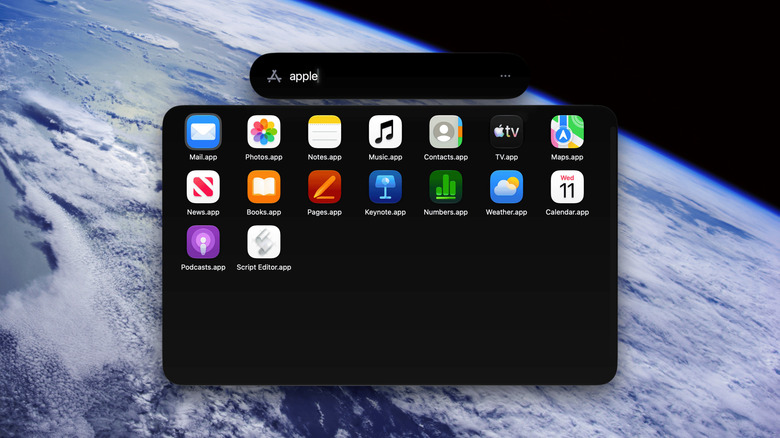
If you use Apple's default apps, it's usually a love-it-or-hate-it situation. Some, like Apple Notes, Music, and Mail, are great or at least good enough that you don't feel a need to switch. Others, like Messages and Siri, continue to leave a lot to be desired — at least in my opinion. Maybe someday we'll be able to use only Apple apps and never have to download third-party software, but that day is not today. A whole bunch of third-party macOS apps run circles around the defaults, and you might want to try them.
Since all of the built-in apps that Apple ships with macOS are free, we want to look at free third-party alternatives that can beat what Apple has on offer. More features, better features, better packaging, better experience all around. You can rest assured these apps aren't just ones we found randomly off the internet, either, because I've used every single one extensively and can lend my own stamp of approval. We recommend these five macOS apps.
Bitwarden - a better password manager
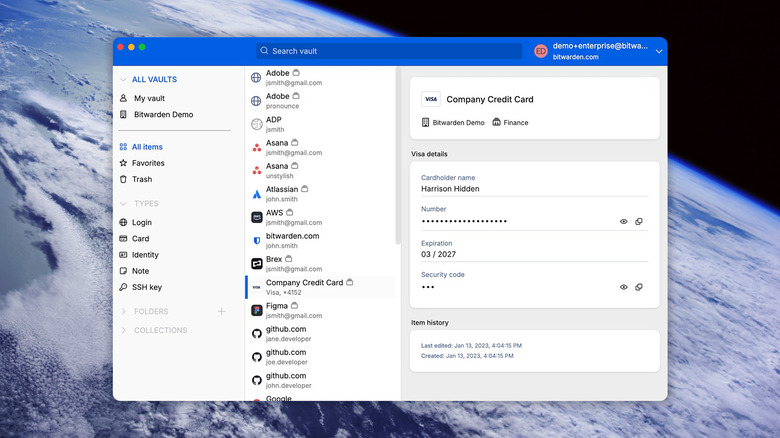
We cannot stress enough how important it is to use a password manager. Apple's password manager — Apple Passwords — is a decent choice if you just need a place to store passwords, OTP codes, and passkeys, with extras like warnings about weak or reused passwords. It's certainly better than it used to be, back when "Passwords" was just a section in the Settings app and lacked most of the functionality it has today. Still, we think Bitwarden is a superior choice for a couple of reasons.
For one, Bitwarden is completely cross-platform; the Apple Passwords app isn't available on platforms like Android and Linux, except as a quite poorly rated browser extension. Apple Passwords is more limited in terms of customization, too. You can do all the expected stuff like generate a new password, add the password to a group, and include some notes for future reference. With Bitwarden, however, there's extra functionality like adding attachments to password entries (with Premium), or forcing the use of your master password for important passwords. Further, the app can store cards, addresses, identification, and more in a single place.
Bitwarden also has some extra security features, like the option to rotate your encryption keys and increase the strength of the encryption on your account at the expense of a longer delay when logging in or unlocking. The only downside to using Bitwarden over Apple Passwords is that a feature Apple Passwords gives you for free — the OTP authenticator — is restricted behind a paid yearly subscription in Bitwarden. However, that also gives you access to some file storage and a secure file sharing utility.
IINA - a better media player
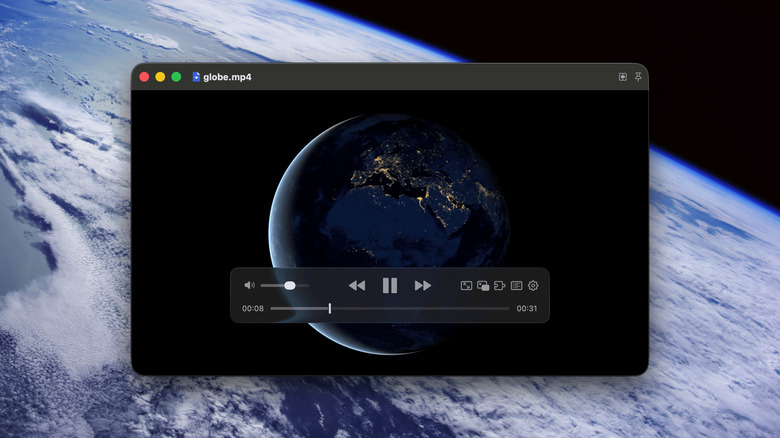
QuickTime is the default macOS video player, and it's an old zombie that's stuck around in macOS despite not really changing or improving much. It's fine if you just want to quickly watch video clips, make basic edits, or even screen record, but there's a better program: IINA. IINA is based on MPV, an open-source video player revered for being fast, powerful, and able to correctly play basically any file type. And so, in effect, is IINA.
Compared to QuickTime, IINA supports more file types — almost any audio or video file you can think of. In QuickTime, good luck trying to open even a common video file type like .mkv. QuickTime also supports effectively no app customization; there's not even a settings window for you to access. IINA, on the other hand, has a vast settings panel where you can tweak and customize everything to your geeky heart's content. It supports a plugin system so you can do things the developers didn't originally intend with your own plugins or ones downloaded from the community.
But what I like more than all of that is how beautiful and whip-fast the app feels to use. It's as if Apple had taken the clunky, aging VLC app and redesigned it. IINA loads quickly, videos and audio start playing almost instantly, and you can control everything with keyboard shortcuts. It can't screen record and edit videos like QuickTime can, but I'd argue that functionality is better suited for other apps, like iMovie. You can set up IINA to be the default player for all video and audio file types, too, if you like.
Shottr - a better screenshot tool
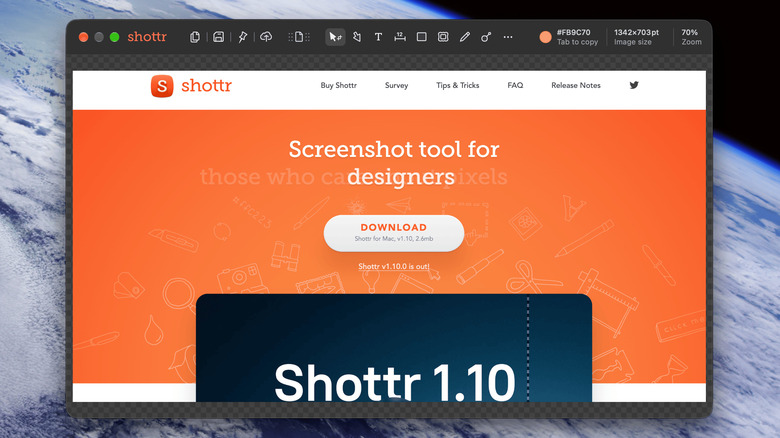
macOS has a better-than-average screenshot tool, I think, but it only does that: screenshots and screen recordings. For something that lets you take better screenshots and edit them, look no further than Shottr. Shottr is a lightweight, feature-rich alternative with all the default macOS screenshot options: capture an entire screen, capture a portion, or capture only one specific window, plus extras like scrolling screenshots. However, the real fun starts when the editor pops up after taking a screenshot.
Inside the editor, you can resize screenshots, mark them up, add backgrounds to window screenshots, redact sensitive information with a smart blur and erase tool, combine and edit multiple screenshots, and more. Aside from screenshots, Shottr can also work as a color picker tool or a way to grab text off the screen with OCR. There's also a nifty built-in link-sharing tool so you can quickly share screenshots with friends. Really, we've only scratched the surface. Shottr can do so, so much more.
Perhaps most surprising of all is that it's completely free to use. At the time of writing, the only real limitation to the free version is that occasionally you'll get a pop-up nagging you to buy the paid version — which is a one-time $12 purchase, by the way. Having used this app for years, I can give two thumbs way, way up. It is really fast, it is impossibly feature-dense considering how lightweight it is, and it keeps getting better with each passing year. If you want to do screen recording, though, you'll have to go with another app. I recommend MacShot, an extremely powerful screenshot and screen recording tool that goes even further than Shottr does.
FineTune - an actual audio mixer and input picker
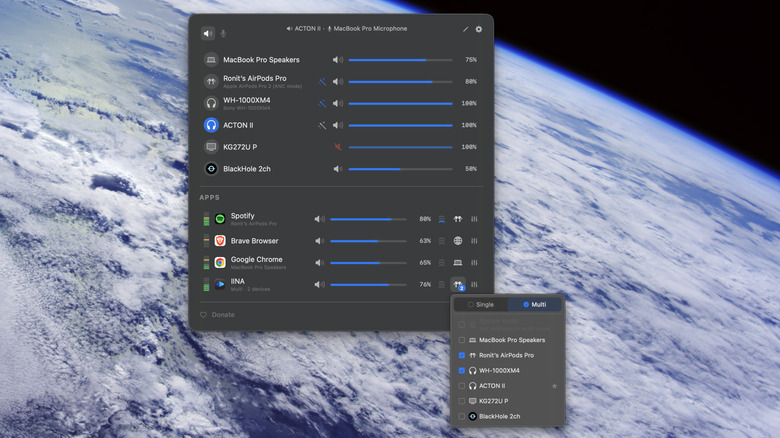
Apple prides itself on audio by making some of the best wireless earbuds on the market and an incredible music streaming app, and yet has some of the worst audio customization and control on any operating system. Seriously, at best you can put the Sound icon and/or Bluetooth icon in the menu bar to choose your audio output, but that's about it. No volume control for individual apps, no obvious way to change microphone input without going to the settings, and so on. So grab FineTune.
FineTune lets you control volume per app, change EQ settings, route audio to multiple devices, set device priority (such as if you want to use a specific microphone before others), inspect individual devices, and a lot more. It even bundles in some features that usually require their own separate app, like AutoEQ headphone correction. Considering that similar apps — like SoundSource — cost $49, we'd say free is a much more enticing proposition.
LocalSend - a better AirDrop
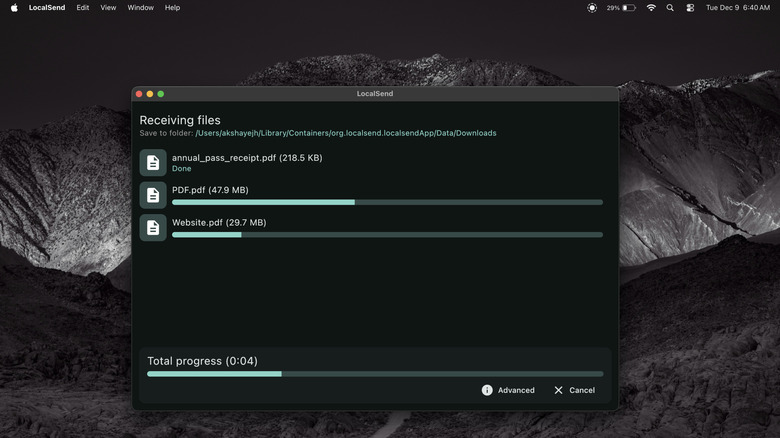
AirDrop is one of the best parts of owning an Apple device ... when it works, and when you have fellow Apple users you can use it with. Although Apple claimed iOS 27 would improve AirDrop, and you can use AirDrop with Android devices to a degree, there's still a better option: LocalSend. First off, LocalSend is incredibly cross-platform — macOS, Windows, iOS, Android, Linux — and even has a web client if you don't want to download it.
Second, it's fast. It uses Wi-Fi, so the only limit on how fast files transfer is the bandwidth and speed of your local network. It's also private, requiring no account, and secure, using end-to-end encryption to keep your files protected in transit. Transferring is also just as easy as in AirDrop: drag files into the box, choose someone to send them to, and voilà. It offers more features than AirDrop does, like being able to share things with a link. I've also found that it is much more stable and reliable when sending a lot of files; AirDrop often fails for me when trying to transfer a large number of files, whereas LocalSend keeps chugging for transfers that can take hours to complete.
Admittedly, AirDrop does have the convenience advantage since it doesn't require you to be on the same local network (you can just transfer things wirelessly) and it works on any Apple device without the need to install software or go to a web portal. However, if your MacBook is at home, LocalSend has the advantage, since you can send files to any device on the network — and any platform, not just other Apple devices — with the same ease as AirDrop.