

4 Disadvantages Of Using The New Siri (And How To Switch Back)
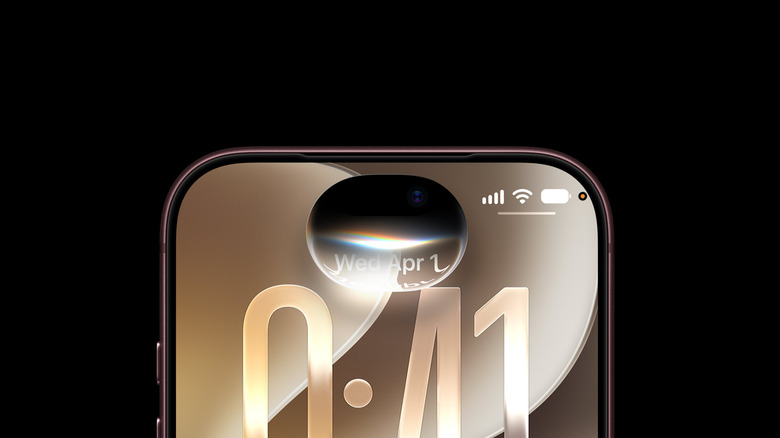
The brand-new Siri (officially Siri AI) upgrade has now been in people's hands for almost two months now, at the time of writing. It's leaps and bounds better than its previous iterations when it comes to handling complex tasks, and is the number one feature of iOS 27, hands down. We were amazed even back when we were testing it in beta. But iOS 27 is out of beta now, and Siri remains in beta, officially. And that beta asterisk is well deserved, if you want my honest opinion. It might be better for a lot of people to just turn Siri AI off until Apple has ironed out the kinks.
That might come as a shock considering the praise I've heaped on Siri AI previously, but I really mean it. Apple has to fix some issues before we can recommend it without tagging on a big, fat "but" to that endorsement. Here's why you should turn Siri AI off, and here's how to do it. We're focusing on the iPhone here, but these points apply generally.
It's intolerably slow
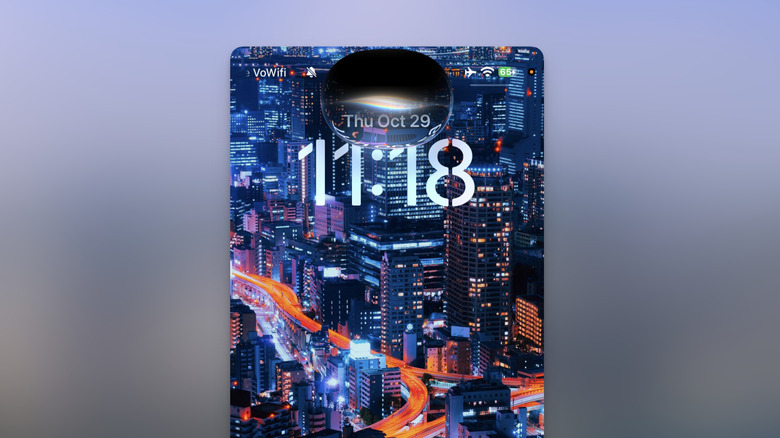
Siri AI is slow. Really, painfully slow. I'm saying this anecdotally, but I know many, many others who would agree with me. Requests that previously would have taken seconds now take at least twice as long, and in some cases much longer. I'm talking about simple commands that even the old, reviled Siri could reliably handle almost instantly — turning on lights, setting reminders, setting calendar events — which make up the bulk of my Siri commands.
The reason is likely twofold. One, Siri AI handles requests on-device. Since it's a small local LLM running on a comparatively weak smartphone, it can't burp something out as quickly as a frontier-grade model like Claude. Two, it needs the cloud to do basically anything. Siri AI contacts Apple's servers for guidance on how to handle your request, and only then can it process your information locally. To confirm this, I put my phone in airplane mode and then tested dozens of Siri commands. Not a single one worked.
I don't have concrete proof of this, but I am confident Siri's round trip to the cloud is what's causing most of the delay. Requests are noticeably slower when I'm on a worse internet connection, tenfold so when on a weak signal. The on-device aspect definitely contributes, though. About one in 10 Siri requests will happen nearly instantly, like they used to. You can tell the on-device model plays a role because, on Apple Watch, a simple request can take a millennium; I am not exaggerating when I say that a "lights off" command can easily take a full 20 seconds to process.
Not every phone is guaranteed the same experience
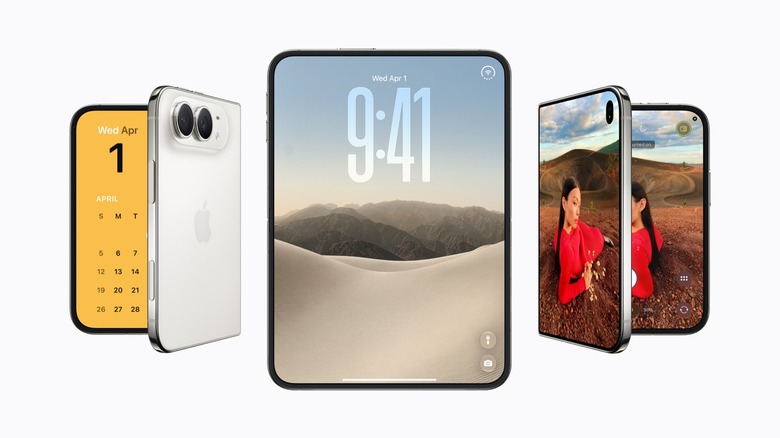
Most people are aware by now that Siri AI is only available on the iPhone 15 Pro and up, leaving a huge portion of Apple's user base out in the cold. However, even if you do have a supported iPhone, there's further segregation. Apple runs two on-device models: AFM 3 Core and AFM 3 Core Advanced. The former runs on iPhone 15 Pro and up, while the latter, more powerful model is restricted to devices with the A19 Pro or A20 Pro chip — in other words, the iPhone Air, iPhone Duo, and the iPhone 17 Pro and 18 Pro models.
Admittedly, without a rigorous test it's impossible to know how much of a difference the AFM 3 Core Advanced model would make versus the AFM 3 Core model; we weren't able to find any published tests comparing the two. But the point is, it's not a level playing field for all owners of supported iPhones. So you might have the 15 Pro and think you got your foot in the door, when in reality, you're getting the bare minimum of what's possible while owners of newer iPhones are seeing Siri AI at its best.
To give a more concrete example of an area where newer phones have an advantage, in iOS 27 only iPhones with the AFM 3 Core Advanced model can run the new Expressive Voices and improved dictation features. It stands to reason that going forward, there will be continued segregation. Newer devices will have a more powerful, capable Siri. Older devices will be left in the dust — which may be a reason to disable Siri AI rather than get a second-rate experience.
Complex requests are a shot in the dark

The main selling point of Siri AI is that complex requests that were previously impossible are now totally doable. Too bad those complex requests are a toss-up. Anecdotally speaking, you are basically flipping a coin every time you try one with Siri. It will either do it, or fall flat on its face. On many, many occasions, I have done a request twice because the first time it failed, and the second time it worked perfectly without issue — even when I phrased it exactly the same. Meanwhile, just as many times it will work the first time without issue. And that's before considering that many times when it does work, the result is insufficient.
Reliability is important for a digital assistant. You need to know that when you say something — provided you're asking for something that's reasonable, and you speak clearly — it will happen. Having a result that's as reliable as gambling on red or black makes anyone (for good reason) hesitant to rely on it in any serious capacity.
At least, that's how I have felt while using Siri over the past few months. I'm eager to put it through its paces and make full use of it, but every time, I go in with the assumption that I might just end up wasting my time, and that has led me in some cases to just do it myself rather than risk it. And that's the irony here: in those situations where Siri doesn't work, you can do that same thing manually in a couple of seconds when it might have taken you a minute to coax the LLM into producing the same result.
Apps that properly integrate Siri are still few and far between
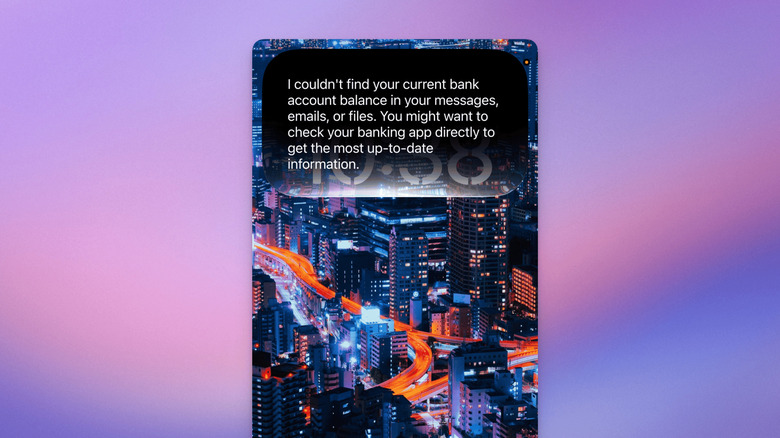
Siri AI is limited in what info it can surface by App Intents, the framework to access app content. This integration already exists in Apple apps — Mail, Notes, Messages — and during the beta period, it was presumed that support for third-party apps would expand rapidly once iOS 27 became stable and everyone had their hands on it. But even today, I have seen it only sparsely in third-party apps. Maybe a handful of my personal apps have added it since, but in many cases those are apps where I don't really need it.
I could give you a boring list of apps where App Intents are supported — or not — but I think a hands-on example would be better. I asked it how much money I had in my bank account. It had no idea. I asked it to catch me up on the family group chat in a third-party messenger. No dice. I asked it to summarize my recent work correspondence from my work app. It had nothing for me. As you can see, I'm not just cherry-picking apps that don't have Siri support. These are all apps I use on a daily basis, and they are effectively off-limits. I did this just to prove a point, but imagine how quickly the average user would give up if they got the same result.
To be fair, the developers of these apps have to incorporate App Intents. Nonetheless, unless you are exclusively using Apple apps, Siri's capabilities are hamstrung and limited. Some people have privacy concerns about the information Siri is accessing and what it's doing with it in the cloud. So you might be giving access to that information and getting almost nothing in return.
How to turn off Siri AI
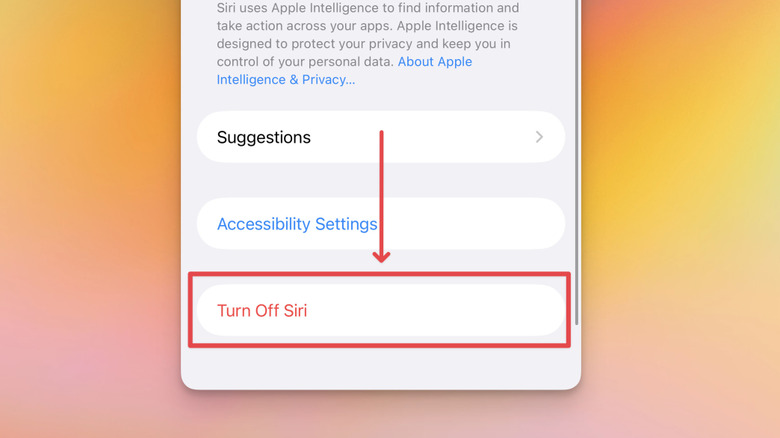
So there's good news and bad news here. The good news is that you can turn off Siri AI and use Siri Classic, the version before iOS 18. This was, for reference, the crystal ball-shaped Siri on iOS 17 and prior, not the edge-glow iOS 18/26 version. While the iOS 18/26 Siri was lackluster, it was better than iOS 17 Siri — at least in my experience. It did actually understand you better, worked faster, and could handle things like follow-up requests. But since iOS 18 Siri is technically part of Apple Intelligence, disabling it in iOS 27 reverts you to the iOS 17 version of Siri, i.e. Siri Classic, the version everyone hated and was trying to get away from.
Having said all that, if you are just doing simple commands, then this may be worth it. Siri will be snappy and responsive again and will actually work when you're offline or have a bad signal. You're really going to feel that difference on devices like the Apple Watch, where it was the older Siri right up until watchOS 27. Unfortunately, I could not find any way to turn Siri AI off only on the Apple Watch — leaving it on the iPhone — so this is an all-or-nothing change if you have an iPhone and Apple Watch. You can, however, disable Siri AI individually on your iPad and Mac without affecting it on other platforms.
Turning it off is simple. Go to Settings > Siri, scroll to the very bottom, and tap "Turn Off Siri." Follow the prompt. You can turn it back on from the same screen, later, once Apple finally gets it into a proper state.