

5 Of The Best Uses For The USB-C Port On Your Steam Deck
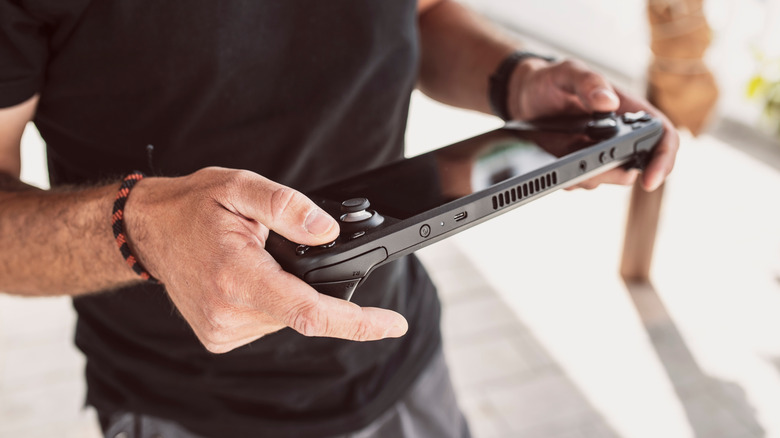
The Steam Deck is one of the most popular handheld gaming consoles currently, and for all the right reasons. There are, of course, a few shortcomings, as is the case with almost every device, but its massive popularity is a testament to the fact that it has aced what gamers really want. You can get more out of your Steam Deck, simply by smartly using that built-in port for things beyond charging. As surprising as it may sound, that USB-C port on your Steam Deck is capable of a lot more.
You can connect a fast USB-C flash drive or SSD to your Steam Deck's USB-C port to expand storage and play other games. You can also use the port to send video to another, bigger display, like a TV or monitor. It may also work with AR glasses, but support here is key. Seasoned gamers can plug a power bank into the USB-C port. Apart from that, you have USB-C hubs and docking stations, all designed to expand the port count, streamline connectivity, and make the experience desktop-like.
So, if you haven't had the chance to explore your Steam Deck's USB-C port, now is the time. The port can really take that gaming experience up a notch and help you work around some of Steam Deck's shortcomings.
Connect external storage solutions
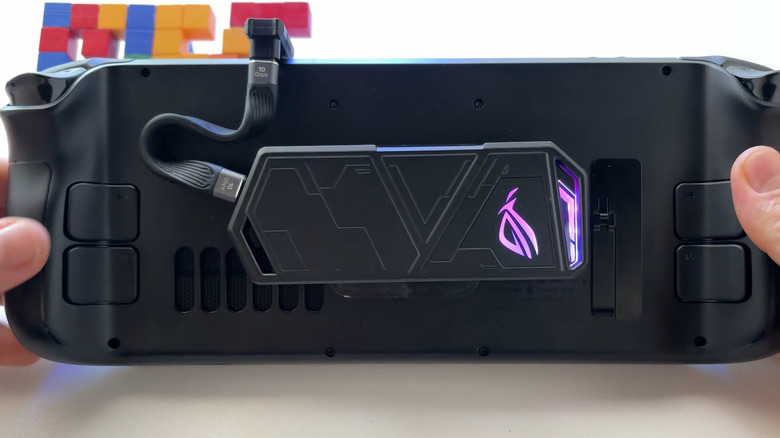
One of the smartest ways to use the USB-C port on your Steam Deck is to connect a fast external storage solution. This could be a USB-C flash drive or an SSD. While the Steam Deck does have decent built-in storage, depending on the model, alongside an SD card slot that you can use, there's also the option to plug in a portable USB-C SSD. That's actually something a lot of users do, because even with just a few large titles, you may run out of space quickly. And that external storage drive will let you play additional titles on your Steam Deck.
It goes without saying that an SSD will usually have better performance than a flash drive, but the right pick ultimately comes down to your preferences and requirements. At the same time, with the increasing prices of flash memory, which forms a core part of both flash drives and SSDs, you will have to factor in your budget as well. But if you want faster performance from an external USB-C storage solution, these two are your best options.
Also, for those of you who don't know, you can upgrade the built-in storage on Steam Deck, and it isn't as complicated as it sounds.
Enhance gaming experience with AR glasses, TVs, and projectors

If you are a fan of gaming on a bigger screen, the Steam Deck's built-in display can feel restrictive. The good news is that you can use the USB-C port to send audio and video over to a much larger screen, say your TV, monitor, or projector. Newer monitors even support direct USB-C connections, making it all the more easier. Besides, if the monitor supports power delivery, your Steam Deck will charge at the same time.
However, if you are using a TV, monitor, or projector that doesn't offer video on USB-C, you will need a USB-C to HDMI or USB-C to DisplayPort cable, depending on what input type your display supports.
Additionally, you can connect compatible AR smart glasses to your Steam Deck's USB-C port. It's simple, too. Just plug one end of the cable into the Steam Deck and the other into your AR glasses, and they should work instantly. AR glasses can be a true upgrade for many of you when it comes to gaming, providing a more immersive experience than a standard display.
Connect a power bank for extended gameplay
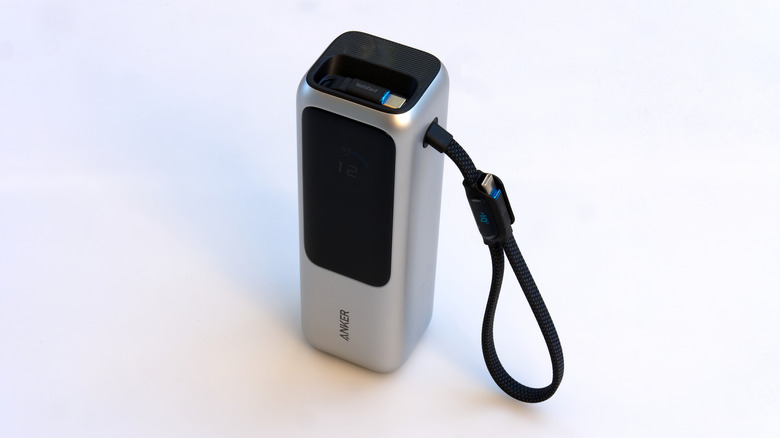
Gaming on a handheld console, whether it's Steam Deck or any other Steam handheld game console Deck alternative, is fun until the console runs out of charge. While the Steam Deck OLED boasts improved battery life, it may still be a concern for someone who spends hours gaming on a stretch, especially as factors like brightness levels, settings, and the game you are playing influence the overall battery life. That's where a USB-C power bank comes to your aid, allowing you to play for hours without hooking your Steam Deck to a wall outlet. This is particularly useful when you are travelling, on vacation, or simply away from a charging point.
Generally speaking, any power bank that's capable of supplying the required power should work. Some may charge your Steam Deck relatively slowly, but they should still do the trick. However, it's best that you go with power banks that work well with the Steam Deck. Some models also attach to the back of the console, which makes wire management a lot simpler. So, you can go with those as well. Just make sure the power bank you get is reliable, is well-rated, and can supply 45W over USB-C Power Delivery. As was the case with storage drives, it ultimately comes down to your preferences, requirements, and budget.
Use USB-C to Ethernet adapters for wired connectivity
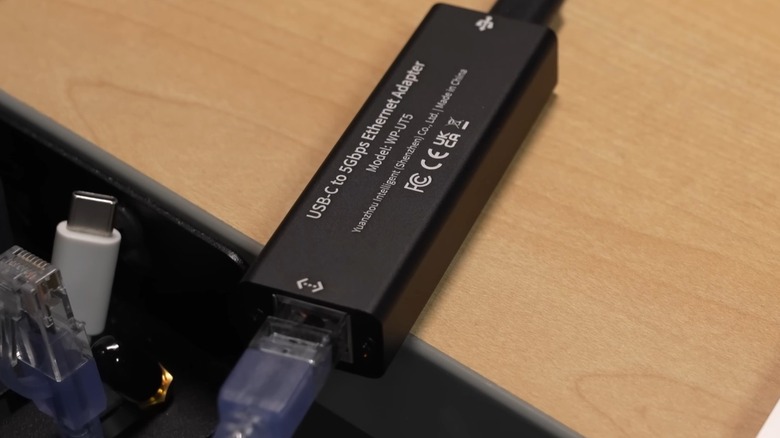
Your Steam Deck already supports Wi-Fi connectivity, which is great for casual gaming and downloading titles, and it's undoubtedly more convenient — you can move around the house or even play your favorite games while travelling. But seasoned gamers have long favored wired connectivity, or to be precise, Ethernet. That's because a wired connection is reliable, delivers consistent speed, and has a lower latency, which is critical in competitive titles. And that USB-C port lets you set up Ethernet on your Steam Deck.
All you need is a USB to Ethernet adapter. When buying one, make sure you get a Gigabit Ethernet adapter if your internet plan delivers anywhere between 100Mbps and 1 Gbps, because a slower adapter will end up acting as a bottleneck. As for the benefits of gaming on Steam Deck over a wired connection, you should notice faster and relatively consistent speeds. Another upside to using Ethernet is that things in your home that can ruin a Wi-Fi connection is no longer a concern, making the connection more stable.
Plug in a docking station to expand port count
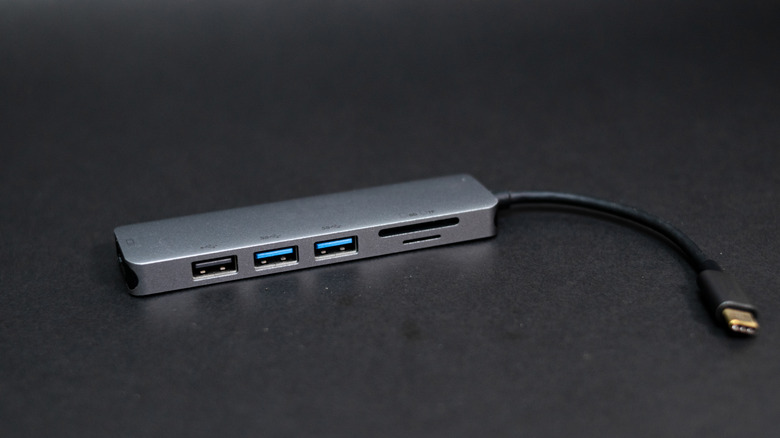
Another smart use of your Steam Deck's USB-C port is to plug in a docking station. It expands your Steam Deck's port count, allowing you to connect a keyboard, mouse, wired controller, storage drive, external display, and more. This way, you can enjoy a PC-like gaming experience with your Steam Deck. Among the available options, you can get the official Steam Deck Dock or one from a third-party manufacturer.
There's also another benefit to using a docking station: it eliminates the need to separately buy the USB-C to HDMI/DisplayPort cable and the USB-C to Ethernet adapter. Many popular Steam Deck docks, including the official Steam Deck Dock, usually feature ports like Gigabit Ethernet, HDMI, and DisplayPort. So, it's a convenient, all-in-one solution for Steam Deck users.
If a dedicated docking station seems too expensive, you can always get a USB-C hub. These are relatively cost-effective, and perfect for Steam Deck users who want to start with something simple before committing to a docking station. USB-C hubs, too, feature the same set of ports, including HDMI and Ethernet. So, you won't really be losing out on anything, provided the hub supports power delivery passthrough. Without that, though, you won't be able to charge the Steam Deck when the USB hub is connected. So, it's important that you explore the available options and get one that perfectly meets your requirements.