

6 Ways To Use Your Laptop's USB-C Port (That Aren't Charging)
We may receive a commission on purchases made from links.
The world of laptops continues to change at an astronomical pace. Who ever thought that built-in disc drives would disappear almost completely? Coupled with this development (or regression, depending on how you look at it) is the widespread adoption of USB-C.
Many modern-day laptops contain USB-C ports that allow you to charge your device. It's a far more responsive and less frustrating option than using the barrel-type pin charging connector as found on this author's HP Victus laptop, which should win an automatic award for the worst idea of all time.
The USB-C port also enables the charging of other devices, such as phones and earbuds. Yet charging isn't all that this port is good for. No siree. As a matter of fact, there are purposeful and useful ways to take advantage of your laptop's USB-C port — and the good news is that we'll be discussing the major options below.
Powering a fan

There's nothing quite as painful as having to sit and work on a scorching-hot summer's day. You can pop open the window, or turn on the aircon to arctic-blast levels, but no matter what, you're melting like the Wicked Witch of the West from "The Wizard of Oz." What's even worse is if you have to go, or be, somewhere that may not have aircon or an open window — it's cruel, really. A viable option is to buy a portable desktop fan that connects to the laptop's USB-C port and becomes a cherished ally in the fight against hot temperatures.
There are various options available from the likes of Amazon and Best Buy. They tend to be plug-and-play in nature, so you connect the USB-C cable to the port, choose the fan speed setting on the device, and presto — cool air in your face. Some of these devices are also rechargeable, so while you're using them, the battery powers up and you're able to take the fan around the home or office without the need for any cables later on.
Connecting a second screen
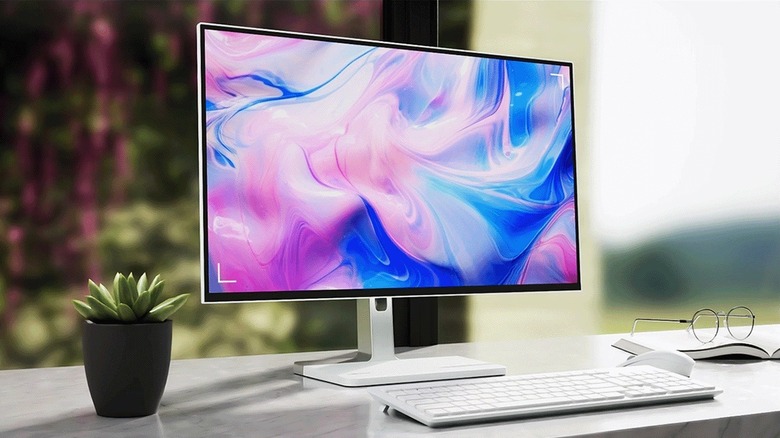
While people buy laptops for portability, the truth is laptops have largely replaced desktop PCs at workstations. For those spending a lot of time on their computer, a second, bigger screen is recommended. HDMI is still one of the most common ways to connect a monitor to a laptop, but there are also USB-C monitors available now.
What's the benefit of connecting your monitor to your laptop's USB-C port instead of just using HDMI, though? Well, there are a few. The MacBook Air, for example, doesn't have an HDMI port, so you would need to buy an HDMI adapter to use a second screen. An Anker adapter is less than $20, but it's still an expense at the end of the day. Then, there's the cable clutter issue; by using HDMI, you would still need to connect another power cord for your laptop and plug it into the wall socket. Depending on your setup and the sockets available, you might need to buy a multi-plug for this. By choosing a USB-C monitor, everything is done through the single USB-C cable.
Using a controller for your games
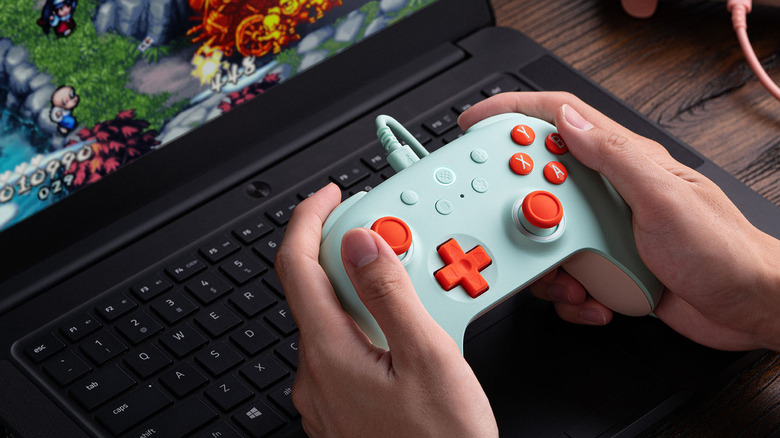
With the prices of gaming consoles reaching ridiculous and unaffordable levels, there are people who are putting their faith back into their trusty laptops and making use of those sweet Steam sales to game without needing to max out their credit cards. Your mouse and keyboard are still fine for playing most games, but it's worth having a gaming controller when you're shooting up T-virus monsters in "Resident Evil Requiem" or ballin' with the crew in "NBA 2K27."
There's no shortage of laptop-friendly gaming controllers you can buy on Amazon. Additionally, both Xbox Series X and PlayStation 5 controllers work on PCs and laptops and are compatible with a large number of Steam games. If you don't want to connect via Bluetooth, it's possible to hook up the controllers to the USB-C port. In some instances, though, you might need to buy a separate USB-C to USB-C cable to make this possible. If you do, it's important that you use a cable that allows for data transfer and not just charging.
Connecting an external webcam
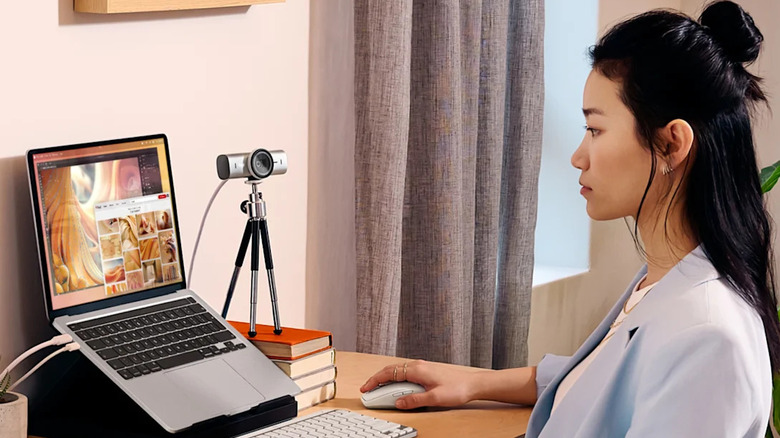
Let's be honest here: The average laptop's built-in camera doesn't boast the best video quality. These cameras tend to be grainy, low-res, and non-adjustable, and they don't exactly make you look like a movie star in those Zoom meetings. As a result, external webcams aren't just an option, but an absolute must-have accessory for any professional who uses their laptop for regular video conferencing or content creation.
The market offers a wide range of decent options, but Logitech is generally considered the best webcam brand around due to the high quality and extra features of its product range. Regardless of which brand you choose in the end, a variety of webcams enable you to connect them to the USB-C port on your laptop. All you need to do is plug the webcam in, adjust the positioning, and select it as the main video option before entering a meeting or pressing the record button. In addition to this, some webcams have built-in microphones, which often offer superior audio quality to a laptop's built-in mic.
Using an external storage drive
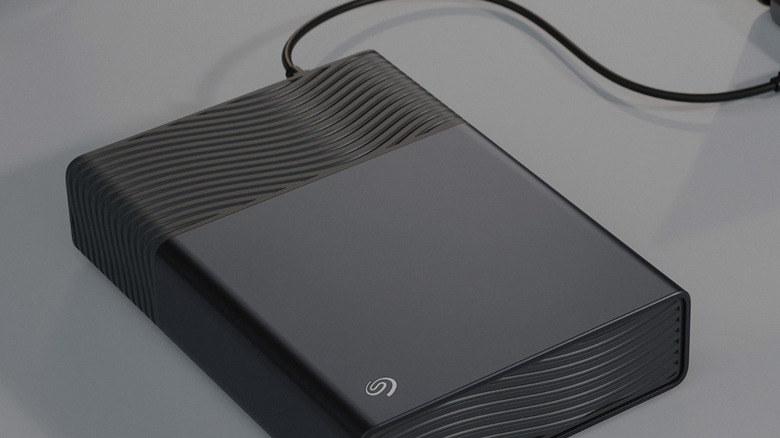
Whether it be Google Drive, OneDrive, or Dropbox, there are numerous cloud storage options available for laptop users. However, it's fair to say that user trust has diminished in recent years, especially since many service providers have employed a combination of weasel-speak and shrinkflation to take away storage capacity and options (unless you upgrade to a more expensive subscription model, of course; then the cycle repeats itself further down the line).
Consequently, it's important to have external storage options that aren't reliant on the current-day whims of tech giants. External hard drives used to be the place where we stored our music, videos, and photos for safekeeping, and they're still being manufactured and used to this day. If you want something smaller and more affordable, there are flash drives with dual USB-A and USB-C connectors. The best part about these flash drives? They connect to your laptop's USB-C port for fast and efficient data transfer.
Adding a USB hub
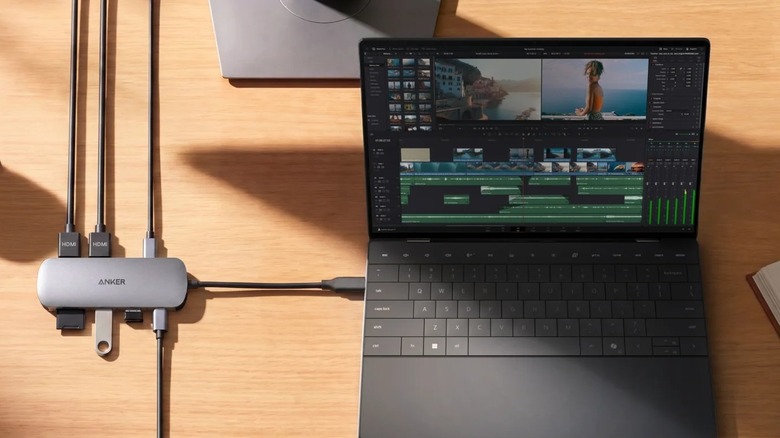
Laptops have become thinner and more compact over time. With that, though, comes the unfortunate trade-off: certain features make way. One of the most notable departures is the distinct lack of USB ports. The 2026 MacBook Air, for instance, has only two USB-C ports. Plug in a phone to charge, use the other port for your 4K webcam, and tough luck — there are no more USB-C options available.
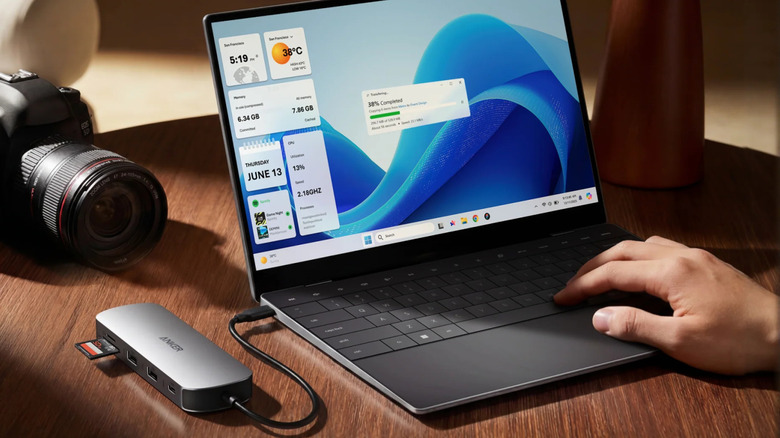
The fix for this is to expand the number of ports with a USB hub. The likes of Anker, Belkin, and Ugreen have different hubs and docks of varying sizes, speeds, and options. Plug the device into your laptop's USB-C port and you expand the number of ports available to you — not just USB-C, as there are hubs that include USB-A, HDMI, and even card-reading capabilities. In addition to this, creating a central hub helps to eliminate all the annoying cable clutter from your workspace, making a USB hub functional, practical, and aesthetically pleasing.