

6 Android Auto Features You Should Use On Your Next Road Trip
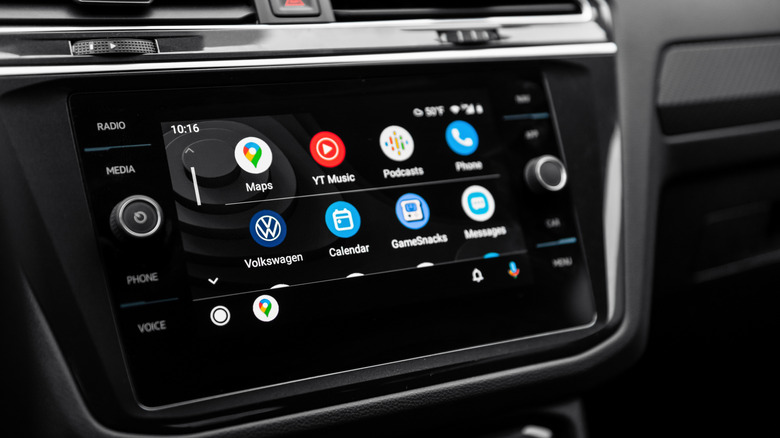
Long-distance drives can either be tedious or enjoyable, depending on how prepared you are for it. If you have a vehicle that is compatible with Android Auto, there are plenty of things that you can set up prior to hitting the road to ensure a pleasant experience. At the top of the list should be settings that are designed to minimize your need to fiddle with your smartphone during the drive. For instance, you can enable split screen on Android Auto so you don't have to manually switch between apps when you should be focusing on the road. You should also review the Android Auto settings on your mobile device and enable or disable features based on your preferences.
To make it easier to decide which Android Auto features are worth using during your trip, it helps to imagine what you'll be doing. Will you be making frequent bathroom breaks and food stops? Will you finally be listening to that Brandon Sanderson audiobook you've been saving for a good day? Are you driving alone? With these questions in mind, here are some Android Auto features you should prep and test before you leave and use while you're en route.
Utilize Google Maps' offline maps feature
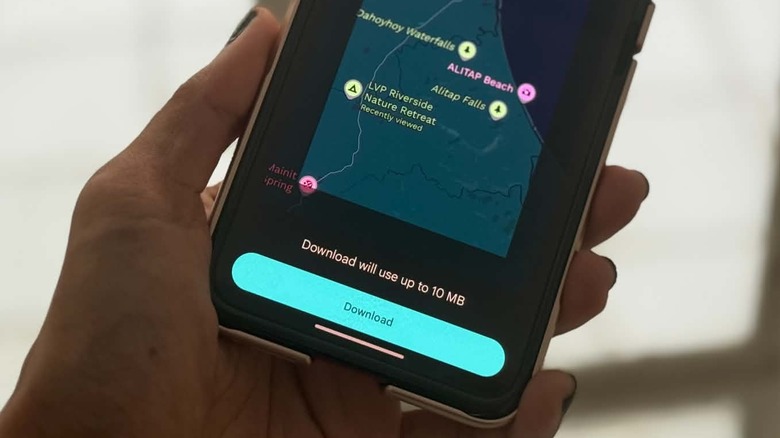
A reliable navigational tool is essential to any drive, especially if you'll be behind the wheel for hours on end. Google Maps is Android Auto's default navigation app and should be easy to use in well-connected areas. However, if you expect to go through regions that have weak cellular reception, you may want to download offline maps before you leave.
To do this, follow these steps:
- Launch Google Maps on your mobile phone.
- Tap on your profile photo and select "Offline maps."
- Tap "Select your own map."
- Zoom in and pan until the desired section of your route is inside the highlight box.
- Tap Download.
If your drive is long, consider downloading your route's map in several overlapping sections rather than fitting everything into a single highlight box. Google Maps should automatically reference the sections you've downloaded when you lose connectivity. Note that while Google Maps is in offline mode, you won't have access to live traffic updates or alternate route suggestions.
Try out Google Maps' multi-stop and share trip features
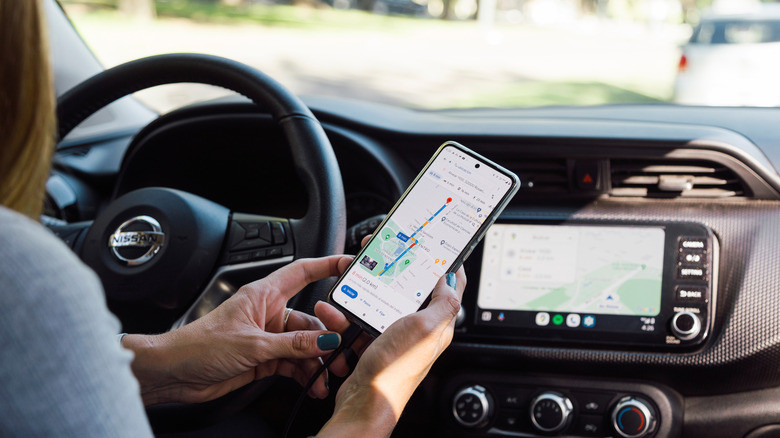
Another thing you can do is predetermine potential stopovers for gas, bathroom use, or meals using Google Maps' "add stop" feature:
- Launch Google Maps and look up your destination in the search bar.
- Tap Directions.
- Hit the three-dot icon in the top-right corner of the screen and select "Edit stops."
- You can add up to nine stops, including the final destination. Search for gas stations, rest stops, and restaurants along the way.
- Tap the icon for your selected location and tap "Add stop" to add it to your route.
- Make sure you drag your final stop to the bottom of the list before tapping "Done" to see the final route.
You can tap the Options icon in the top-right corner of the Drive card if you'd like to avoid tolls, highways, or ferries on your drive. You may also be prompted to download offline maps of your selected trip. Once you're satisfied, hit Start on your mobile phone before you get in your car and connect to Android Auto. That way, you can confirm your entire multi-stop route on your device. Once Android Auto connects, Google Maps' active navigation session should appear on your car display.
Before you actually start driving, though, consider sharing your trip progress with whoever you're meeting at your destination or other drivers in your travel party:
- On your phone, after you hit Start on your navigation, swipe up on the information card.
- Select "Share trip progress."
- Select the profile of the person with whom you'd like to share your trip progress.
- Hit Share.
This lets others keep an eye on your ETA and any changes caused by unexpected traffic. Once you reach your destination or end the navigation session, Google Maps should stop sharing your location.
Don't skip your audio-streaming app's download feature
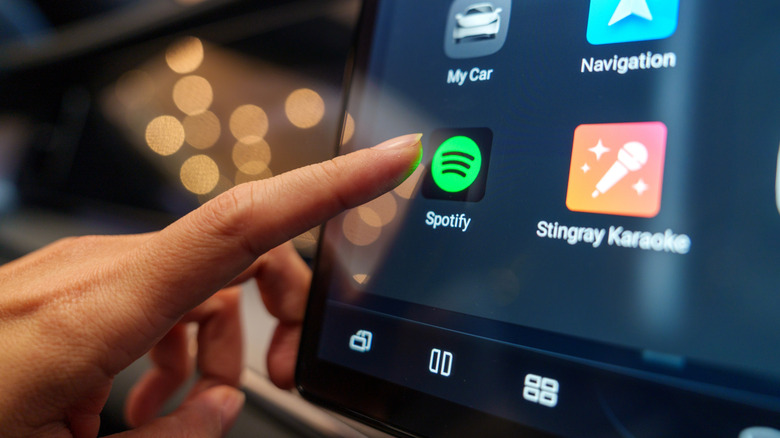
Having something playing in the background while you drive can keep you focused, engaged, and ultimately, less drowsy during your trip. This is especially important when you have long stretches of road ahead. Just like Google Maps, you should make sure you have enough offline media to access if the cellular signal drops out.
Your ability to download content to listen to on your drive depends on the music service you use with Android Auto and whether your subscription level allows it. For instance, you'll need a Spotify Premium plan to download music tracks or audiobooks. The same is true for YouTube Music, Google's own music streaming service. There are other options out there that let you access local audio files. If you happen to enjoy audiobooks, Libby is a great resource for library card holders.
There are several music, podcast, and audiobook apps that are compatible with Android Auto. Whatever your go-to is, utilize its download feature. For a well-rounded long-distance road trip, consider pre-downloading a massive music playlist, several episodes of your favorite podcast, and maybe a long audiobook for variety.
Once you have an offline audio catalog ready, make sure you enable quick controls for apps:
- Launch Settings on your mobile phone.
- Go to Connected Devices.
- Select Connection Preferences.
- Tap Android Auto.
- Under "Display," enable the toggle next to "Taskbar widgets."
Doing this lets you see media playback controls as well as navigation directions while an app is full screen, allowing you to rewind, forward, or pause easily without losing focus on driving.
Customize Android Auto features to your liking
There are other Android Auto preferences you can tinker with while you have its settings page open. For starters, you can make sure phone features are accessible on your vehicle screen even when it's locked. You can also choose to start media automatically when you start driving.
For display, apart from quick control for apps, you can customize your app launcher so that only the services you actually use appear. After tapping "Customize launcher," you can uncheck the box next to any app that you'd like to hide. You can also add a shortcut to call a specific person or trigger a Google Assistant action with a quick tap.
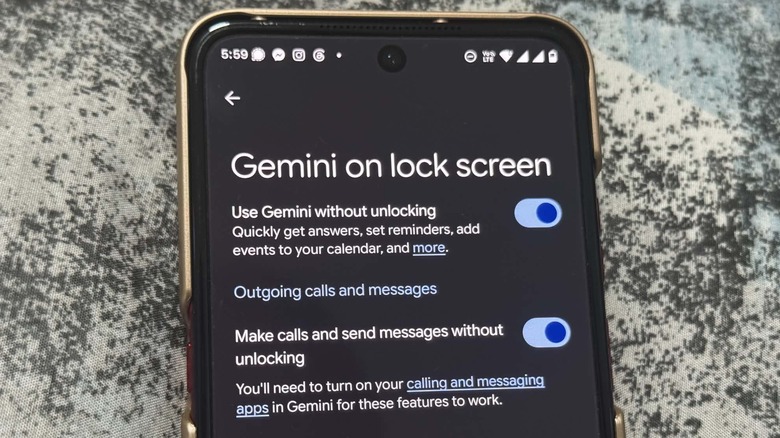
If you're driving solo or don't mind responding to messages while passengers listen in, you should allow Google Gemini — which is reportedly replacing Google Assistant on most Android mobile devices — to work even when your phone is locked. Here's how:
- Under "Digital Assistant" in the Android Auto settings page, select "Manage your digital assistant." This will open Gemini Settings.
- Select "Gemini on lock screen."
- Enable "Use Gemini without unlocking."
- Enable "Make calls and send messages without unlocking."
These steps let you use Google Gemini without constantly tapping your mobile phone.
Enjoy Google Gemini's Live feature as a conversation partner
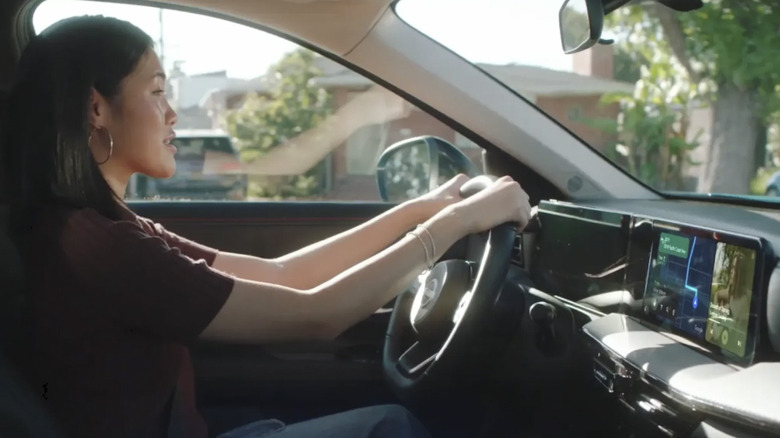
Enabling Google Gemini voice commands for Android Auto is definitely worthwhile for long drives. To make sure Gemini is set up correctly before your trip, try saying "Hey Google!" Alternatively, you can tap the mic in Android Auto or long-press the voice button on your steering wheel if it has one. Once you hear the tone, try out a few commands you'd likely need during a car ride, such as "Navigate to Starbucks," "Play Harry Styles on YouTube Music," or "Call Mom."
You can ask Gemini about the weather or the time. It can read your incoming messages aloud and let you send a short response back. If you want to take a break at a coffee shop that's currently open, has great reviews, a drive-thru, and a restroom, Gemini can make recommendations based on all your requirements. If you forgot you also want free parking and outdoor seating, you can ask follow-up questions, and it will process them without needing clarification.
Gemini can craft a road trip playlist based on your mood, the weather, or your preferred genre. In fact, while a song is playing, provided you have good connectivity, you can ask Gemini for trivia specific to the tune.
Finally, if you're on a road trip alone or have a need to wake things up, Gemini can provide you with a compelling back-and-forth and act as a tutor of sorts. All you have to do is connect to Android Auto and say, "Hey Google, let's talk Live," to launch Gemini Live. You can ask it to help you learn basic Spanish, or about the history of the town you're currently driving through, among other things. You can ask for a random fact and build a conversation from it. If you want to take a break, you can end the Gemini Live session by saying "Stop" or uttering a new command.