

11 Common Problems With Modern Gaming Consoles
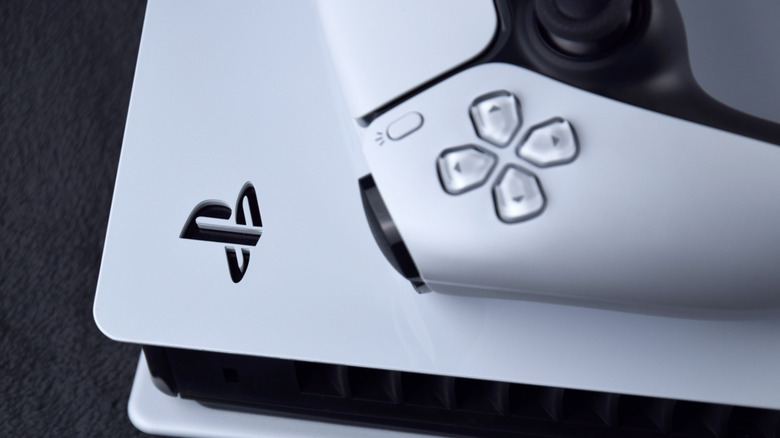
Video game consoles have gone through a journey for the ages. Atari made home consoles popular back in the '80s before the infamous video game crash of '83 that threatened to end the existence of this type of hardware for good. Thankfully, Nintendo swooped in to save the dying embers of this industry, sparking a gaming revolution that convinced other manufacturers like Sega, Microsoft, and Sony to jump into the market with hardware offerings of their own. While Sega might've pulled out of the console race after losing the war with Nintendo, the PlayStation and Xbox brands continue to go strong to this day.
Currently, the PlayStation 5, Xbox Series X/S, and Nintendo Switch 2 are the three major modern consoles dominating the video game landscape. Most people purchase these devices to enjoy a pick-up-and-play experience while avoiding the headaches and inconvenience associated with PC gaming, but that's not to say that modern consoles don't face their fair share of problems that are pretty commonplace. What makes things worse is that game consoles are now more expensive than ever before thanks to AI running up hardware costs, so the last thing anyone would want to deal with is a console error that prevents them from gaming on their brand-new, super-pricey machine. Here are some of the most common problems with modern consoles, what can cause them, and what you might need to do to fix those problems.
Overheating
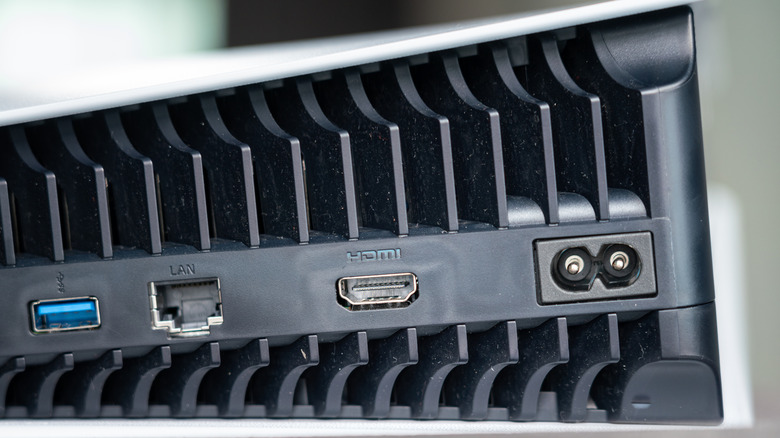
Anyone who's gamed for extensive periods on a dated device knows how annoying overheating can be. This is a problem talked about regularly in the PC gaming circle, with a myriad of issues causing a player's expensive gaming rig to reach ridiculous internal temperatures. This eventually leads to performance issues, unexpected shutdowns, and — in serious cases — hardware damage. Even if you have a console that is usually built to dissipate heat and withstand high internal temperatures, don't assume that you're exempt from the overheating problem.
If your device is placed in an enclosed area that limits airflow, or too much dust has accumulated in the console, then expect to hear the fans working overtime before an overheating warning appears on your console. The first thing you should do is move the console somewhere else where it can properly expel this heat. If this doesn't work, then it's time to thoroughly clean the external vents of the console to prevent temperatures from spiking all the time. Unlike with a computer, which you can open up and clean if you possess the requisite knowledge, opening up your console is often not a good idea unless you know what you're doing; we recommend calling a professional to get the job done instead if you want to go that route.
Controller not connecting
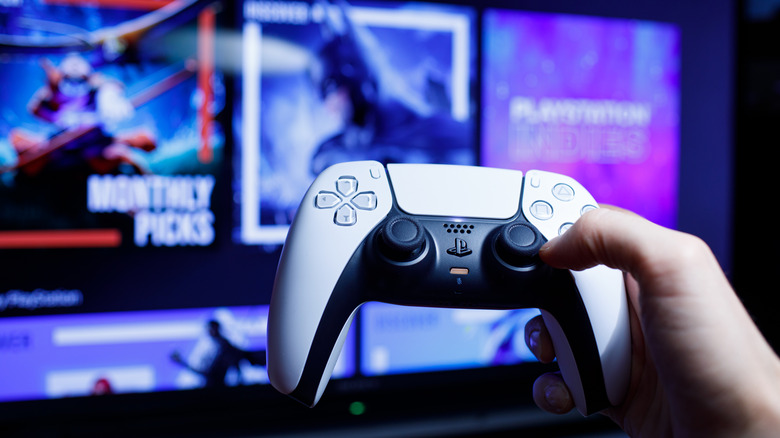
Even if your console is up and running, it's virtually useless without a controller. Usually, most controllers work perfectly out of the gate and don't face any connection issues, but this may not be the case further down the line. Modern controllers like the PS5's DualSense have abysmal battery lives, and it's entirely possible that you haven't charged these devices enough to even trigger pairing mode. So, before you assume that there's a serious problem plaguing your controller, charge it for a few minutes first.
If the battery is fine but the controller still refuses to connect, it's time to cover all your bases. First of all, ensure that both the controller and console firmware are updated. It's rare, but outdated software can lead to connectivity issues. Depending on the controller you use, you can reset it — the Sync button on the Joy-Cons or a small hole in the back of a PS5 controller similar to a SIM ejector on phones usually achieves this. Additionally, given how most modern controllers rely on wireless connections, make sure that you aren't too far away from your console.
If all of this doesn't bear any fruit, then maybe you've changed some settings for your controller that you've completely forgotten about. The DualSense's ability to pair to multiple devices at a time is a great example of this — usually, you can hold down the PS button along with one of the face buttons to pair this controller to one of four possible devices. However, if you accidentally trigger this feature or forget which shortcut your PS5 was assigned to, then pairing your controller can become far more challenging than intended.
No picture output
No one wants to go through the arduous process of connecting a console to your display device and turning it on only to see that no picture output is being emitted. Make sure your HDMI cables aren't faulty, since that is usually the culprit here. Once you've confirmed that your cables are fine, it's time to check the connectors of both your console and your display device to see if things are okay on that front. Additionally, sometimes even something as simple as tweaking your display's picture settings and using safer, pared-down modes might be enough to resolve these compatibility issues.
If these areas aren't exhibiting any problems, then the issue might be more serious. For Switch owners, check if the console is displaying an image in handheld mode. If yes, then the dock may be to blame here. People who use AV receivers should also check if this additional unit is the source of the issue. Once you've run all these checks and seen nothing out of place, then maybe it's time to call a repairman. Either your TV, console, or both have some image issues that need professional help to fix.
Audio issues
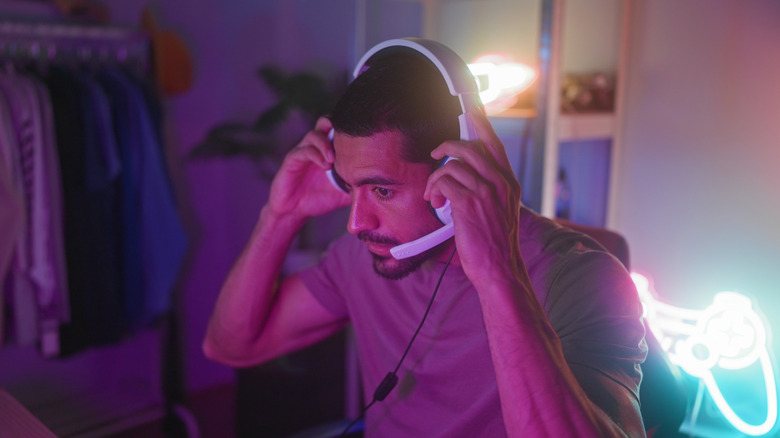
Video is just one side of things where a console may start exhibiting serious problems. Without proper audio, you can throw any sense of immersion right out the window for your favorite video games. If your audio is stuttering, cutting out, or worse yet not even there, make sure that your HDMI cable and any external audio connection aren't wonky. Once this is done, it's time to check whether you've selected the correct audio format for your console. Usually, heading to the audio settings of your system should be enough to uncover these settings. While new audio formats like Dolby Atmos or DTS may be exciting to use, it's possible that your audio setup isn't compatible with them. In this event, revert to something simpler — like stereo or Linear PCM — and this issue should take care of itself.
Modern consoles, like the Xbox Series X and S — which, despite their dreadful sales numbers, are video game consoles that don't deserve to fail — also come with an audio setup process that can be retriggered in case the current configuration is encountering some issues. Other times, it's entirely possible that this is a problem stemming from the game you're playing, so go into its audio settings and make sure everything is optimally set up.
Sometimes, these audio issues can be more localized. Controller audio or voice chat may not work, which is usually because they are disabled in settings. Turn them back on, and you should be good to go. However, if the systemic audio issues in your video game console aren't going away, then professional help is likely your last resort.
Console not turning on
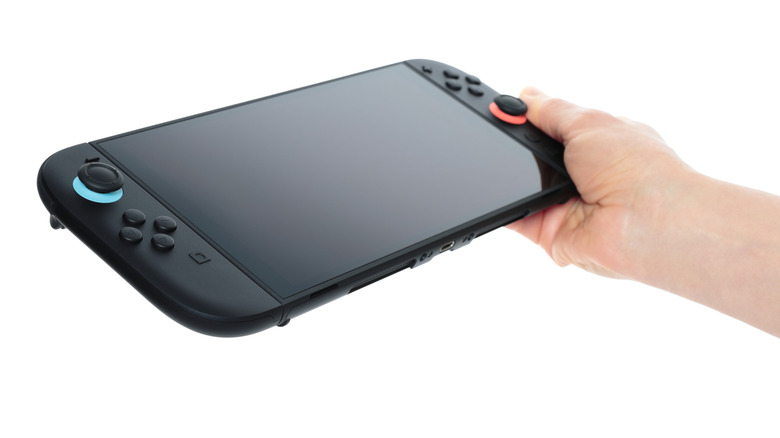
The dreaded Red Ring of Death on the Xbox 360 is the poster child of console startup issues, but don't assume that modern hardware is completely free from such problems. A faulty PSU (Power Supply Unit) and inconsistent or inadequate power supply are the two major culprits here. The latter can still be fixed by using a different cable or power plug to boot up your console, but the former requires a replacement that you'll either have to contact the manufacturer for — if the console is under warranty — or shell out a few bucks for by calling a repair service.
Sometimes, a power cycle can alleviate this issue. For your PS5, unplug it for around ten seconds, then plug it in and press the PS button on your DualSense controller. If done correctly, your console should beep twice. For your Xbox Series X or S, hold down the power button for ten seconds, then unplug it and wait for an additional ten seconds. Usually, this power cycle often takes care of any internal issues, so cross your fingers and hope this works if you've tried out every other course of action. At times, pulling the plug or suffering from the power going out during a console software update can also brick your system, so you'll need to either use Safe Mode or enlist a professional's help to bring your console back to normal.
Storage problems
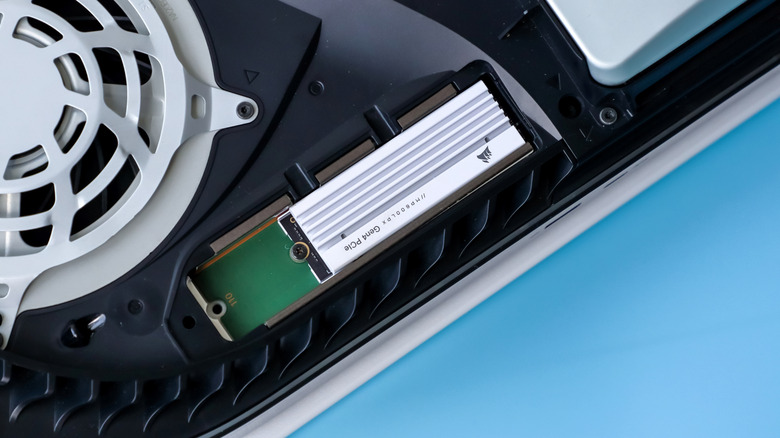
With most major AAA games reaching the 100GB mark, if not exceeding it outright, the storage space present in most modern consoles can seem very minimal. The PS5 ships with an 825GB SSD, out of which only around 667GB is usable. The Xbox Series X is marginally better with 802GB of usable storage, while the 512GB Series S model boasts only a paltry 364GB of storage. The Switch 2 fares even worse here because of its nature as a hybrid console. It only has a total of 256GB of internal storage. Download even a few AAA games on these consoles and you'll fill up your storage space almost immediately.
This is why it's highly recommended to add additional storage space to these consoles so that you're not deleting games all the time. The PS5 lets you install a compatible M.2 NVMe SSD for the same. For current-gen Xbox consoles, an NVMe SSD storage expansion card or even an external HDD will do a similar job. Meanwhile, a Switch 2 lets you use a microSD card to expand internal storage, which is very much required unless you only want a few odd games to be installed on this hybrid.
Of course, limited space isn't the only storage issue you can face with your consoles. Traditional hard drives rely on mechanical parts that degrade over time, while SSDs have a limited number of write cycles. If your PS5's storage starts glitching out or becomes unreadable, it's time to replace the main drive before the current SSD reaches a point of no return. Make sure that your SSD also has at least 20 percent of free storage available — anything less than that can lead to write amplification and cause greater wear and tear because of the additional stress being placed on your storage unit.
Disc reader not working
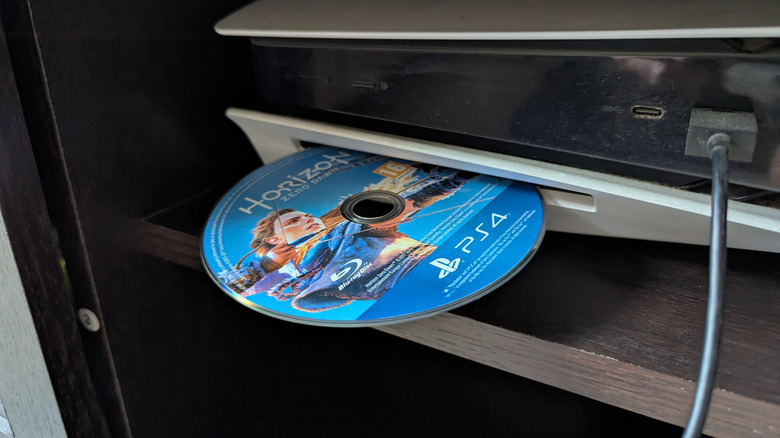
Don't let Sony's anti-consumer approach fool you into thinking that disc readers are a thing of the past. Most modern consoles still feature a way to let you use non-digital media, with these disc drives being crucial to run a physical copy of any game that you own. As a result, any person who owns a ton of video game discs will be severely affected by a reader that refuses to work. First of all, before you go blaming your console, clean your discs and check for any scratches. In the case of the latter, you may be fresh out of luck and have to buy another digital or physical copy of the game you're playing to continue your progress.
If you've tested multiple discs with no results, then the disc drive might be exhibiting a myriad of issues. The optical lens itself might be dirty, your disc may not be ejecting because the mechanism is broken, or the unit may start clicking and grinding because of any number of internal hardware faults. Unless you have proper knowledge and know how to fix these issues by yourself, call a professional who can take apart the disc drive and either remedy the problem or let you know that a replacement will be required for this part.
Battery degradation
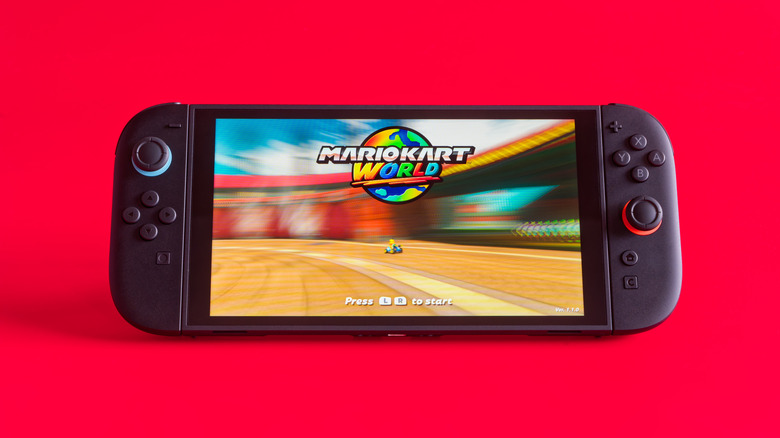
The Nintendo Switch is an engineering marvel that enjoyed one of the best game console launches of all time and compelled more manufacturers to release powerful portable consoles of their own. The Steam Deck and the confusingly titled Asus ROG Xbox Ally X are two of the most notable mentions in this regard, with these two portable consoles arguably being more powerful than the Nintendo Switch 2. They do a great job of working in portable mode and letting people enjoy quality indie titles — and, in some cases, optimized AAA blockbusters — while you're lying down in bed or while traveling. However, even the best handheld video game consoles ever made share a lot of their hardware DNA with mobile phones. As a result, they also face one of the biggest problems that smartphone owners and manufacturers have struggled with for time immemorial: battery degradation.
As reliable as Li-ion batteries may be, even the best and most high-end battery unit will eventually degrade over time. Poor charging habits will exacerbate this problem, eventually leading to a point where you can barely play your titles for an hour or two before you'll need to charge your portable console. Once your battery has degraded to the point where even 60 minutes of playtime on a full charge becomes a challenge, do yourself a favor and install a new Li-ion battery instead of reducing your gaming time or having to keep your handheld console plugged in permanently. Both of these situations are undesirable and really inconvenient.
Frequent crashing
Not every game launches in the same state as "Cyberpunk 2077"; crashes are usually the exception, not the norm. Unless you're playing a brand-new Bethesda game at launch — or, let's be honest, years after launch as well — there's no reason why your games should be crashing frequently. If you've checked online and realized that this problem is localized to you instead of widespread across all users, it's time to figure out why your console is struggling to run games.
We've already talked about overheating and power supply problems, with game crashes being one of their many symptoms. A hard drive on the verge of failure can also crash your game. Outdated or corrupt system firmware can also be to blame here, so either update your console for the former or use Safe Mode and utilize a recovery state to bring your system back to a point when things weren't so dire.
Controller drift
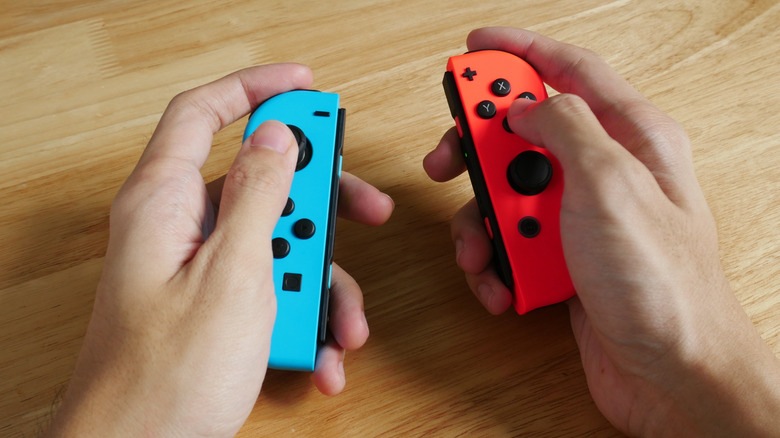
The bane of most console owners' existence, controller drift is a problem that has plagued gamers for generations. The worst part is that modern controllers have only exacerbated this problem instead of diminishing it. Commenting on the new Switch 2 Joy-Cons regarding this issue is premature, but the drift issues that plagued the original Switch's Joy-Cons are well documented — after all, it's one of the best selling game consoles of all time — to the point where Nintendo was sued for what was perceived as poor build quality. The PS5's DualSense hasn't fared any better, with the multitude of moving parts that stem from its complex systems like its haptic feedback and adaptive triggers making the controller even more susceptible to drift.
One of the most common reasons why your controller drifts is that dust has snuck into the device and is causing your analog input to go haywire. In these situations, disassembling your controller and using a microfiber cloth to clean any dusty areas around your analog sticks should be enough, though doing so isn't for the faint of heart; while Microsoft says opening up your controller will no longer void your warranty, that's not universal among other console makers.
However, if your controller is drifting because of careless handling and constant drops, then an internal component — such as the potentiometers — may be all out of whack. In this case, you might have to send the controller for repairs and get new analog sticks installed. This might be a more expensive job, but still beats buying a new controller instead of fixing your existing one.
Inconsistent internet connection
People who love online gaming will tear their hair out if their console drops its internet connection over and over again. For the most part, issues like suboptimal router placement, too many devices on a single network, connecting to the wrong network band, and wireless interference are to blame here. Place your router closer to your gaming console — or, better yet, use an Ethernet connection — and try not to connect too many devices at once, and this problem should become a thing of the past.
However, if your console is still struggling to maintain a consistent internet connection, then check the game servers to see if they're stable or not. If that isn't the issue, then either your console hardware has some deeper problems or your router needs an upgrade. Before you spend a substantial amount of money on either a router replacement or a technician, carry out a power cycle and update your system's firmware to see whether these steps can fix your Wi-Fi connectivity woes.