

7 Ways To Use Private Space On Your Android Device That Are Actually Helpful
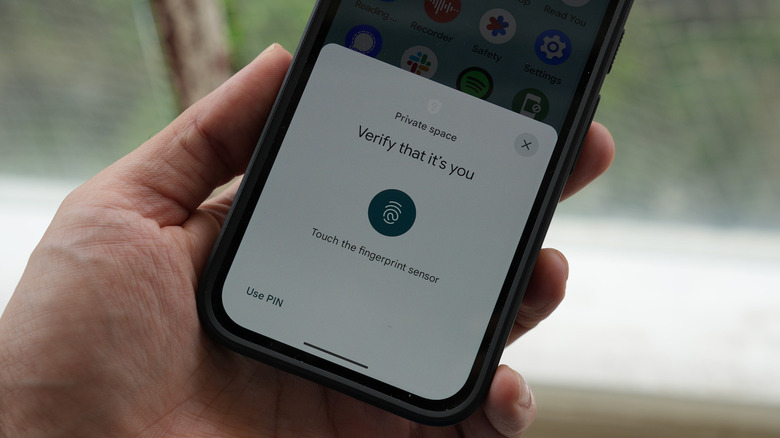
You might not know this, but there's an independent hidden section in your smartphone. Many major manufacturers have a secured silo built into the Android operating system. Google Pixel's Private Space is the most famous option. Samsung offers its own version called Secure Folder. OnePlus also has its own feature, called Private Safe.
The feature goes by many names, with different settings and buttons, but the purpose is the same. It gives you a completely walled-off portion of the Android where you can securely store photos, documents, apps, accounts, and more, independent of your regular phone usage. Pixel's Private Space is Google's own official version, so that's what we'll focus on in this article, but the feature set and functionality should be the same across other manufacturers.
Here, you can run two different digital lives if you want. Sign in with a different Google account, use different contact lists, install the same apps but with a different account, securely store documents, and more.
Lock banking apps
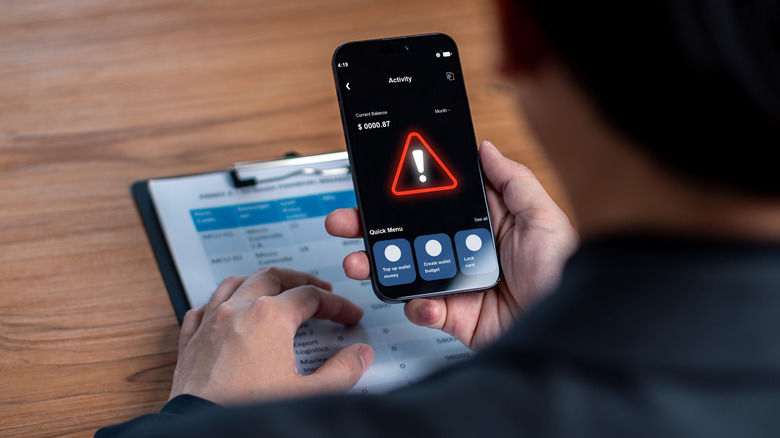
Using the dedicated Private Space for locking away your banking apps is much safer than just using a third-party app locker you downloaded from the Play Store. Because Private Space is its own separate silo, it can't be accessed by a rogue app, malware, or even someone who happens to find your unlocked smartphone.
Once you install the banking app, set it up, and move it to Private Space, it disappears from your regular phone setup. Once the Private Space itself is locked up, you won't see the banking app in multitasking, settings, or even in notifications. And to make things more secure, you can use a unique PIN and biometrics method for unlocking the Private Space, instead of repeating the method for unlocking your smartphone.
Private Space locks up automatically when you lock your smartphone, so you don't need to worry about manually locking up your apps or environment every single time. The only thing worth noting, though, is that Private Space hides all notifications by default. In case you need an OTP from your banking app, or an authentication, you'll have to unlock the Private Space and open the app itself. A minor hurdle for the added security.
Secure storage for IDs
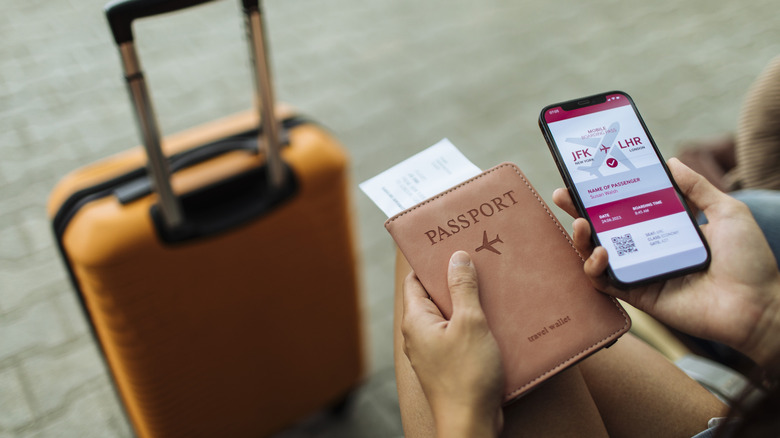
There are many Android apps that will help you hide photos floating around. Even Google Photos has its own Locked Folder feature where you can protect sensitive photos behind a lock. While that's okay to use occasionally for hiding photos, you need a dedicated setup for securely storing personal documents, something that can handle PDFs, document files, and images.
Private Space works as a separate profile, making it a better, more secure home for your documents and IDs. And Android makes this quite easy. When you tap the Add button in the Private Space, you will see an Add Files popup. Choose the files (images, PDFs, anything), and Android will ask you if you just want to copy them over, or move them instead, deleting the original files. Once the files are moved and locked up, they will be deleted from the general storage. By default, these files show up in the Downloads folder in your Private Space, but you are then free to move them around to a personalized folder structure in the Files app. Once you lock the Private Space, these files will automatically disappear from the Files app.
Separate your work life

When you set up Private Space, you get an option to log in to a Google account. You can use the same Google account if you like, but you can also separate things out. In fact, Google itself encourages that you use a different Google account for your Private Space.
Now, this could be your work account, or it could be the reason to get a burner email address. When you sign into your Private Space using a different Google account, your two identities stay completely separate. The Private Space can store a separate set of email addresses, contacts, calendar events, and even browsing history and logins. This way, your work data won't crowd up your main profile.
You can install or move work related apps here, and they will get locked up the moment you lock Private Space. This can be a good place to securely stash away apps that use sensitive work data or documents. It's not suitable for communication apps, though, or anything that depends on live notifications. When the Private Space is locked up, you won't get any notifications or updates from your chosen apps. This can be especially useful if you work from home and have to manage your personal time and your work tasks all on the same smartphone.
Same app, two accounts
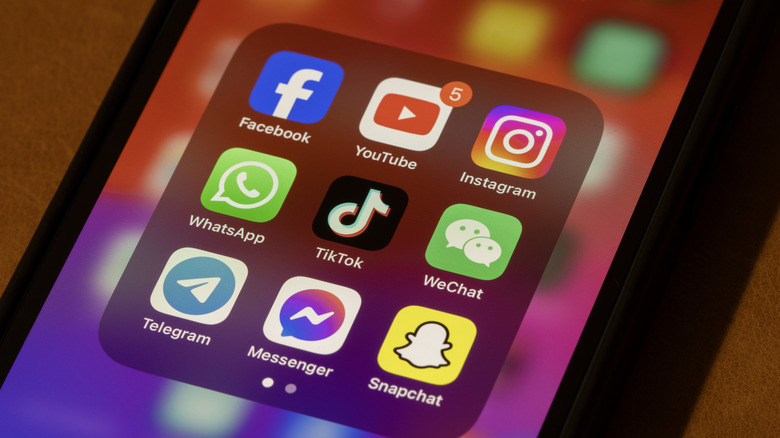
Most popular platforms support multi-account logins. Gmail, Instagram, you name it. Even WhatsApp has finally added multi-account support that's actually easy to use. But multi-account logins aren't secure or private, and some apps still refuse to add this feature.
This is easily solved with Private Space, and is perhaps one of the best use cases for the feature. You can have two different accounts on messaging apps, social media apps, or even remote work apps, both separate from each other. If you have a work Gmail address, or a Microsoft enterprise suite, you can install the apps in Private Space, and make sure they don't show up in your regular phone usage at all. When the Private Space is unlocked, it's just like using two different accounts at the same time (in two different apps), but the moment it's locked up, your alternate account is locked up and secure. In fact, if you're struggling with things like social media addiction and doomscrolling, you can choose to install Instagram and TikTok in your Private Space, and lock it up when you need to work, or get some sleep.
Keep dating apps out of sight
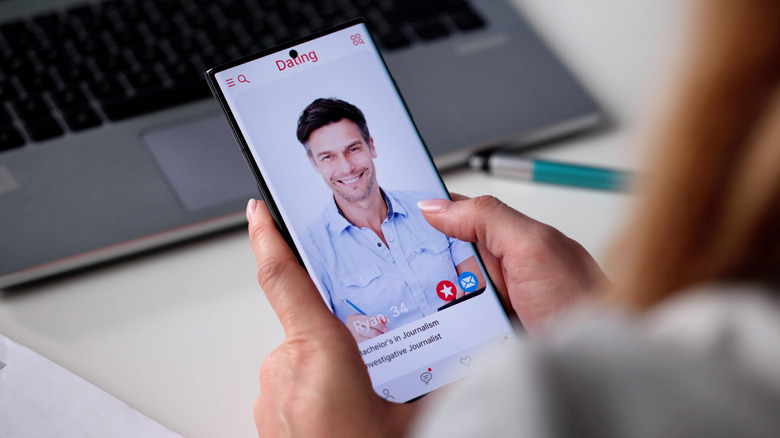
If you're on dating apps, you might not want to show it to your colleagues. An ill-timed message from a chat from a dating app might be embarrassing in work situations. If you share a household with your parents, you might want to keep your romantic pursuits completely hidden.
Plus, the risk of getting scammed with online dating is quite real. Dating apps are notorious when it comes to on-device location and tracking permissions. When the Private Space is unlocked and you are interacting with the apps, they can access your location, and they can notify you as well. But when the Private Space is locked up, all those privileges go away. The incessant notifications stop, and so does the tracking. Keeping a dating app in Private Space also makes sure that if the dating app is malicious and it goes rogue, it can't access data from your main device (like your regular contacts, emails, messages, and so on).
Share your device without worry

One of the easiest ways to lose your digital data and identity is to hand your phone off to someone. Even if you give someone access to just make a call, or to show a video to their kid, you're handing off all your personal data and documents as well. Yes, Android has a Guest mode that can restrict the users, but you have to remember to set it up, and nifty users can find their way out of it as well. You can also pin an app on Android, which makes sure that a user can't escape the current app without entering a passcode. However, notifications can still come through. In both these modes, there are some privacy issues.
There are no such risks with Private Space. Things are already set up. All your personal data is already locked behind authentication, and if you're savvy enough, the button to access Private Space is itself hidden. This means the person who has your phone can look all they want, but they won't find your securely stored IDs, documents, or banking apps.
Stop photos from syncing to the cloud
The Private Space on Pixel is a complete silo. If you choose not to sign in with your Google account, the data inside the Private Space storage is completely walled off, and it never touches any servers. This means you can transfer sensitive photos or important scans to the Private Space, and they will never appear on Google Photos.
When you keep photos in local storage, even if they are locked, there is always a risk that they might get uploaded to the cloud, even if it's accidental. And once the image is on the cloud, it might show up on all your other devices across your family, or it could be hacked, or leaked. Photos transferred locally and stored securely in Private Space have no such risks. Of course, the downside here is that there truly is no backup. Photos and files stored in the Private Space, if wiped, won't appear again. If you lose your phone, or the storage is corrupted, there is no way to access the data again. But if privacy is more important (and you have already backed up your data to a secure external drive), this is a worthy tradeoff.