

5 Hidden Features Of Your Android Phone's Power Button
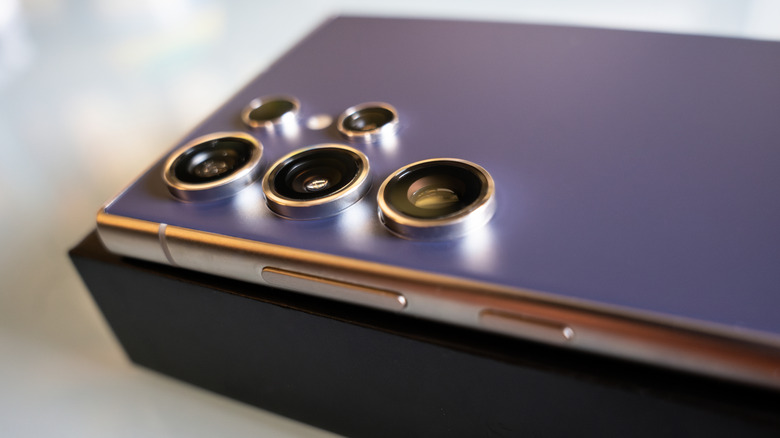
The power button on our Android devices is most commonly used to turn the screen on and off, as well as restarting or shutting down the device. We press that button dozens of times in a day, without ever thinking of it as anything more. But the fact is that many companies, including Samsung, don't even call it "the power button" anymore. Samsung now calls it "the side key," and there's a reason for that — holding it down on a modern Galaxy phone doesn't bring up the power menu at all. In the new Android default settings, it triggers Gemini.
The good news is that you can now configure it to activate different actions with a different number of presses. Press it once, then five times fast, then twice in a row, and you will get a completely different result each time. Some of them are much more useful than a simple power off menu, so we went digging through the settings to look for them and found a few hidden Android tricks worth knowing and five ways to trigger them by using the side key.
The best part is that all these functions work with modern Samsung Galaxy phones, and some are available to most Android phones. The following five combinations are worth committing to memory, because odds are you will need at least one of them fairly often. Here's what the Android power button, or the side key, is capable of.
Five rapid presses activate Emergency SOS
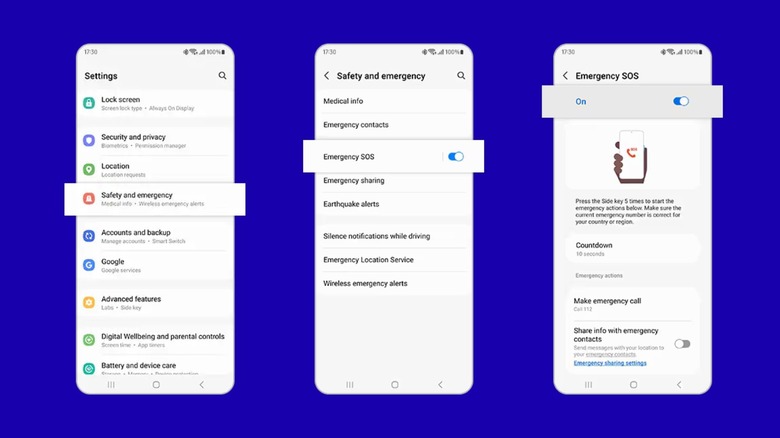
When you tap the power button five times in quick succession, your Android phone triggers Emergency SOS. This function, even when the screen is locked, can sound an alarm, snap a few photos, share your live location, and alert emergency contacts you've set up ahead of time. It keeps sharing your updated location with your emergency contacts every 15 minutes for the next 24 hours. You can also turn on options such as Require Swipe to Call to make sure that no emergency calls are placed by accident.
On top of this, there is also an option to set a countdown, so an accidental press doesn't place any call by mistake. In order to set up Emergency SOS, you simply need to navigate to Settings > Safety and Emergency > Emergency SOS. You can toggle on the Send SOS to Emergency Contacts option to send an alert to the chosen contacts in case of any emergency. You can add your emergency contacts in the Emergency Contacts option inside the Safety and Emergency landing page.
The fall detection of the Samsung Galaxy Watch works on the same principle — a hard fall triggers a 60-second countdown before an SOS alert is sent automatically to your chosen emergency contacts. For the utmost safety, you should take time to set up these functions in advance. Samsung phones also let you add medical details inside the Safety and Emergency option, so that the people helping you have all the information they need, like known medical conditions, allergies, and blood types.
Long-press launches your assistant
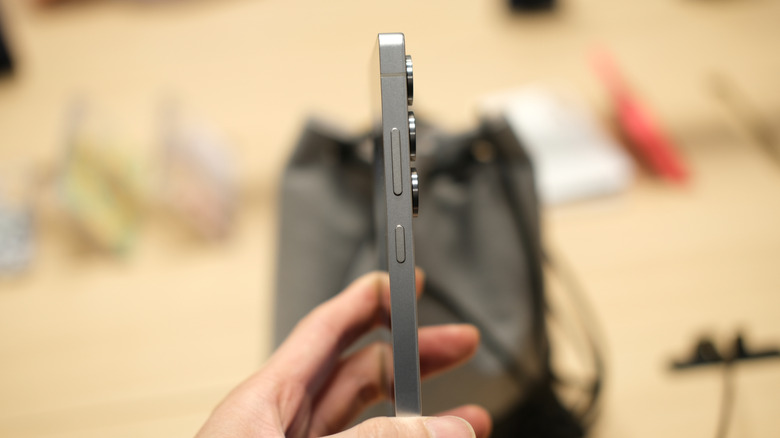
When you purchase a new Samsung Galaxy phone, one of the frustrating points for any user is the fact that long-pressing the power button no longer pulls up the power menu by default. Instead, it launches Gemini, Google's AI assistant, which is all set to take your questions, draft a message, or look for files inside the phone, all hands-free. If you want to have the classic power menu back, you need to manually change the way the side key behaves.
You need to navigate to Settings > Advanced features > Side button > Long press. Inside the menu, you can change the function from Digital Assistant to Power Off Menu. Setting the side button to a digital assistant could be beneficial or a hassle, depending on how you use your phone.
Personally, I use Gemini often, and I have set the side key to trigger the assistant instead of the power menu. This is much faster than looking for the Gemini icon in the long list of apps I have on my phone. You can still power off your phone by swiping down the Quick Settings panel and tapping the power off button, and let's be honest, this is not something you do more than a couple of times a day.
Press the power and volume button to take an instant screenshot
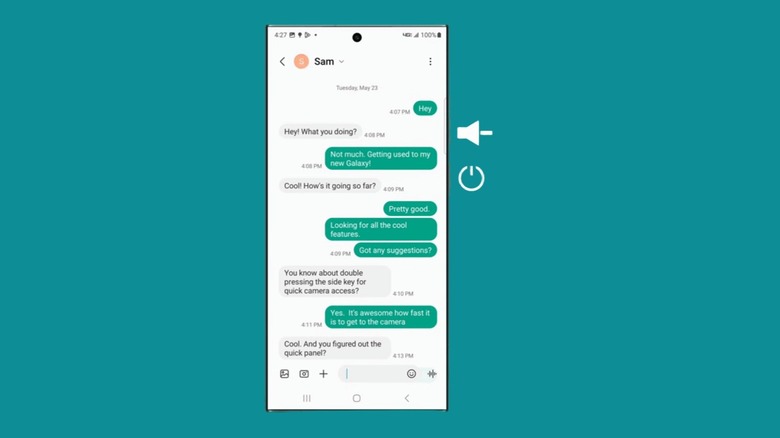
Well, this is a classic one, and many of you are probably already using it. A quick, simultaneous press of the power and volume down buttons captures a screenshot on virtually any Samsung phone. This also works on other brands' phones as well, but instead of the volume down key, it may be volume up plus side button. Holding the same combination a little longer may trigger a forced reboot instead of a screenshot. So, timing genuinely matters here.
Do note that there is no way in the settings menu to stop this combination from triggering a screenshot. But you can find other ways to take screenshots by heading over to Settings > Advanced Features > Motions and Gestures. Here, you have the option to turn on Palm Swipe to capture a screenshot. Honestly, even though I turned on this option, I've barely used it, since the good-ol' volume down plus side button works great.
A button combo is a quick way to screengrab, and for me, the palm gesture has been too finicky. Very often, I heard the phone accidentally grabbing a screenshot because it mistook something covering the display — like the inside of my pocket or a bag — for a palm swipe.
Double-press the side button to open any app
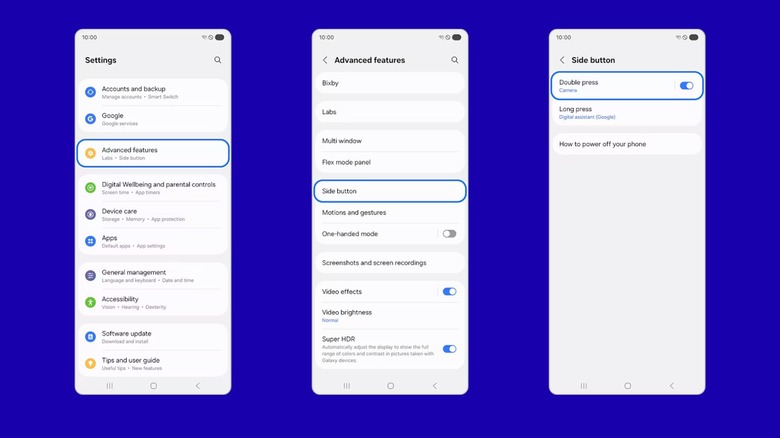
The side key is highly customizable, especially on a Samsung Galaxy phone. Most people never bother changing it, and the most they do is switch it from launching the assistant to opening the power menu. However, you can also assign the side key to launch a specific app or perform a specific task. To tweak the side button settings, head over to Settings > Advanced features > Side button > Double Press.
First, toggle on the Double Press option, and you will see a list of pre-defined apps and functions that you can assign. These include the camera, torch, magnifier, Samsung Notes, Samsung Capture (screenshot), and Modes and Routines, but you can also set it to open any specific app. Pressing the cogwheel icon that appears when using certain options, such as Camera, Samsung Notes, and Samsung capture, lets you customize the option. For instance, pressing the cogwheel icon for Samsung Notes lets you assign a double-press of the side key to open Samsung Notes, paint, record a voice note, type a note, or write with the S-Pen.
Double-press to click a photo, video, or a selfie
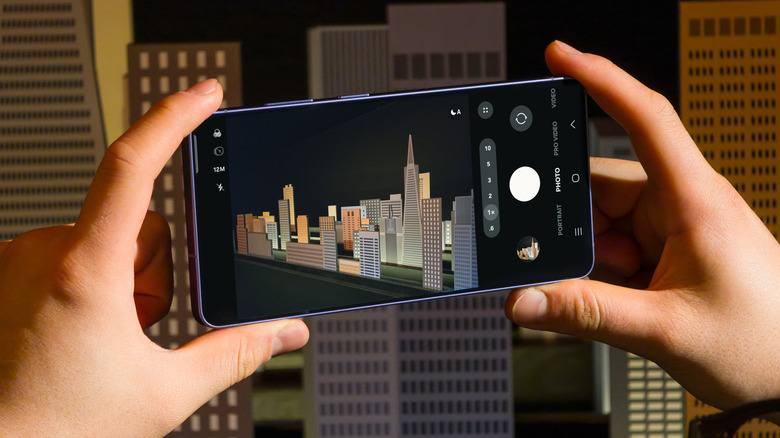
You can set the side key on your phone to open the camera app directly, a feature that Samsung calls Quick Launch Camera. It works even if your screen is locked or if you're using another app. Setting this up takes away the time necessary to unlock your phone, locate the camera app in your app drawer, and opening it. It might take just a few seconds, but a few seconds is all you have when you need to capture a new milestone of a toddler or a funny act of your pet.
Simply head over to Settings > Advanced Features > Side Button > Double Press, and set it to open the Camera app. The best part is that, aside from just launching the camera app, Samsung gives you options to record video, take a portrait, or even take a selfie. This way, if you want to capture a moment instantly, you can double-tap the side button and start recording. I have this set to Start Recording, since I have a toddler at home and I often summon the camera app to capture her cute expressions and first walks.
Inside the Camera app, you can set the volume buttons to take pictures or record video. You can do this by navigating to Camera > Settings > Shooting Methods. This way, you can instantly launch the camera app by double-pressing the side key and quickly start recording or take a photo using the physical volume keys; a perfect setup to never miss an important moment.