

5 Things You May Not Know Your Wi-Fi Router Could Do
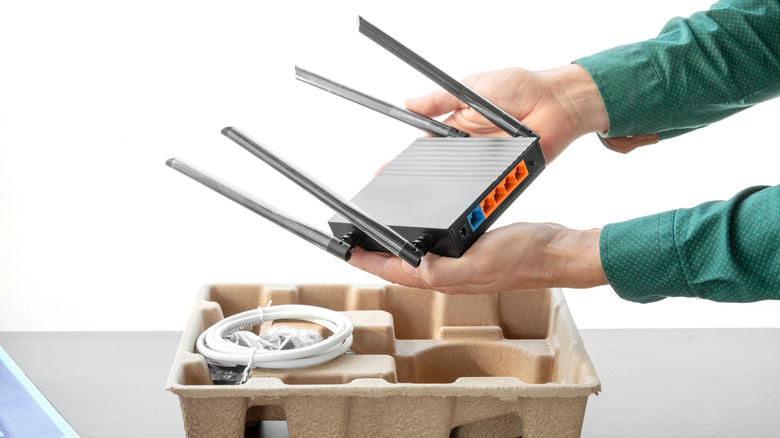
Wi-Fi routers are the kind of electronics that are immensely useful but rarely exciting. Really, the best router you can buy is one that's the easiest to set up. Most consumer-grade Wi-Fi routers offer a similar set of features — dual frequency bands, gigabit connectivity, and enough range to ensure your home doesn't have many dead zones. Enthusiasts can always pick up gaming routers that work on the newest generation of wireless technology, feature tri-band connectivity, and offer multi-gig Ethernet ports, so you can't blame your connection for any missed headshots.
If you've ever ventured into your Wi-Fi router's app or its web interface, you'll know that there's a lot more you can tweak than simply changing your Wi-Fi network's name and password. If your router offers a companion app, installing it on your smartphone is usually the easiest way to manage your network. You can check for any pending firmware updates, manage connected devices, or even remotely restart your router in case you run into internet troubles.
If you're looking to explore deeper, though, here are five things you can set up your Wi-Fi router to do. You should be able to find the appropriate settings within the companion app for your router on your phone, or through its web-based interface on a computer. Depending on your router's model, some of these features may not be available or as straightforward to set up.
Create a guest Wi-Fi network
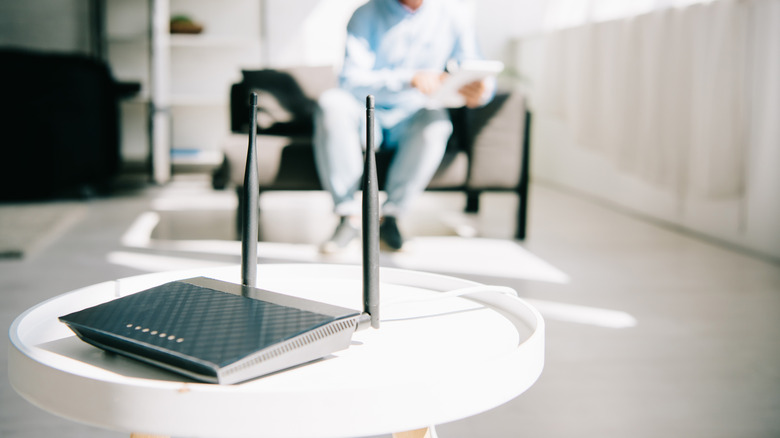
Connecting new devices to a home Wi-Fi network is a one-time process, unless you reset your phone or laptop, or upgrade to a new device. If you're used to having guests over, however, handing over your Wi-Fi password can get tiring very quickly, especially if your password consists of special characters or proper nouns most people aren't familiar with. Older routers often came with a WPS (Wi-Fi Protected Setup) button that let you instantly connect a device without requiring manual password entry. Some newer Wi-Fi systems have ditched WPS over security concerns, but there's still a way to make connecting guests to your network almost as effortless.
A guest network lets you create a separate Wi-Fi network with its own password. Setting one up is relatively simple — just look for an option labeled "Guest Wi-Fi Network" in your router's app. You can pick a custom network name and change its password to something that's easier to share with your guests. No extra setup is required, and your guests can surf the internet through the guest network without joining your main one.
Setting a guest network also has the obvious benefits of privacy. If you don't know your guests well, letting them get online without potentially handing them information about the rest of the devices on your home network is a safer option. If your guest network is properly isolated, it can keep those connected to it from accessing your network storage or controlling any of your smart home devices, like light bulbs or a television.
Set up parental controls

Both Android and iOS offer extensive suites of parental control features that help create a safer browsing experience for kids. Your router, however, may let you enforce many of the same features if you're willing to dig a bit deeper into its settings. You can set up schedules for when your kid's devices can and cannot connect to the internet, block specific URLs, and, depending on the model, even monitor which websites they're visiting. Modern routers that come with companion apps make setting up parental controls easier. You can often also create user profiles, so these restrictions aren't applied universally.
Look for a parental controls or profiles option within your router's app or settings. You can select specific devices on the network to which these restrictions apply. If you're unsure which device belongs to your kid, you can identify it by temporarily disconnecting its Wi-Fi and seeing which device from the list of connected clients in the router's app disappears.
That said, this is not a foolproof method if your child's smartphone or tablet has access to the internet through mobile data. There are plenty of powerful parental control apps and features you can use alongside your router's built-in tools. You are also likely to find more granular details about screen time and app usage through the parental control suite built into Android and iOS devices.
Add a network storage drive
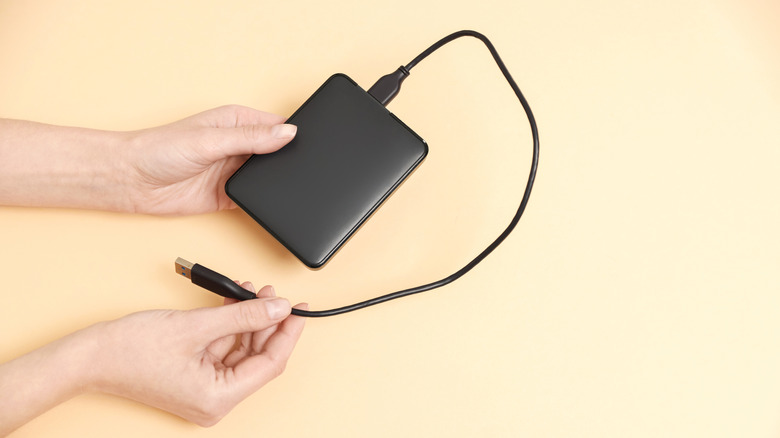
Cloud storage is all the rage these days, but not because people suddenly started to enjoy paying a monthly subscription to store their files online. Sure, it's convenient being able to access your files on any device, but did you know you can do something similar using your Wi-Fi router? Network Attached Storage (NAS) devices are popular among creative professionals or businesses that are looking for their own storage solutions. However, they can get quite expensive, especially if all you're looking for is a way to share smaller files between devices on your home network.
Of all the ways you can use your router's USB port, creating a network storage drive is arguably one of the coolest. All you need is an external hard drive or a flash drive and a router that supports USB file sharing. If you have an older laptop or desktop computer that's no longer in use, you can salvage its internal hard drive and connect it to your router using an appropriate USB enclosure or a SATA-to-USB adapter if the drive can be powered properly.
Once attached, you can configure the drive through your router's settings and enable USB file sharing. You can then access the drive on any device using the file manager and looking for the network storage or shared folders option. Bonus tip: If your router supports printer sharing, you can also use its USB port to turn a wired printer into a wireless one.
Block ads across your home network
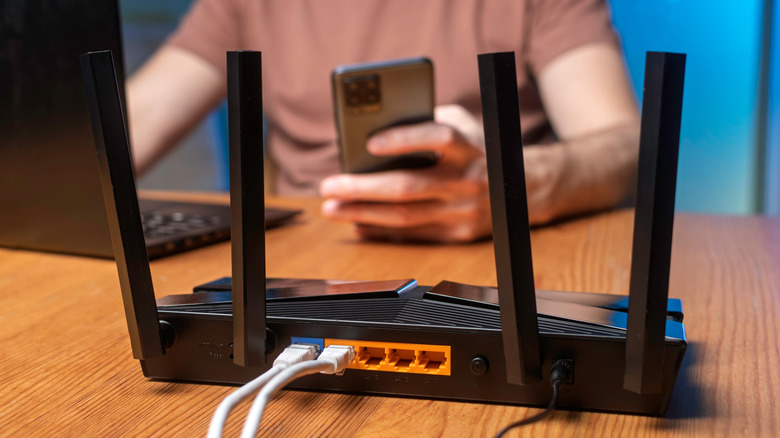
Advertisements are necessary for keeping much of the internet free, but certain services and webpages just take things too far with obtrusive banner ads and pop-ups. You can always use ad-blocking extensions within your browser, but if you're willing to spend just a little more time setting up a network-wide solution instead, you can block ads on a wider range of devices.
To set this up, you will need to log into your router's settings via a browser. Look for DNS server options in your router's internet, WAN, or network settings. It should be configured by default to obtain DNS server addresses automatically, but you're going to want to change this setting by entering a static DNS server address. You can obtain one from your DNS filtering service of choice. Popular ones include AdGuard and NextDNS. Once you've done that, save changes, and your network should restart automatically.
A network-wide block will make sure you don't have to set up an ad blocker extension or service on every device you own. Browser extensions do offer the benefit of being easier to enable or disable in case a website breaks or refuses to load with an ad-blocking service running. There are other reasons you may need an ad blocker. For starters, it eases the strain on your device's computing resources by preventing unnecessary ads and trackers from loading. Ad blockers can also help you save data if you're on a monthly data cap.
Extend your Wi-Fi range
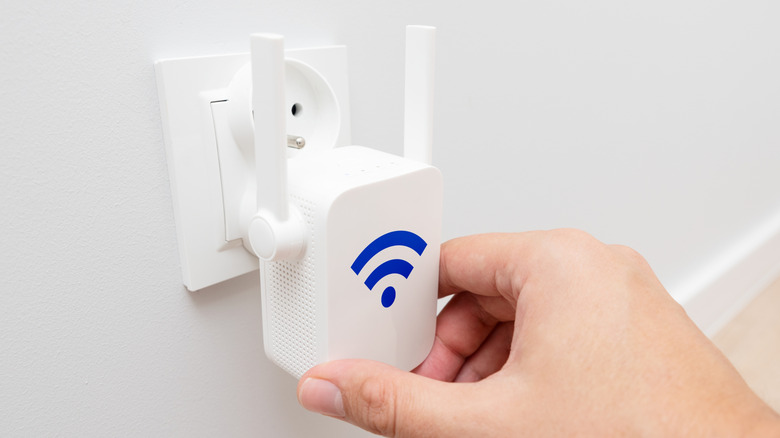
Wi-Fi routers aren't typically products you need to upgrade very often, but eventually, you'll probably want to replace yours to take advantage of newer Wi-Fi standards and features. When that happens, your old router doesn't always have to go completely out of service. You may be able to use it as a wireless repeater to extend your Wi-Fi network's range to areas in your home where the signal may be harder to reach. There are two ways to go about this — you can use the repeater functionality on your old router to extend your network wirelessly, or use an Ethernet cable to connect the two routers and use the older one as an access point.
If you're doing it wirelessly, many routers let you set up repeater mode by first connecting your second router to a computer via an Ethernet cable and heading to its configuration settings via a browser. Here, you should be able to find an option that lets you turn on repeater mode and connect to your primary Wi-Fi network. Then, create a name and password for the extended network and save changes.
If your home already has Ethernet wiring, you can connect the two routers using the Ethernet ports built into your walls. This will turn your old router into an access point that can then broadcast its own network. Access points typically offer much better speeds than wireless repeaters.