

Changing These 4 Settings Will Immediately Make Your iPad Faster
With a worldwide market share of over 50%, according to Statcounter, the iPad is by far the most popular tablet currently available — and it's not difficult to see why. Apple has a healthy lineup of tablets, ranging from the entry-level iPad that we recommend for general use to the fully decked-out iPad Pro, which packs in the same chipset that powers the MacBook. iPads also enjoy inarguably better app compatibility than their Android counterparts.
Though the operating system is still quite restrictive, iPadOS 26 bridges the gap between the iPad and Mac better than ever before. Other perks of owning an iPad include a richer selection of third-party accessories, nice-to-have tidbits like AirDrop and Sidecar, but most importantly, unmatched software support. iPads receive up to seven years of iPadOS updates, which continually bring new features and squash bugs. Since Apple has control over both its hardware and software, iPads also tend to run buttery smooth.
That said, devices age, and slowdowns are inevitable. If your iPad is on its last legs and has stopped receiving software updates from Apple, it's probably a good time to shop for a new one. However, if your iPad is a relatively recent purchase, there may be a few options and system toggles that can help you restore some of that lost performance. We've tested a few of these tweaks firsthand on an old iPad that's actually considered vintage by Apple's standards.
Delete or offload apps that you don't need
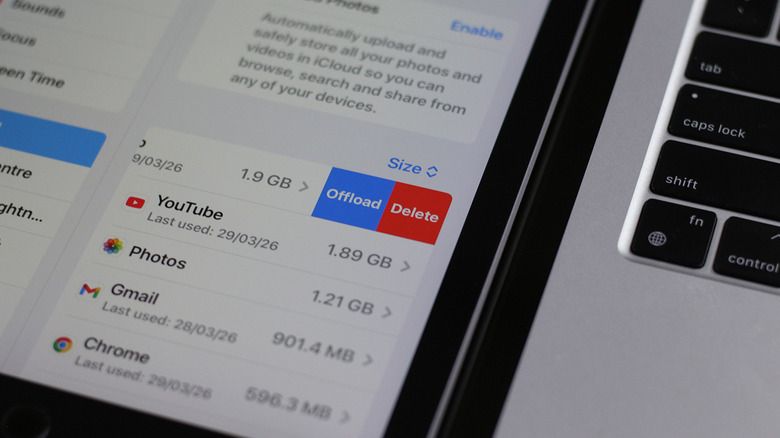
Modern iPad models can be decked out with up to 2TB of space — at that point, you are likely not going to run into storage issues. That said, Apple's baseline iPad starts with 128GB of space, and many models shipped with less just a few years ago — and that's pretty easy to fill up given how large apps and media files have gotten. Apple cites low storage as one of the primary reasons why your iPad might slow down and recommends you maintain at least 1GB of free space for optimal performance.
You'll likely be bombarded with insufficient storage warnings well before that, though, which prevent you from installing software or app updates. The best way to free up some space on your iPad is to uninstall apps or games you no longer need. You can do this from the App Library or by navigating to Settings > General > iPad Storage. Filter by size to quickly view the biggest space hoggers on your device. Swipe left and tap "Delete."
Right next to the "Delete" option, you will also find one labeled "Offload." Selecting this will remove the app but retain all of the data associated with it. When you choose to reinstall the app, you can pick up right where you left off. Offloading an app on your iPhone or iPad is a less aggressive way of freeing up valuable storage.
Disable Background App Refresh
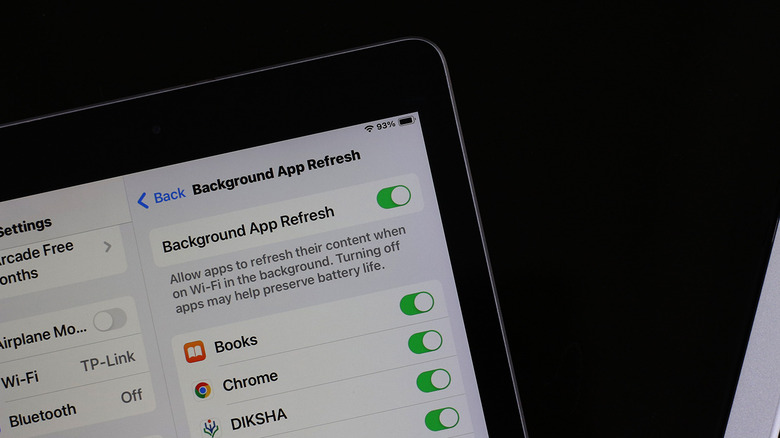
The iPad has an extensive library of apps and games that end up constituting the bulk of your screen time throughout the day, but a good portion of an iPad's time is just the device sitting idle and performing operations in the background. Though modern smartphones and tablets with efficient processors don't drain a lot of battery when not in active use, older iPads may still struggle to keep up with all the background processing. Fortunately, there is a way to pause background activity for apps without offloading or fully uninstalling them.
On your iPad, navigate to Settings > General > Background App Refresh. Here, you will find a list of all installed apps with a toggle next to them. Disabling this toggle will prevent that app from updating its content in the background. Find and disable this option for every app that you don't require to run when it's not active. Now that your iPad's resources aren't constantly being used by other apps, you can expect a slight improvement in performance. Consequently, you will also end up consuming less internet data.
In our testing, turning off Background App Refresh for apps didn't seem to affect time-sensitive notifications. However, apps that largely perform their backup and restore operations in the background, like Google Photos, may act funny with the restriction enabled. News aggregation services may also fail to preload stories in time when you launch the app.
Switch to a 5GHz network

It's worth figuring out whether your iPad is struggling with performance due to actual system slowdowns or simply due to a slow internet connection. If apps don't take long to load or you don't notice visible lag or stutters when interacting with the UI, your iPad is probably performing just fine. In this case, the perceived sluggishness might be due to the slow loading of content like videos or websites, and if this is true, your network could be the bottleneck. Try running an internet speed test on your iPad and a different device connected to the same network. If both devices report poor speeds, you'll have better luck troubleshooting your network setup.
However, if your iPad is the only device showing poor performance, there is a quick check you can do that relates to your iPad's network settings. Ensure you're connected to the faster frequency band available on your router. Modern routers handle band steering automatically, but some models require you to connect to the 5GHz network manually.
Navigate to Settings > Wi-Fi, and ensure you're connected to the network that features the 5GHz band. Alternatively, if you're already connected to it, try switching to the SSID that corresponds to the 2.4GHz band, which can sometimes offer a more stable connection over long distances. If you have any pending software updates, we recommend installing them by navigating to Settings > General > Software Update. These can sometimes resolve connectivity issues when all else fails.
Other tweaks to speed up your iPad

When running low on juice, the built-in power saver mode on iPhones and iPads can extend battery life noticeably. It does so by temporarily reducing background activity, lowering screen brightness, and most importantly, limiting performance. On iPads with ProMotion displays, this also means dropping the screen's refresh rate to well under 60Hz. This is immediately noticeable and is what contributes to the stuttery experience. Disable Low Power Mode on iPad if you don't need it by navigating to Settings > Battery.
Apple devices with significantly depleted batteries will also automatically lower performance to prevent unexpected shutdowns. You can check your iPad's battery health, and if it has dipped below 80%, a battery replacement will bring back lost performance. If you navigate to Settings > Accessibility > Motion and tap to disable the "Reduce Motion" toggle, you can get rid of most animations within iPadOS. Though this doesn't directly improve performance, it can make the interface seem snappier, especially if the animations on your iPad feel sluggish.
If you barely use any of the Apple Intelligence features on your iPad, we don't blame you — they're pretty underwhelming. However, the service still uses a fair bit of your iPad's processing power, so turning it off may improve overall performance and battery life. Navigate to Settings > Apple Intelligence & Siri, and flick the "Apple Intelligence" toggle off.