

4 iPadOS Widgets You Should Add ASAP
The iPad is an insanely powerful device, and if you are using one with a keyboard, it turns into an entirely different beast. Now, despite the Mac-like enhancements that arrived with iPadOS 26, Apple's tablet is no replacement for a Mac. But if your workflow can be handled across the mobile environment of iPadOS, the tablet will offer an extremely rewarding experience. I've been using an iPad Pro as my key computing device ever since the M1 generation landed, and as of today, the M5 iPad Pro is serving me even better. But beyond all the flashy new features and professional-grade apps, there's a simple built-in system that a lot of users often ignore. I'm talking about the humble widget.
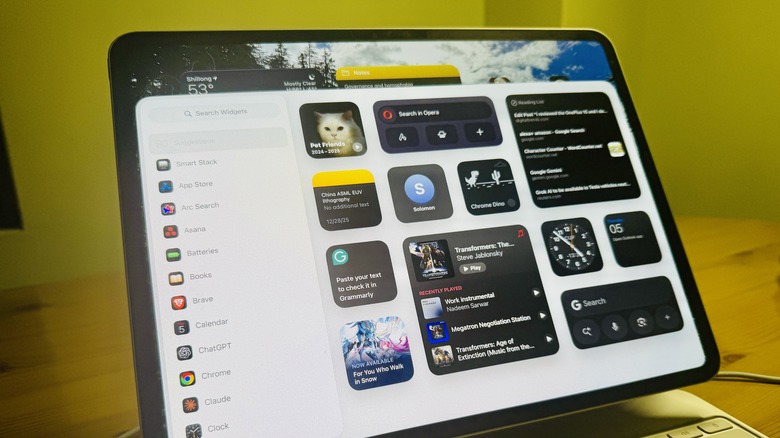
Think of it as an extended version of an app that looks like an enlarged app icon. The core idea behind a widget is that it shows you important information from within the app, or real-time updates, without even opening the app. Widgets are customizable in size, and you can freely position them on your iPad's Home Screen, as well as the lock screen and Today View. Depending on the app at hand, you can pick between five different sizes of widgets, each containing more (or less) glanceable information.
But the idea behind widgets is to show meaningful content but also offer one-tap access to in-app actions. I use them on my iPad regularly, and these are the widgets that I will highly recommend. I have used widgets for years, and leaned into them extensively when iPadOS 17 added support for interactive widgets in 2023. Reminders, music playback control, and news are an obvious choice. But the widgets I've picked have helped me with my core workflow, health, device care, and tap into the power of generative AI.
Apple Notes
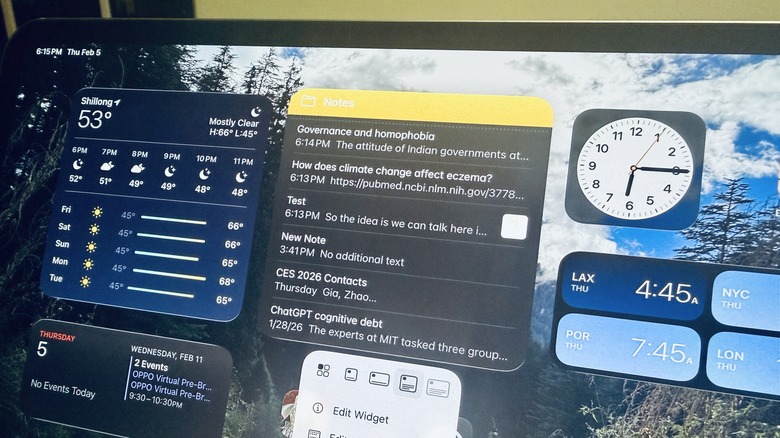
Apple Notes is not the most fleshed-out note-taking app out there, but it's the sheer convenience aspect that makes it a central part of the Apple ecosystem. From quick work notes to grocery lists, Apple Notes is my gateway to saving information on short notice. When it comes to dictating it on the Apple Watch or saving a few links on my iPhone on a subway train, Apple's app is where I go. That's because whatever I save in the app, I can seamlessly access it on all my Apple devices with cloud sync, including the iPad.
As you can see in the image above, I enabled the Notes widget with the biggest scaling possible. In this view, I can take a look at the six most recent Notes projects that I worked on. With a single tap (or click), I can open any of them directly without having to open the app, sift through the folders, quick notes, voice notes, and more. For my work, I also collaborate with reporters on shared projects. Thanks to the dynamic widgets, if there's any ongoing contribution, that particular notes page will automatically appear at the top of the list in the widget.
Alternatively, the Notes widget lets you skip the queue and focus only on a specific folder. For example, you can customize the Notes widget to show entries only from a specific folder. I have plenty of folders where I have saved academic material for my food science curriculum, passion projects, and reading material. Depending on my focus, I simply switch the widget's view to show only a specific folder so I can quickly dive back into the recent work. I wish Apple could somehow integrate Apple Intelligence within the Notes widget so that a long press can help launch AI-driven features.
Waterllama
I spend nearly eight hours each day in front of a desk and then pour in more hours of screen exposure for coursework and streaming. Needless to say, I sit (read: slouch) in the same position for an extended spell, and working across an entirely different time zone has also meant my dietary timings are in disarray. But staying hydrated is what I often miss, as do many desk warriors. That's where Waterllama comes into the picture. A winner of the 2022 App Store Awards, this one is a water tracking app that is loaded with plenty of features, in-app events, custom beverage options, and more.
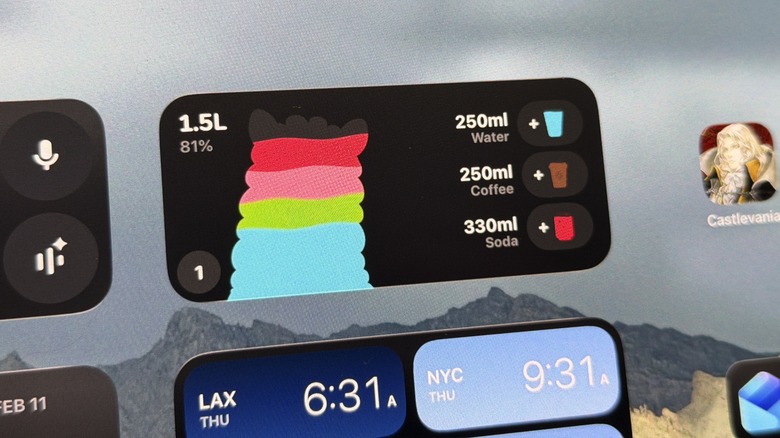
Even though it can send you timely reminders to sip some liquid and reach your target, what works best is the widget. The medium-sized widget for Waterllama shows the daily intake of three drinks alongside your water intake progress for the day in terms of volume and percentage figure. You can customize the widget and drink icon colors, change the three highlight beverages based on your consumption patterns, and enable a streak badge as well to keep you motivated. The best part is that the Waterllama widget syncs well with your Apple Watch, too.
With the widget always visible on the home page, you have an instant view of the daily hydration progress. If you are someone who is trying to grow a habit of consuming healthy drinks such as green tea, smoothies, or detox juices, the Waterllama widget is the most convenient route to maintaining the liquid intake routine. Additionally, the app has an extensive variety of drinks listed, each with its scientifically calculated water concentration. It also supports Apple Health Sync and iCloud support, in case you're wondering.
Batteries
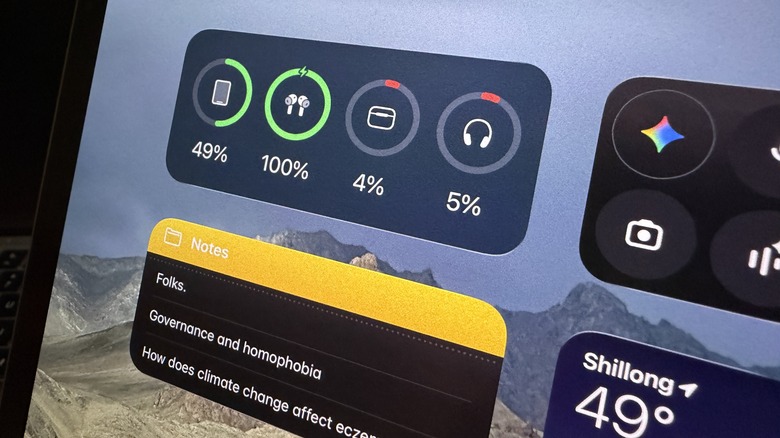
This one might sound like a relatively simple addition to the list, but it's actually a lifesaver. The built-in Batteries widget has three levels of size adjustments, and aside from showing the battery percentage of the iPad, it also shows the battery level of all the connected devices. So, whether it's your audio gear, stylus, mouse, gaming controller, or keyboard, you can keep an eye on their battery level without having to dig within a third-party app or venturing deep into the Settings app. Moreover, if you own a pair of AirPods, the widget shows the battery life of individual earbuds (left and right), alongside an estimation of the juice left in the charging case.
The widget has saved the day on countless occasions for me. I don't charge my devices by a religious schedule, and as a result, I often lose track of how much battery life is left in the peripherals. This lackadaisical approach has often landed me in situations where the earbuds ran out of power midway through work, or the stylus drained completely without any visible warning. Thanks to the batteries widget, all I need to do is ensure that the peripherals are connected over Bluetooth to the iPad and see the power levels for each device separately.
When the widget is set up in the default condensed view, the battery life of connected devices is only depicted as rings with green and red colors, similar to the activity rings on an Apple Watch. In the medium expanded view, you also see the percentage points, while the card view also shows the name of each device to avoid any confusion. For power users who push the iPad as a computing device and connect a lot of wireless peripherals, the Batteries widget is a must.
Gemini
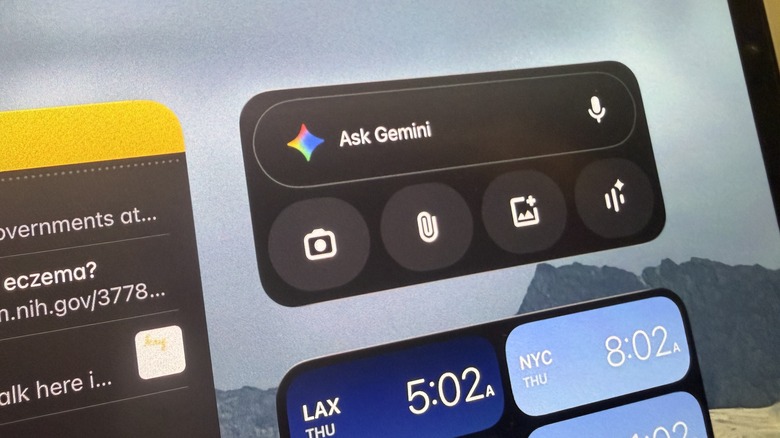
It's no secret that Siri missed the digital assistant revolution by a wide margin, while the likes of Gemini and ChatGPT made a huge leap. A controversial Siri rebirth is right around the corner, but it's hard to imagine that Apple will be able to eclipse Gemini in one fell swoop. Meanwhile, the Gemini app itself has transformed into a hub of numerous features that I use daily. And that's where the Gemini widget races ahead of the app experience by offering quick access to three of its best features.
The first in line is file analysis, and I rely on this tool extensively, especially when I am dealing with the proverbial "needle in a haystack" situation to find a specific nugget of information in massive research papers or documents. Gemini makes it far easier to find the right information, thanks to its expanded context window, instead of going on a wild goose chase with word matches or reading the whole file. Then we have the image and world understanding chops.
With a single tap on the Gemini widget's photo icon, it launches the photo picker where you can select any locally stored image and have the Nano Banana Pro engine modify it. On the other hand, if you tap on the camera icon, Gemini will open the camera view, where you can take a quick snapshot of whatever's in your view. From translation to doling out additional information, Gemini can do it all. Finally, we have the Live Chat mode, where Gemini takes a hyper-realistic route and offers an eerily human-like conversation experience. In this mode, you can share the camera or the on-screen activity, and have Gemini assist you in real-time. It's pretty surreal to witness this mode in action.