

Got A New iPad For Christmas? Here Are 5 Things You Need To Know
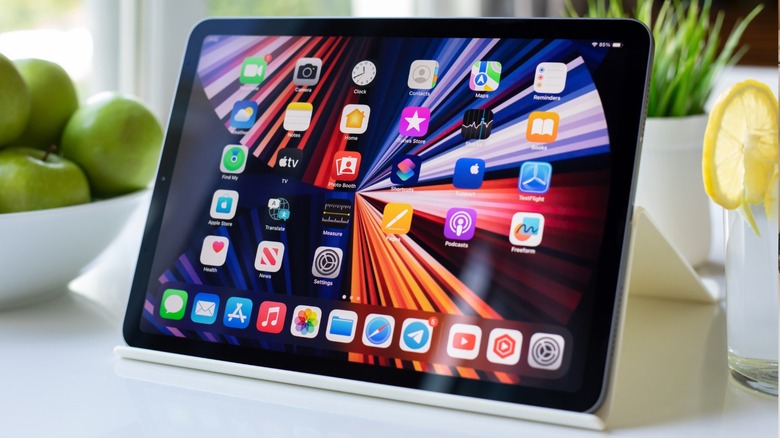
Forget socks, perfumes, and bottles of liquor, because gadgets should be at the top of your Christmas list. It's a little late to make changes to it now, but for those who did let their loved ones know that something techy was high up on their list of wants, you're probably spending some time getting used to them right now.
If you were lucky enough to have been gifted an iPad over the Christmas holiday, or perhaps you just treated yourself to one during the January sales, then you've probably already wrapped your head around the basic functions of the tablet. Scrolling social feeds, taking festive pics, and blissfully wasting hours away on your favorite apps take little time getting accustomed to, but some of the iPad's more impressive features might still be hidden from you. That's why we've put this handy article together, just to highlight some features of the later iPad generations to help you make the most of your new acquisition.
Furthermore, while everything is shiny and new right now, those of us who have had iPads for years will know that time and regular use do begin to take their toll on the tablet, so we've included some useful maintenance tips and tricks as well.
First things first, what iPad do you have?
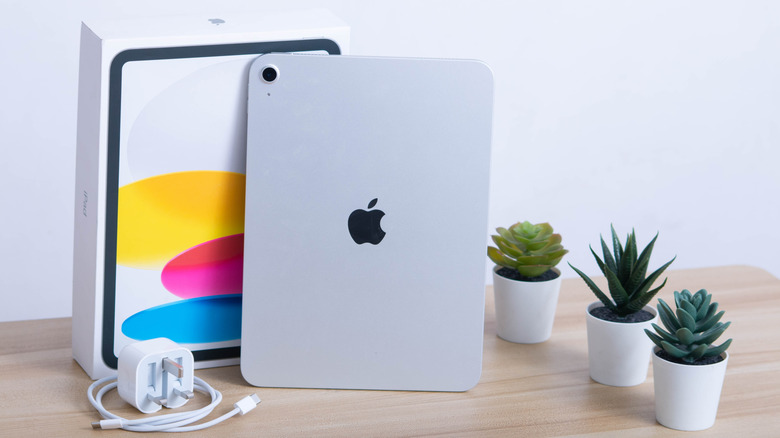
You've torn off the wrapping paper, opened the box, and peeled the protective film off in a matter of just a few excited seconds — an iPad, what a great gift to receive. Now, a couple of weeks after cramming that box into a forgotten drawer somewhere, you're beginning to wonder: What iPad do you have exactly?
Apple currently sells four different styles of iPad. The most accessible is the standard iPad, offered at $349, and it's perfect for everyday light use. Think social scrolling, recipe searching, and checking your emails. Next up, we find the iPad Mini, priced at $499. It might seem odd that the Mini is more expensive, but it does sport an impressive processor and higher quality screen, in addition to the benefit of being easier to stash while out and about.
For $100 extra, we find the iPad Air, which boasts a better chip (M3), anti-reflective coating, and P3 wide color, for a more vivid experience. It's a great middle ground, before stepping up to the flagship iPad Pro, which Apple pegs as the ultimate in iPad technology, crammed full of advanced technology. It carries an M5 chip, ProMotion technology for a smooth and responsive user experience, plus four studio-quality speakers. You also receive all the same benefits as the lesser models, such as a 12MP camera, 4K video, and an 11-inch screen.
To find out exactly which iPad model you have, just go to Settings, General, then About — here you'll find model and part numbers, which you can search on Apple's website to clarify exactly which model you have in your hands – they have a handy list of every model number released to help you pinpoint it exactly.
Your iPad might bend -- here's how to prevent it
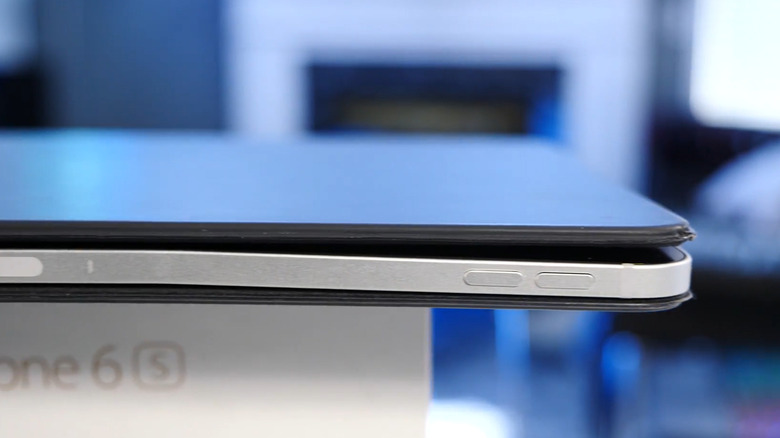
There are plenty of rumors circulating about a foldable iPhone, and that would be pretty cool, but a bendable iPad is not something you want to come across. Unfortunately, though, iPads can bend, and it's a pretty common occurrence. The reasons why this might happen are plentiful. For instance, if you use your iPad on the couch or in bed, it can be quite easy to accidentally sit or lie on it. The same goes for if you carry it around in a backpack, as books and other items can easily bang it about. Ultimately, uneven pressure is what causes it to bend, but it might not always be down to user error. Battery swelling over time might also cause the iPad to bend, which is tricky to sort out and requires sending it off for repairs.
However, user error and general wear and tear are the more likely culprits, and fortunately, this can be helped with ease. You'll want to get a good quality, sturdy case to protect your iPad, and while you're at it, a good screen protector might help too — especially if you're particularly clumsy with phones and other such gadgets. OtterBox produces particularly sturdy cases for various generations of the iPad, with a multi-layer defense, a built-in screen protector, port covers to block debris, and a whole host of more practical features, too. It's currently priced at around $100, although sales do come and go.
Take care of your charging ports
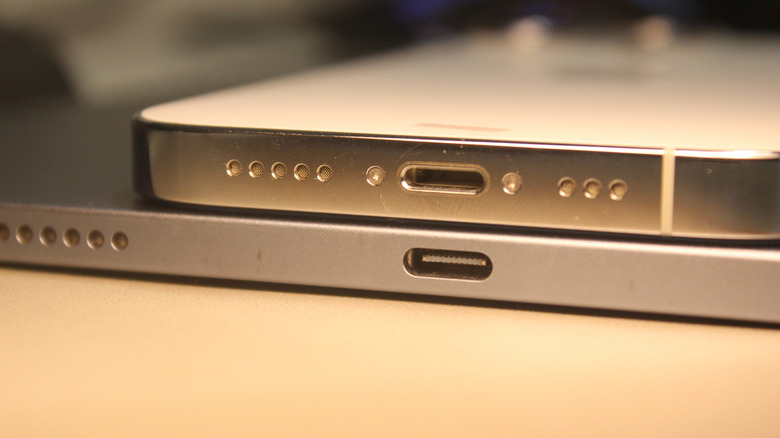
This advice isn't just for new iPad owners, but instead it goes out to owners of anything with an Apple logo on the back — you need to pay close attention to the condition and state of your charging ports. There is nothing more frustrating than plugging your iPhone or iPad in — quite often pieces of tech that we depend on daily to complete work, or keep in touch with family — only to realize that they aren't charging.
You might start by bending the cable into bizarre angles to get that just right positioning, but the chances are this will only work for so long, so you might as well just sort it out properly. Dust and debris can easily clog that port, and if you poke and prod at it with, well, whatever will fit, you stand a good chance of permanently damaging the connections inside. Then, even though the dust is out, the bent connections will likely give you even more charging headaches.
Instead, learn how to clean your iPad and iPhone charging ports correctly. It's best to get something fairly soft, like a toothpick, to minimize damage. And consider lighting too; shining a flashlight onto the port as you insert the toothpick will help you to accurately get at the debris, instead of blindly poking around in there. You can also use a soft and dry, lint-free cloth to clean the actual cable as well, to reduce the chance of inserting dust and debris this way. Once again, though, we'd be recommending a case with port covers as a solid answer to your charging port woes.
Sharing with your family? Set your iPad up accordingly
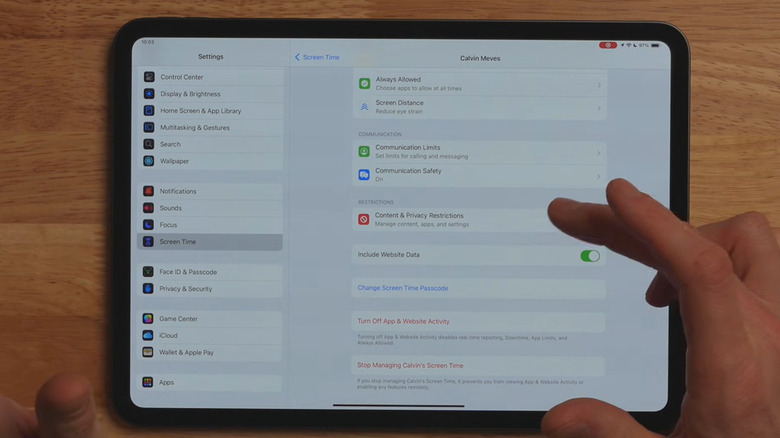
You might have been the one whose name was on the present, but more often than not, tablets and other such gadgets quickly become family items. You can choose to keep it somewhere safe, out of the reach of children, but if you'd prefer to share it with young ones, then it's best to take some precautionary steps first before handing it out.
Using Apple's Family Sharing feature, you can set up an account for your child that's well-tailored for their specific age group. There are three options to choose from: Child (12 and younger), Teen (13 to 17), and Adult, which is 18+. From here, you can then create their own Apple account, which keeps them out of yours, too, meaning any private or work documents of yours will be safe from their meddling.
Before handing it over, take a look at the parental controls available to you. They include useful features like screen time limitations, screen distance reminders, and safety features, too, which work to protect users from seeing explicit images. These iPad tricks help parents to keep in control, allowing you to ensure your child's iPad use is safe without crowding over them, stopping what you're doing, and annoying them, too. It also crucially means that they won't be fiddling around with your personal apps and documents. Just remember to keep your passcode updated for extra security if this is a particular concern.
Your iPad makes for a cool second monitor
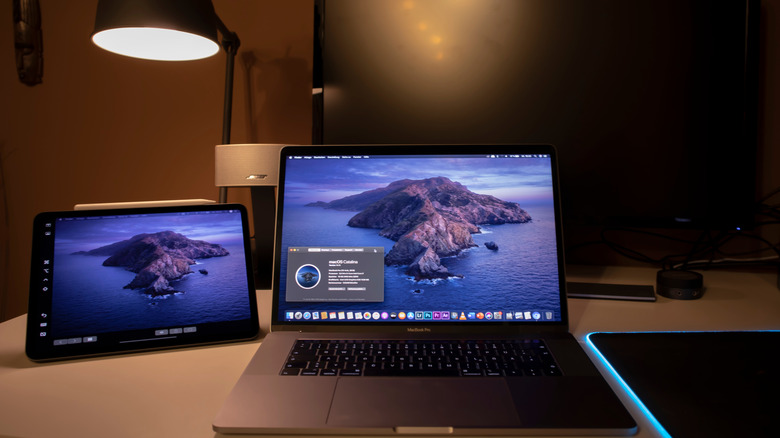
Did you know that the iPad can also double up as a second monitor for your Mac computer? This isn't a feature for everyone, of course, as you'll need to get your hands on a Mac to actually experience it, but for Apple lovers who do have various products from the brand, it's a really cool feature that isn't widely publicized.
The feature itself is called Sidecar, and as with most Apple apps and features, it's really quite easy to use and understand. Furthermore, you can simply plug the iPad into the Mac to keep it charged up while in use, which is especially useful for longer work days when the iPad's battery life might suffer. You will need to ensure you meet the Sidecar requirements, such as ensuring both devices are signed into the same Apple account, and that the generation of Mac and iPad you have both support the system, but that's about it before you can get started.
You can simply choose for open windows to be 'moved to iPad,' or just drag the windows to and from as you please. The iPad can also be configured to mirror the Mac's screen, so it's very versatile and configurable to exactly what you need. What's cool as well is that, not only can you type away on your Mac as you typically would, but you can do the same on your iPad at the same time, using a tablet-compatible keyboard, such as the Smart or Magic Keyboard, or any of the top-rated iPad-compatible keyboards.