

6 CarPlay Settings That Are Messing With Your Experience
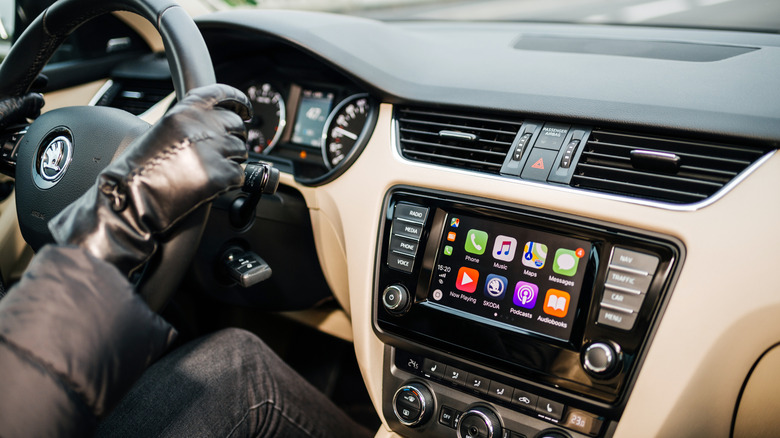
Driving can sometimes be stressful, and Apple's CarPlay is intended to reduce that stress, rather than add to it. So, if you find that there are niggling annoyances in your CarPlay setup, then it's time to do something about it. The good news is that CarPlay is really quite customizable once you get into the settings and start turning things on and off. CarPlay was first introduced in 2014, and there have been many tweaks and refinements since then, including Apple's release of iOS 26 in September 2025, which introduced several new CarPlay features – including the option to add widgets – and even better customization options.
You can't change everything, however, and in many cases that's deliberate. Apple avoids letting you do anything in CarPlay that might be considered dangerous, like having bright lights inside the car when it's dark outside, or playing videos while the car is in motion. The settings we suggest changing aren't necessarily bad features, but different drivers have different requirements. What works for one person — like Siri interrupting your carefully curated drivetime playlist to tell you something — might be a total nightmare for someone else. Some settings can be changed directly on your CarPlay screen, but others need to be accessed via your iPhone. We'll cover both types here and let you know what needs to be accessed where.
Allowing phone calls and text messages to distract you
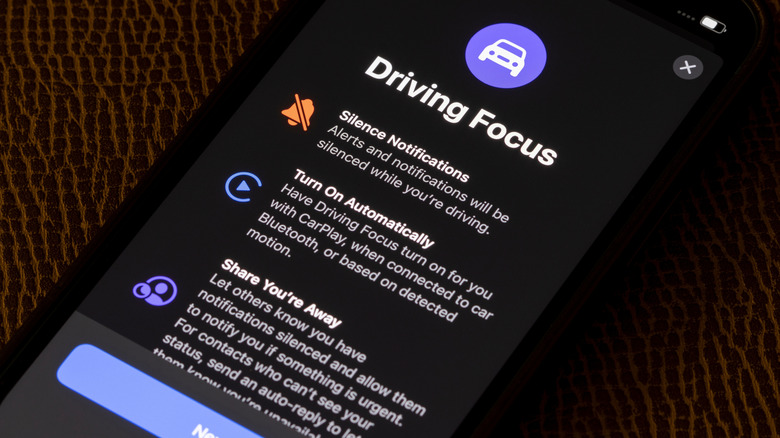
One of the most important parts of road safety is not getting distracted when driving. Hooking your car up to everything that's going on on your iPhone can be very distracting indeed. This is why Apple has included a Driving Focus setting in iOS 15 and later, which prevents you being bombarded with text messages and phone calls when you're driving.
To set up Driving Focus, go to Settings on your iPhone, tap Focus, and select Driving Focus. Select the Activate With CarPlay option so it will start working as soon as your iPhone is connected to CarPlay. You can opt to receive no messages at all or choose a limited number of contacts who can still contact you. Alternatively, you can choose to receive messages from everyone apart from some nominated contacts.
There's also the option to allow repeated calls. This means if someone phones you twice within a few minutes, the call will go through, in case someone is trying to get hold of you in an emergency. You can also set up an automatic message to respond to texts when you're using Driving Focus, so you can tell them that you're driving and you'll look at their message later. This can be overridden if the other person types "urgent".
Using default appearance settings when these aren't the best option for you
Default options exist because CarPlay has to do something right out the box. But that shouldn't mean you're wedded to those options forever. For the best experience, you want your appearance settings to make things clear and easy to use. You don't want anything that you find irritating or stressful because that's a big distraction when you're driving.
Dark and light mode settings, for instance, are customizable. And while dark mode is the only option for nighttime lighting to ensure visibility, whether you want your screen dark or light during daytime driving is a matter of personal choice. You can choose between "Automatic" and "Always Dark" directly on the CarPlay screen by selecting Settings, tapping on Appearance, and selecting the option that's right for you. You can also choose whether you want dark or light settings for app icons by going to Settings, Appearance, and Customize Icons. There's also a clear option for a glass effect. Also in Appearance, there's an option to change the wallpaper – although the selection here is pretty limited.
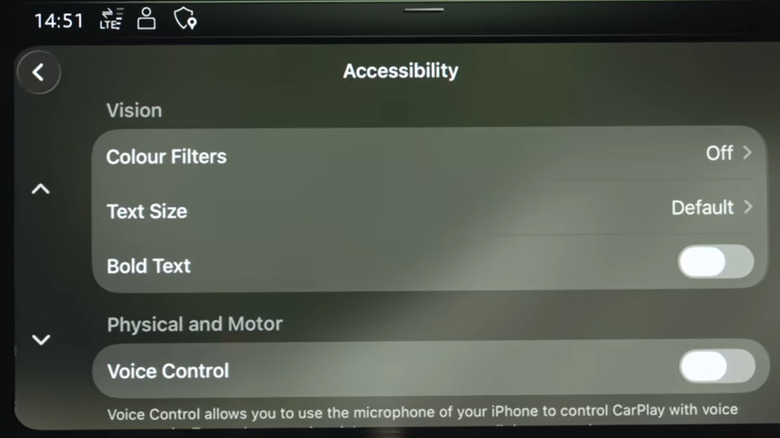
You can also change the screen's appearance using accessibility settings. Again, go to settings on your CarPlay screen, select Accessibility, and you'll see the option to turn on color filters. You can set your screen to display in grayscale, or choose from red/green, green/red, and blue/yellow filters. These options are a game-changer if you're color blind, of course, but they're also beneficial to anyone who finds it easier to process what's on the screen when it's set to a specific filter. You can further customize it by setting the color filter's intensity to low, medium, or high.
Swiping through screens to get to your most used apps

A CarPlay screen can only display a set number of app icons at one time. So, if the screen's limited to ten icons, and you've got 30 apps, then you'll need to swipe several times to see all of them. If your most frequently used apps are on page three, that will get annoying pretty quickly. By default, they appear in alphabetical order, but it's easy to display your apps in whatever order you want. On your iPhone, go to Settings, then CarPlay, and select Home Screen Icons.
You can rearrange apps by dragging them up or down the list. Check how many apps your car screen displays per page, and if, for example, it's ten, ensure that the apps you use most are the first ten on the list. You can remove apps that you don't want to see on your CarPlay screen. This doesn't remove them from your phone, it just stops your CarPlay screen from being cluttered with apps that you're never going to use in the car. Some apps like Phone, Music, Maps, and Messages can't be removed. All the apps you've removed appear on a different list on your phone's Home Screen Icons screen, so you can easily add them back in, if you change your mind.
CarPlay reading out your text messages to everyone in the car

CarPlay is designed to give users a hands-free iPhone experience while they're driving. And this means a lot of talking to Siri and a lot of Siri talking to you. The Announce Messages setting might be handy if you're driving alone for a long distance. You can hear messages people have texted to you without needing to take your eyes off the road. But if you leave the Announce Messages setting on all the time, there are going to be times when it would be distracting or even embarrassing. There are likely going to be some messages from your friends or partner that you definitely don't want your kids to hear.
And while having your messages read to you is less distracting than trying to read them off a screen, it's still more distraction than not having them at all. For short journeys and during more difficult driving conditions, like in stormy weather, you might want to disable Siri's announcements. You can ensure that Announce Messages isn't permanently set to activate by going to the settings on your CarPlay screen and toggling it to "off". If you want to check whether Announce Notifications are turned on at any time, you can glance at the top left of your screen, near the battery icon, where a small bell icon is displayed when it's activated.
Getting suggestions on screen that you don't want
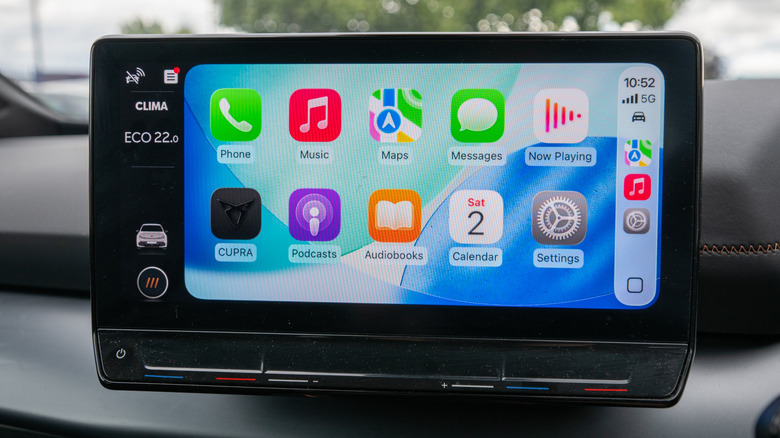
Apple CarPlay wants to be helpful. It wants to help you get to your next meeting or save you time opening your garage door. And that's what the Suggestions feature is all about. It's part of Siri, and uses your routines and app usage to figure out what information and tools you need and displays it on your dashboard. These suggestions can include things like driving to your next calendar appointment, interacting with smart home tech, or showing frequently used apps and actions.
But it turns out that lots of people don't want to have things popping up on the screen while they're driving. Again, it's all about avoiding distractions, and if you're finding the Suggestions feature is taking your attention from the road, then there's something you can do about it. You can turn it off by tapping the Settings icon on your CarPlay screen, then deactivating Suggestions in CarPlay by tapping the toggle.
Letting CarPlay decide how best to format the display
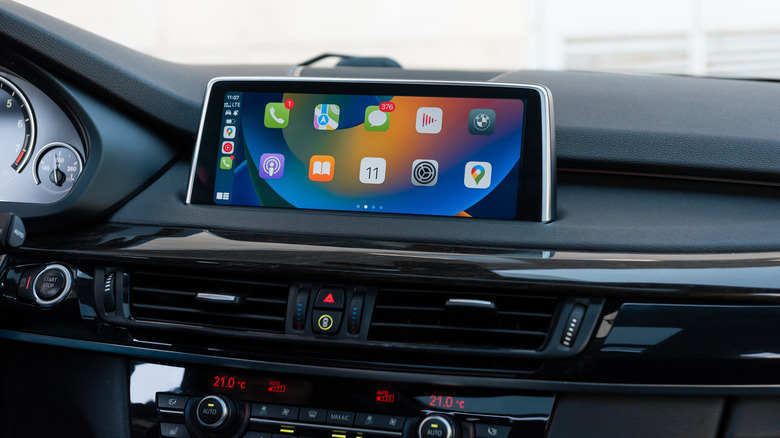
One of the upgrades that came with iOS 26 was the Smart Display Zoom feature. This setting automatically adjusts what's on the screen based on different car screen sizes and resolutions, and optimizes it for your specific car's screen. The idea is that it will display a layout that makes the most use of the screen space, which can make app icons appear smaller and allow for more apps to be visible at once.
Although it's intended to make the display look better and more consistent across various vehicles, not everyone is happy leaving it to CarPlay to decide. If you have a car with a really massive screen, then you might see the benefits of fitting more on there, but many users find that it makes fonts too small to read. It's turned on by default, so you're probably using this setting without realizing it. If you've been thinking that everything looks annoyingly small, then try turning Smart Display Zoom off and see if that suits you better. You can do this by going to Settings on CarPlay, selecting Display, and toggling it off.