

Here's What The Star Button On Your Roku Remote Is Actually For
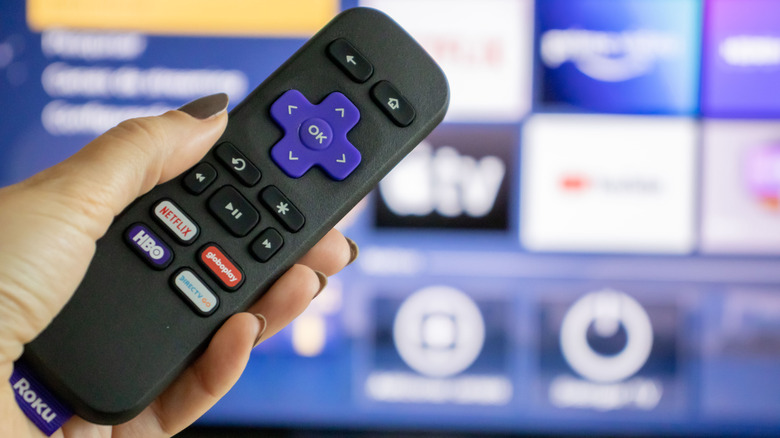
If you're in the market for a media-streaming player, one of the brands that you should be considering is Roku. Apart from a user interface that's beginner-friendly, it's got plenty of hidden features that make it a versatile device, such as the ability to simultaneously search for show and movie titles across various streaming platforms or even play games. There are also different types of Roku devices, and most of them are portable. Of course, they all include a Roku remote.
There are three types of Roku remotes, and the more advanced versions will have additional buttons and functionality. However, all three types will have several buttons in common: the Home and back buttons, the directional pad, the playback buttons, and the star button, depicted with an asterisk icon.
What does the star button on the Roku remote do? When you press it while you're on the Roku home screen, it allows users to access additional information or menu options, depending on where the directional pad's position indicator is aimed at when the button is pressed. You should be able to use the star button on a number of things, like elements on the sidebar menu, apps or channels, or even ads that appear on the right side of the main screen. You can also use the star button during video playback on certain apps while they're in full-screen view. In most cases, hitting the star button a second time should close whatever pop-up screen it launched.
First, the new Roku home screen
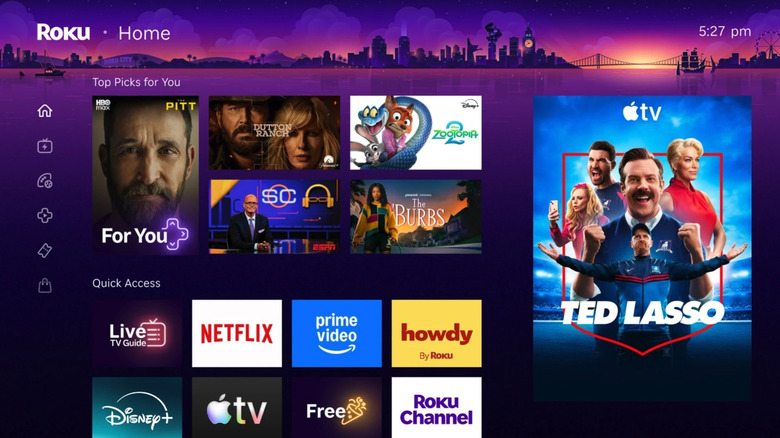
The Roku home screen is divided into three panels: the left panel where the sidebar menu is located, the right panel where ads usually appear, and the middle of the page or the main feed where you'll find all your installed apps and the content you can access.
The Roku main feed recently went through a redesign that prioritizes recommendations based on your viewing history. It's now divided into different sub-sections. "Top Picks For You" and "Your Next Watch" are both a mix of apps, channels, and content from various streaming services. "Quick Access" is where your favorite or most used apps should go. "What Are You In The Mood For?" lets you browse videos according to genres and type of content. "The Best Across Your Streaming Services" or content hubs classify watchable content into different categories. "Jump To" is a collection of shortcuts to common Roku device actions. Finally, "Your Apps" is where all your installed streaming services should be.
Despite the layout changes, you should still be able to customize your Roku device by changing your home screen theme, which includes its wallpaper, screensaver, and app grid organization. You should also be able to use the star button on all the sections of the revamped Roku home screen.
Using the Roku remote's star button on the Roku home screen
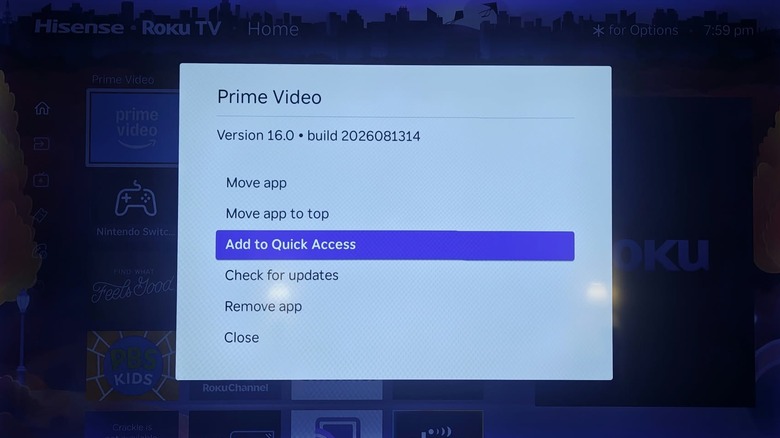
Hitting the Roku remote's star button while the directional pad's position indicator is on an app, shortcut, or content category found in various sub-sections of the main feed will let you add your selection to the Quick Access section, which is a fairly new way to get the most out of your Roku device. The Quick Access area is for apps and other elements you want to be able to quickly find and launch without scrolling through the main feed, which can get tedious if you have a lot of items installed. Hitting the Roku remote's star button while any Quick Access item is highlighted will let you remove your selection from Quick Access.
Meanwhile, if you hit the star button while a channel is selected, you'll be prompted to add it to "Favorite Channels." When a show or movie is highlighted, you'll be able to add it to your "Save List," mark it as watched, or choose whether or not you like it. The latter should affect future recommendations that appear in the main feed the more you use the feature.
As previously mentioned, when an app is selected as you tap the star button on your Roku remote, it lets you add it to Quick Access. If an app is specifically highlighted while under the "Your Apps" sub-section of the main feed, you get additional action options such as moving the app position on your Roku home screen, checking for app updates, or removing the app from your Roku device.
What happens when you launch a Roku app and hit the star button on the remote
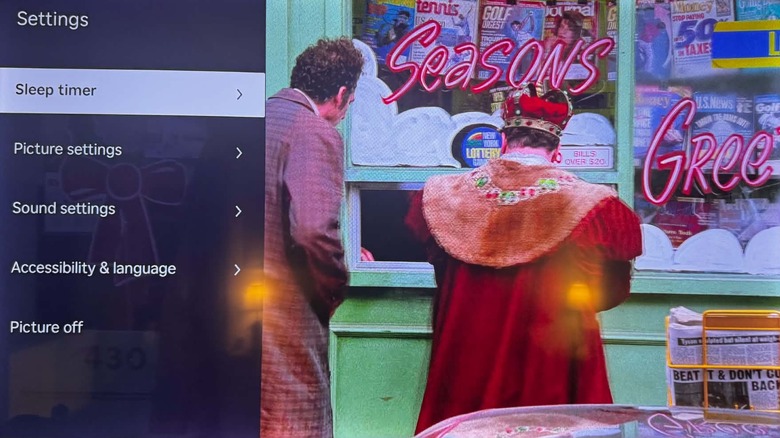
Simply put, the Roku remote's star button primarily launches an option menu of sorts. The same is true when you hit it while you have something playing onscreen. Based on testing some streaming apps on Roku — namely Apple TV+, Disney+, Netflix, YouTube, and HBO Max — when you press the star button while the login page, home page, or even while a show or movie is playing on the screen, it pulls up the Roku sidebar menu that contains pertinent preferences, mainly "Picture Settings" for tweaking display brightness and picking different display modes; "Sound Settings" to select from a variety of audio presets to match what you're watching, and "Accessibility & Language," where you can customize the preferences for Roku's built-in screen reader for visually impaired users.
The Accessibility & Language sub-menu is where you'll find a setting for the screen reader shortcut, which may be enabled by default. This lets you quickly turn the Roku screen reader on or off whenever the star button is pressed four times in quick succession. Other options listed in the Roku sidebar menu include a sleep timer and a way to turn off display.
Do note that for some streaming services, using the Roku remote star button in other ways may trigger special actions. For instance, based on testing, if you try long-pressing the star button on a show or movie tile that appears on the HBO Max app home page, it'll allow you to add your selection to "My List."
Other things you can do with the Roku remote star button
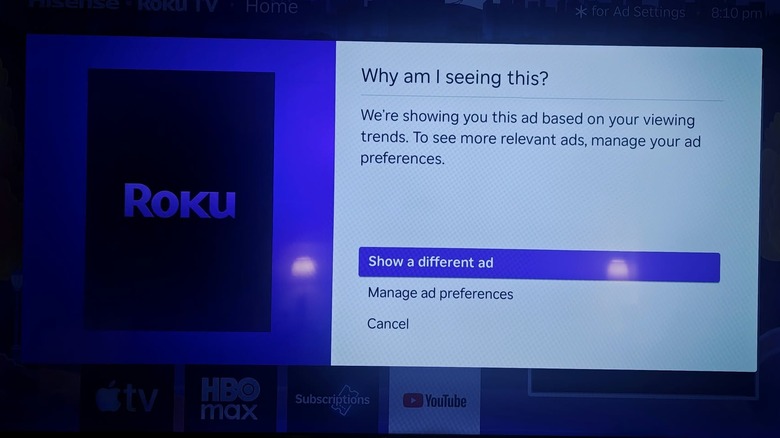
Roku has several settings you ought to change to enhance your content browsing experience. A great example pertains to the right panel of the Roku home screen. If you come across an ad on the home screen you're not interested in seeing, you can highlight it with the remote's directional pad and tap the star button to hide it, show a different ad, or manage your ad preferences so future recommendations are more to your liking.
The Roku remote's star button can also be utilized on other Roku and Roku-compatible products. If you happen to have a soundbar that bears the "Roku TV Ready" certification logo on the packaging or user manual, you don't have to control the audio using the remote it came with (although you can). Instead of getting up to manually fiddle with soundbar buttons, you can access and adjust its sound settings right from your Roku device screen by hitting the star button on the Roku remote while you have a music track, show, or movie playing.
If you're thinking of buying a Roku Smart Home camera, you might want to know that it's actually possible to keep an eye on your camera feed while streaming content on your Roku device. Provided that you purchase a compatible Roku camera model, you can pin your camera feed to your screen by launching the Roku Cameras app from the Roku home page, selecting the feed you want, hitting the star button on the remote, and picking the option to pin the camera. Similarly, you can also do this while watching a video from a streaming channel by tapping the star button during playback, going to "TV Settings," and selecting "Pin Camera."