

5 macOS Widgets Every User Should Have On Their Desktop
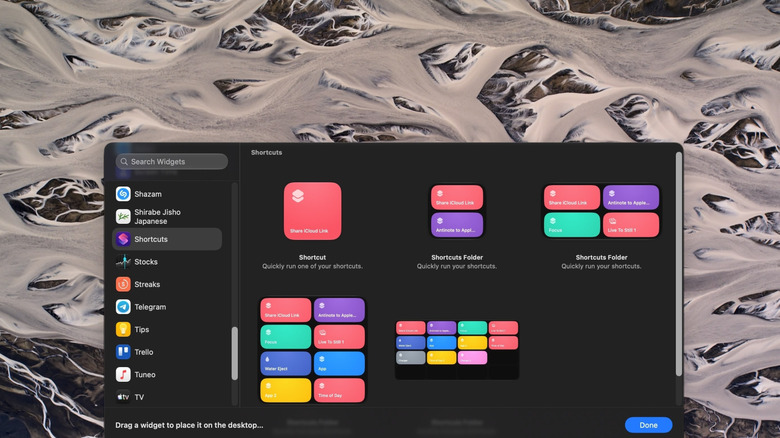
iPhone users probably already know they can put iOS widgets directly on the home screen, and you can interact with some without opening the app—like ticking off due reminders. But macOS has had this feature since macOS 14 Sonoma in 2023. It's easy to forget that macOS has widgets, since most people see the desktop as just a place for folders and files. But these widgets can quickly become a nifty way to get information at a glance.
We want to look at macOS widgets you can and should keep on your desktop. If you haven't really touched the widgets customization window, then you might be surprised by some of the defaults available. Here are five we recommend — none of which require installing another program.
Battery levels
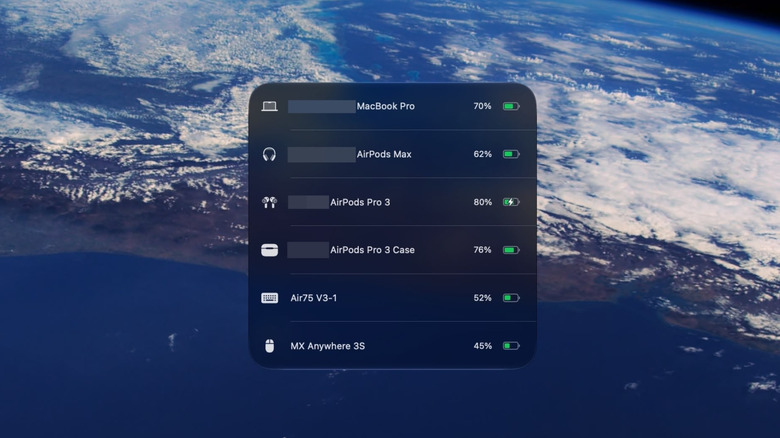
Think of all the USB-charged gadgets you have to track. Most people have a wireless mouse, keyboard, headphones or earbuds, a smartwatch, a laptop, and more. Tracking the charge levels of all these devices can add unnecessary stress. So I find the battery levels widget to be especially useful for eyeballing charge levels and knowing when a device I need is running on fumes.
Here's how to add widgets on macOS. Go to the desktop and right-click an empty space on the wallpaper, select Edit Widgets, then search for or click the battery widget in the sidebar. You'll see three different-sized widget options. Personally, I prefer the largest one, which shows the device's full name and the actual battery percentage rather than an icon and a vague meter.
It automatically grabbed the battery levels of most of my devices, though not all; the list seems to stop at a hard limit of six devices, and unfortunately, you can't choose which devices it shows or change their order. In my case, I'm not able to see the battery level on my iPhone or Apple Watch, though admittedly I'm more interested in keeping track of the battery levels of mice and keyboards, devices where there's no other way to check battery levels aside from opening up the Bluetooth menu or their respective third-party programs.
Home
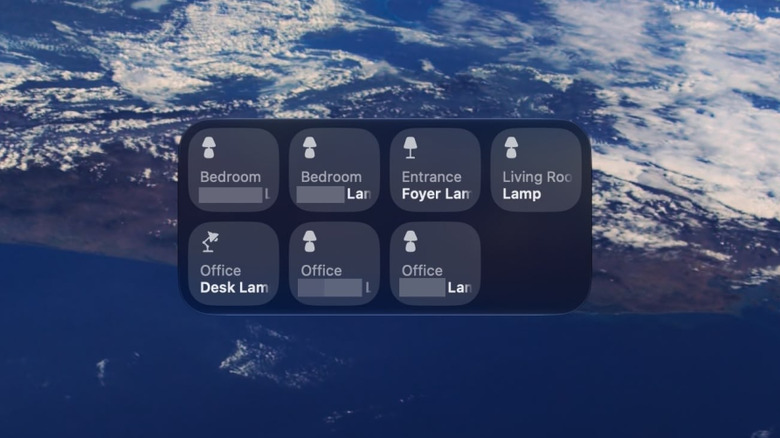
I used to control my smart home entirely through voice via Siri, but the recent iOS 27 "upgrade" has made those simple commands take forever. Ironically, it's now faster to toggle lights manually. A widget lets you control your entire smart home with a single click, without opening the Apple Home app, speeding up the process when voice cannot.
As before, open the "Edit Widgets" menu, then search for Home. Here you'll find a bunch of helpful widgets that show things like energy consumption, but we are focused on the interactive widgets that let you control individual smart devices. With one click, you can turn lights (or other devices) on or off without opening the Home app, which, in my experience, is kind of slow and annoying to use anyway. Now you can control your smart home from your MacBook without relying on Siri, picking up your iPhone, or interrupting your workflow.
Again, the issue is customization. You can right-click the widget and select "Edit Accessories." However, once you get there, the only option available is a "Recommended" toggle, at least for me. That said, the eight slots gave me enough room for my entire smart home, and if you need more, you might as well open the Home app.
Reminders
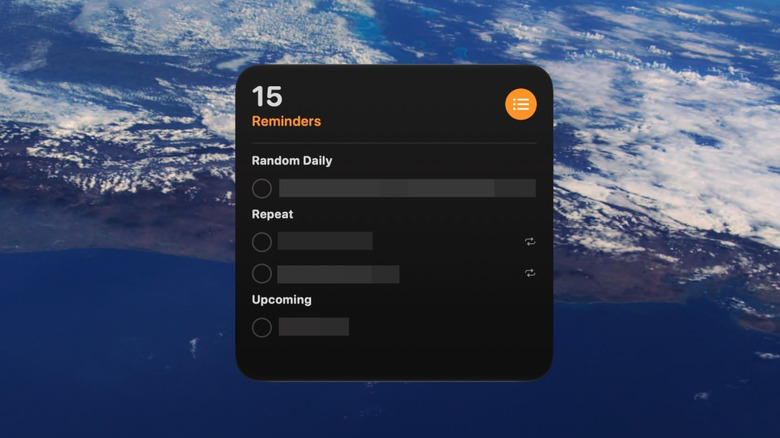
The Reminders app is really good if you haven't tried it yet. It's a free app that tracks your hourly, daily, weekly, and monthly to-do items, with plenty of customization for when and how you receive reminders. It syncs seamlessly with other Apple devices and works incredibly well. I use it for grocery lists, bill payments, daily chores, and a whole bunch of other things, sometimes even replacing calendar events. macOS supports an interactive widget that lets you check off items right on your desktop, just like on iOS.
Go to that "Edit Widgets" menu again. Once more, you'll find multiple Reminder widget sizes, from a small single box to a full window with multiple Reminders lists. Luckily, the Reminders widget is the most customizable widget on this list so far. Right-click on it, choose "Edit List," then "Choose," and you will see all of your Reminders lists. Now you don't have to open the Reminders app just to check off that one to-do item. It's also worth noting that you can have multiple Reminders lists on your desktop if you make separate widgets for them.
The only potential issue I see is that you might accidentally click a reminder and miss it later when it's due, without realizing it. If that seems possible, you can add widgets to the Notification Center. Click the time and date in the top-right corner, then click "Edit Widgets" at the bottom, and add the reminders widget you want.
Shortcuts
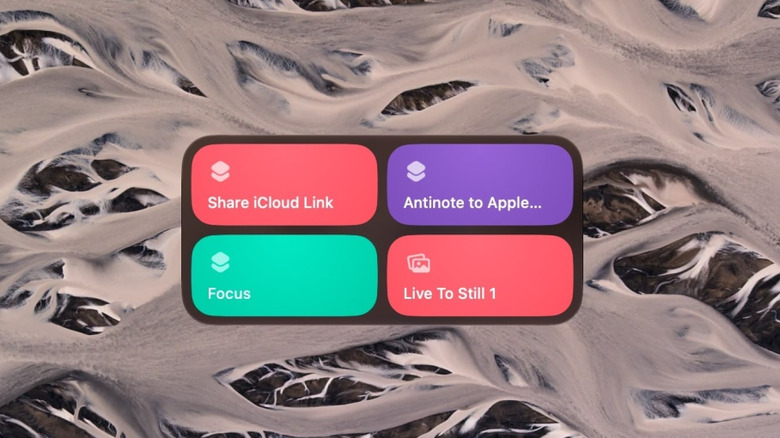
Apple's Shortcuts app automates tasks on iOS, but it's also helpful on macOS. Like the Home and Reminders widgets, you can interact with Shortcut widgets by clicking them. This could be a whole lot more useful than on iOS since you could have Shortcuts automate multi-step, tedious everyday tasks that you do on your Mac to boost your productivity; Shortcuts can do things like quit distracting apps, download YouTube videos, open your workspace in your preferred orientation — almost anything you can imagine thanks to the power of the Shortcuts app.
You know the drill by now. Open the "Edit Widgets" menu, find Shortcuts, and choose your character. The largest widget is one of the biggest we've seen, showing up to 16 different Shortcuts. Right-click to edit the widget, then choose one of your Shortcut lists. Unfortunately, you can't edit which Shortcuts appear, so you'll have to pare them down to the ones you need most. Remember, you can always add Shortcuts to your Quick Actions section and later run them from the Quick Actions section in the right-click menu.
This could be the biggest time saver of all because the Shortcuts app is surprisingly slow. From a cold start, mine takes a full few seconds to open. Figure out the things you do most throughout the day that could be automated, then add a Shortcuts widget to your desktop and save yourself a ton of time; remember, in macOS 27 (on a device that supports Apple Intelligence), you can now describe Shortcuts in plain English, and Apple Intelligence will make them for you, similar to on iPhone.
Your preferred iPhone app
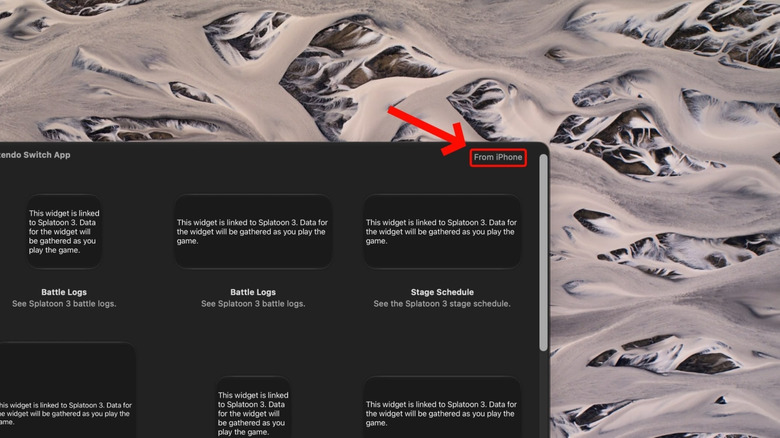
Here's the really cool part about macOS widgets: they can feature iPhone app widgets that don't have a macOS version. In the "Edit Widgets" menu, you'll notice a "From iPhone" label on some widgets in the top right-hand corner. This means that the widget belongs to an app installed on your iPhone, but can still be used on macOS. In my case specifically, I found apps like AirVisual, Amazon, Nintendo Switch, and YouTube, among others. Click on it to add it to your desktop, and voilà, it will work (mostly) like a macOS-only widget.
A few things here. First, make sure there isn't a Mac app version of the widget you're looking at. For example, the Journal app is available on macOS, but for some reason gives both an "On this Mac" and "From iPhone" option; you'll definitely want the former. Second, widget quality depends heavily on the app. The Nintendo Switch widget only has Splatoon widgets, a game I don't even own. However, these do appear to be the same widgets as you would find on iPhone. If it's on your iPhone, you have it on your Mac.
Finally, it may take some work getting the widgets to update properly. AirVisual worked at first for my default current location. I could edit it and choose another saved location, but it showed an empty gray box, as if the information wasn't loading properly. There was also noticeable lag, as if it was trying to talk to my iPhone to get that info. Your mileage may vary, but temper your expectations; iPhone-based widgets may not perform as smoothly.