

4 Drawbacks Of Using A Passkey For Your Online Accounts

Passkeys have become a favorite for many security experts because they eliminate the need for passwords, which have long been seen as the weakest link in the security chain. Passwords are guessable and can be reused across accounts. So if a password is hacked, it can compromise other online accounts, putting the ones that don't have two-factor authentication (2FA) or multi-factor authentication (MFA) at greater risk. Passkeys offer passwordless sign-in, eliminating many of the risks that passwords introduce. Still, they aren't perfect.
Passkeys allow you to sign in to a website by simply unlocking your phone or using a password manager with on-device authentication methods. These methods include PINs, fingerprints, and facial recognition. Using your passkey requires access to a device where it's stored or synced, which makes it highly secure. However, the high dependence on on-device authentication can lead to issues with accessing your passkeys. Furthermore, not every website and device uses passkeys, and switching them from one password manager to another can be difficult.
To be clear, if a website or app offers passkeys, you should definitely use them instead of passwords. These drawbacks aren't meant to scare you off passkeys, but to ensure you know their limitations and quirks, so you know how to keep them safe and help you prepare what to do in the event you should lose access to them.
You can lose a passkey
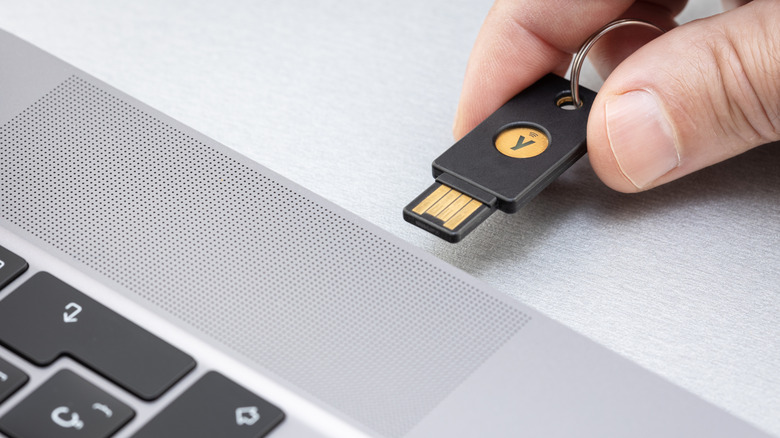
One of the biggest fears of passkeys is what happens when you lose your device. Some passkeys are device-bound, meaning they're stored locally in a single location, like those saved directly on your Windows computer or a device like a YubiKey. If you lose that device, you lose access to those passkeys since there's no copy of them anywhere else. If you can't find where you left them, you will have to go through the painful process of recreating those passkeys. Passwords are not any better here since they can also be forgotten, forcing you to reset them to regain access to your online account.
Synced passkeys, like the ones created using a Google, Microsoft, or Apple account, are better in this regard since they exist in the cloud. Furthermore, reputable providers use end-to-end encryption to sync them between devices. If you lose the device, the passkeys can be retrieved on another after you sign into the account where they are stored. But you can still lose access to them if you lose your device and can't sign into your online account.
Scenarios like these happen when the account has two-factor authentication enabled. In such an instance, you will need to rely on a website's account recovery process. At best, you can complete this via email or using a trusted device. But if you didn't set up a proper backup method, you can be locked out of your account and lose access to the passkeys, even though they exist in the cloud.
Not all websites and devices support passkeys
Will the internet ever go fully password-free? Not any time soon, as the adoption of passkeys is still ongoing. Not every website supports them, which means you have to ensure that all the websites and devices you use support passkeys in order to go passwordless. If not, you need to know how to manage different sign-in methods. On one website, you can quickly sign in using a passkey, but on another, you may be forced to rely on a password sign-in. For the latter site, you will still need to create a unique password that's not easy to guess, as well as know how to store and retrieve it.
Also, not all devices support passkeys. One major roadblock is that not all operating systems allow you to create them. For instance, it requires iOS 16 or later on iPhones, meaning you cannot create passkeys using an iPhone 7 and older. On Mac, you need a device running macOS Ventura or later. On Android devices, only those that can run Android 9 and newer have passkey support, with all passkeys being stored in and synced by Google Password Manager in Chrome by default. This is just one example of the requirements that devices need to meet in order to use passkeys, but it's a huge stumbling block for people using older devices.
Switching password managers can mean recreating passkeys
At some point, you might want to switch password managers, which means taking the passkeys you've created with you. You could be switching because the provider you're using suffered a data breach and you feel unsafe, or that it tightened the paywalls by moving certain features to a costlier subscription plan. Whatever the case, password managers like Bitwarden and 1Password allow you to export and import passkeys on their mobile apps using what's known as the Credential Exchange Protocol (CXP). It's a system that transfers credentials between password managers using end-to-end encryption. So moving credentials and migrating passkeys sometimes can be as easy as clicking a few things. But that's not always the case.
Some password managers, like the two mentioned above, only support this type of export and import on mobile devices. Others, like NordPass and LastPass, allow you to export and import information like passwords and credit card information, but not passkeys. If you're unable to import or export passkeys, you might have to recreate them. That means going into the settings of each online account, then adding new ones. For security purposes, you'll need to delete the old passkeys if you don't plan on using them again. This can be a tedious process depending on how many online accounts you need to do it on.
Someone who knows your device PIN can use your passkey
Your password can be stolen via phishing and other cyberattacks and then used. Even if passkeys were stolen remotely, they won't work if they aren't on a trusted device. So the best option someone who wants to access your online account has is to steal the device with the passkeys. But since faces and fingerprints are extremely hard to spoof, your phone's PIN is what they can use.
This is something a family member, partner, child, or roommate who has seen you use the PIN plenty of times can do, giving them instant access to your online accounts should they use it. The website doesn't care who is doing the authentication as long as it's on your device. You do have the option to set sensitive apps and password managers to require biometrics for authentication. However, some of them still use a PIN fallback that unlocks after a few failed biometric attempts, so you still need to protect your PIN.
One way is to only use biometrics when you're in public and only use the code as a last resort. Even then, be sure to cover your phone so no one sees you entering it. Once you suspect someone knows it, change it promptly. Also, when creating the PIN code, ensure it's at least six digits. It shouldn't be your birthday, have repeated digits, or be a PIN code you've used on another device.