

5 Android Features You May Want To Try If You Travel Frequently

Smartphones have never been more powerful and packed to the brim with hardware features. We have camera-centric phones like the Oppo Find X8 Ultra that pack in massive image sensors or devices like the Samsung Galaxy Z Flip 8 that fold in half to fit comfortably in your pocket without sacrificing the large-screen experience. Most phones also come with improved connectivity, including 5G, that makes them reliable when you're on the go.
Support for wireless charging and longer battery life now mean you're not always tethered to a wall outlet, which is especially helpful if you're traveling. Coming to the software side, things have fortunately also changed for the better. Both iOS and Android share many similarities in the kinds of features they offer, but the latter often takes the crown when it comes to the sheer number of niceties that make everyday tasks easier.
Our focus for this read, however, is on the many Android features that can make traveling easier, safer, and in some cases, more fun. Whether you're navigating an unfamiliar city or simply trying to decipher a restaurant menu in a foreign language, your Android phone comes with several built-in tools that can make your trip less stressful. You can find out more about how we've selected the features for this list near the end of the article. It's also worth noting that the availability (or even the names) of certain features may vary depending on your phone's manufacturer, Android version, and region.
Download maps for offline navigation
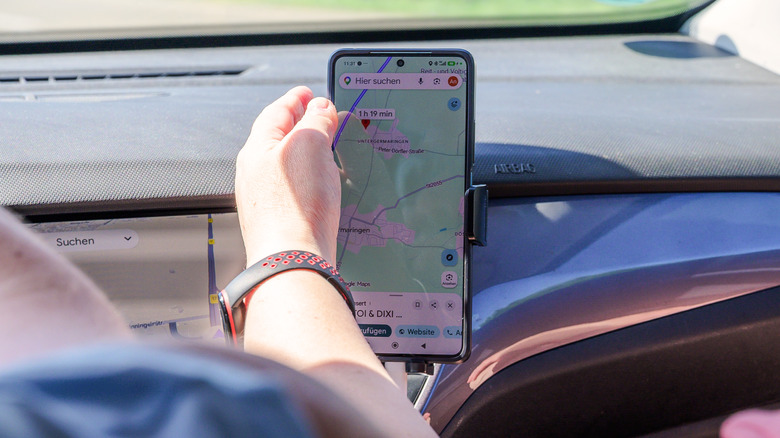
Few things are as helpful as Google Maps when you're navigating unfamiliar roads. It provides useful turn-by-turn directions, live traffic updates, information about shops, and warnings about potential road hazards, including accidents. Modern smartphones have cellular connectivity good enough to provide reliable internet access in most urban areas, but if you're driving in remote regions where cellular coverage is spotty or nonexistent, the last thing you want is to be left stranded. Fortunately, Google Maps lets you download maps of entire regions for offline use.
This way, you can use Google Maps to plan ahead for your trip and not worry about losing access to navigation directions if your phone's internet connection suddenly drops. If you already have Google Maps installed on your device, launch it and search for a place. This can be an unfamiliar region you're traveling to or an entire city you're visiting. From the search results, tap the place's name to open its information card that shows up at the bottom. You'll see the "Directions," "Start," and "Share" buttons — swipe left to reveal more options. Then, tap the "Download offline map" button.
You'll be asked to zoom in or out to select the exact region of the map you want to save offline. Tap "Download." The next time you're navigating without an internet connection, you can view your downloaded maps by tapping your profile picture and selecting "Offline maps." Here, you can access, rename, or delete saved maps.
Translate menus and signs using your camera
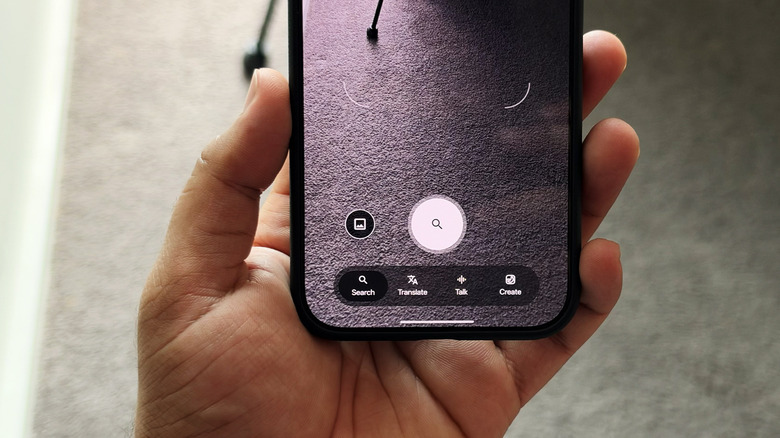
Visiting different countries and exploring new cultures is always fun, especially when you have a phone with versatile cameras. What you might not know is that the very camera that lets you capture memories can also help you overcome language barriers by translating foreign text. Whenever you encounter a sign, poster, menu, or any other object with text in a language you don't understand, you can pull out your smartphone, point it at the text, and see a translation in your preferred language in real time.
Depending on your Android device and its manufacturer, there are different ways to access this feature, but the easiest way is to do so via a Google Lens hack every Android user needs to know. If you have the Google Lens app installed on your phone, open it. Alternatively, you can access it by tapping the tiny camera icon in the search box in the Google app. Some camera apps also show the Google Lens icon when you point your camera at text or an object.
Google Lens lets you search for things using your camera, but you can also tap the "Translate" button at the bottom to view real-time translations overlaid directly on the text you're pointing your camera at. If you tap the shutter button, you can select either part or all of the text, share it with another app, or tap "Listen" to hear the translated text read aloud.
Track your valuables using Find Hub
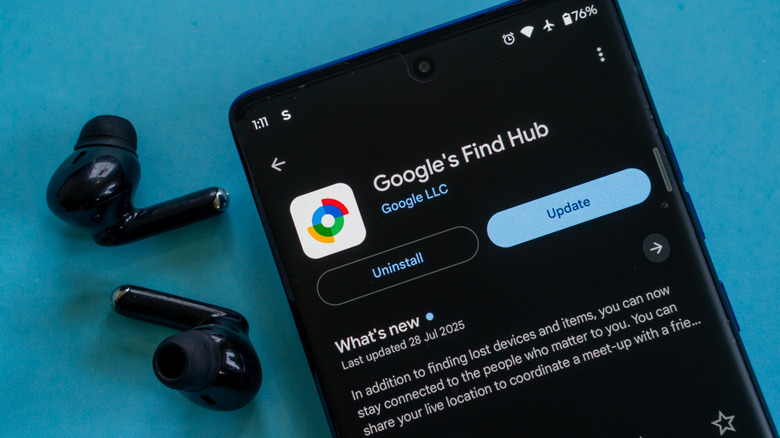
Not every feature on your phone is designed around convenience or entertainment — some are there to help you when things go wrong. Google's Find Hub is a service that's a must for everyone. It lets you track your devices in case you misplace them. You can ping missing items or mark a phone as lost, which will lock the device, sign you out of your Google account, and can remove any payment cards from Google Wallet. As a last resort, Find Hub also lets you factory reset a phone remotely.
Find Hub comes preinstalled on most new Android smartphones, but you can download it for free from the Play Store if it's not on your phone. Once installed, sign in using your Google account. Apart from phones and tablets, Find Hub can also list and track compatible accessories like headphones or a pair of truly wireless earbuds. If you want to extend tracking benefits to other valuables like your backpack, luggage, wallet, or keys, you can buy a Find Hub-compatible Bluetooth tracker and attach it to your item.
The Find Hub app now also lets you keep track of virtually any item by allowing you to jot down its details. You'll need Android 16 or later, along with the Find Hub and Gemini apps, to use this feature. In the "Remembered" tab, you can either tell Gemini where you left something or manually add its name, location, and other details for future reference. Google's Find Hub can be accessed on any device through a web browser.
Set up a travel eSIM
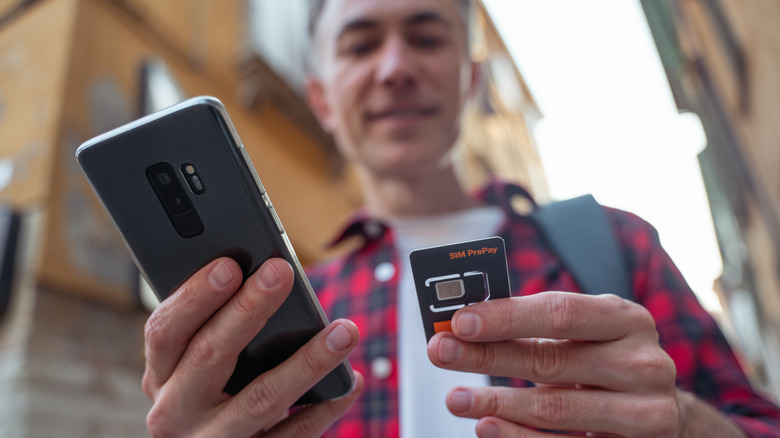
Though much of our online communication now happens on social media platforms, the SIM card in our phones is still considered essential for staying connected. It's how we make phone calls, send text messages, or access the internet when a Wi-Fi network isn't available. Traveling to a different country, however, can make cellular connectivity a little tricky. Your usual mobile service might not work overseas, and resorting to international roaming can rack up charges very fast. It is therefore more economical to buy a local SIM card once you arrive at your destination and swap it with the one you normally use back home.
Your phone might support dual SIMs, which will make switching between your regular and travel SIMs less of a hassle, but if your Android device supports eSIM, it makes the entire process even more convenient. You don't need to wait for your physical SIM to arrive or bother with trying to find a SIM ejector tool to insert it into your phone. Getting started with an eSIM is simple, but the exact process depends on your phone's manufacturer and the eSIM provider you've chosen.
Some of the best eSIM and roaming data apps include Nomad, Saily, and Holafly, which you can install on your phone from the Play Store. Not every Android phone supports eSIM, and the feature is still largely region- and carrier-dependent, so be sure to confirm its availability and that your phone is unlocked before purchasing a travel eSIM.
Use Motion assist to reduce car sickness
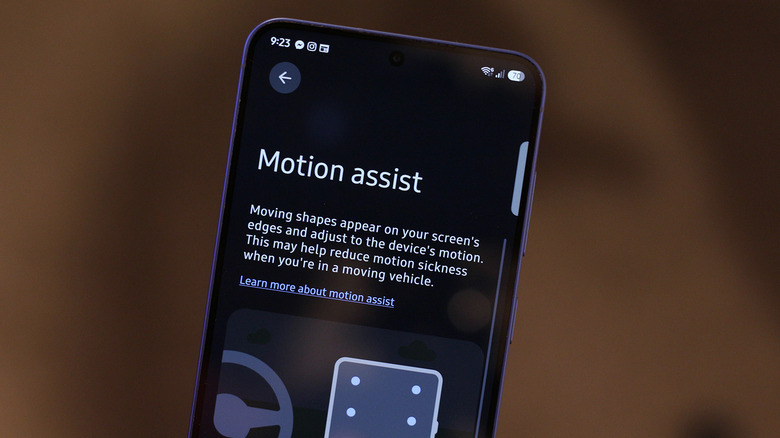
People who experience car sickness know how inconvenient using your phone in a moving vehicle can be, especially if you're replying to an important email or catching up on an article during a long road trip. The US Centers for Disease Control and Prevention explains that motion sickness happens "when the movement you see is different from what your inner ear senses." When you're traveling in a car, bus, or airplane, your inner ear can sense the movement of your vehicle, but your eyes focus on the contents on your phone's screen, which are relatively stationary. This creates a sensory mismatch, leading to motion sickness. Keep in mind that electric vehicles may be more likely to cause motion sickness than traditional gas-powered cars.
Of course, if the car sickness gets too bad, it's best to stop using your phone, but Android now offers a feature designed to reduce motion sickness that you can also try. It's available on phones with Google services — as long as you're running Android 17 or newer. Open Settings, tap your profile, select All services > Motion assist, and toggle on "Start in a moving vehicle."
The feature works by displaying tiny dots along your screen's edges that move in response to the vehicle's motion. They provide visual cues that may help reduce the sensory mismatch. You can customize the color, shape, and opacity of the dots that show up on your screen. Motion assist displays the dots automatically when it detects movement, and you can add a shortcut in your quick settings panel for easier access.
How we selected the features for this list

Android, as an operating system, offers a lot of features that you can use creatively to make traveling safer and more fun. Plus, there are countless third-party apps that unlock even more possibilities, which is why it was quite difficult to limit this list to only five features that we think are worth trying on your next trip. We decided to stick with features that you are likely to find built into your phone as well, which should make accessing them easier.
The availability of certain features and toggles may vary depending on your phone's model and Android version, so you might need to look for them in slightly different places. Some manufacturers label features differently on their Android phones. OnePlus phones, for instance, offer their own separate version of motion assist that you can find by navigating to Settings > Accessibility & convenience > Motion cues.
Similarly, while Waze doesn't support offline map downloads, there are a handful of other Google Maps alternatives on the Play Store, like OsmAnd, that offer the functionality. For text and image translation, you can also use services like Gemini and ChatGPT that can be a little more help when you need additional context or want to ask follow-up questions during your travels.