

10 Common Problems With 3D Printers (And Fixes To Try)
A 3D printer is the endgame these days for a DIYer. With it, you can make effectively anything as long as you have a 3D model for it and the patience. We definitely do, however, recommend starting with the easiest stuff as a beginner and working your way up. Printing stuff like the 3D Benchy will tell you a lot about your printer's capabilities, especially if something's wrong with it. And a lot will go wrong. With 3D printers, it's not at all uncommon to come back hours later to find a mess rather than the item you expected.
We're assuming that you're relatively new to 3D printing, likely having bought one recently and getting a feel for how it works. For consistency's sake, we're primarily sourcing Bambu Labs — one of the most popular 3D printer companies in the industry — but since 3D printers all operate on the same basic principles, these issues may happen with yours as well. This is not a comprehensive guide, however, so take it as a jumping-off point to figure out what's going wrong with your prints.
The first layer isn't sticking
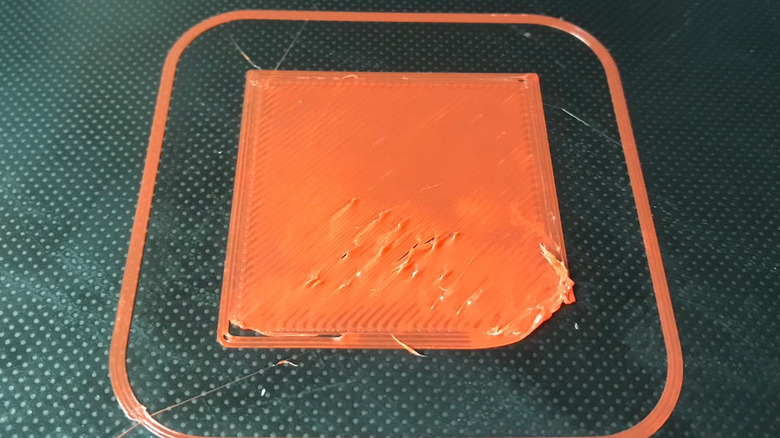
If all's going well, the first layer of your print should stick to the printing bed with a smooth and consistent appearance. It is the foundation upon which the rest of the print will be built. If some or all of the first layer is not adhering to the print bed, that's going to be a serious issue. This coud have different causes, according to Bambu.
Easy stuff first: Make sure the print bed is clean. Even if it looks clean visually, there may be microscopic particles on it that are causing the problem. Ensure you're cleaning with detergent and hot water; A textured PEI needs detergent, but acetone could damage it, for example. Check that the nozzle is unobstructed, that everything is properly tightened, and then do a calibration and a simple single-layer print; a cube shape that won't take long and will quickly demonstrate if something is wrong.
Beyond that, you may have selected the wrong plate type, which results in a temperature too low to adhere correctly or a nozzle that may not be positioned at the right height. If that's not working, your bed may not be level. Go to the calibration menu and do a bed leveling calibration. In fact, you can perform one before all of your prints in the future so this problem never happens. You might also try a slower speed while printing the first layer, giving it more time to adhere, or give your model a brim so it has a firmer base.
The bed isn't level
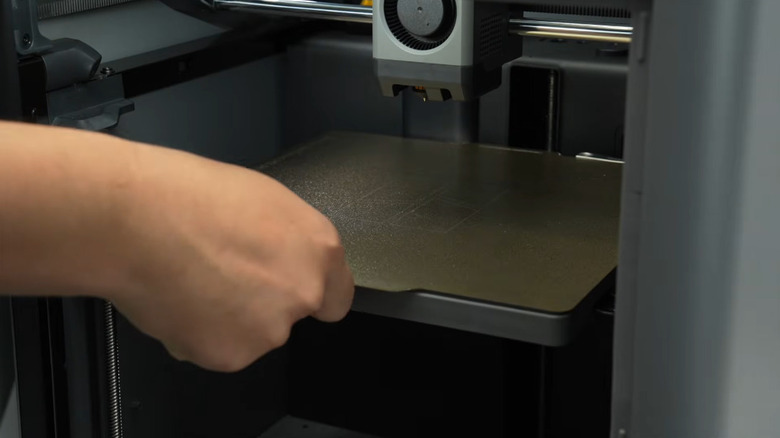
In theory, your printer should be correctly leveled (or "trammed") when you first open it, and you should be able to start printing more or less immediately. Of course, rough transit can knock your printer out of calibration. Leveling can also be affected if you disassembled and reassembled your printer, or replaced the heatbed. A bed that isn't level may manifest in things like too much first-layer extrusion. Bambu has a complete guide on manual bed leveling for the X1/P1 series. We should note here that in most cases, you shouldn't need to do all this.
First, make sure the bed leveling knobs are not too tight or too loose; Bambu says that visually, they should look flush. Next, you're going to download a special G-code file that helps you tram the bed. Once loaded, the nozzle will move into various positions and you will make sure there is no gap between it and the bed. Then you'll do a calibration for 26 minutes (which includes an automatic bed leveling). You'll know you were successful if you don't get any errors. There's a helpful video guide on YouTube for the P2S to give you an idea of how the process works.
The first layer is too low or too high
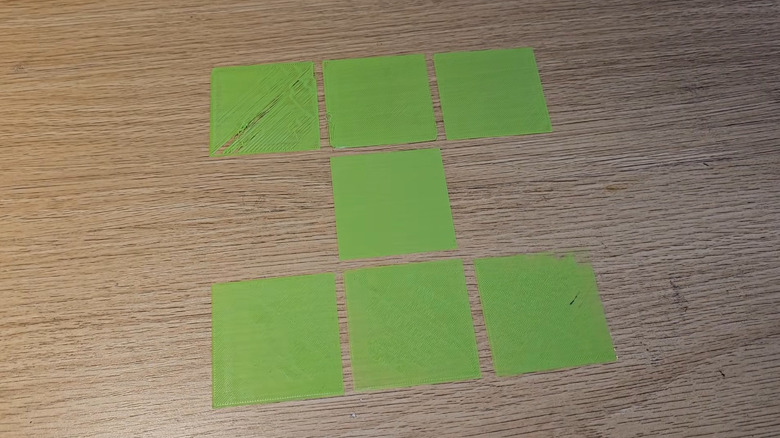
As we've previously stated, first layers should be very clean, firmly attached to the bed, without imperfections like gaps, buildup, or wrinkles. No part of the first layer should peel off. On top of peeling, the first layer can be placed too low or too high. How do you tell if a layer is too low? Usually, it's "wrinkly" or shows signs of a buildup of the filament. A low nozzle gets gunked up because it's too close to the bed, scraping the print and possibly even the plate — which can damage both. Run a first-layer calibration, and if the result is too low, increase the nozzle's distance from the plate in the software. Also, make sure your nozzle clip is not loose and tighten the screws behind the heating assembly.
How do you tell if a layer is too high? You may see gaps in the print, which might split in two when removing it from the plate, and which don't appear to lie flat as it should. A high first layer can create problems to the whole print. Bambu recommends checking that the nozzle wiper is in the correct position and that it doesn't have obstructions. A high first layer could also be the result of a deformed bed or a leaking nozzle.
There are other steps you can try for first-layer issues. You might increase the temperature by a small increment; increase the line width; slow down the printing speed; or change the printing pattern, such as using a concentric pattern.
Warping, collapse, or a model falling off
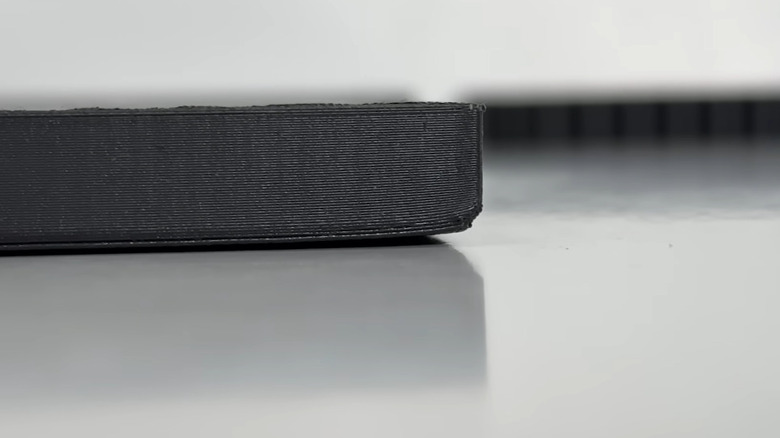
There is a laundry list of reasons why a print can go bad. Fortunately, you can usually identify the problem by a specific structural flaw. Three common ones are warping, collapse, and falling off the bed. Warping involves a curved, misshapen model, and typically happens when one bottom corner lifts upward, sometimes causing ripples above that raised section. Bambu says that the main cause is thermal shrinkage, a cooling difference between sections of the print that creates a pulling tension. It's a common beginner mistake to use the wrong filament. Materials like PLA are safer from shrinkage while PC is more likely to warp. Otherwise, temperature-related settings are usually an issue. The filament or heatbed temperature is too low, your fans over-cooling, or you're simply working on a model that's too big or which has too much infill.
Another issue is when the model detaches from the bed, causing it to be pushed out of place or completely knocked off. Similar to the issue of a first layer not sticking, you might have a dirty plate or have chosen the incorrect plate type. A lot of the same troubleshooting tips apply here. Check your nozzle, make sure the bed has been auto-leveled, and keep things clean.
One other potential issue is that you have a model collapsing, particularly if it's tall and thin. Bambu recommends reducing your print speed by at least 20%. It may also be a good time to consider using supports. These are disposable structures that hold up parts of the print and that are detached when the model is done.
Under-extrusion
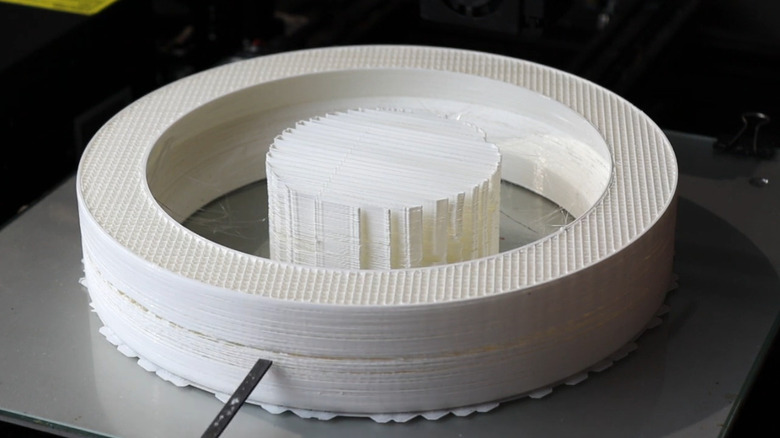
Under-extrusion is a weird-sounding phrase that may not be immediately clear, but it basically means that your 3D printer isn't putting out the right amount of filament. This can cause a whole host of issues, from distinct flaws in the structure or surface of your model to incomplete adhesion. Your models may be suffering from under-extrusion if they break easily. Bambu distinguishes under-extrusion as either happening across the entire model (known as global under-extrusion) or only in specific areas (known as localized under-extrusion). But either way, the main tell is a model that looks like it's missing lines.
To fix under-extrusion, check that your spool isn't tangled, knotted, or having issues unwinding; make sure the PTFE tube is clean and in good condition; and check the nozzle. Similar to other troubleshooting we've done so far, make sure you have the right filament temperature and check other software-side slicer settings such as flow ratio. You can also try a flow calibration that will check your pressure advance valve for issues.
Under-extrusion can also happen from an older 3D printer with parts that are wearing out. Check your extruder gears, the Bowden tube, stepper drivers, and motors. These issues may crop up if you purchased a 3D printer secondhand.
A clogged nozzle
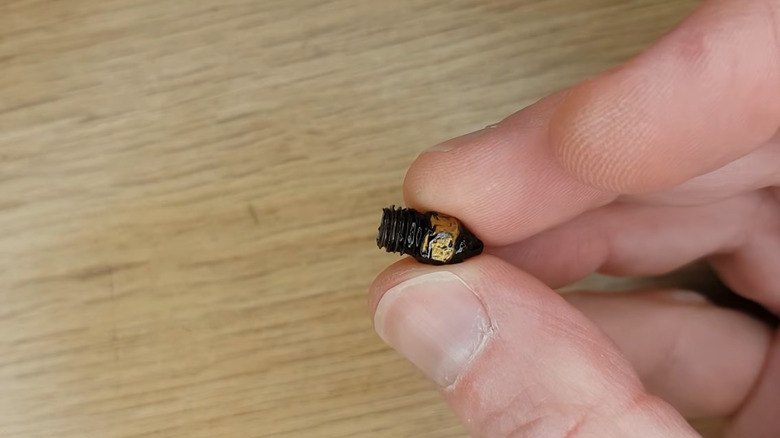
3D printers are literally melting plastic, so it's not surprising that clogs can occur. If no filament is extruding whatsoever, you have a clog. If it is extruding somewhat but only with difficulty, you have a partial clog. A total clog will obviously prevent you from doing any printing, making it relatively easy to diagnose. Partial clogs manifest differently. Stuff too small to completely block off the nozzle (dust, melted bits of filament) can accumulate inside the hole and push the filament out of the way, spoiling proper extrusion. You might see under-extrusion, inconsistent lines, or other issues caused by the flow dynamics that cannot correctly be self-calibrated.
Before trying the following, Bambu recommends putting on heat-resistance gloves and wearing eye protection in case hot filament hits you. Lower the heatbed so you have working clearance, and then setting the temperature to at least 250 degrees Celsius. Insert a pin into the nozzle until whatever is blocking the way is removed. The filament will no longer curl if you did it correctly.
Another solution is what's known as a "cold pull." This may be more effective at completely eliminating blockage because it leverages the filament as a nozzle-cleaning tool. It's a bit more invasive and challenging, and we won't detail the entire process here, but it involves taking apart the toolhead assembly, doing some heating and cooling to let the filament absorb the blockage, and then pulling out the filament "cold" to remove it and everything else in the nozzle. Bambu has a helpful visual guide here. It'll take a bit of work, so try the first method and then go nuclear with a cold pull.
Tangled filament
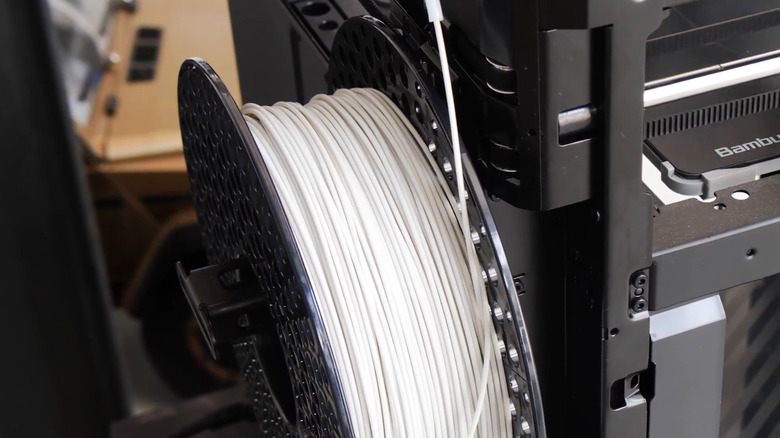
Managing your filament is a lot like managing your cables. Filament can seem orderly, only to suddenly tangle up and — in the case of 3D printing — have disastrous results for your model. Typically, this happens because the filament end has gotten loose and caused a tangle during loading or unloading, only manifesting when it's too late.
You can most likely avoid tangles from the get-go by correctly installing the filament, making sure the entire feed path is clear, and — perhaps most importantly — making sure to keep that loose end secured in place when not in use. Learn how to properly load and unload filament. Don't just wind it the same as you might a garden hose, otherwise you're creating an environment ripe for tangles.
There are two other ways you can fix tangled filament. If it's clear that the tangle isn't egregious, you can simply unwind the spool a bit and then rewind it. For anything else — especially if it's a really bad tangle — the easiest solution may be just to cut it at the root. For the former method, Bambu recommends holding the tangled pieces together, unwinding them enough to pull them off the spool to the side, undoing the tangle, and then carefully respooling it. Make sure to check everything is in order once tangles have been eliminated. You may need to manually load and push the filament to extrude it.
Blob of death
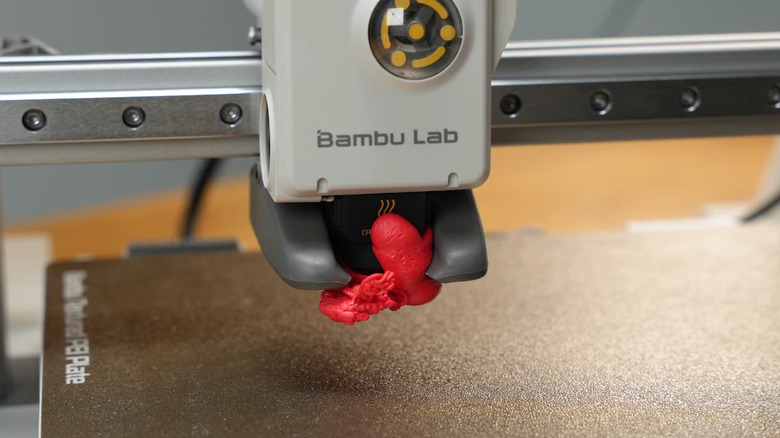
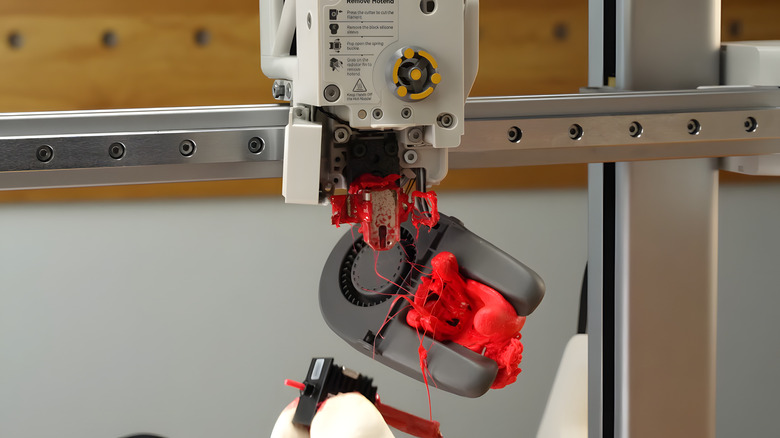
3D printers are prone to a cute-yet-terrifying phenomenon known as the "blob of death," or more clinically, an "extruder blob." They're so notorious that some users will make a pedestal to their "fallen" nozzles. It happens when there's improper adhesion during early layers, causing further filament to gather up around the nozzle and form, you guessed it, a big blob. A blob of death is the sort of thing you might find after leaving a print unattended for several hours. While the name might give you the impression your 3D printer is toast, this may be fixable.
If you're lucky, you can just preheat your nozzle to at least 250 degrees Celsius (for some materials like ABS, 280 degrees Celsius) then turn the printer off. Let smaller blobs detach on their own. Other, larger ones you can gently wiggle off with a pair of pliers. For some extra-large blobs that have ballooned to cover other parts, you may need further measures. You can disassemble the hot end assembly piecemeal to better access the blob. Bit by bit, you'll use a heat gun (while wearing protective gloves) to loosen and detach the blob wherever you find it. Regardless of the method you use, caution and patience are key. A forcible removal can and will damage parts.
Your printer may have a blob detection feature that can stop further printing if a blob has begun to form. Otherwise, the best way to avoid it is to keep the bed clean. And of course, you can occasionally drop by your printer to visually identify a blob before it becomes a problem.
Stringing and oozing
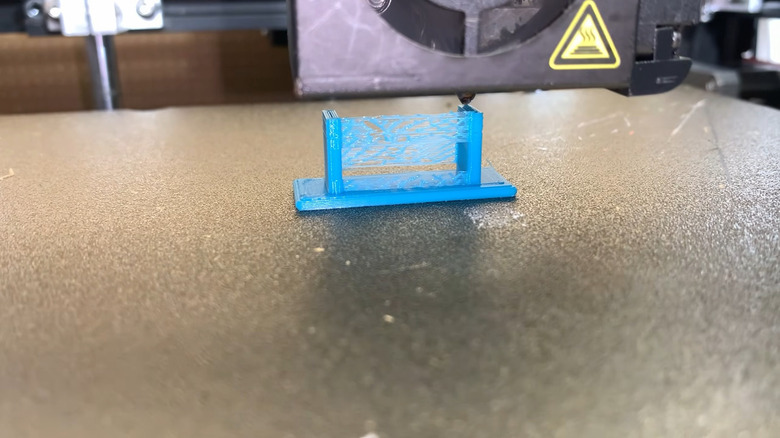
Stringing is exactly what it sounds like: tiny cobweb-like strings that appear between sections that shouldn't have any filament, typically when the nozzle is moving from printing one area to another. Oozing is when excess filament gathers on certain areas and creates defects.
The most likely cause is an incorrect temperature setting. Make sure you're using the recommended temperature for your filament, and if that's not working, lower the temperature by a small increment — ideally about five degrees, then five more if necessary. Check the retraction speed and distance settings, as they may be inadvertently causing stringing. Another common cause is damp filament. Use the drying procedure supported by some AMS types or a heated printer bed, or better yet, do this before you store your spools. Bambu recommends a sealed container with desiccants. There are further things you can change via the slicer that may help. Tweaking the z-hop, combing, coasting, and wiping may reduce stringing. Higher fan speeds for improved cooling may also help. A slightly faster travel move speed may also give less opportunities for strings to form.
Once you've done all of this, you can print a quick retraction test; Your printer will print four tall pyramids on a square base to quickly diagnose further stringing. For the record, you may still be able to salvage models ruined by stringing. A heat gun applied for a brief one or two seconds will melt strings for easy removal, without harming the overall print — but no longer than two seconds.
Spaghetti
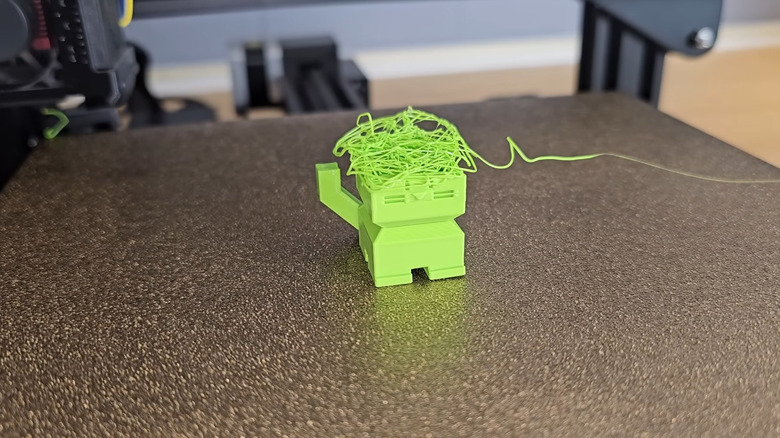
Spaghetti, sometimes affectionately called a "spaghetti monster," looks like, well, spaghetti; plastic "noodles" all over your model. Stringing and oozing is where excess filament is dripping out between printed sections. Spaghetti, on the other hand, is filament that is being printed on empty air because the area where it was supposed to go shifted out of place. As such, a model suffering from spaghetti is usually not salvageable, and may cause other issues, like clogs.
The main culprit are typically issues we've already discussed: poor adhesion at the beginning of a print (or partway through it) and warping. In both cases, check that you have the correct plate type selected, that you've done your bed leveling, and importantly, that you've cleaned the plate properly — most of the same solutions for a first layer that's not adhering. Spaghetti might also happen when the area that's being printed lacks proper supports, so the filament just falls down. Several of the potential causes of spaghetti include things that might cause stringing and oozing, such as filament clogs and incorrect retraction settings.
Some printers, like Bamboo's X1C, use the camera to intelligently identify spaghetti so you can stop a print prematurely. And if you don't have a printer with this feature, a quick visual inspection periodically throughout the print is a good idea. Spaghetti is proof that the basics we've already mentioned — keeping a clean plate, a level bed, the right temperature, and so on — are extremely important and can manifest disastrous effect later on.