

SteelSeries Aeon Pro Review: An Excellent Elite Controller Alternative For Xbox And PC
We may receive a commission on purchases made from links.
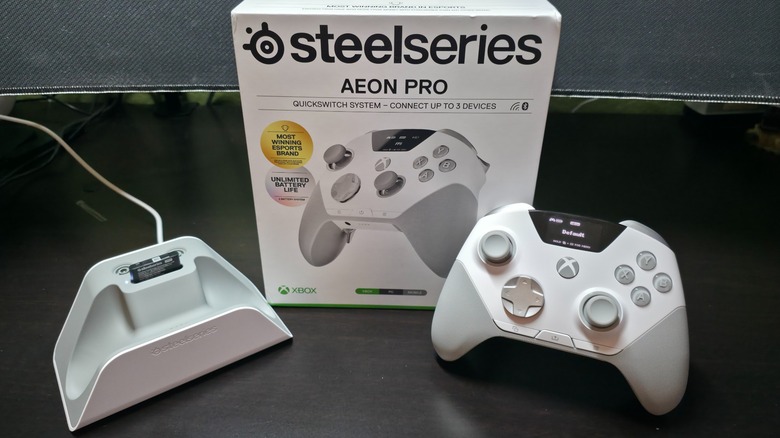
It's not often that I get the opportunity to review a high-end gaming controller, so when SteelSeries sent me its Aeon Pro to test, I got excited. I've been an Xbox gamer since the first Xbox arrived in 2001, and the Aeon Pro is easily the most advanced Xbox controller I've gotten my hands on. I was already a fan of SteelSeries' products, having recently reviewed the company's Arctis Nova Elite headset, so I was ready to dive right in once the elite controller, which retails for $259.99, arrived.
If you know anything about Xbox controllers, you're likely aware of how they've evolved over the years. From the clunky OG controller many gamers called "The Duke" to the more modern models filled with haptics and Bluetooth connectivity. While I have a great deal of appreciation for Sony's current-generation DualSense controller, I use an Xbox controller for PC gaming. One thing that's a bit irksome about using those controllers when I game on my desktop gaming computer or my gaming laptop is that I have to re-pair it whenever I switch from one to the other.
 Jonathan H. Kantor/SlashGear
SteelSeries nipped that problem in the bud with the Aeon Pro (as well as some others I wasn't even aware of), making it incredibly simple to jump from one computer to another, or from a PC to Xbox and back again. That feature certainly caught my attention, so I spent a solid week playing with it on my Xbox Series X, gaming laptop, and gaming desktop, and here's what I learned while using the impressive controller and its many functions.
How the Aeon Pro Controller feels
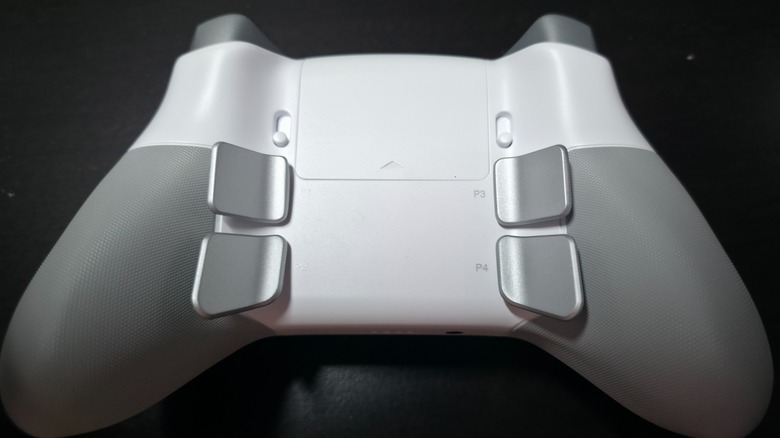
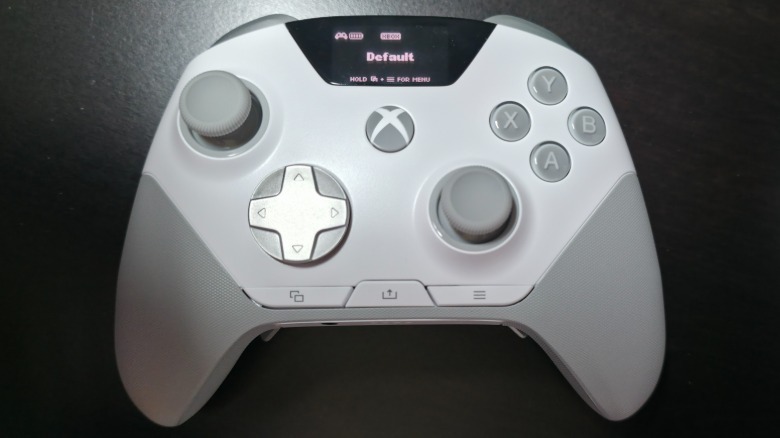
While functionality is undoubtedly important, the first thing I consider when I pick up a new controller is how nice it feels in my hands. Every controller is a bit different in this regard, and while the Aeon Pro isn't a complete duplicate of the current-generation Xbox Wireless Controller, it's pretty close. It features textured wraparound grips that make it easy to hold during intense firefights, and the buttons all feel nice to the touch, including the four contoured back buttons that I don't automatically press when holding the controller.
Additionally, the controller feels pretty solid and is only slightly heavier than a standard controller. The Aeon Pro weighs 0.675 lbs., while a standard Xbox Wireless Controller weighs 0.637 lbs., so it's not far off. The thumbstick tension is slightly greater as well, while the buttons all feature a nice mechanical "click" when you press them. I found the sound somewhat soothing, though I use a mechanical keyboard, so that could just be one of my personal biases.
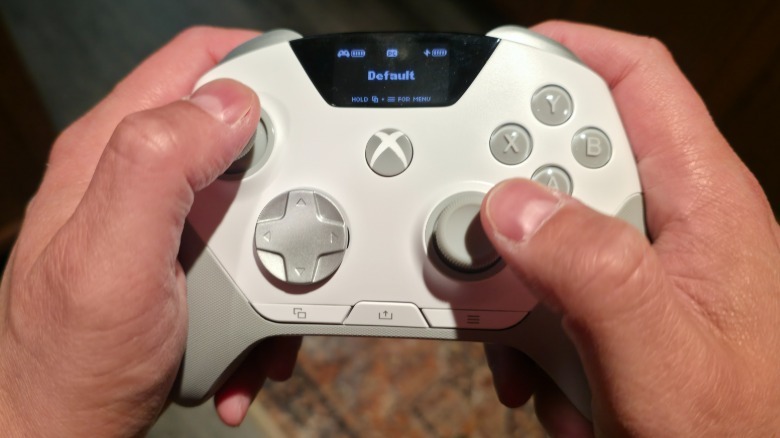
Outside of the sound, the buttons actuate faster than those on the controllers that Microsoft sells, which is vital for competitive gaming. Every input registered instantly, showing no lag whatsoever, and that kind of actuation offers a significant edge in FPS games. While most buttons are similar, there are several differences regarding button placement. The screen at the top of the controller pushes the View, Share, and Menu buttons to the bottom. This took time to get used to, as I found myself tapping in places where buttons didn't exist, but a few hours of gameplay fixed my muscle memory.
More features than a standard Xbox controller
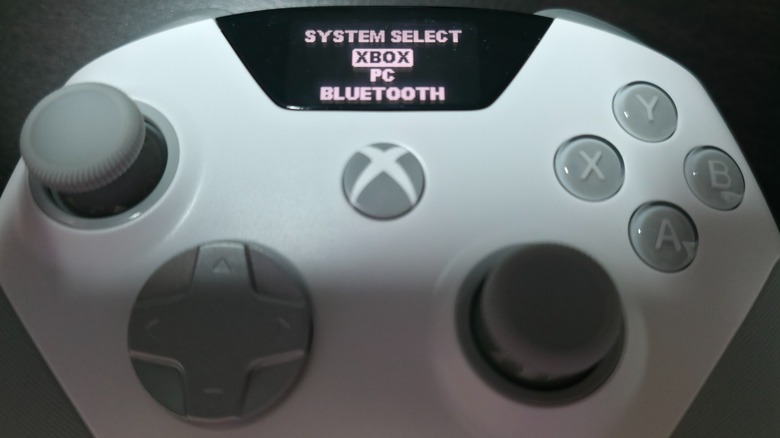
The Aeon Pro is absolutely packed with features, including numerous buttons you won't find on a standard controller. The OLED screen Smart Display is the most obvious addition, which sits at the top-center of the controller. This is an amazing feature because, while you can make adjustments to the controller via SteelSeries' app, you don't need to. The screen is easily accessible at any time, making it possible to switch devices, change profiles, remap the controller's buttons, monitor its battery level, and much more.
I found myself playing with this feature a lot, as it aids in diving into the Aeon Pro's many options. You can even do this during gameplay, so if you have a saved profile that's better suited to playing "Call of Duty," all you need to do is press a few buttons, sort through the menu, and select it. The system comes with several on-board profiles already installed for FPS, Adventure, Racing, MOBA Shooter, Fighting, Builder BR, and Action Adv., but you can also create your own. Additional programming includes remapping the buttons, adjusting for hair triggers, and more.
 Jonathan H. Kantor/SlashGear
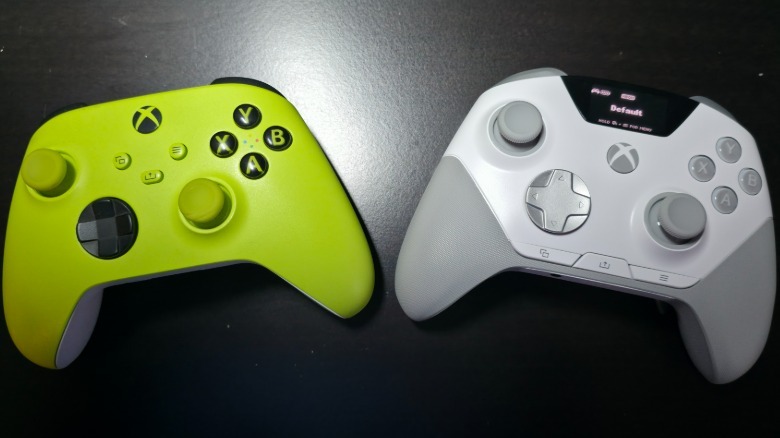
Unfortunately, I didn't have an Xbox Elite Wireless Controller Series 2 to compare it to, so I went with my ugly, green travel Xbox Series X controller instead that I use when I'm on the go. As you can see, the two controllers are similarly formed, but the Aeon Pro is slightly taller. The standard controller measures 2 ⅞ inches, while the Aeon Pro measures 3 ¼ inches due to the screen and button placement. Both controllers measure around 6 inches at their widest part.
A convenient dock and infinite battery
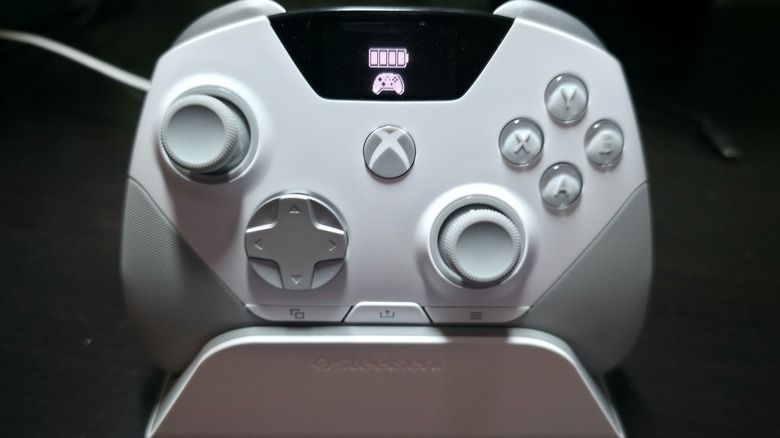
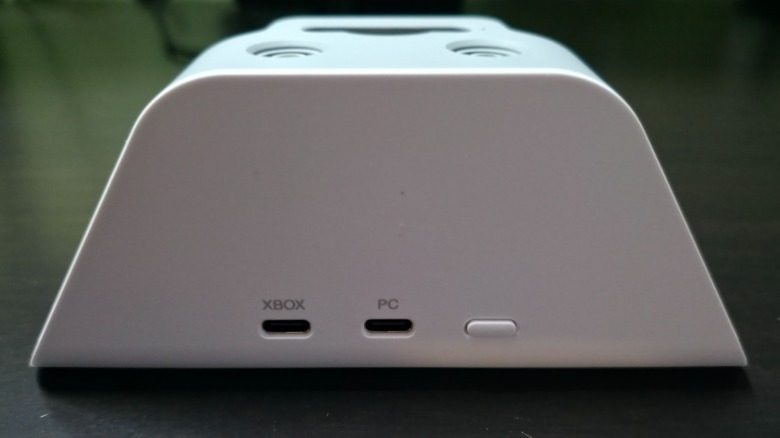
The Aeon Pro comes with a dock that it fits snugly into with a nice click. While docked in this way, the controller charges, and as you can see from the above image, the screen displays the charging progress. This is something I prefer to simply sticking a cable into a controller's charging port because it looks nice and is well suited for my desktop. The dock isn't just for charging, as it also helps with connectivity. As you can see in the below image, it has two USB-C ports, one for PC and another for Xbox. All you need to do is plug it into both, and you can easily switch from one device to another.
 Jonathan H. Kantor/SlashGear
The only problem with this is that it's no good if your Xbox isn't co-located with your computer. I tested it with my gaming laptop near my Xbox Series X, and it worked flawlessly. That said, I don't typically keep them co-located, so if you don't have the two devices near one another, it won't aid in switching between them. Essentially, it's a cool feature that's only useful for people whose setup could benefit from it.
 Jonathan H. Kantor/SlashGear
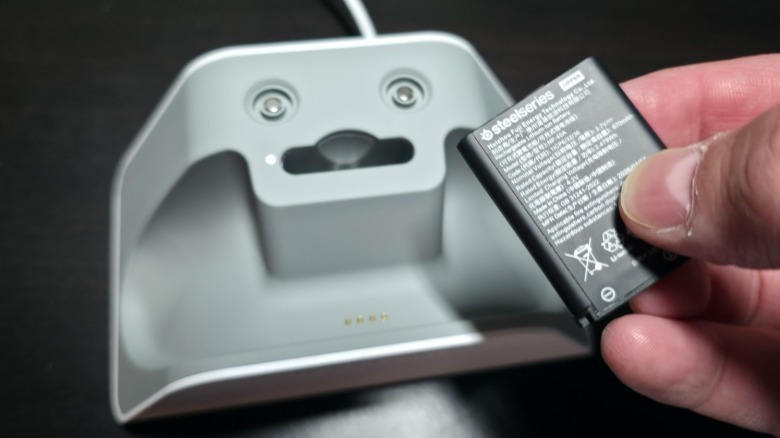
Another great feature of the dock is the battery charger, which makes the entire system function like an infinite battery. The box comes with two small SteelSeries-branded batteries: one for the controller and a spare for the dock. While you're running down the controller's battery, the dock is quietly charging the other, ensuring that you have the power to swap one for the other when needed. The dock is also compatible with batteries for the Arctis Nova Pro, Arctis Nova Pro Omni, and Arctis Nova Elite, so it's pretty versatile.
An easy to customize controller
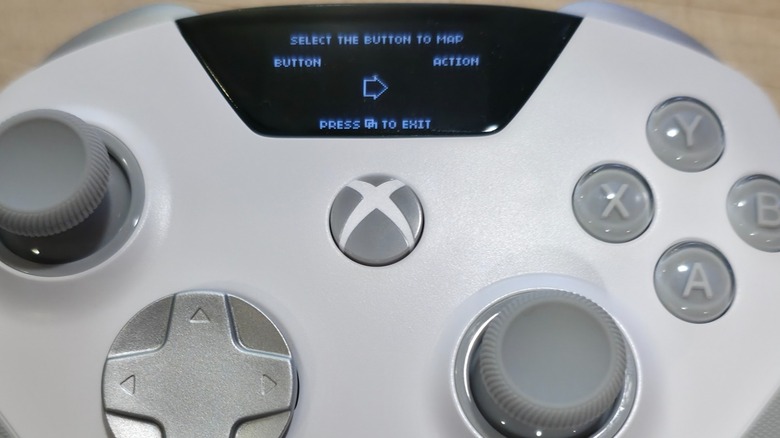
The best aspect of the Aeon Pro controller is how easy it is to customize for any player. This involves the buttons, haptics, triggers, OLED screen, and thumbsticks, all of which can be tweaked in a number of different ways. You can invert the X and Y axes of the controller, while also adjusting the thumbstick sensitivity. It has dynamic and exponential sensitivity settings that any pro gamer would appreciate for competitive online play, and you can also remap every button in any way you want. It features 18 mechanical switches with contactless sensors that produce no drift.
 Jonathan H. Kantor/SlashGear
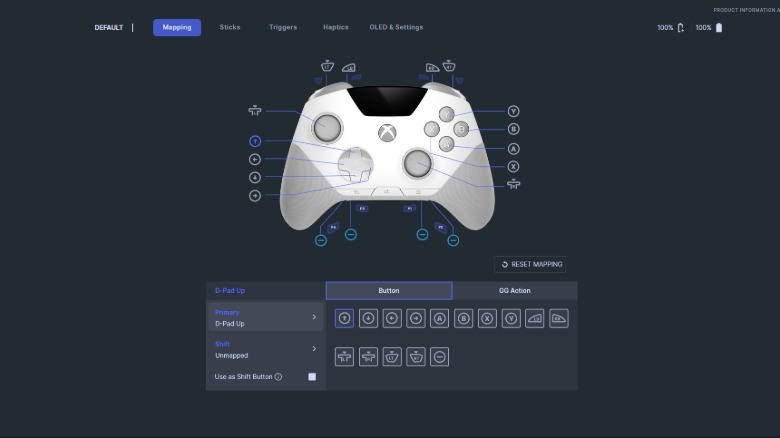
While you can easily map your buttons on the controller via the OLED screen, you can also use the desktop software pictured above. I found this easier to use simply because it has an easy-to-read diagram showing every button and what they're currently mapped to. The software has settings for mapping, adjusting the thumbsticks, changing the trigger sensitivity, changing how you want the haptics to function for the two triggers and handles, and you can change the OLED screen in various ways.
 Jonathan H. Kantor/SlashGear
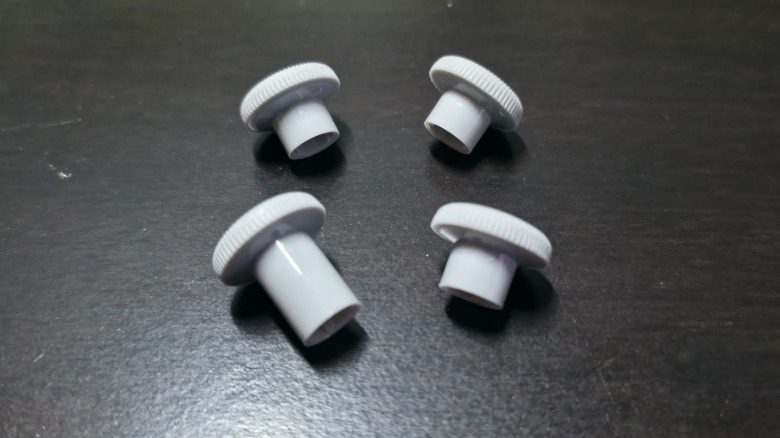
Also, the Aeon Pro comes with two additional thumbsticks: one long and another short. The short one is convex, while the others are all concave. I tried them all out, and for me, the two thumbsticks that came pre-installed were preferred, as they're similar to the Xbox Wireless Controller's thumbsticks. SteelSeries sells the controller in black and white, and you can purchase additional thumbsticks in either color for $17.99.
My verdict on the SteelSeries Aeon Pro Controller
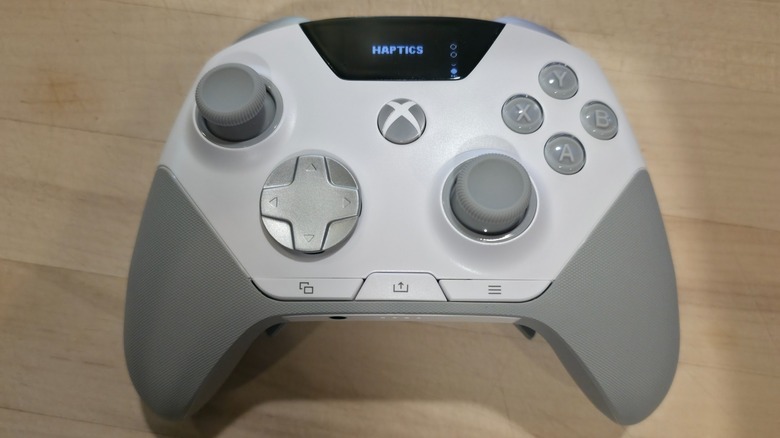
I spent a solid week playing games on my PCs and Xbox Series X, learning the ins and outs of the controller. I enjoyed using it while playing everything from "No Man's Sky" to "Call of Duty: Black Ops 7," and it worked flawlessly. Like any new controller, it took me a little while to get comfortable with the different button locations, the rear buttons, and the overall shape, which doesn't feel very different in my hands when compared to the Xbox Wireless Controller that Microsoft currently sells for the Xbox Series X|S.
While I don't own an Xbox Elite Wireless Controller Series 2, I've wanted one for some time. They retail for $199.99 and feature many of the same buttons and an improved D-pad. The Aeon Pro not only has the same types of buttons, a wraparound textured grip, adjustable-sensitivity thumbsticks, and hair trigger locks, but it takes things a step further with the addition of the OLED screen, which isn't merely there to show info, as it's fully interactive.
 Jonathan H. Kantor/SlashGear
The most notable difference between the two high-end controllers is the price, as SteelSeries sells the Aeon Pro in either black or white for $259.99. If you're in the market for a serious controller that offers more functionality than Microsoft's high-end option, it feels like it's worth the added $60. The screen, dock, and infinite battery easily outperform the AA batteries needed for the Xbox Elite Wireless Controller Series 2, which makes it a much better purchase for competitive gaming than what Microsoft currently offers, so it gets my full recommendation.
You can order your own SteelSeries Aeon Pro Controller from the SteelSeries online store now.