

Your USB To HDMI Adapter Could Be Causing These Annoying Issues
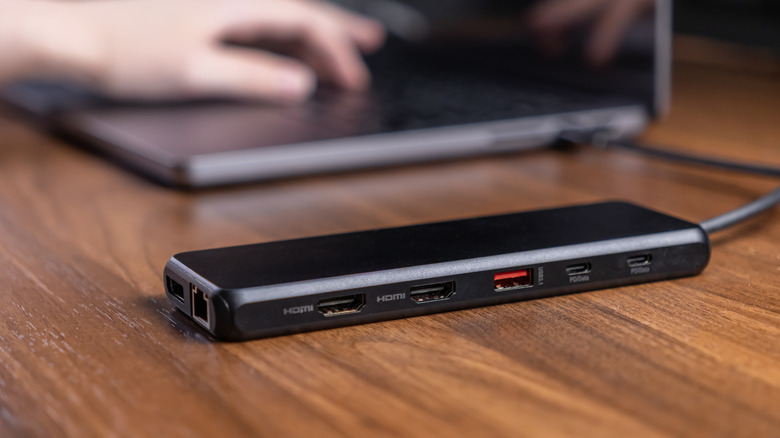
Gone are the days when laptops came with an abundant selection of ports — USB-A, HDMI, a headphone jack, Ethernet, and even an SD card slot on some models. In the pursuit of thinness, sacrifices had to be made, but USB-C seemed promising. The first couple of years were rough. We were all surrounded by adapters and dongles (and dongles for our dongles) just to be able to connect essential peripherals to our laptops. The situation is a lot more manageable today now that most gadgets have switched to using USB-C for connectivity and charging.
There is even a decent selection of USB-C monitors that you can buy, but older ones can connect to modern computers just fine — as long as you have the right adapter. Most monitors ship with HDMI or DisplayPort cables, and while many desktop computers feature full-sized ports to accommodate these options, you will likely need a USB-C to HDMI or DisplayPort adapter if you're using a modern laptop.
Ideally, you should be able to just pick up an inexpensive USB to HDMI dongle, plug it into your laptop, and connect your monitor without any additional setup. Unfortunately, things might not always go according to plan. You might encounter several kinds of issues trying to run this setup. The most common ones include not being able to output your laptop's screen on the monitor at all, or being limited to a lower resolution than expected. Let's dive a bit deeper into some of these adapter problems and how you can potentially fix them.
No display output detected
The first, and likely the biggest, hurdle you may encounter is discovering that your monitor refuses to display anything at all after you've connected the dongle. This could be due to a few reasons, so start by making sure your monitor itself is plugged into a power source, since the cable going from your laptop to it is simply responsible for carrying the audio and video signals. Next, make sure your monitor is set to the correct input source. There's always a chance that the adapter you're using may be busted, but before replacing it, check whether your laptop's USB port is even capable of video output.
Just because your laptop offers a USB-C port doesn't necessarily mean it also supports native video output through it. USB-C is simply a type of connector that may or may not include support for standards like Thunderbolt 4 or USB4. More specifically, you need to make sure your laptop's USB-C port offers DisplayPort Alt Mode, which is a technology that allows it to carry a video and audio signal.
Even without these standards, you can use USB for displays as long as the adapter explicitly functions as a USB graphics adapter. This is done through DisplayLink technology, which transmits a video signal through a traditional USB-A or USB-C cable. When you first attach the adapter to your laptop, you will need to install a virtual display driver.
Monitor running at a lower resolution
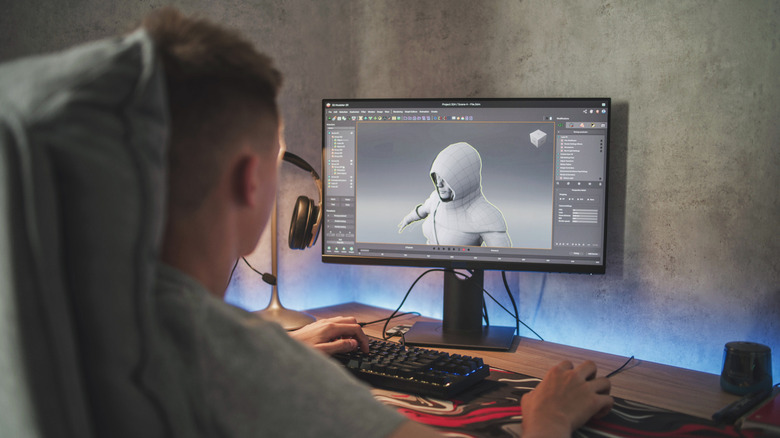
If your USB to HDMI adapter works, but is unable to properly drive your monitor's native resolution, the dongle itself may be the bottleneck. Start by checking if you can change your monitor's resolution by heading to Settings > System > Display > Display Resolution on Windows. If you're using a Mac, navigate to System Settings > Displays. If your screen blacks out and reverts to the older resolution, it's because your adapter likely doesn't support your monitor's native resolution. Some of the cheaper dongles out there can only output up to 1080p, and if your monitor uses a 1440p or 4K panel, the difference can be noticeable.
Some adapters boast an output of up to 4K, but if they are limited to 30Hz or 60Hz, they will not be able to take full advantage of a monitor with a higher refresh rate. In either case, the only real way to address the issue is to buy an adapter that supports the resolution and refresh rate you're looking for. You may also have to sometimes manually select a higher refresh rate in display settings on Windows and macOS.
If you notice certain games performing worse than they do on your laptop's built-in screen, check the in-game settings to ensure there's no frame limit set. This could prevent the game from taking full advantage of your monitor's refresh rate and laptop's GPU.
No audio playing through your monitor's speakers
Most people associate HDMI with video output, but it also carries an audio signal with it. For desktop setups with a dedicated pair of speakers or headphones, you're probably going to connect those directly to your PC or laptop anyway. However, if your monitor has built-in speakers or a headphone jack that doesn't seem to pass any sound through, your USB to HDMI adapter may be failing to pass the audio signal properly.
Before you replace it with a costlier adapter, though, it's worth checking if your computer has the right playback device selected. You can check this out on Windows by heading to Settings > System > Sound and ensuring your HDMI output or monitor is selected as the default audio output device. If you're using a Mac, navigate to System Settings > Sound > Output and select the correct device here. Also be sure to check the volume levels on your monitor in case they have been accidentally muted.