

Why You Can't Charge Your Laptop With Just Any USB-C Port
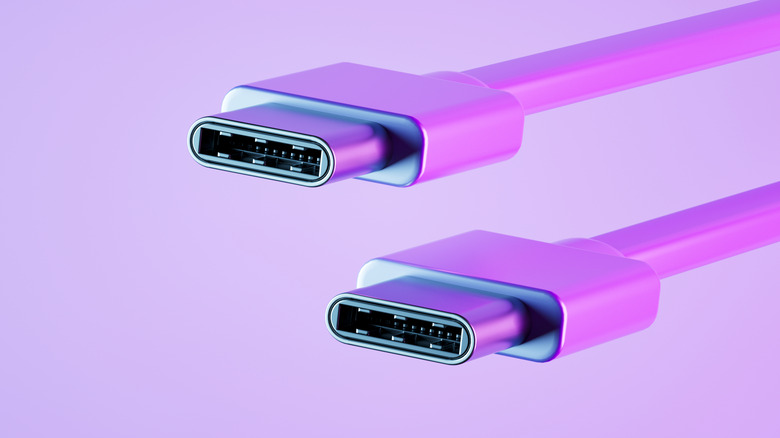
With the rise of USB-C, we've come as close as we ever have to a universal charging standard. The European Parliament in particular has been instrumental in forging the path for USB-C as a common charger among tech devices, going so far as to even force Apple –- a company that is historically very reluctant to give up its own proprietary tech –- to switch to USB-C for its iPhones. Europe has also taken aim at charging bricks, with a new rule for power bricks that requires them to feature a detachable USB-C cable.
Outside of reducing e-waste and simplifying chargers for consumers, the reason for this is that USB-C has matured greatly, offering unmatched versatility under a singular, reversible connector. USB-C has a huge data bandwidth, enabling speeds of up to 80Gbps for USB4, can deliver up to 240W of power with Power Delivery 3.1, and can transmit audio and video, meaning it can be used to connect to external devices or peripherals. USB-C also supports DisplayPort Alt-Mode, and the Apple-Intel jointly produced Thunderbolt interface uses USB-C.
Yet for all its strengths, USB-C can still be confusing –- primarily in how OEMs implement USB-C, and how clearly those ports are identified. Additionally, just because USB-C can do all of these things doesn't mean every USB-C port will support them. Which is why you can't charge your laptop with just any USB-C port; it needs to be one that supports power delivery (USB-C PD). By the same token, just because Thunderbolt 5 uses USB-C doesn't mean every USB-C port supports Thunderbolt 5.
Understanding USB-C charging and power delivery

The evolution of USB has spanned numerous generations and has been quite a journey, with USB-C landing in 2014. However, preceding USB-C was the first USB Power Delivery (USB PD) spec, which was made for older USB-A and B connectors in 2012. It originally supported a default power profile of 5V/3A/15W, and would form the basis of USB PD charging. When USB-C and the first USB-C cables arrived, they would support USB PD 2.0 with fixed voltages of 5V, 9V, 15V, and 20V, and a maximum power delivery of 100W. We've now landed at USB PD 3.1, enabling dynamic and adjustable voltages between 5V and 48V, and a maximum power output of 240W.
As USB-C has evolved, it has grown to encompass many revisions, both to the main standard and the Power Delivery specification. The USB standard has had an identity problem for years, with every revision or update creating confusion (USB 3.2 Gen 1, USB 3.2 Gen 2, USB 3.2 Gen 2x2, etc.) –- both in how OEMs implement them and how the end user can identify them. And because the USB-C port houses such a wide range of possible specs, this makes it a problem identifying what your specific port is capable of, to say nothing of finding a compatible cable. With the new USB4 2.0 and how similar it is to Thunderbolt 5, this compounds the identity crisis even further.
The USB-IF has created an entire line of logos and icons to explain what ports and cables are capable of, but these are just guidelines; manufacturers aren't required to use them, and sometimes don't.
Always refer to the documentation, and make sure you have appropriate cables
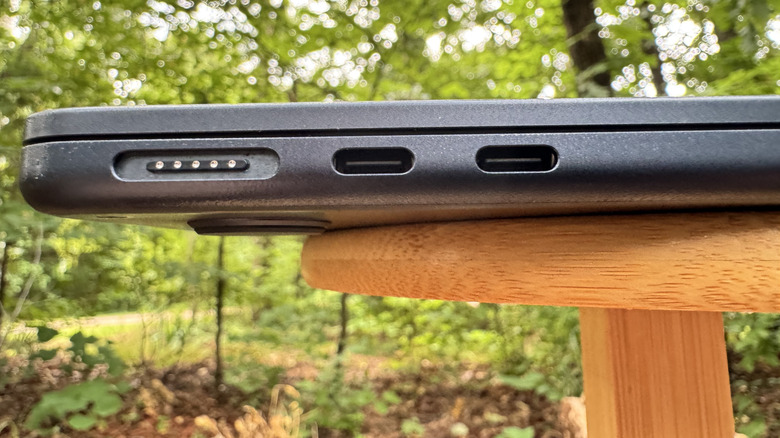
In some cases, like with its Chromebooks, Google uses slightly different icons to identify USB-C ports. Many Chromebooks have USB-C ports on both sides, and many of these support both DisplayPort mode and charging. This enables the device to be charged while also being connected to an external display. But you'll need to refer to the product's documentation to be sure of what ports you've got. The 2025 MacBook Air, as another example, has 2 USB-C ports right next to the MagSafe 3 charging port. These are Thunderbolt 4 ports, meaning they can charge up to 100W, support DisplayPort, and have data rates of 40Gbps –- but you wouldn't know that from looking, as they're not marked. Instead, you have to look up the tech specs to be sure.
Once you've established that your USB-C port(s) support PD, you then need to make sure you are using the correct cable to get the most out of it. Assuming all USB-C cables are created equal is a mistake; you need to make sure the cable supports the power and data specs of the ports you have. Avoid using older USB-A to USB-C cables, as many of them don't have the required 56k ohm pull-up resistor needed to make them safe. When USB-C PD reached 100W charging, USB-IF certified cables began to require an E-Marker chip that negotiated supported power, and that requirement continues with the newer USB PD 3.1 spec that supports 240W. The best way to find certified cables that match the specs of your device is to use the USB-IF search tool provided for free.