

Not Apple, Not Google: 5 Features Only Found On Samsung Galaxy Devices
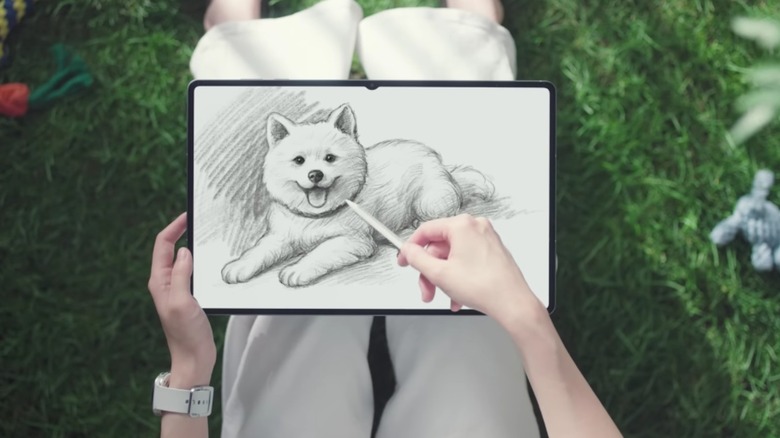
There are devices that outright top those from rivals in terms of specs. However, the best choice is generally the one that meets your specific needs. Apple, Google, and Samsung Galaxy devices have their own unique strengths. They may be aimed at very similar markets, but there are some features that are exclusive to Samsung Galaxy smartphones or tablets. They may be niche in certain cases, but for some users, they could sway a purchase over a rival product.
The South Korean tech giant has developed a lot of proprietary features for its devices, each a part of the wider Galaxy Android platform. Of course, competitors have created their own counterparts for some of them that have similar functionality, and may have got there first, but you can only get these specific tools with a Galaxy.
We'll explore functionality ranging from sophisticated stylus options to a broader security suite based on Samsung's Knox. It may not be worth buying a Samsung Galaxy S24 in 2026, but the wider Galaxy family offers some impressive tricks.
Secure Folder
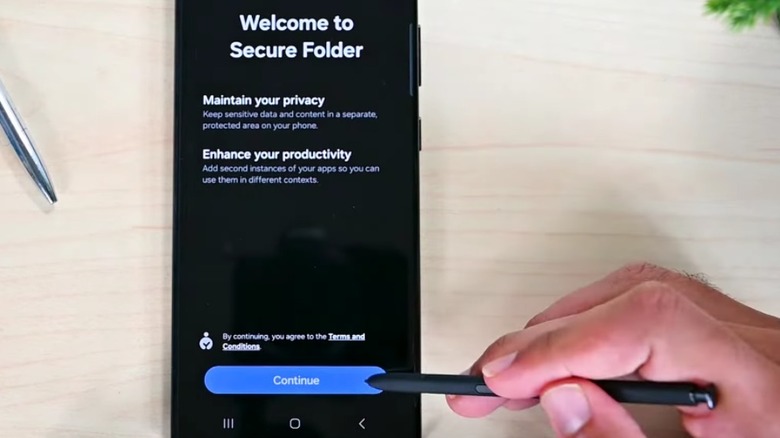
Privacy is vital for any smart device. For Samsung, the headliner is the Secure Folder, which is powered by Samsung Knox.
Some apps like WhatsApp have end-to-end encryption on conversations, meaning that even WhatsApp itself can't access their contents. Samsung's Secure Folder encrypts its contents too, allowing users a location on their smartphones that nobody but themselves can access. It supports biometric access and is used similarly to Android's own Private Space feature.
To create a Secure Folder for sensitive content, you simply access your compatible device's advanced security settings. From the Secure Folder menu, you can determine how it is to be unlocked, with options including a password (retrievable via your Samsung account if you forget it), your fingerprint, a simple PIN, or a pattern.
It's easy to use, with the owner able to add to the folder by simply selecting the type of file and its location on the device. You can choose to either move it from its original location into the Secure Folder, or just make a copy without affecting the original, providing important flexibility in its use.
However you fill it, another important thing is that the Secure Folder icon itself doesn't need to be displayed on your screen if you don't want it to be. Elsewhere in the settings, there's the option to hide it until it's needed. There's a last important caveat to its use: The Secure Folder feature can also be backed up via the cloud, but this can create a security issue if someone breaches your cloud provider.
Samsung Wallet
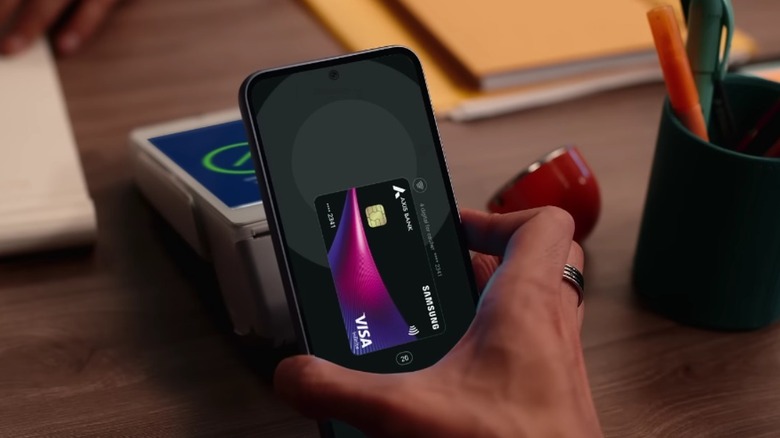
More and more, we're using mobile devices not only to bank, but to make everyday purchases. Apps that can provide these services are so important, and Samsung's own offering for this is Samsung Wallet.
In the United States, this functionality is available to a wide range of Samsung smartphones, from across the Galaxy Note, Galaxy A, Galaxy S, and Galaxy Z Flip and Fold versions, if you've upgraded to Galaxy 9 and above. The app effectively combines the functionality of Samsung Pass and Samsung Pay, meaning that you can use it not only to make payments, but to provide any applicable forms of digital ID you may need.
While this is a Galaxy-exclusive feature, it's not the only choice for a payment/identification app. Google Wallet is widely available for Android owners, for instance, and both are available on Galaxy devices, so you can try both and determine which one's right for you. If you're a frequent traveler, you may prefer Google Wallet, as it is less specialized and so is more widely available in more countries.
If you like to keep everything together as much as possible on your Galaxy device within the ecosystem, though, this Samsung exclusive may be the pick for you. Samsung Wallet can even house your home key, which it does by means of digital access storage. Through this, users can unlock their smart doors locks via Near-Field Communication, through Samsung SmartThings.
Private Share
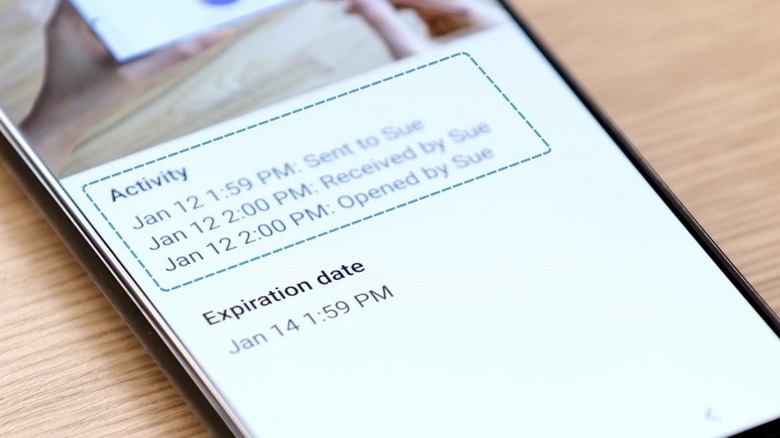
Private Share doesn't just offer encrypted communication. As Samsung reports, this feature was added with the release of the Samsung Galaxy S21, and allows the most confidential of documents to be shared between two compatible Galaxy devices.
There are some very strict rules surrounding the materials once they arrive at their destination. The receiver can only read them; no screenshots or any other means of capturing a record of them is available. Should they be needed only for a limited time, the sender can ensure that they become inaccessible on the other device whenever they wish.
There's a lot of utility to the feature. You might have sensitive, private documents for an accountant, for instance, that you don't want to simply send via a messaging app or email. To remove any potentially identifying information before sending the content, the sender can ensure that there's no metadata available for it.
It's one of the more exclusive Samsung features, being unavailable for tablets and only for Galaxy mobile devices. It's designed to be easy to use, with users selecting a recipient from their Contacts or via the Biometrics & Security menu to get started.
Both devices must have at least Android 9 in order to send or receive via Private Share, and the key to this tool is its use of blockchain, which will thwart any outside attempts to gain access to whatever's being shared. Even so, there are potential concerns that Samsung's information gathering procedures may not make it as foolproof as you may think.
Second Screen
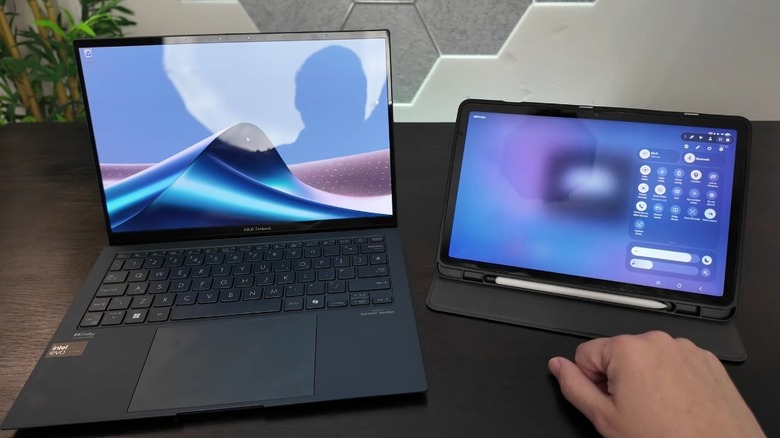
Those with dedicated setups are able to enjoy simultaneous use of high-quality monitors. This can be an expensive and very space-heavy option, though, and it can't be used on the fly. Samsung's Second Screen functionality is a convenient alternative.
There's a simple Second Screen icon within the Quick Settings menu, and selecting it lets you either mirror whatever's showing on the other screen or expand the view on your tablet. When using such features (counterparts include Apple's Sidecar within its own ecosystem), it can be difficult to sync the two devices. You have two choices: The video option is for when you want to watch something across both, using them more passively, while the Drawing/Gaming setting is intended as a more responsive option.
It's a convenient space-saving workaround, and also means that you won't need a big tangle of wires to connect everything together. It's entirely wireless, in fact, offering an impromptu connect-and-disconnect option to collaborate between devices. It's available on Galaxy Tab S8 and S7 models, as well as Windows PCs running Windows 10 v.2004 and above. It's just one of the features you need to know about if you're new to Samsung tablets.
Air Actions
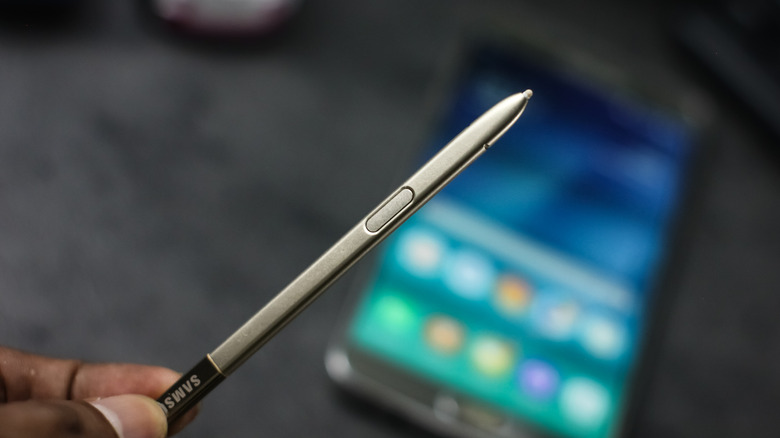
With touchscreens, a stylus allows for more precise control and a less smudgy surface, which opens up new kinds of functionality. Digital artists, for instance, are able to draw neatly without simply using their fingers. Samsung has the S Pen, a tool offered with the Galaxy Tabs and Galaxy Note systems. It's not just a stylus.
It has a simple button that activates it with the system to wake it up, but depending on the context, it can also do other things like remotely controlling the tablet and acting as the camera's shutter button. Simply holding the button can instruct it to do this, but there's also much more to it. It can translate languages, and it can use a sequence of movements known as Air Actions.
Air Actions are compatible with a broad range of Samsung's S Pens, but the specific functions available will depend on the device you're using. For instance, Samsung Note systems and the Tab series from S7 to S10 are not compatible. However, the functionality is broadly used across the Galaxy hardware line. To give the user even more functionality, there are several different types of S Pen for users to choose from. They come in S Pen Creator, S Pen Pro, and S Pen Fold varieties. The latter, as the name would suggest, is a model designed to be more weighty and comfortable to hold, suited for digital artists or simply those who would hold it for longer periods of time. The Pro model, by contrast, emphasizes connectivity, with a Bluetooth connection that other models lack.