

4 Things Your Nintendo Switch 2 Can Do That Most Owners Don't Know About
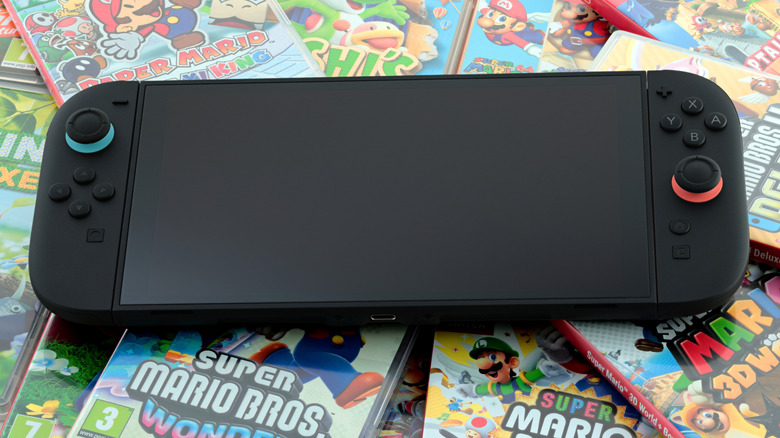
People who own the original version of the Nintendo Switch have had a lot of time to discover the various cool things the gaming console could do. You can use it as a TV remote control. You can use it to charge an iPhone. You can surf the web on it. Apart from the unusual uses, there are a number of things you can do on the Switch to enhance your game-playing experience. For example, you can change the button mapping on your controllers, use a mouse or a keyboard, or even play games in portrait mode. While these examples are fun, the list of possibilities got a bit longer with the Nintendo Switch 2.
The release of the Nintendo Switch 2 was highly anticipated because of the eight-year gap in between console versions. As someone who has both, I can attest, almost everything is improved in the Switch 2. The screen is larger and has better display quality. The Joy-Con 2 controllers are magnetically attached and feel more secure. There's an additional USB-C port on top of the console that lets you charge the device while using the kickstand or plug in additional accessories. Furthermore, there are several hidden new features on the Switch 2 you may not know about.
The Joy-Con 2 controller can be used as a mouse
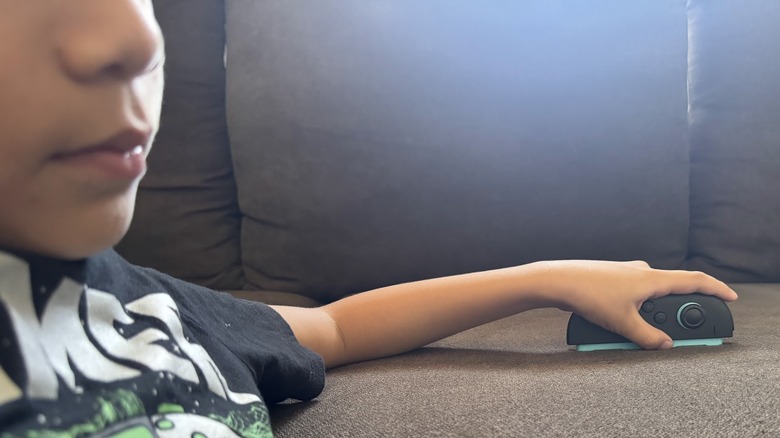
One of the cool things about the Switch 2 is that you can use a myriad of compatible gadgets with it to make your gaming experience more efficient and enjoyable. In fact, if you're wondering what it would be like to use an accessory with your gaming console, there's no need to look further than what's already in your hand — just detach the Joy-Con 2 controller and start using it as a mouse. It doesn't matter whether you're left- or right-handed. Both Joy-Con 2 controllers have a side-rail sensor, so you can use them interchangeably.
There are a few instances wherein the Joy-Con 2's mouse mode feature could be particularly useful. If you happen to be playing a game that requires intensive menu navigation — such as "Factorio" or "Civilization 7" — it may be more convenient and feel more natural to use a cursor over the Joy-Con 2's directional pad. It's also the more portable option as it takes away the need to carry an extra mouse.
Another perk offered by the mouse feature of the Joy-Con 2 is its ease of use. Simply lay the controller flat on its side and the Switch 2 should automatically detect the surface and activate the cursor on some compatible games. For others, you may need to fiddle with the in-game controller settings to get it to work as intended.
There are some limitations to this feature. Since the Joy-Con 2 is thinner than a standard mouse, it can be harder to wield for a longer period of time. It also may not work on certain surfaces — based on testing, mouse mode doesn't kick on when used on glass or similarly reflective tabletops.
Locally host and stream a supported Switch 2 game you own
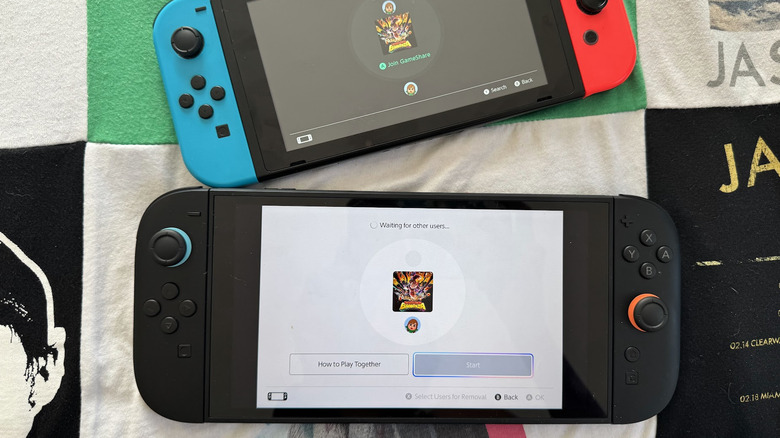
GameShare was one of the highly anticipated features of the Nintendo Switch 2 when it was first announced. It allows a Switch 2 user to essentially act as a host, stream a game that is GameShare-compatible, and allow nearby Switch users (including the original version of the Switch) connected to the same Wi-Fi network to play with them, whether or not they own the game themselves. This particular feature is great for families who own multiple Switch consoles as well as game players who have friends visiting and want to play co-op using their own Switch devices. It's a cost-effective way of enjoying compatible games that offer multiplayer functionality.
 Jam Kotenko/SlashGear
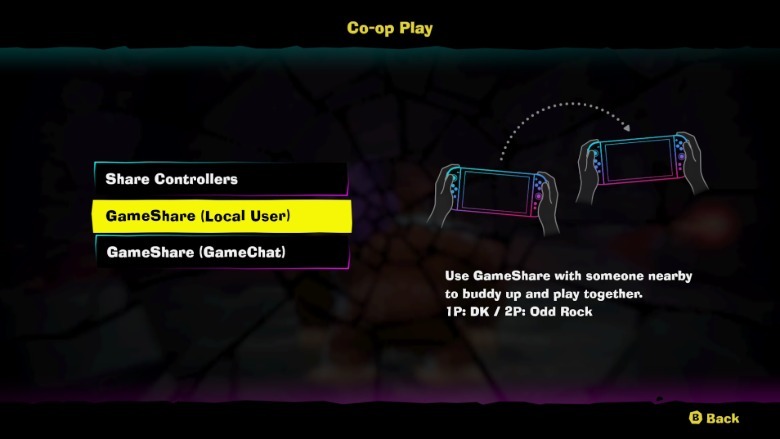
To activate GameShare on a supported Switch 2 game, the host needs to launch the game first and find the co-op or multiplayer option in the game's main menu. Other players can then hit the GameShare icon on the home screen of their respective Switch consoles and find the correct GameShare session to join.
There are a few things to note regarding the GameShare feature. There are two ways to start a GameShare session — locally among consoles connected to the same Wi-Fi network, or online via GameChat. The former is compatible across all versions of the Switch, while the latter is only available for the Switch 2. Consoles with GameChat will need to have the feature set up before they can participate in a long-distance gaming session.
Another important factor to consider is GameShare's current availability across the Nintendo game catalog. As of this writing, there are 33 Switch 2 games that allow GameShare with local users, such as "Donkey Kong Bonanza," "Mario Tennis Fever," and "Pokémon Pokopia." Meanwhile, there are 23 games that offer GameShare over GameChat among Switch 2 users.
Cap the maximum battery charge
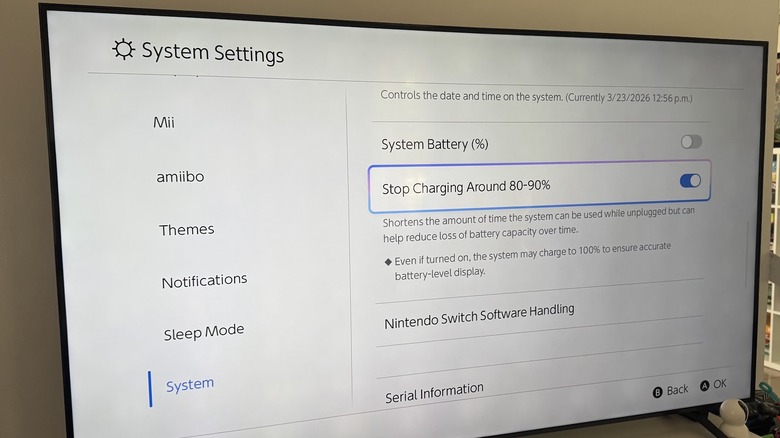
As is the case for most modern devices, battery health matters. A quick way to lose battery capacity over time is keeping your device plugged or charging. If you have your Switch 2 console perennially docked, you are essentially charging it to 100% at all times, which is not advisable if you want your console to last longer. To make your Switch 2 perform better and ensure that you don't overcharge the gaming device, there's a new system feature that you can enable that lets you limit its capacity to charge its internal battery to lower than 100%. Here's how to find it:
- Select the System Settings icon on the home screen.
- Scroll down to System on the left-side panel.
- Enable the toggle next to "Stop Charging Around 80-90%."
- While you're at it, enable the toggle next to System Battery as well so the number is visible on the home screen.
You will see a message underneath the toggle that warns you that enabling the feature may shorten your playtime when the Switch 2 is used while unplugged, but you may find the reduction of battery degradation worth it in the long term. Also note that even with the feature enabled, the Switch 2 may sometimes charge to a full 100% "to ensure accurate battery-level display."
Label people on your Friend list
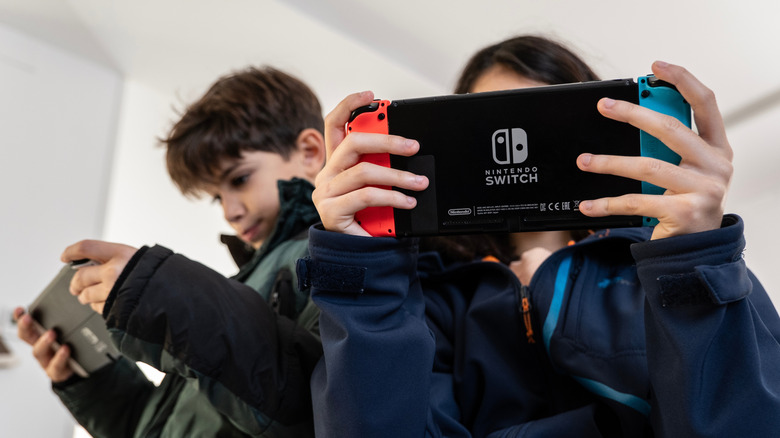
Nintendo recently released Version 22.0.0 of its system update for both the original Nintendo Switch and Switch 2. One of the key additions included is the ability to add notes to users listed in your Friends list. You basically can tack on a label on top of a user's username on Nintendo.
If you're a wide-ranging Switch 2 user who enjoys making friends within the games you play as well as in-real-life gaming communities, then you probably have a substantial list of contacts accumulated in your Switch account. Having the ability to include a visual reminder on how you met a user or what games you play with them could make it easier to plan your future games. A good thing about the Add Note feature is that it's only visible to you, so you can be as descriptive about the people you're connected with as you want, though people who use your Switch 2 device may be able to see what you've written.
To use the new feature, select your profile on the home screen of your Switch 2. Next, select Friend List from the side panel. When you click on a friend's user tile, you should see the Add Note option underneath their avatar.