

5 Hidden Amazon Fire TV Stick Features You Should Be Using
We may receive a commission on purchases made from links.
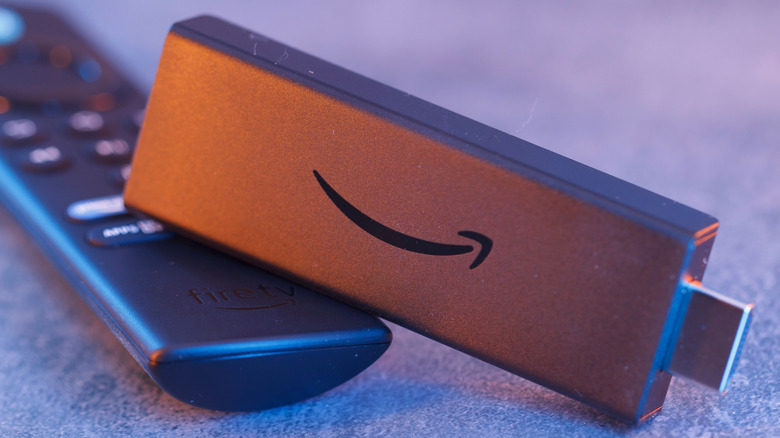
An effortless way to add smart features to an older television is through an Amazon Fire TV Stick. The most affordable variant costs $30, but if you're rocking a 4K TV, then the Fire TV Stick 4K Select is the one to go for. Priced at $40, it undercuts popular competitors like the Google TV Streamer or the Apple TV 4K. At its core, a Fire TV Stick enables on-demand video on your TV through must-have streaming services like Netflix and Prime Video — but it can do a lot more.
Some of the better-known tips and tricks of the Fire TV Stick include faster navigation thanks to Alexa and the ability to watch live TV channels. If you have a house decked out with Alexa-compatible smart devices like light bulbs or security cameras, you can control them using the Smart Home Dashboard on your Fire TV Stick. Most of what the Fire TV Stick can do is advertised quite well, but it does have a handful of other features that aren't as popular.
Now, you won't be answering FaceTime calls or playing games natively like you can on an Apple TV 4K, but the Fire TV Stick can still do a surprising amount if you delve a little deeper into its menus. From playing games on the cloud to accessing hidden real-time metrics for nerds, here are five lesser-known Fire TV Stick features you should try out.
Control other devices using your Fire TV remote

Televisions have grown richer in screen size, quality, and features, allowing us to experience movies in a more cinematic way. A 4K TV of the right size and new panel type — such as Mini LED or OLED — can deliver stunning visuals, but without a good soundbar or audio setup, you'll be missing out on the full experience. Thankfully, HDMI makes connecting everything to your TV quite simple, but you'll quickly find yourself surrounded by remote controls — one for each device that's hooked to your TV.
Consumer Electronics Control, or HDMI-CEC, came about to solve this very annoyance. It uses HDMI's ability to transmit control signals, in addition to the usual video and audio feed, to its advantage — allowing different devices connected via HDMI to communicate with one another. This, in turn, lets you use a single remote to control various devices. You can control video playback as usual, but you can also use the same remote control to change your soundbar's volume.
The Amazon Fire TV Stick supports HDMI-CEC, and as long as the other devices connected to your TV do too, you can turn your Fire TV remote into a universal controller for your entertainment setup. Navigate to Settings > Display and Sounds > HDMI CEC Device Control, and enable the feature here. The tech isn't perfect, though. If you notice any devices failing to respond or acting up, it's likely due to incompatibility.
Fire TV mobile app
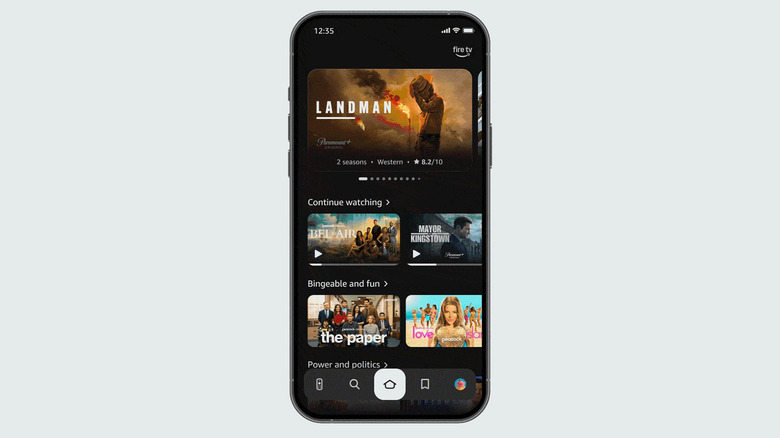
The bundled remote is all you need to control your Fire TV Stick, and it even comes with Alexa built-in that allows for quicker control through voice commands. Yet, there exists perhaps an even better way to navigate around Fire OS — through an app on your smartphone. The Fire TV app is available for both Android and iOS devices and, at its core, acts as a backup remote for your Fire TV Stick. In addition to playback control, it makes typing out keywords tenfold easier.
The app has been around for a while, but has only recently received an overhaul that turned it into more of a companion app for your TV. It still lets you control your TV, but now features a way to browse new content and manage your watchlist. This lets you curate your library on the fly, even when you're away from home. You can search for movies or TV shows using keywords or filter content based on genre.
Once you spot something interesting, you can add it to your watchlist, send it to your TV, or refine your recommendations by marking it as something you'd either enjoy or not. The app is also available for Android tablets and iPads, making it easier for you to read more about a specific film or TV show before you start watching it.
Access the developer tools menu
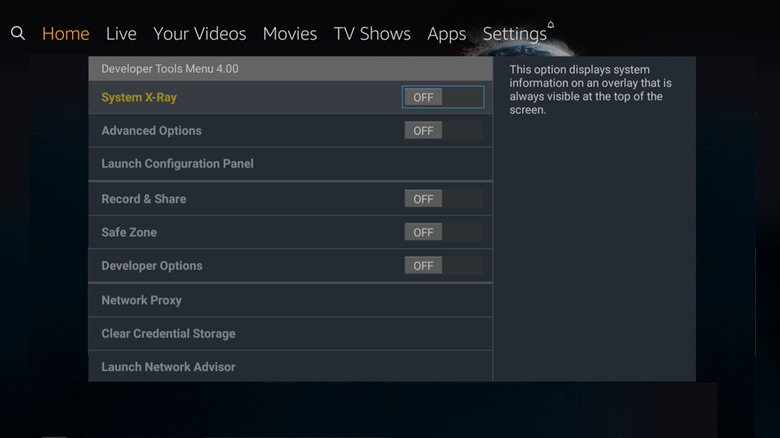
The Fire TV Stick is a product intended for end users who simply need a reliable way to watch on-demand content on their TV. That said, most consumer electronics let you tweak options beyond what appears in the settings app. These largely exist for developers and troubleshooters — but curious users may benefit from what the hidden developer tools menu on the Fire TV Stick has to offer.
To access it, press and hold the center button on your remote's D-pad, and follow that by pressing and holding the down button. Hold both these buttons for around four seconds, then release them and press the menu button. This will pop open the developer tools menu, which houses a handful of interesting settings. For starters, you can enable the "System X-Ray" option, which displays a few useful real-time metrics on screen. This includes information about the display connection, in addition to details about CPU, memory, and network usage.
The "Advanced Options" toggle enables further insights when you play media. This will let you view the codec information, video resolution, bitrate, and frame rate. If you're collecting data for diagnostics, you can also capture snapshots or record metrics for a set duration. You will find other options within this menu, and although they don't add to the experience, they do provide useful insights into how your Fire TV Stick is running in the background.
Cloud gaming

For the longest time, consoles like the PlayStation and Xbox were preferred as everyone's go-to setup for gaming in the living room. Sure, gaming PCs, when built right, can outperform current-gen consoles while offering a wider selection of games, but the accessibility and ease of installation of consoles still make them the more attractive option. With 2GB of RAM and a modest processor, the Fire TV Stick isn't exactly capable of handling heavy workflows — let alone demanding games. Yet, you can play AAA titles on your Fire TV Stick thanks to cloud gaming.
By offloading all the processing to dedicated GPUs in remote data centers, cloud gaming makes it possible for users to play graphically intensive games on practically any device that can connect to the internet. Though not widely advertised, the Amazon Luna app allows you to play games on the cloud on any Fire TV device. The best part is that it's a service that's free of charge for existing Amazon Prime users. If you watch a lot of content on Prime Video or enjoy Prime deliveries on Amazon, you likely have a subscription already.
A compatible game controller and a stable internet connection are all you need to enjoy games on your Fire TV Stick. One of the popular Amazon Luna alternatives, GeForce Now, is also now available on Fire OS. It offers a bigger library of games and has been around for much longer.
App data and cache management
It's no Apple TV 4K, but even a current-gen base model Amazon Fire TV Stick can offer a fluid experience when watching content or simply navigating around the interface. Eventual lag and slowdowns are inevitable, especially if your Fire TV Stick has served you for several years. With new updates for apps come new features and visual overhauls, and there's only so much aged hardware can handle. If your Fire TV Stick has stopped receiving software updates from Amazon, it's probably a good time to upgrade the hardware — doing so will instantly breathe new life into your TV.
However, slowdowns or app crashes may also happen on new Fire TV Stick models, and Fire OS lets you perform a bit of maintenance of your own before you resort to a full factory reset or contacting customer support. If you're having trouble with a specific app on your device, you can clear its cached data. Generally, apps store cache to keep frequently accessed content ready, and it isn't advisable to clear it too frequently. However, if an app's cached data grows too large, clearing it may speed things up.
Amazon recommends you clear app data and cache if your Fire TV Stick is running slow or bugging out. Navigate to Settings > Applications > Manage Installed Applications. Here, you can select the "Clear all Application Caches" option or choose and clear cached data for a specific app.