

4 Unexpected Uses For Your Old Nintendo Wii Remotes
We may receive a commission on purchases made from links.
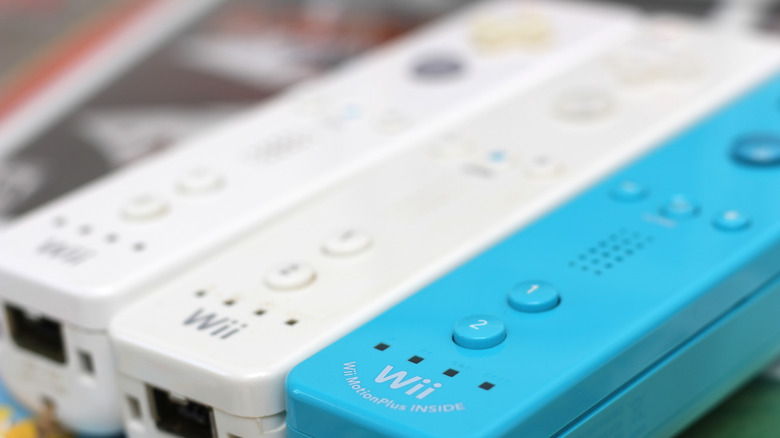
The Nintendo Wii was one of the best-selling consoles of all time, and the most popular home console of its generation. Seeing as it's about 20 years old, it's no wonder so many not-so-young adults are too nostalgic about evenings of tense bowling and weird games that make good use of Nintendo peripherals to throw their old console away. While there are some great uses for an old Nintendo Wii, let's face it, you're probably never going to hook it up to the TV again. But what about the Wii Remotes? The motion controllers were the most innovative part of the console, but they didn't age gracefully. That said, there are some ways to repurpose these old controllers.
If you're interested in any of these hacks, know that some of them are serious DIY projects, and none are plug-and-play. You can achieve all the functions detailed below far more easily and efficiently (and sometimes for cheaper) by buying a dedicated product. However, you could say the same thing about a lot of DIY projects. They might save you a trip to the store and the services of a professional, but they usually cost way more in work hours. Ultimately, the ones taking on these projects are hobbyists who just think that using an old gaming controller to turn on the AC is fun.
PC and TV air mouse
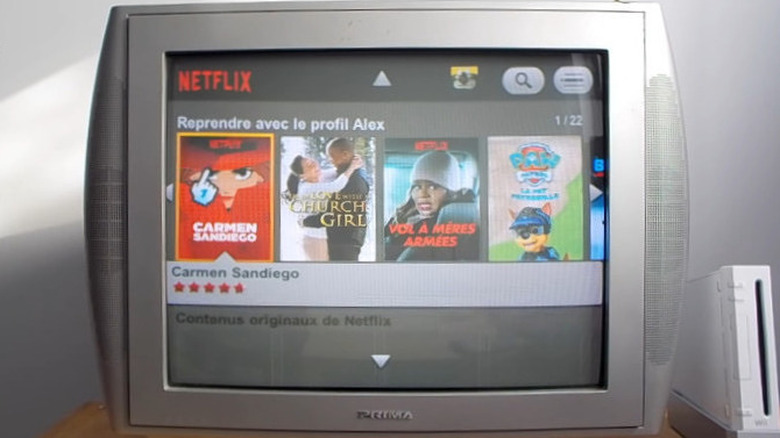
No, you can't control Netflix on your TV directly with a Wii Remote, not since the actual Netflix Wii app was discontinued in 2019. As far as we know, no modern TV is natively compatible with this 20-year-old gaming controller. That is, of course, a travesty, but it is what it is. What you can do instead is set up the Wii Remote as an air mouse on your living room PC and connect that to your TV. If you don't have a living room PC, you'll be happy to learn about PC sticks, which are as small as a streaming stick and as powerful as a budget laptop from a few years ago.
Whichever way you go, connecting your Wii Remote to a computer is easy enough. You'll need a Bluetooth connection, either via a dongle or native to your PC, a wireless or USB Wii sensor bar, and the Touchmote software. While Touchmote is the most often recommended option, it might cause some compatibility problems, seeing as it hasn't been updated since the Windows 10 days. WiinUPro is a modern alternative, but it's larger in scope, and you might find it harder to use.
Setting up the software side of things might take some time, but once it's done, you'll be able to interact with your PC using the Wii Remote as a mouse pointer, more or less the way an Amazon Fire TV Stick can be made to do. Since you can program the controller's buttons to output any keystroke or mix of keystrokes, you can even set up a button to bring up Windows' virtual keyboard.
PowerPoint presentation remote/clicker

Sure, the Wii Remote is larger than most slideshow presentation remotes, and it doesn't come with a laser pointer, but it can work in a pinch. While it might not give an aura of professionalism, it's sure to make an impression with the right audience. Using a Wii Remote for a presentation only requires two things: a Bluetooth connection and the right software — and the controller, of course. Make sure to bring lots of patience with you, too: Even if it's easier than other Wii Remote projects, this hack is not as plug-and-play as you might expect.
What makes this project easier than most is that we don't care about the Wii's motion controls, only the buttons, which means no infrared bar and no jittery pointer. As for what you need to do, you'll want to install either Touchmote or WiinUPro (whichever you can get to work with ease). We'll use this software to detect the Wii Remote button inputs and transform them into keystrokes. Then, you'll need to establish a Bluetooth connection with the remote. Some specific Wii controllers might require a specially made Bluetooth dongle, as detailed on Touchmote's website.
Finally, you'll set up your presentation software (you don't have to use PowerPoint, of course) so that it uses the keys output by your Wii Remote to perform certain actions. Map the A button to the Next Slide function and the plus and minus keys to the volume of the PC for a functional device, or throw caution to the wind and use flicking motions to control everything. You probably shouldn't, but we have to admit it sounds fun.
Light gun controller
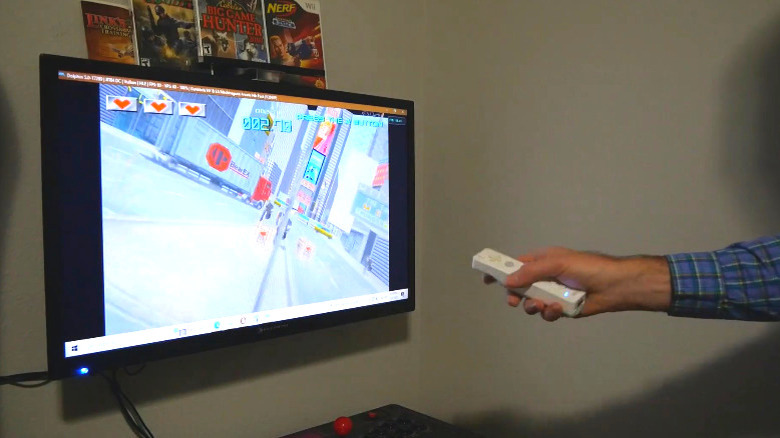
Before we get into this section, a disclaimer: The Wii Remote will not work as well as the NES Zapper or similar light guns did back in the day when used to emulate these controllers. The reason is that the two use completely different technologies, and translating one to the other isn't as easy as one would hope.
The first step to using your Wii Remote as a lightgun controller is to connect it to your PC. You can do so with the Touchmote software. On top of the controller and a Windows PC, you will need a sensor bar and a way to connect the remote to your computer. The Touchmote website recommends using a Mayflash W010 DolphinBar, which is both a sensor bar and a Bluetooth dongle. Set up Touchmote to move the Windows cursor based on the Wii Remote's position, tell your light gun game to follow the mouse rather than a controller, and you're ready to go.
Of course, this is 2006 technology, so compromises have to be made. Anecdotally, users have found that the larger your TV is, the worse the remote works. This is likely because monitors and TVs were much smaller in 2006, when the Wii came out. Pivoting the remote in your hands never corresponded to a precise, one-to-one movement of the pointer on the screen, but for most living room players, the issue will be even worse now.
Home Assistant controller
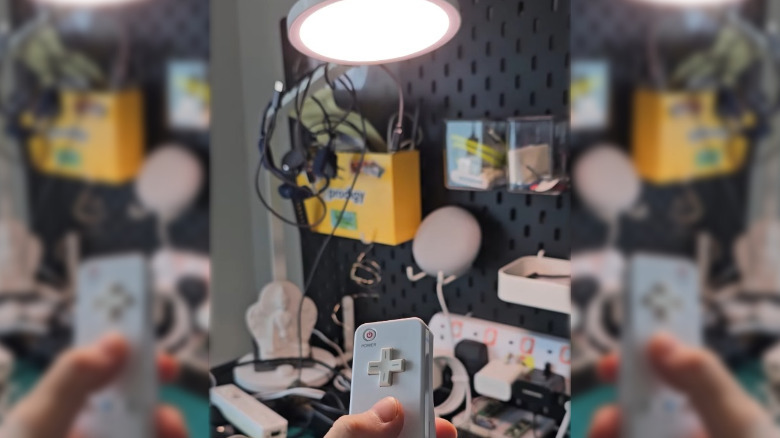
A word of advice: This is by far the most complex project on our list. You'll have to put some time aside for this one to make it work. First, you'll need to set up a local Home Assistant server in your home. You'll also need some compatible smart devices. We won't explain how to set this up now, but the internet is full of guides on the topic. As for controlling your Home Assistant with a Wii Remote, we'll refer to Ferry Djaja's Medium article on the topic. We'll give you the short version, but it's complicated enough that you really want to read the whole thing.
In simple terms, we need an intermediary device to read Wii Remote inputs and transform them into messages that Home Assistant can understand. This can mean setting up a Raspberry Pi and creating a custom Python script, or keeping things mildly simpler and using AutoHotkey on a Windows PC. As we saw in the other slides, getting the Wii Remote to output keystrokes isn't hard: The real challenge is getting the intermediary machine to speak to Home Assistant, since the specifics of this process will change depending on your HA setup. Plenty of users have been there before; however, this makes it a reasonable project even for a beginner.
Once you get it working, you'll be able to turn on the AC with the face buttons, then adjust the thermostat with the plus and minus keys. With some work, you might be able to turn the lights off with a flick of the wrist, too.