

5 Default Settings You Should Change On Your Samsung Phone
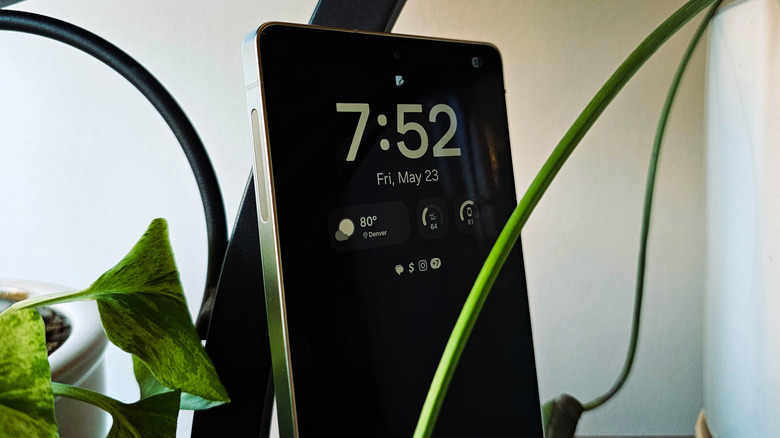
As one of the most dominant smartphone manufacturers on the planet, Samsung Galaxy smartphones are the way most users will interact with Android. And although Galaxy phones are often the Android phones to beat, Samsung doesn't always get things right. Galaxy phones run a custom version of Android called One UI, and, out of the box, some aspects of the Samsung experience can be frustrating. For example, did you know that Samsung phones are locked to a lower display quality than advertised? Unless you happen to dig around in the right corner of the Settings app, you may never know your expensive smartphone was downgraded by default.
Thankfully, just like how there's a Galaxy option for every type of phone user, Samsung offers ways to customize its phones. Users can change almost every setting, which makes it mercifully easy to reverse some of the company's most vexing default configurations. I've used a Samsung as my main smartphone since 2012, and it's by now second nature for me to spend a few hours dialing in the best settings on any new Galaxy smartphone or tablet. To that end, I've rounded up a few crucial improvements you can make to the stock experience.
From improving the disappointing default display quality to speeding up your system, and even modernizing how you navigate the OS, here are five default settings you should change on your Samsung phone. All of the settings here are based on the latest version of One UI as of this writing and were tested on both a Galaxy S25 Ultra and S23 Ultra, though some may not apply to Samsung's budget-friendly devices. With that, let's dive in.
Switch from three-button navigation to gestures for easier navigation
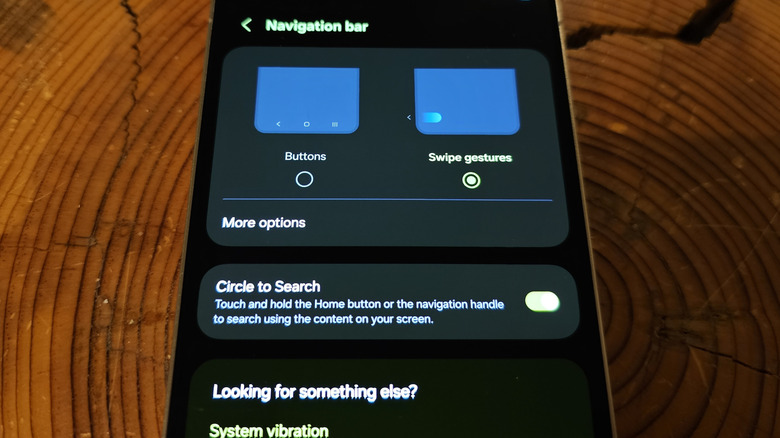
In 2019, Google made a fundamental change to the way users navigate Android. Apple had debuted swipe gestures with the iPhone X in 2017, doing away with buttons entirely. Not to be outdone, Google did the same with Android Q in 2019.
Today, most Android phones ship with gesture navigation out of the box. A quick swipe up sends you home, while swiping and holding reveals your recent apps, and swiping in from the side of the screen takes you back a layer. But for some reason, Samsung continues to ship smartphones and tablets that still use the old three-button navigation by default. Not only is it harder to use your phone one-handed in that configuration, but it takes up valuable screen real estate.
To switch over to gesture navigation, head to the Settings app on your Galaxy device and tap into the Display section. Scroll down and tap on Navigation Bar, then tap Swipe Gestures. The three-button bar at the bottom will disappear, replaced by a tiny gesture hint bar. If you want a truly full-screen experience, stay in the Navigation Bar section of Settings and tap on More Options, then turn off Gesture Hint.
Get the display you paid for by setting its resolution to full quality
Samsung is well-known as one of the premier display manufacturers worldwide. Not only does it make the displays for its own phones, tablets, TVs, and so on, but it also manufactures screens for many Apple devices, including the iPhone. With such a reputation for high-quality displays, it's no wonder that the screens on Samsung Galaxy flagship phones are among the best available. Most of its premium flagships feature a quad HD, 1440p display. It looks absolutely brilliant, and unless you've spent exorbitant sums on one of the best 4K TVs, it might be the best display you own.
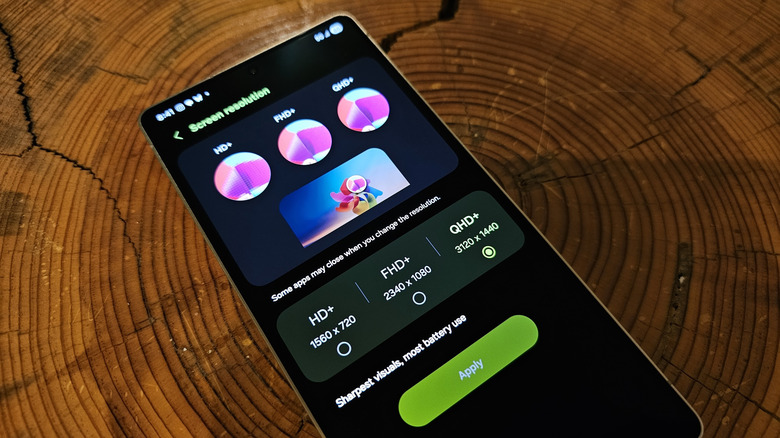
It's a real shame, then, that Samsung bafflingly chooses to ship its phones with the screen resolution downgraded. Out of the box, even the amazing Samsung Galaxy S25 Ultra comes set to just 1080p, also known as full HD. It still looks decent, but you're not getting the display quality you paid good money for. Even worse, some features don't even turn on until you set the screen to 1440p. ProScaler, which automatically enhances content served at a lower resolution to make it look better on your phone's screen, is one such example. The only reason you should keep your phone set to a lower resolution is to save a bit of battery.
To set your Galaxy phone to its maximum resolution, open the Settings app and tap into the Display section. Scroll down and tap Screen Resolution, then select the highest setting, and tap Apply. Your display may stutter a bit as it adjusts, so don't be alarmed if it does.
Improve productivity by speeding up animations
The latest versions of One UI have revamped animations that modernize the feeling of navigating around the operating system. But while some of Samsung's animations are luxurious and contribute to the premium feel of its flagships, they also get in the way. When you're hammering out a task on your phone, it can be aggravating to wait for each animation to finish before you can do anything else. Thankfully, you don't need to remove animations entirely if they're slowing you down. You can simply speed them up.
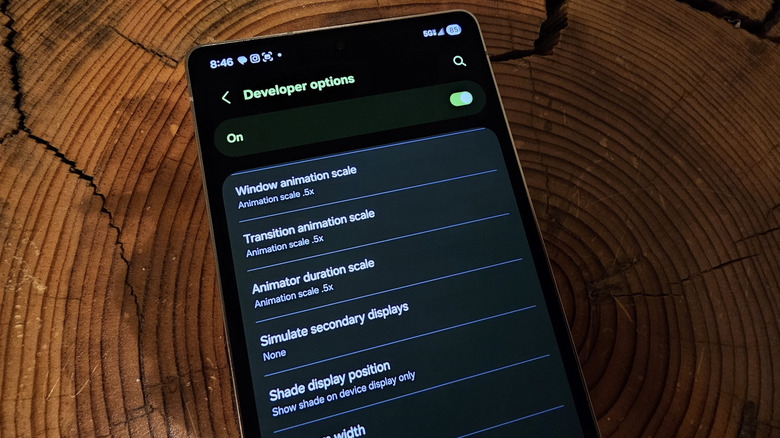
To speed up the animations on a Samsung Galaxy smartphone, you'll first need to enable developer settings. These are hidden behind a shortcut that every Android enthusiast knows by heart. Go to Settings, scroll to the bottom, tap About Phone, then tap Software Information. Next, repeatedly tap Build Number until you see countdown notifications at the bottom of the screen, followed by a confirmation that developer settings are enabled. Go back to the main Settings page, and you will now see Developer Options at the bottom.
In Developer Options, scroll down to the Drawing section and find three settings called Window Animation Scale, Transition Animation Scale, and Animator Duration Scale. Set each of them to 0.5x. You may see some stuttering during animations for a few moments after the change, but the system should adjust somewhat quickly. Reboot your phone if issues remain. You should now notice that animations move twice as fast when you navigate around the OS and between apps.
Turn your power button back into a power button
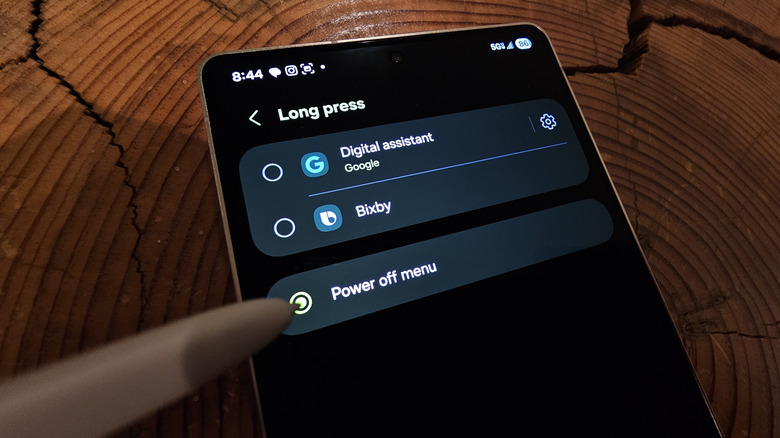
It might surprise you to know that Samsung does not call the button on the side of your phone a power button. In the company's parlance, it's actually called the side button. The reason for that renaming is that, by default, holding down the power button on a Galaxy smartphone won't actually surface the power menu. It will instead summon Gemini, Google's large language AI model. Samsung claims that "This innovative button is versatile," but those probably aren't the adjectives most people will use when frantically tapping through software menus to power down their phone.
Samsung has compounded the power button issue by removing the previously available assistant shortcut, which involved swiping in from the bottom corner of the screen to summon the assistant. That means you have to choose whether you prioritize easy access to your power menu or Gemini. If you prefer the former, you can thankfully change Samsung's default configuration.
To change what happens when you hold down the power button on your Samsung Galaxy phone, open the Settings app, then scroll down and tap on Advanced Features. Tap Side Button, then tap Long Press, and select Power off menu. You should now see the power menu come up when you hold down the power button for about a second, which is probably what you were expecting in the first place.
Get rid of Samsung's iPhone-esque quick settings panel
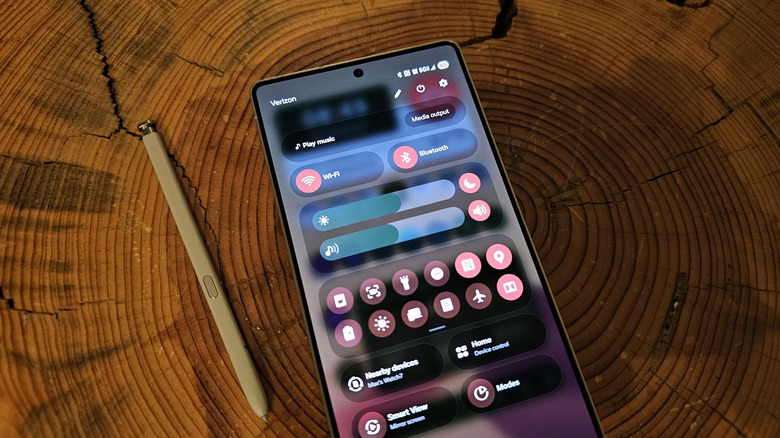
Throughout the history of Android, swiping down from the top of the screen has revealed the notification shade. Over the years, the shade has grown a lot more feature-rich, but there hasn't been a fundamental change to that reliable list of alerts. The most notable addition has been Quick Settings, which places several oft-used settings toggles above the notification list and which can be expanded with an extra swipe down. However, starting in One UI 7, Samsung split the notification shade and Quick Settings panel into two separate interfaces by default. To access the notifications, you now swipe from the left side of the screen, while the latter requires a right-side swipedown.
For many users, the change is jarring after so many years of muscle memory. It also makes Samsung's largest smartphones harder to use one-handed, as checking your notifications while holding the device in your right hand requires some serious thumb gymnastics. Thankfully, Samsung offers a way to easily swap back.
To merge the notification shade and Quick Settings back into a single interface, swipe down from the right corner of the screen and tap the pencil icon in the top right. In the top left, tap Panel Settings, then tap Together. Now, you'll see some Quick Settings atop your notifications when you pull down the shade, and the full Quick Settings can be accessed with a second swipe. While you're in Panel Settings, you can also choose which settings toggles you want accessible in the condensed view, as well as whether to show the brightness slider or media controls above your notifications.