

16 iPad Apps That Will Aim To Improve Your Tablet Time In 2026
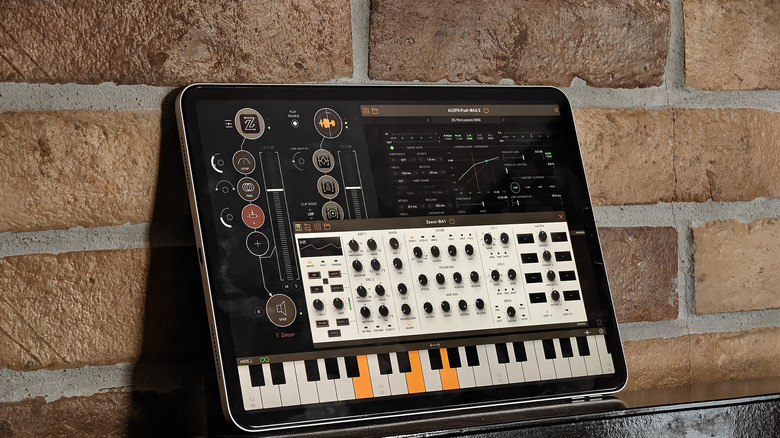
Over the past few years, Apple has made some drastic changes to the iPad's hardware and software, making it more lucrative than ever. Powerful M series chips, tandem OLED displays, a new massive size, and an OS that's closer to macOS than ever. Right from the base iPad 11th gen to the flagship M4 iPad Pro, Apple offers solid products at various price points. With some iPad accessories and pro-grade software like Final Cut Pro and Logic Pro, it's natural for students, artists, and even video editors to consider using an iPad as a laptop replacement. If you were also enticed into picking up an iPad, there's a treasure trove of apps that let you unlock the tablet's full potential.
Apps like Procreate, LumaFusion, Lightroom, and several other free apps are just scratching the surface of what the iPad can do. Whether you've just bought a brand-new iPad or you have one gathering dust that you want to resurrect, we've collected a bunch of apps that will drastically improve your tablet time in 2026. These are apps that can boost your productivity, perform tasks that you would otherwise need dedicated tools for, and even simplify a host of tasks on the iPad by adding features that Apple didn't include natively. I've tested hundreds of iPad apps, and here are the ones I believe are going to make you appreciate your iPad even more.
Paste - Limitless Clipboard
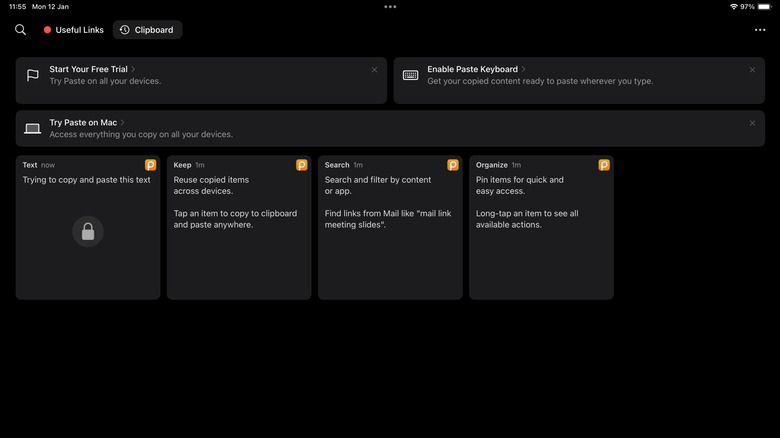
One of my biggest gripes with iOS and iPadOS is the lack of a native clipboard. For those unaware, the clipboard on any device stores all your copied elements. For instance, if you copy a phone number, it stays in the clipboard until you paste it. With iPadOS, you can only copy one item at a time. If you copy two phone numbers, the one copied earlier will be lost. If you edit a lot of documents on your iPad or repeatedly input recurring details like addresses, email IDs, etc., this can be extremely annoying.
Thankfully, there are third-party apps to fix this issue. Paste is one such app that has worked well for me. As soon as you copy anything on your iPad, Paste will store it within the app. This way, anything you copy is available to paste without overwriting previous copies. While the trial version is free, you will have to pay to unlock the app's full potential. If you copy-paste a lot of items daily, the full version is absolutely worth it.
Defter Notes
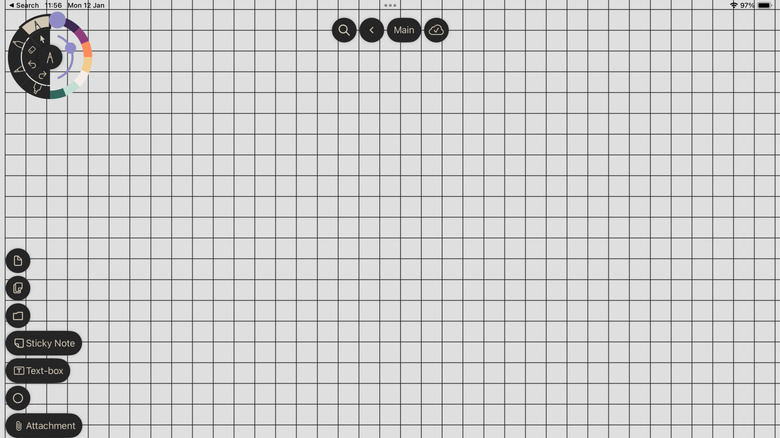
I know, there are a plethora of note-taking apps for the iPad — way more than anybody asked for. But one app that stands out is Defter Notes. Unlike traditional note-taking apps that have multiple pages, folders, and sections, Defter Notes provides a limitless canvas to scribble on. This is an excellent way to generate ideas and jot down quick pointers. You can then map each individual element based on your requirements. So, you can have text, pictures, files, sticky notes, and pretty much any sort of media related to your idea.
Of course, the usual set of features, like the ability to change the tip size and color, erase text, and add or remove gridlines to the page, are present. Defter Notes isn't for students or professionals who like making organized notes during a class or a meeting. It's more of a tool directed towards creatives or business owners who want to brainstorm ideas and create a mind map — all in one place.
ReciMe
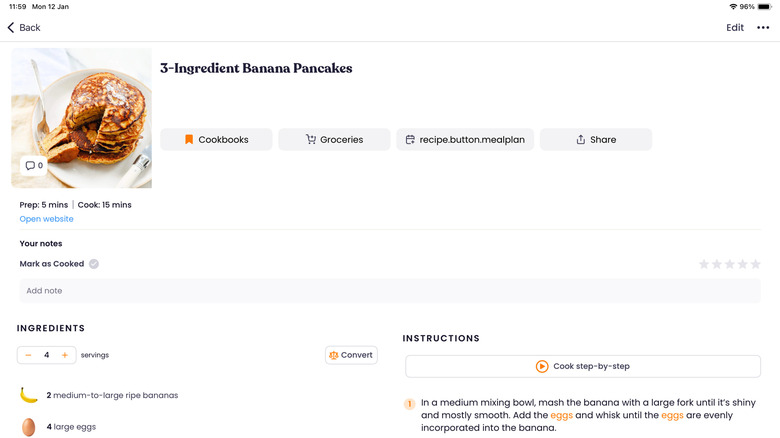
How many times have you come across delicious recipes when scrolling through TikTok, Instagram, YouTube, or pretty much any other social media app? The usual behavior when you encounter a recipe you want to try later is to take a screenshot of the video. More often than not, you tend to forget about the screenshot in a few days. Well, that's about to change, thanks to ReciMe — a service that you can you to create your own repository of recipes from the internet.
Let's say you're scrolling on TikTok and watch a video that shows you how to make banana pancakes in under five minutes. Instead of taking a screenshot of the ingredients list, all you have to do is hit the Share button and choose the ReciMe app. The app will extract the recipe from the video so you can view it whenever you want. Simply open the ReciMe app every time you wish to view a recipe. You can also create folders for different types of recipes, and also view the calorie count of each dish.
AUM Audio Mixer
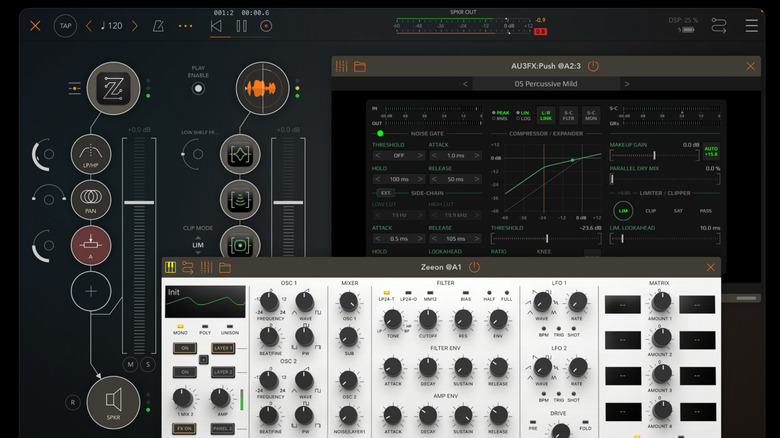
The AUM Audio Mixer app is exactly what it sounds like. If you work with a lot of audio files, for instance, in a podcast or filmmaking setup, AUM gives you complete control over pretty much any parameter related to your audio file. Notably, AUM lets you work with external devices by connecting them to the iPad and creating multiple audio channels. So, you can connect multiple external mics for audio input along with a bunch of headphones for monitoring the output.
You can also use the built-in keyboard or connect external musical instruments. Once the audio files are recorded, you can also edit them within the app itself using an interface that's rather straightforward. Notably, AUM is not a free app. However, if your job involves working with and processing audio files on the go, AUM is an excellent investment. It also works on an iPhone, so you can make small tweaks in quick time, even if you don't have your iPad with you.
FileBrowser Professional
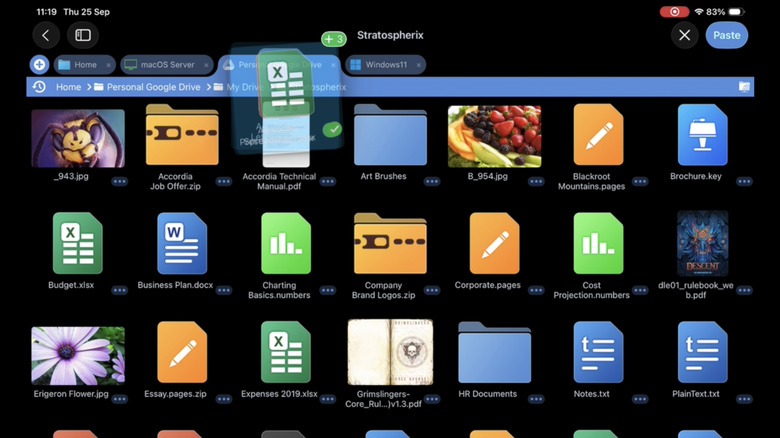
Apple has definitely improved the file system on the iPad to a point where most people are now comfortable using the Files app. However, if you've used Finder on a Mac, you would know that the Files app on the iPad lacks a ton of features — especially for power users. That's exactly what FileBrowser Professional aims to fix. Apart from having professional in its name, the app provides pro-level features such as batch renaming, editing documents within the app, streaming media files, and even syncing files in real-time to over 20 cloud platforms.
Considering the native Files app is free and does the job for the average consumer, some users may find the $15 price tag rather steep. However, those who work a lot with multiple files or want a desktop-like experience when working with multiple files and folders, this is a must-have app. Notably, it also has a tab-based layout, so you can open multiple folders and quickly switch between them to compare contents.
Camo Studio
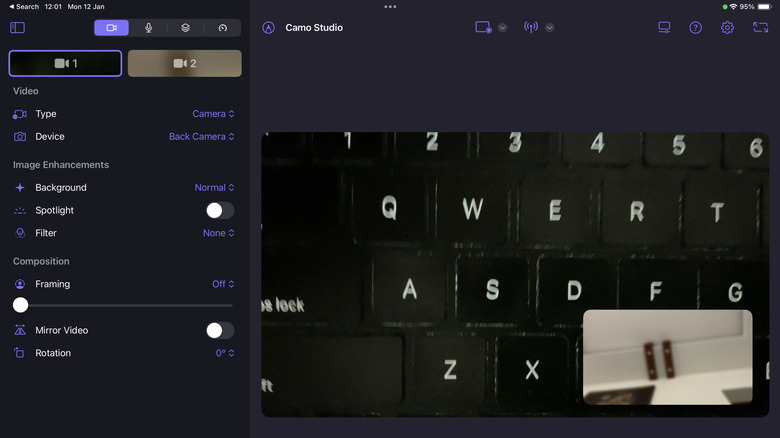
Content creators are going to absolutely love using the Camo Studio on the iPad. Whether you want to record a video or live stream to an audience, the app makes it incredibly easy to use your iPad as a content creation tool. For starters, you can access multiple camera streams, which means you can record footage from both the rear-facing camera and the front-facing camera on the iPad. Then, there's support for external devices too, like gaming consoles or cameras, with the help of capture cards.
If all of this sounds familiar, it's because Camo Studio is pretty much like OBS Studio for your iPad. You even get individual controls for each camera and audio source, so you can adjust the framing, add filters, change the background, etc. Camo is directly integrated with streaming platforms like YouTube and Twitch, so all you have to do is sync your accounts and start streaming with the press of a button. This makes it extremely simple for beginners to enter the world of streaming. Even if you're a professional streamer, you can use Camo Studio while you're on the move for a quick stream without any professional gear.
Widgy
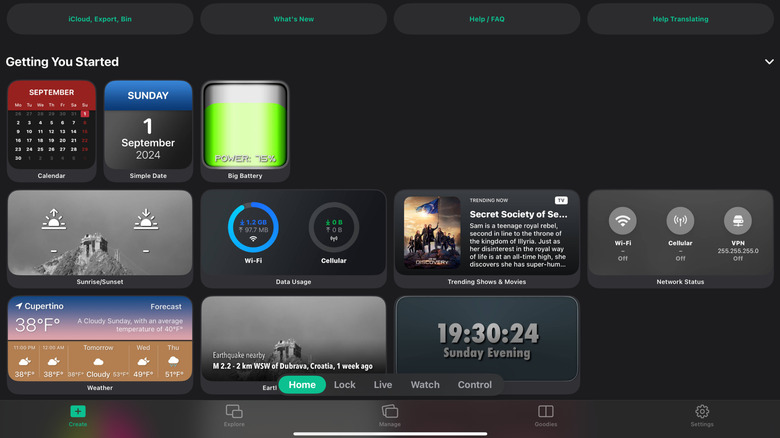
While I don't use widgets on my iPhone's home screen (I find them to be a waste of space), the iPad's massive screen is the perfect canvas to experiment with widgets that not only look appealing but also make quick toggles, calendar events, and interactive albums accessible at your fingertips. Of course, you can use Apple's native widgets to start off, but they can start to feel a bit stale since everyone uses the same widgets. If you want to add an element of uniqueness to your iPad's home screen, you should try Widgy.
Widgy lets you create custom widgets for your iPhone just the way you want them. The app provides templates that you can customize: match the weather widget to your wallpaper, add Wi-Fi and Bluetooth toggles with network speed, or view the number of steps you've walked with a custom animation. If you've ever customized an Android device's home screen with custom launchers, icon packs, and themes, this is the closest you can get to doing that on iPadOS. Fair warning — it's a deep rabbit hole with infinite possibilities, so be ready to spend hours on the app designing that perfect widget.
Actions
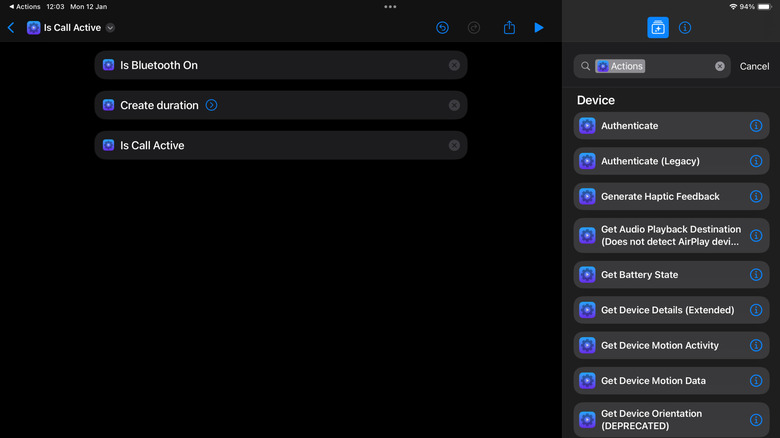
If used in the right manner, the Shortcuts app on iOS and iPadOS is one of the most powerful apps to perform tasks or create automations. There are some useful iOS shortcuts, like generating wallpapers using AI and automatically applying them at certain intervals, finding the nearest coffee shop, or even pinging the live location of the iPhone when you send a specific message in case the phone gets lost. However, there are some limitations of the Shortcuts app that can be fixed by installing Actions. It adds some missing options that can be crucial when creating an automation or routine.
For instance, the Actions app can add rules that check whether a call is active or not, if the device is moving or not, etc. Based on these factors, you can trigger certain functions. For example, if the iPad is on a FaceTime call, and it's running on battery power while being connected to a 5G network, you can automatically trigger Low Power Mode. Since this is an intensive use case, it drains more battery, and you may forget to trigger the battery saver manually. Highly recommended if you're a power user.
Runestone Text Editor
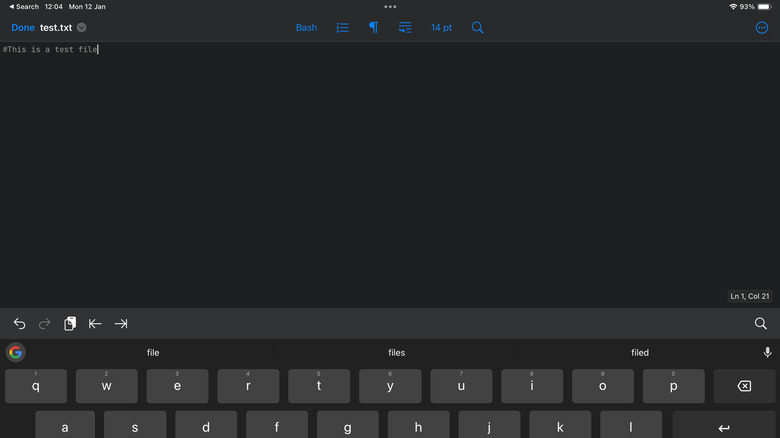
While some users may get an iPad to replace their computer, some may use one as a companion that they can use when traveling. If you're a programmer who bought an iPad to use along with your Mac, you will definitely appreciate Runestone. It's a text editor for iPadOS that's pretty much the closest you will get to an IDE on a desktop OS. Runestone offers features like syntax highlighting, line numbers, changing font size, automatic closing of brackets and quotes, etc.
You can also pick the language of code before writing so that the app can identify the syntax automatically. Some popular supported languages include HTML, JavaScript, JSON, Markdown, Swift, Python, PHP, and YAML. Once installed, Runestone also shows up on the iPadOS share sheet. So if you have text files on your iPad's local storage, or you've plugged in an external drive, you can access the contents via the Files app and open them directly inside Runestone.
Orion
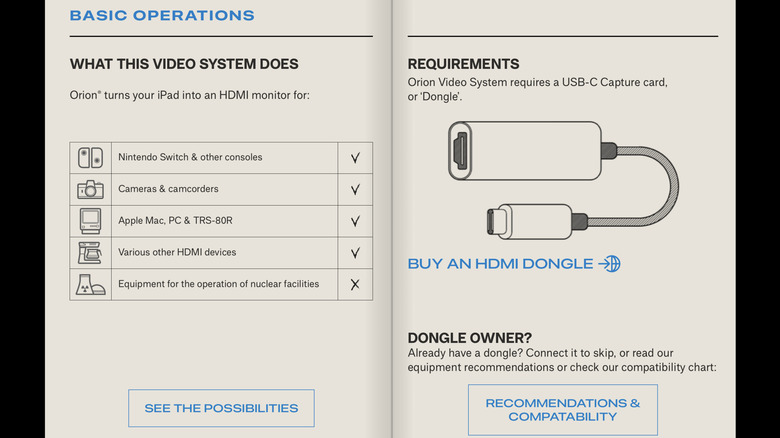
It's no secret that you can use your iPad as a second laptop screen — provided the laptop is a Mac. The iPad makes use of a feature called Sidecar to enable this, and it works wirelessly. Undoubtedly, this is an excellent feature that instantly boosts productivity when working on the go. However, what if you don't have a Mac and instead, use a Windows PC? That's where a third-party app like Orion can come in handy.
Notably, using Orion isn't as simple as wirelessly sharing the display with your computer using Sidecar. You will need additional hardware, like a USB-C capture card and an HDMI cable that connects the dongle to the laptop. Once you have all the required accessories, fire up the Orion app, and you can view your PC's screen on your iPad. While it's not as seamless, it definitely gets the job done — even with cameras and gaming consoles.
MetaGrid Pro
Irrespective of whether you're a streamer or not, the Elgato Stream Deck is a great accessory to have at your desk. It can switch between apps with the press of a button, start or stop a stream, change preset scenarios, turn on/off your camera and mic during a video call, etc. It essentially saves time by reducing the number of clicks or button presses to perform certain actions. That said, it's an expensive gadget, and everyone may not want to spend money on an accessory they may not use too often.
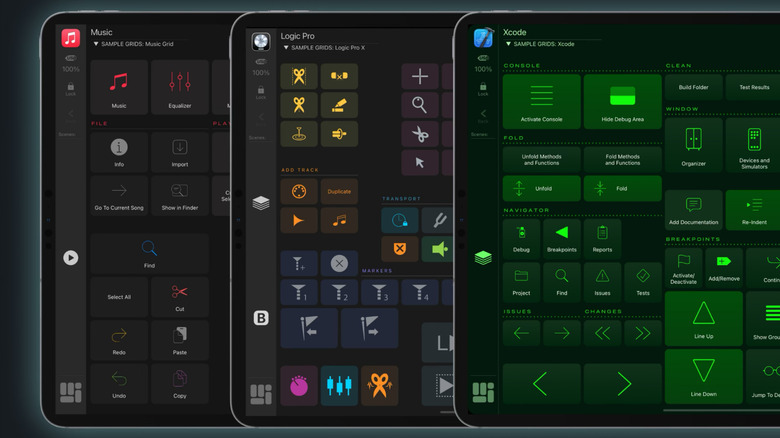
Enter — MetaGrid Pro. This is an app that transforms your iPad into a Stream Deck that's completely customizable based on your use case. When streaming music, your iPad can switch between tracks and vary volume levels. When editing videos on Final Cut Pro, the iPad will display shortcuts to cut or trim a clip, along with several other shortcuts. If you have an old iPad lying around, you can put it to use by permanently running MetaGrid Pro on it.
Ferrite Recording Studio
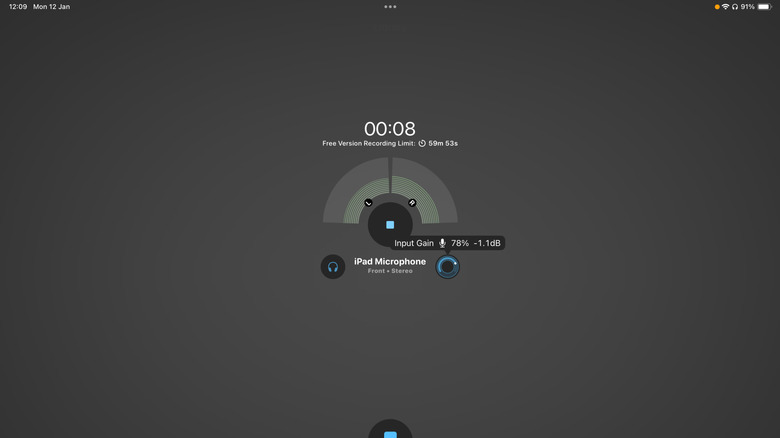
The built-in Voice Memos app on iPadOS is quite bare bones. If you barely record audio files on your iPad, you won't experience its downsides frequently. However, if you use your iPad for professional audio recording or for voice-overs when creating content, you need to install Ferrite Recording Studio. It's an extremely simple app with an elegant interface. You can either use the iPad's built-in mic to record audio or plug in your own external mics. The latter is beneficial when recording a podcast or an interview.
Once plugged in, you can view all the different input sources when recording. You also get the option to vary parameters such as input gain, mono or stereo audio, etc. The free version has a cap of 60 minutes per recording. If you're going to be using the app for longer durations at a stretch, the simple interface and controls can be worth your money.
iSH Shell
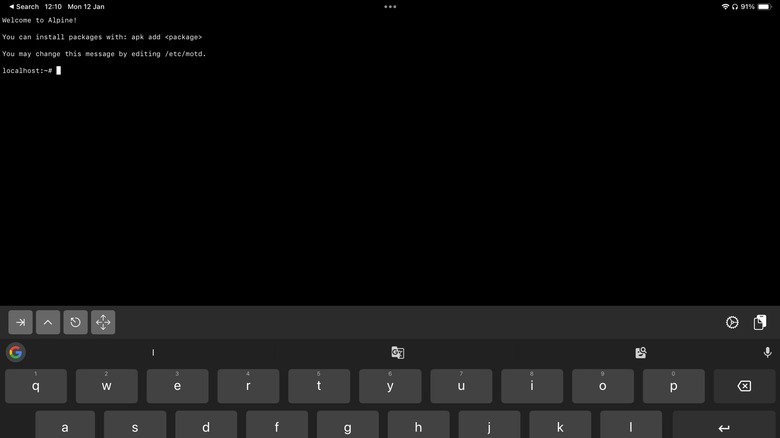
Here's yet another app for developers who use the iPad in tandem with their Mac, but carry around just their iPad occasionally when traveling. iSH Shell is a project intended to get a Linux shell running on an iPad. If you want to do some light development on your iPad without carrying around a bulky Mac, iSH Shell enables that — albeit to a certain extent. Obviously, you'll not be able to install everything that you usually can in the environment when using a Linux distro, but it's still good enough for a shell that runs on an iPad.
Apart from the limited functionality, some users mention that the app can freeze from time to time, leading to automatic crashes. Sometimes, the on-screen keyboard may stop working. Despite these issues, iSH Shell is a must-have for developers and students, since it massively improves the utility of an iPad.
Git client - Working Copy
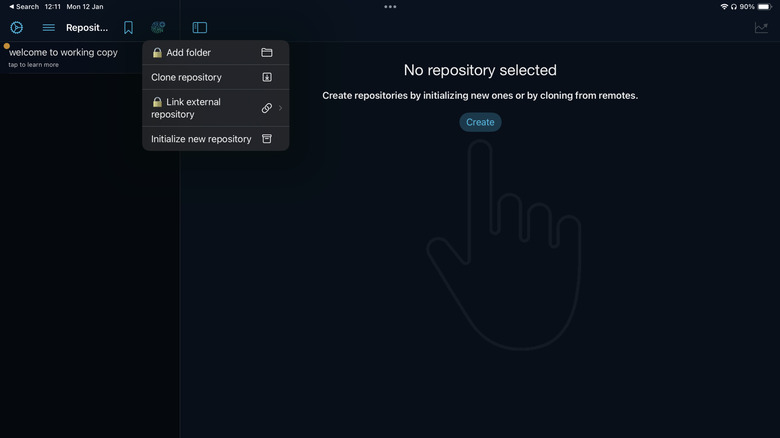
Now that you have a full-fledged text editor and a Linux shell on your iPad, it's time to clone some repositories with the Git client app. You can not only access Git repositories but also commit and clone them straight on your iPad. This is helpful if you want a local copy with commits. The files can be accessed within the app itself, so you can make whatever changes you want to and then push — all in one place.
The Working Copy app also has a built-in editor with syntax recognition, so it's easy to write code on the move. Moreover, it also makes it easy to detect errors or search for specific sections. The idea is that Working Copy lets you make small changes that don't require hardcore programming on a serious machine. It's a reliable tool that makes developers' lives easier when commuting or traveling.
AnyDesk
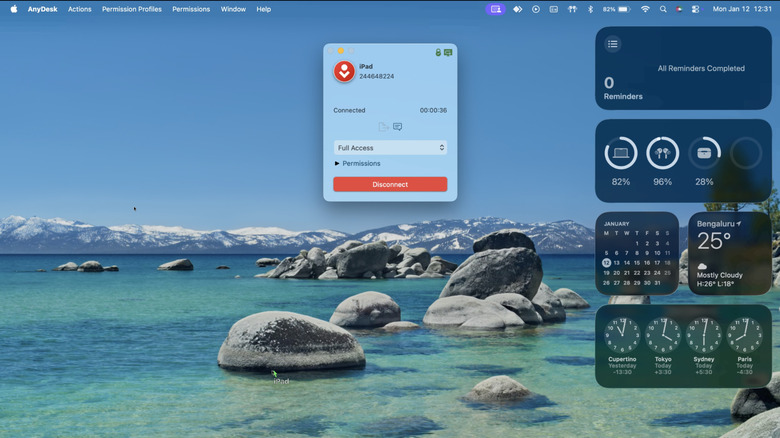
I often take short trips for work, and I don't like carrying my MacBook in my backpack, since it's quite heavy. Instead, I carry my iPad, since it can do most of the work I do on my Mac, i.e., writing and editing documents, editing photos, browsing the web, watching content, etc. That said, there are certain tasks for which I need my Mac, simply because iPadOS isn't capable enough, or a piece of software isn't present on it. This is why I always use AnyDesk when traveling.
I launch the app on my Mac and ensure it's plugged into a charger and never goes to sleep. Then, I launch an instance on my iPad, through which I can access my Mac remotely. So, on occasions where you may want to access your main computer or the files stored on it from your iPad, AnyDesk can be a lifesaver.
Yoink
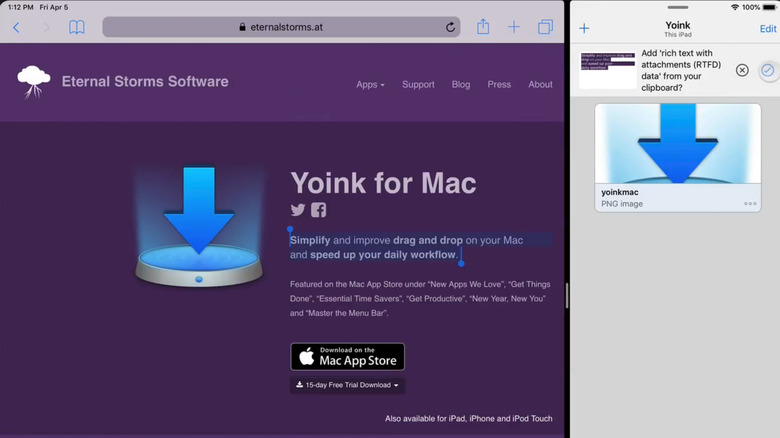
iPadOS now allows you to drag and drop files between apps for better multitasking. However, it often fails to work for certain types of files or apps, making it difficult to import media. Yoink aims to fix that by adding a pane to your iPad where you can drag and drop files to temporarily store them. Let's say you see an image while browsing the web that you want to add to your document. All you have to do is drag and drop the image into the Yoink window.
Then, open the text editor of your choice, drag the image from Yoink, and drop it into the editor. The best part is that Yoink lets you store multiple elements, so you can drag multiple images, any accompanying attributes, text chunks, or files into it. If you often import media or copy/paste items on your iPad, Yoink is a must-have.
How we picked the apps
All the apps in this list have been thoroughly tested and picked based on the utility they add when using the iPad every single day. These apps have saved me tons of time and effort regularly, while making the iPad a more functional device. I've tried to include apps for all types of users, from students to creatives to working professionals.